Recognizing PCIe Oculink Adaptor Card

Hi, I have plugged the Oculink PCIe card I got with my kickstarter bundle. I have executed a lspci command, which gives the output below. None seem to mention Oculink. Do I need to install any drivers or is it the PCI Bridge entry?

00:02.0 VGA compatible controller: Intel Corporation Alder Lake-N [Intel Graphics]
00:0a.0 Signal processing controller: Intel Corporation Platform Monitoring Technology (rev 01)
00:12.0 Serial controller: Intel Corporation Device 54fc
00:14.0 USB controller: Intel Corporation Alder Lake-N PCH USB 3.2 xHCI Host Controller
00:14.2 RAM memory: Intel Corporation Alder Lake-N PCH Shared SRAM
00:16.0 Communication controller: Intel Corporation Alder Lake-N PCH HECI Controller
00:17.0 SATA controller: Intel Corporation Alder Lake-N SATA AHCI Controller
00:1a.0 SD Host controller: Intel Corporation Device 54c4
00:1c.0 PCI bridge: Intel Corporation Device 54bb
00:1c.6 PCI bridge: Intel Corporation Device 54be
00:1f.0 ISA bridge: Intel Corporation Alder Lake-N PCH eSPI Controller
00:1f.3 Multimedia audio controller: Intel Corporation Alder Lake-N PCH High Definition Audio Controller
00:1f.4 SMBus: Intel Corporation Alder Lake-N SMBus
00:1f.5 Serial bus controller: Intel Corporation Alder Lake-N SPI (flash) Controller
01:00.0 Ethernet controller: Intel Corporation Ethernet Controller I226-V (rev 04)
02:00.0 Ethernet controller: Intel Corporation Ethernet Controller I226-V (rev 04)

Many Thanks.

Gavin Baker.
Oculink won’t show in lspci, it’s just a PCIe extension (no controller, no drivers needed).

What you’re seeing is correct:

  • 00:1c.x entries = PCIe bridges / root ports
  • The Oculink port is wired to one of these

You’ll only see a device when something is connected via Oculink (GPU, NVMe, NIC, etc.)


How to map which bridge is your Oculink

  1. Show PCIe tree:
lspci -tv
  1. Identify usage:
  • 01:00.0, 02:00.0 = your NICs
  • Their parent bridges (00:1c.x) are already in use

Any unused 1c.x = likely Oculink


Confirm (proper way)

  1. Check current:
lspci
  1. Plug device into Oculink
  2. Check again:
lspci
  1. Map it:
lspci -tv

You’ll see:

1c.X-[03]----00.0 <your device>

That 1c.X = your Oculink bridge


Optional (verify link)

lspci -vv -s 00:1c.X

Check:

  • LnkSta > speed (Gen3/Gen4)
  • Width > lanes (x2/x4)

Bottom line:
Nothing showing = normal.
Device appears only when connected.

Thank you for your reply.

I am looking at connecting the Oculink to the GPU docking station I also got in the Kickstarter bundle, into which a RTX 5060 graphics card will be plugged.

Nice, that’s exactly what the Oculink port is designed for.

Once you connect the dock and power it up, the GPU should just show up in lspci, no drivers needed for the Oculink itself.

Just make sure the dock has its own power, the GPU is seated properly, and the cable is firmly clicked in (they can be a bit sensitive).

If everything’s right, you’ll see the NVIDIA card straight away. If not, it’s almost always power or connection rather than software.

So I connected it all up and nvidia-smi reported no devices found.

So I installed the drivers as described in Tutorial: How to use RTX 50XX Series GPU on ZimaOS? .

Now I get brief yellow and then green led activity and then nothing. My ZimaBoard2 does not now boot.

Any help greatly received.

OK,disconnected PCIe card from ZimaBoard2 and finally got back to where I started from.

Tomorrow I try to reconnect graphics card again and see if I can get it to work.

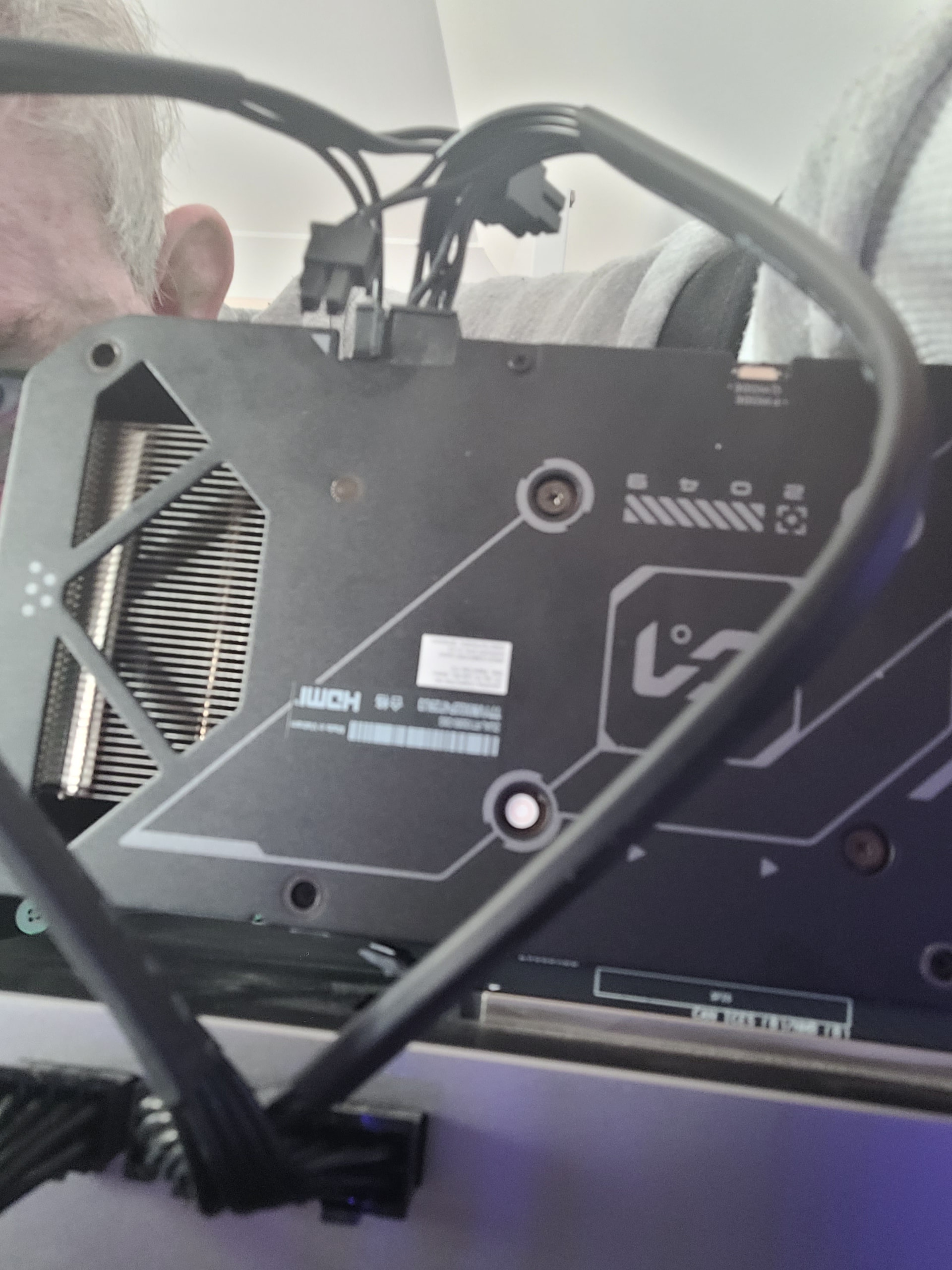
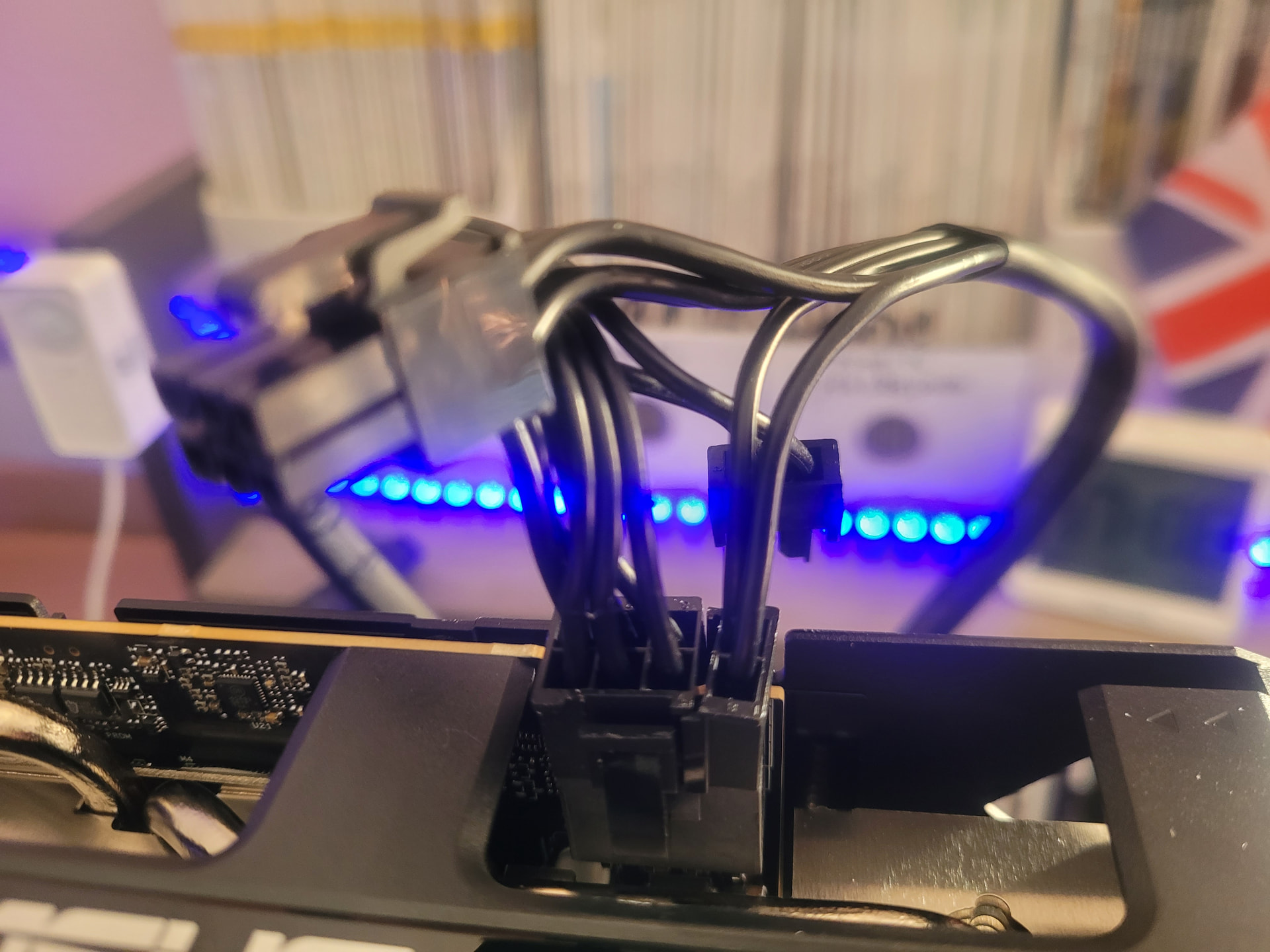
How is two pictures as to how I connected the power, is this correct?

A little update,the GPU docking section has 3 PCIe power leads, each one is terminated in a 6 pin connector and a 2 pin connector.I have found that you can slide the 2 pin connector onto the 6 pin connector to make an 8 pin connector which I have plugged into the RTX 5060 graphics card.

So I wired it all up again PCI express to Oculink adapter to GPU docking station. Then powered on after a while I had a solid green light and a blinking orange light at the Zimaboard Ethernet connector as normal.

The only problem was that I could not bring up the web interface for the ZimaBoard2.

Are the fans supposed to be always on, even when the graphics card is in idle mode?

Many thanks for any help.

Gavin Baker.

That actually looks wired up correctly, using the 6+2 as an 8-pin for the GPU is exactly how it’s meant to be done.

From what you’re describing, the fans running all the time is pretty normal on a lot of cards, and the Ethernet lights on the ZimaBoard sound normal too.

The part that stands out is losing access to the web interface after you power the dock. That usually isn’t a config issue, it’s more like the board isn’t booting cleanly once the GPU is connected.

In these setups it’s almost always one of three things: the dock power not being stable, the Oculink cable not fully seated, or the GPU drawing more than expected and causing the system to hang.

What I’d do is just boot the ZimaBoard on its own first and make sure the web UI comes up fine, then reconnect the dock and try again. If it only breaks when the GPU is plugged in, you’ve pretty much confirmed it’s power or the PCIe link rather than anything you’ve wired wrong.

So overall, your wiring looks right, this feels like a stability issue, not a cabling mistake.

Thank you for your reply.

So I unplugged the Oculink PCIe adapter card and booted the ZimaBoard2 as normal,and the Web UI comes up.

I then plugged in the Oculink PCIe adapter card, and the GPU fans turned on even before I switched the GPU dock on.

I have pasted the command output below. Still no mention of Nvidia in the lspci listing? It complains about not having the NVIDIA drivers. Where do I get these from and how do I install them?

i5@pi5backupserver:~ $ ssh admin@192.168.0.105
admin@192.168.0.105’s password:


(__ )( )( / ) / \ / \ / )
/ / )( / / / \ ( O )_
**
()(__)_)(/_/_/ _/ (___/

─── Welcome to Zima OS, admin ───
Date: Sunday, March 22, 2026 | Uptime: up 8 hours, 28 minutes

admin@ZimaBoard2:~ âžś $ lspci
00:00.0 Host bridge: Intel Corporation Device 461c
00:02.0 VGA compatible controller: Intel Corporation Alder Lake-N [Intel Graphics]
00:0a.0 Signal processing controller: Intel Corporation Platform Monitoring Technology (rev 01)
00:12.0 Serial controller: Intel Corporation Device 54fc
00:14.0 USB controller: Intel Corporation Alder Lake-N PCH USB 3.2 xHCI Host Controller
00:14.2 RAM memory: Intel Corporation Alder Lake-N PCH Shared SRAM
00:16.0 Communication controller: Intel Corporation Alder Lake-N PCH HECI Controller
00:17.0 SATA controller: Intel Corporation Alder Lake-N SATA AHCI Controller
00:1a.0 SD Host controller: Intel Corporation Device 54c4
00:1c.0 PCI bridge: Intel Corporation Device 54bb
00:1c.6 PCI bridge: Intel Corporation Device 54be
00:1f.0 ISA bridge: Intel Corporation Alder Lake-N PCH eSPI Controller
00:1f.3 Multimedia audio controller: Intel Corporation Alder Lake-N PCH High Definition Audio Controller
00:1f.4 SMBus: Intel Corporation Alder Lake-N SMBus
00:1f.5 Serial bus controller: Intel Corporation Alder Lake-N SPI (flash) Controller
01:00.0 Ethernet controller: Intel Corporation Ethernet Controller I226-V (rev 04)
02:00.0 Ethernet controller: Intel Corporation Ethernet Controller I226-V (rev 04)
admin@ZimaBoard2:~ âžś $ nvidia-smi
NVIDIA-SMI has failed because it couldn’t communicate with the NVIDIA driver. Make sure that the latest NVIDIA driver is installed and running.

admin@ZimaBoard2:~ âžś $ lspci | grep nvidia
admin@ZimaBoard2:~ âžś $ nvidia-smi
NVIDIA-SMI has failed because it couldn’t communicate with the NVIDIA driver. Make sure that the latest NVIDIA driver is installed and running.

admin@ZimaBoard2:~ âžś $

Many thanks for any help.

Gavin Baker.

Good test, that actually narrows it down nicely.

The main thing here is the GPU still isn’t showing in lspci, which means the system isn’t detecting it at all on the PCIe level. So at this stage it’s not a driver issue, drivers only come into play once the GPU is visible there.

The fact the fans spin up tells us it’s getting some power, but the link between the ZimaBoard and the dock isn’t establishing properly.

In setups like this it’s usually something simple, either the Oculink cable isn’t seated perfectly (they’re very sensitive), the dock isn’t fully powered at the right time, or the PCIe link just isn’t training during boot.

I’d try powering the dock on first, then boot the ZimaBoard, and also reseat the Oculink cable on both ends just to be sure.

Once the GPU shows up in lspci, then we can worry about NVIDIA drivers, but until then, it’s definitely a hardware/link issue rather than software.

Thank you for your reply.

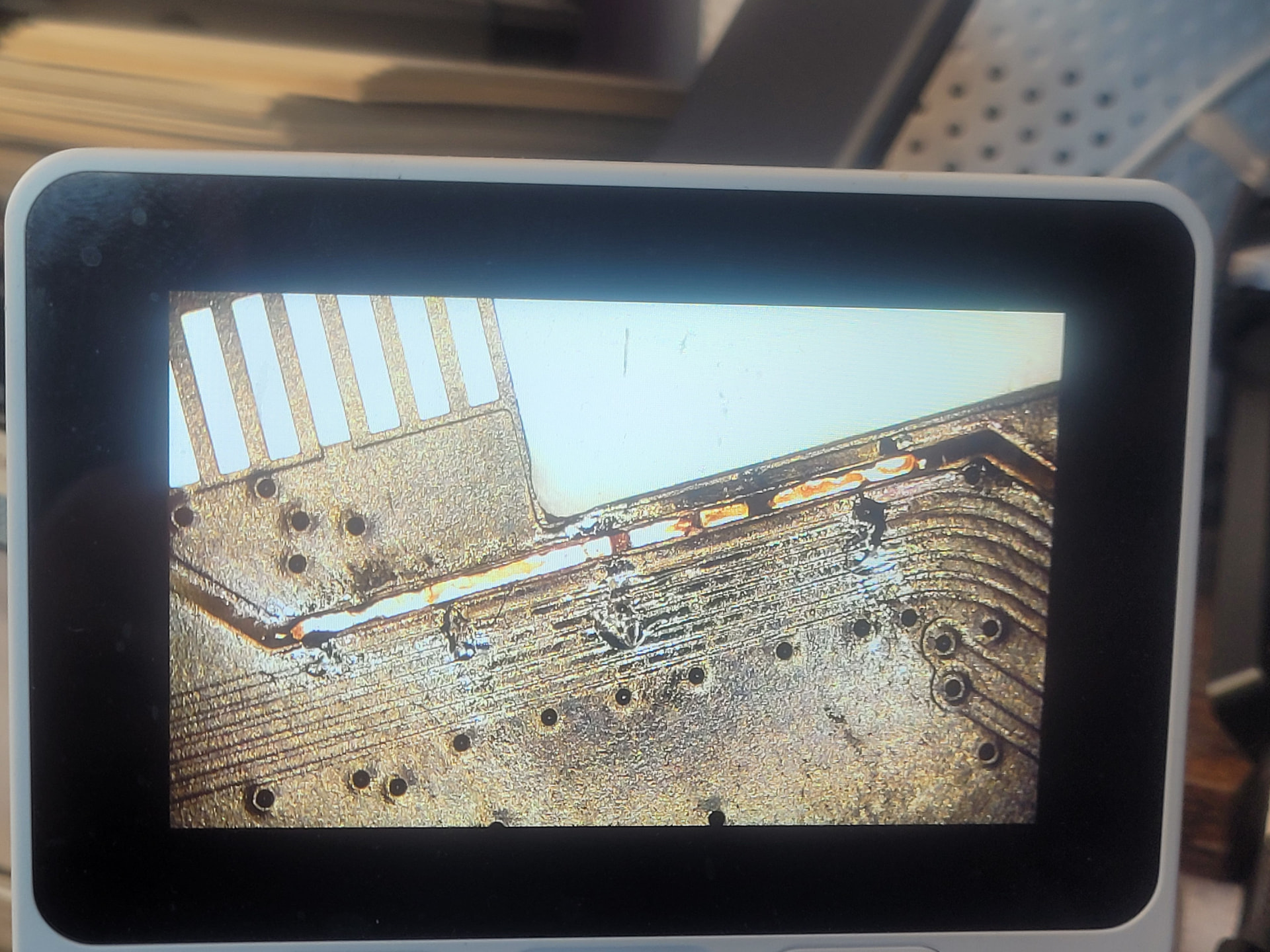
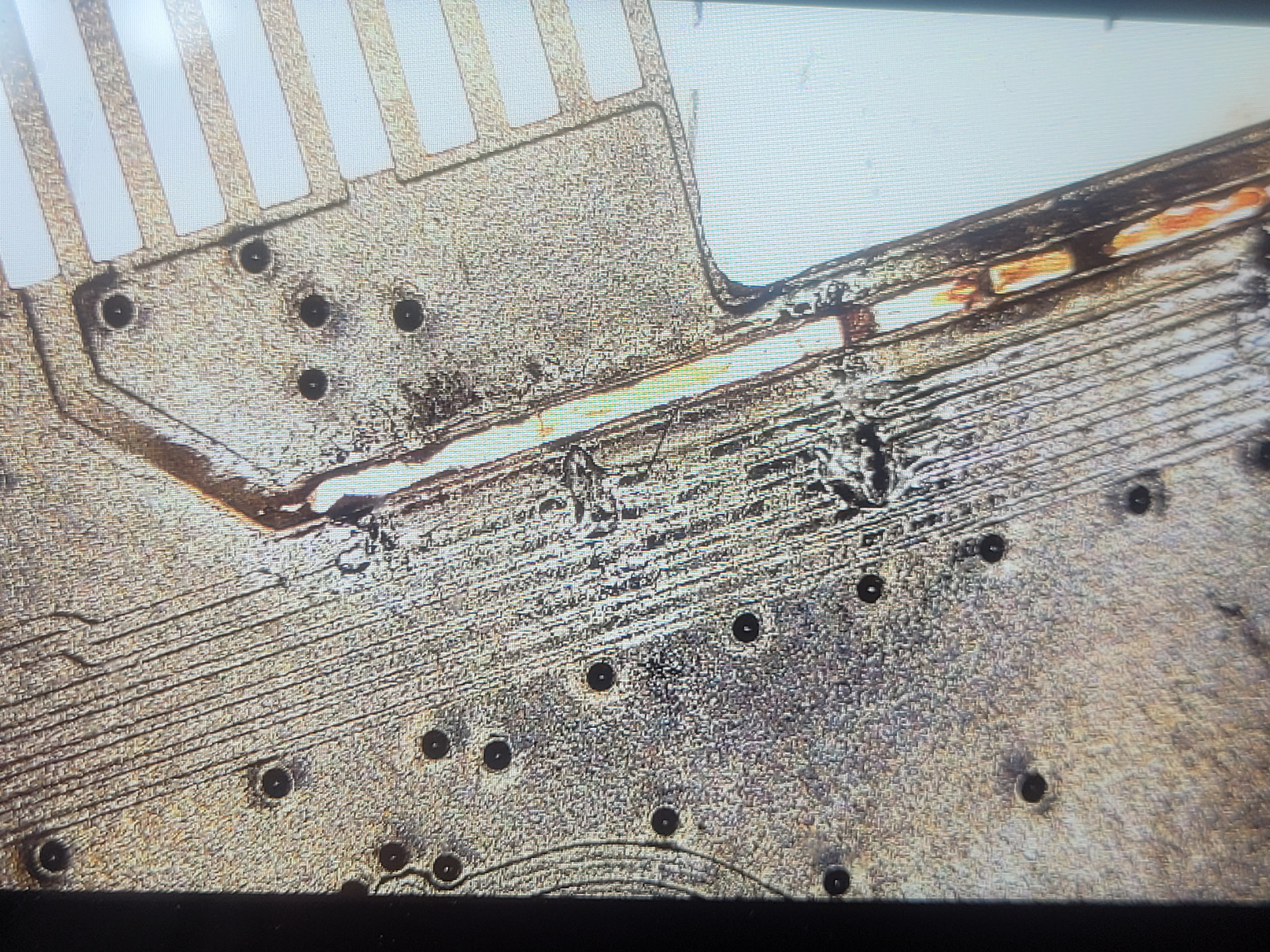
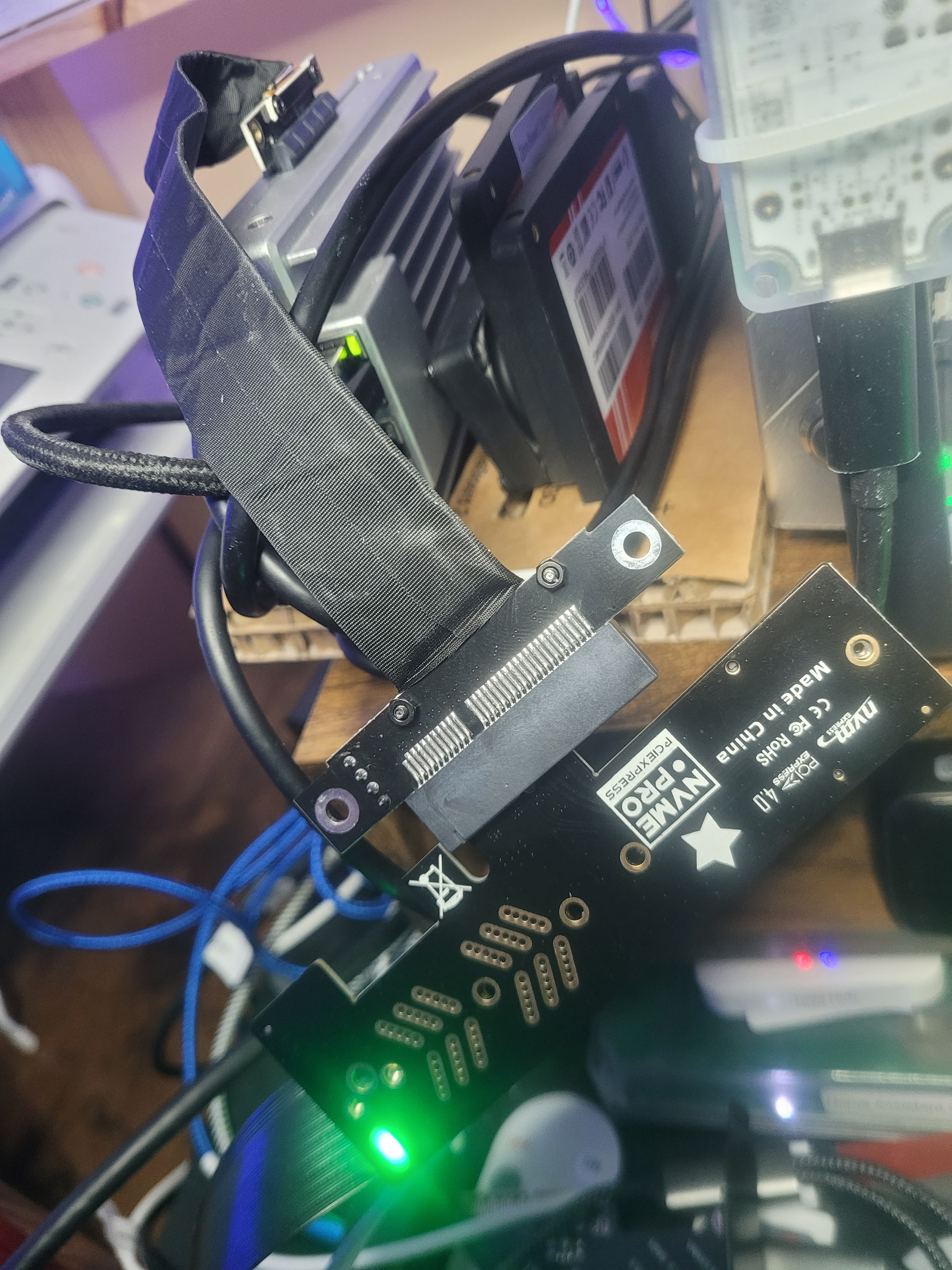
I had a closer look at the PCIe x4 to Oculink adapter card and found this.

Looks like breaks through the power and data PCB tracks. I have put another adapter board on order.

Many Thanks.

Gavin Baker.

Ahh yeah, that explains it straight away.

Looking at those photos, that adapter is definitely damaged. Those traces are clearly broken right across the PCB, so the PCIe signals would never make it through.

That lines up perfectly with what you were seeing, GPU getting power, fans spinning, but nothing showing in lspci and the system struggling when it’s connected.

So you’ve pretty much found the root cause there.

Good move ordering a new adapter. Once that’s in, I’d expect it to come up properly and the GPU should show straight away. Then you can look at drivers after that if needed.

At least you know now it wasn’t your wiring, just a bad board.

So installed new PCIe to Oculink adapter. Connected all up, power on, Ethernet LEDs show normal operation (green solid and orange flashing) but no web UI runs up.

If I power down and remove graphics card from docking station and then power up, web UI loads as normal.

tried several times to reseal the graphics card but with no luck.

One thing i plan to try is to get a M.2 drive to USB caddy and then into that plug a M.2 to Oculink adapter and see if it will work via USB on my windows laptop.

Many Thanks.

Gavin Baker.

Yeah that’s a solid update, and it’s starting to narrow things down pretty clearly.

The key bit is that the ZimaBoard boots fine without the GPU, but as soon as the GPU is in the dock the web UI doesn’t come up. That usually means the PCIe link isn’t coming up properly when the card is present.

Since you’ve already swapped the adapter, I’d be looking more at the dock, the GPU seating, or power to the GPU. Fans spinning but the system hanging is pretty typical when a PCIe device fails to initialise.

Also just to save you some time, that USB idea won’t work the way it seems. USB can’t carry PCIe like that, so the GPU won’t show up through a USB caddy setup.

If you can, the cleanest next step would be to try that GPU in a normal PC, or try another GPU in the dock. That’ll tell you pretty quickly which side the problem is on.

At this point you’re past the adapter, it’s likely down to the GPU, the dock, or power

Thank yo for your reply.

One combination I have tried is to connect the Oculink lead from the GPU docking station to an Oculink to M.2 drive adapter and then into a M.2 to PCIe adapter card and into the ZimaBoard2.

Again as soon as I put the Graphic Card in the docking station and then rebooted the ZimaBoard2, it refused to bring up the web interface.

Although a green light was on the M.2. to PCIe adapter card and a port scan seem to indicate it could ping the ZimaBoard2 but not bring up the web interface.

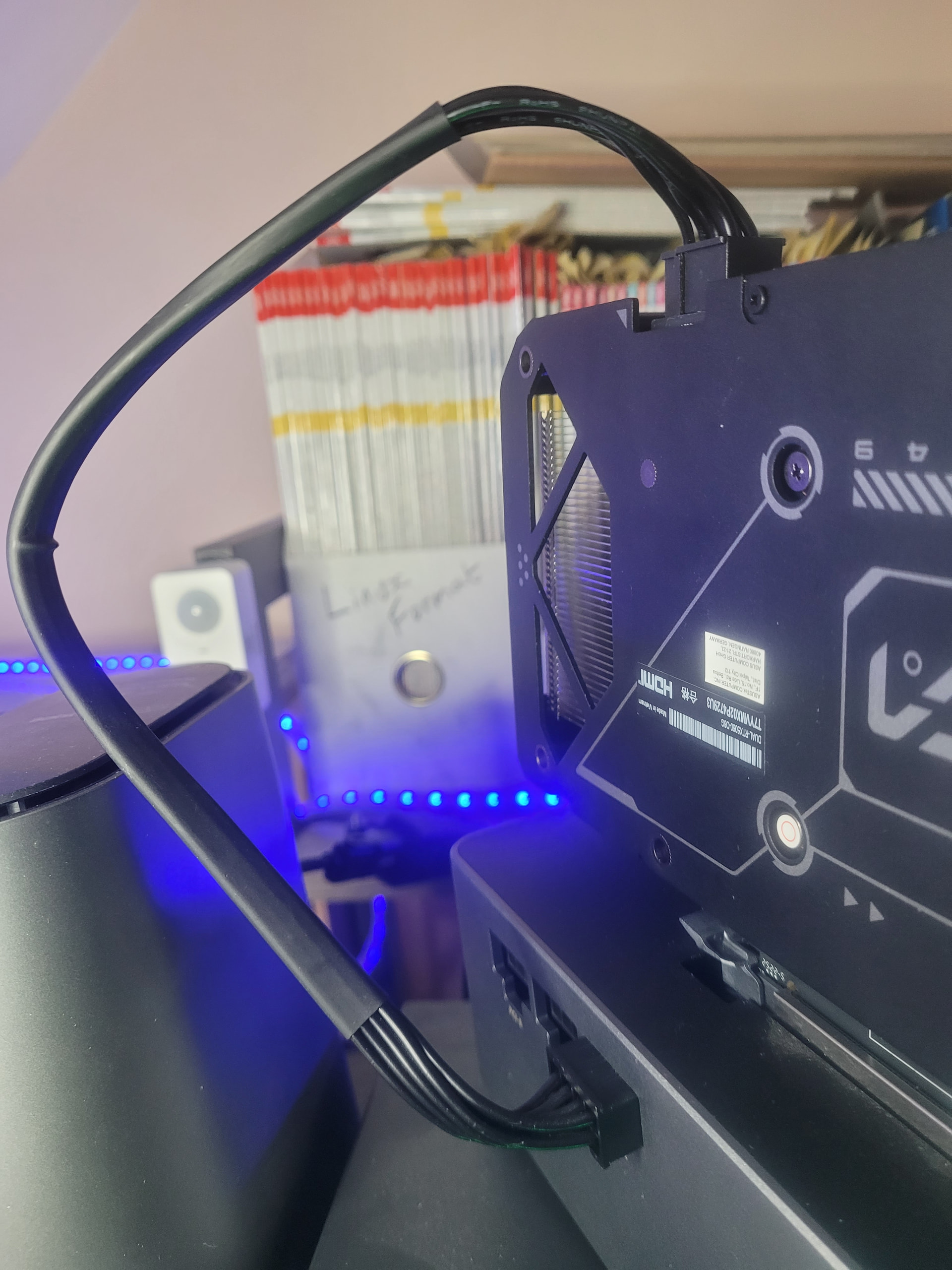
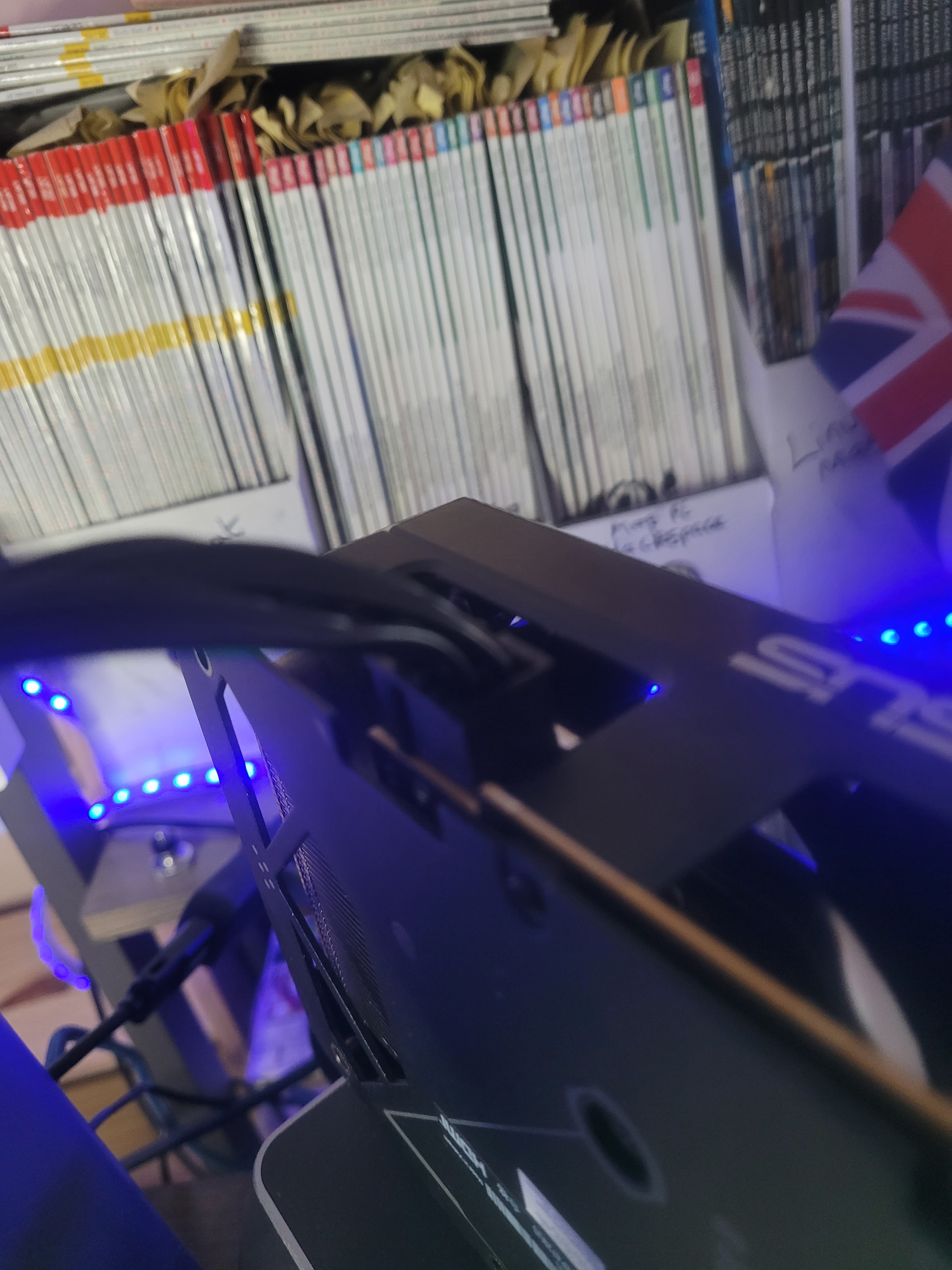
Below is some photos of my setup, could you please double check I have connected my power connector right. Also I had run the code below in a previous test, maybe that has caused a problem. If so how can I rectify it.

cd /var/lib/extensions/
wget ``https://github.com/jerrykuku/staff/releases/download/v0.1.3/nvidia-open-kernel-580.105.08-linux-6.12.25.raw`` -O nvidia-open-kernel-580.105.08-linux-6.12.25.raw
systemd-sysext refresh
install-nvidia-kernel-open

A Suggested Test

I have an PCIe to USB adapter card, that plugged into the ZimaBoard2 does show up in the lspci listing.Is it possible to plug this card into the GPU docking station and test the Docking station and connection to the ZimaBoard2. If that works then the Graphics Card is at fault.

OR I get a new GPU docking station - maybe Minisforum DEG1 with a 650W switching power supply?

Many Thanks for all your help and advice,

Gavin Baker.

So extra test results,

  1. Plug USB key into ZimaBoard2 USB socket, after a couple of seconds Web UI says found new storage device.
  2. Next plug an PCIe to USB adapter card, into the GPU docking station and it appears in the lspci command output. Plug an USB key into the USB adapter card and it just flashes as if it is being read but no storage found pops up in the Web UI.
  3. Plug USB to PCIe adapter card directly into the PCIe slot,I got the same results as test 2.

Does the ZimaBoard2 treat an USB key plugged into an actual USB socket different to one plugged into the USB to PCIe adapter card?

If a USB key effictly pugged into the PCIe slot is treated as a different device type, /dev/???, sorry just getting used to Linux and hence I can access a directory listing of the USB key by doing an ls /dev/???, then maybe test 2 works.

This means the whole setup, including the GPU docking station works and the fault is on the Graphics card itself. Unfortunately at the momemnt I don’t have a second computer t test the Graphics card in.

Many Thanks.

Gavin Baker.

Yeah this is actually really helpful, you’ve done some solid testing there.

From what you’re seeing, it looks like the link itself can work. The PCIe > USB adapter showing in lspci through the dock is a big clue that:

  • the Oculink cable is fine
  • the dock is talking to the ZimaBoard
  • the new adapter is doing its job

So that pretty much shifts the focus onto the GPU side now.

The behaviour you’re getting with the GPU, fans spin, but the system won’t fully come up, is typical of a card that isn’t initialising properly on the PCIe bus. That can be power related, or the card itself.

Your power wiring from the photos looks fine now, the 6+2 into the GPU is correct, so nothing obvious wrong there.

The USB behaviour you’re seeing is also normal. A USB stick through a PCIe USB controller won’t show up the same way as the onboard USB ports in the Zima UI. It’ll still exist in Linux, just not picked up by the CasaOS interface automatically.

So putting it all together, your testing is actually pointing quite cleanly to:
the GPU (or its power draw) being the issue, not the dock or adapters

Before replacing anything, if you can:

  • try that GPU in another PC, or
  • try a different GPU in your dock

That’ll confirm it straight away.

The NVIDIA driver install you ran won’t affect detection at this level, so you can ignore that for now, the card still needs to show in lspci first.

At this stage though, you’ve ruled out most of the chain, and you’re very close to the answer.

Thank you for your reply,

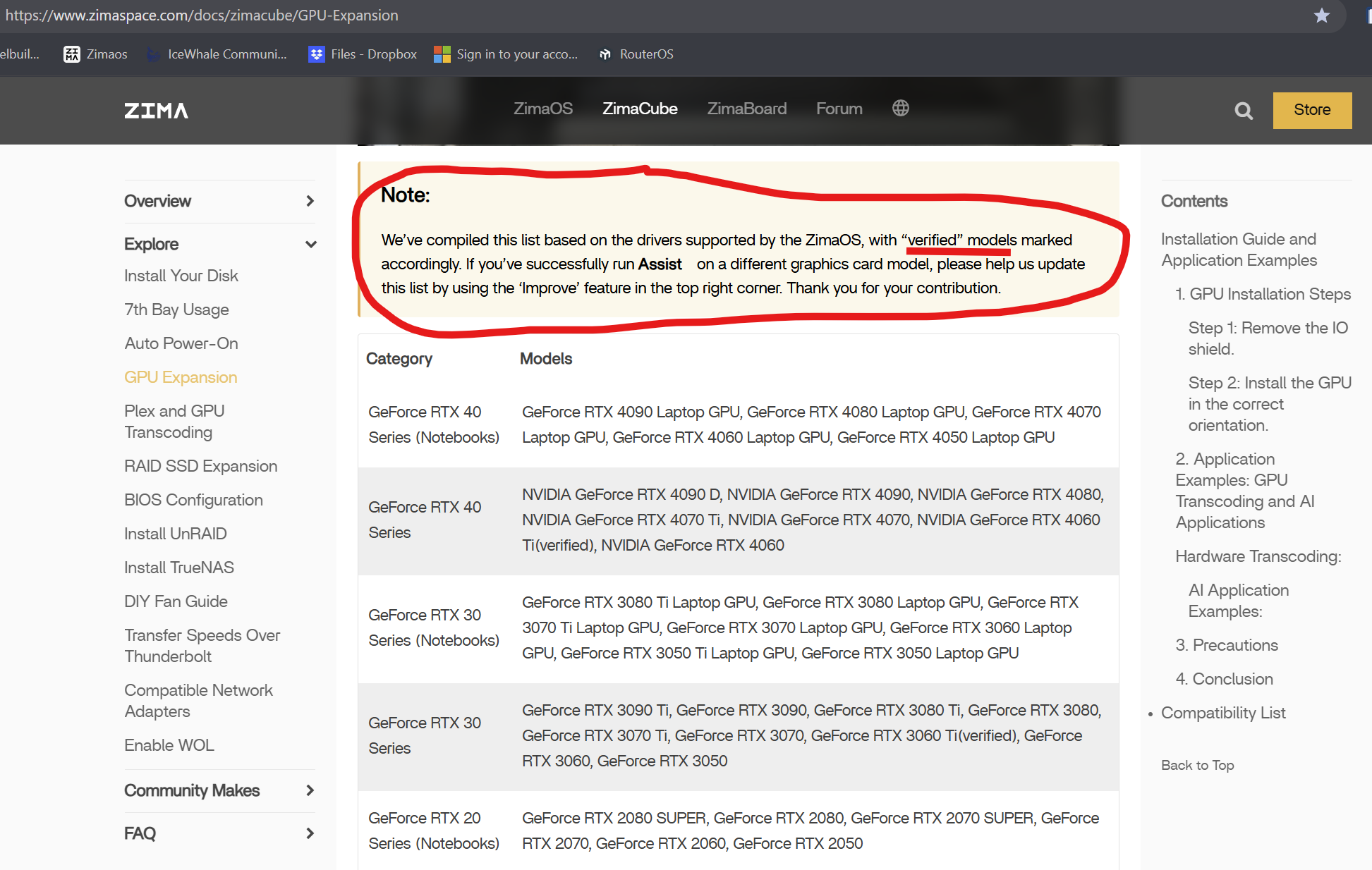
Are all NVIDIA graphics cards compatible with the ZimaBoard2? For example the GeForce GTX 750 range?

Many Thanks.

Gavin Baker.

Good question

It’s not that all NVIDIA GPUs are officially supported, it’s more that Oculink is just PCIe, so most cards can work, but it depends on power, link stability, and drivers.

From the Zima docs, they mainly focus on newer RTX cards, but that doesn’t mean older cards won’t work.

Something like a GTX 750 is actually a good choice for testing because it’s:

  • low power
  • less demanding on the PCIe link
  • generally easier to initialise

So in theory, yes, a GTX 750 should work fine in a setup like this.

That said, even with a compatible GPU, it still needs to:

  • show up in lspci first
  • have stable power
  • and a clean PCIe connection

In your case, since the GPU isn’t appearing at all, the issue is still at the hardware/link level rather than compatibility or drivers.

Using a lower power card like the GTX 750 is a good next step, it’ll help confirm things very quickly.