Struggling with Backups

I installed ZimaOS on an Odroid H3+ for testing.

First at all, i really like ZimaOS. That’s the reason why i ordered a Zimaboard 2 that i expect to be delivered within the next days. (maybe it will make it as a christmas present from me for me)

I ordered the ZimaBoard 2, although i knew it has some hardware restrictions, i don’t like. For example the PCIe x4 interface. My Tip for the ZimaBoard 3: Please make it at least a PCIe x8 interface, even better would be a PCIe x16 interface, as with the PCIe x4 you are not able to install a dual NVME-Adapter. At least not at full speed for both SSD’s.

But right now i am struggling with an other thing and that is a very serious problem in my opinion:

Backups

When my ZimaBoard arrives, i would like to migrate my installation from the Odroid H3+ to the Zimaboard.

Right now, i have no clue how to do that, as the Backup solutions in ZimaOS are, to put it mildly, a disaster:

  1. There is no in ZimaOS integrated solution to backup the system disk at all, let alone a easy way to recover the system disk. So i have no clue how to migrate my system to the eMMC-Card on Zimaboard.
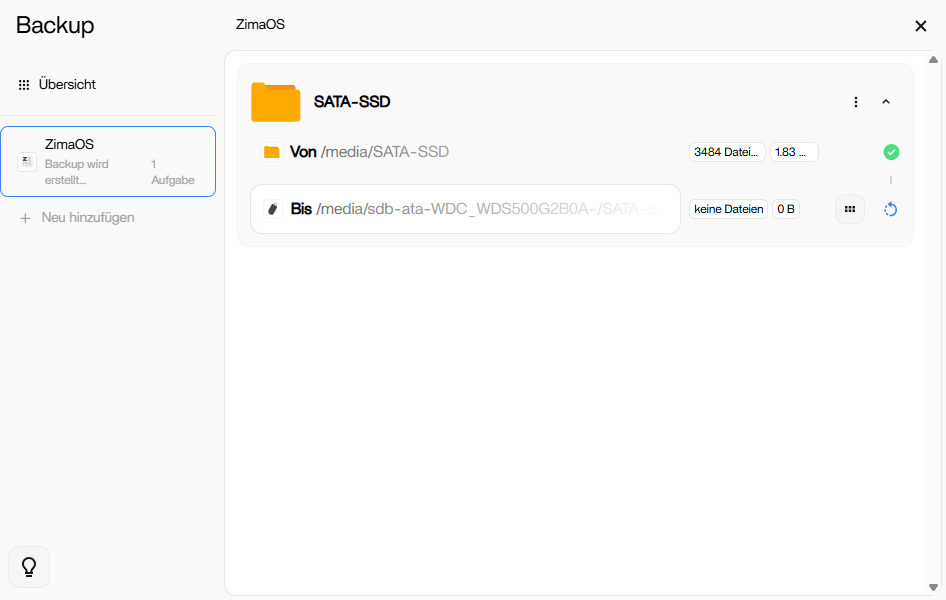
  2. The integrated Backup for DATA-Disk does not work. When i setup a backup of the DATA-Disk to a connected USB-Disk, the backup begins to run, it creates the folders, but no files get backupped.

The backup solution is, like said above a disaster. ZimaOS ist for HomeLabs. I want it to run on a cheap, power efficient hardware. I don’t want to setup RAID’s (especcially with the above mentioned hardware restrictions) and even if i would setup a RAID, a RAID is not a replacement for backups.

Reliable backups, both for the system partition and the data partition, are essential. Why does someone use a solution like ZimaOS. Well, i do it, because i don’t have the time, and i don’t want to care about the system, updates, and so on. I want an easy to use GUI, where i can install, delete, manage my Apps AND Where i can setup, check and manage my backups. If that’s not possible, I might as well set up my own system.

I need to know, that in case of a hardware failure or what ever, i can get my system running again, without the loss of data and in an easy, fast and reliable way.

As the only way, or at least the easiest and fastest way, to meet the 3-2-1-Backup rule, is to have a backup stored in a cloud, it is absolutely essential, that the integrated backup solution offers encryption. One main reason for a HomeServer like ZimaOS is privacy. But when i am not able to encrypt my cloud backup, privacy is gone. And yes, there might be apps i can install to do that, but in my opinion, a reliable, secure and easy to use backup solution (incl. recovery solution) is a crucial part of the system. A system, that does not offer such a solution, is incomplete.

ZimaOS does not meet this essential requirement at this time in my opinion.

Please see this as constructive criticism and not as a complain.
I believe it’s great to hear that you enjoyed testing ZimaOS on the Odroid H3+ and decided to move forward with a ZimaBoard 2. That already says a lot about the experience, and I think it will make a fantastic Christmas present to yourself.

Regarding hardware choices, I believe your feedback on PCIe bandwidth is fair and well intentioned. ZimaBoard clearly prioritizes power efficiency, compactness, and stability, and within those goals it still offers a lot of flexibility. I believe future generations will naturally continue to evolve based on feedback like yours.

On the backup and migration topic, I believe the key point is understanding how ZimaOS is designed to handle system portability.

System disk and migration
I believe ZimaOS intentionally treats the system disk as lightweight and easily replaceable. Rather than cloning or migrating the OS itself, the recommended approach is to install ZimaOS fresh on the ZimaBoard’s eMMC and then restore your DATA and app configuration. This keeps migrations simple, avoids hardware-specific issues, and makes recovery fast and predictable if hardware ever changes.

In practice, this means you are never locked into a single device. A clean reinstall plus restored DATA gets you back up and running quickly, which is especially valuable for home lab environments.

DATA disk backups appearing to copy no files
I believe what you’re seeing with the DATA backup creating folders first is part of the normal initialization process. The first run prepares the directory structure and permissions, and file synchronization happens on a subsequent full run or scheduled execution.

I suggest running the backup task manually once more and letting it complete fully, then checking file counts on the destination disk. In many cases, users find the data is copied as expected once the initial setup phase is complete.

RAID, efficiency, and home lab goals
I believe you are absolutely right that RAID is not a backup, and I also believe ZimaOS works very well without RAID. A single DATA disk combined with an external USB backup disk fits perfectly with the goals of low power usage, low cost, and simplicity.

I suggest sticking with a clean setup:

  • One DATA disk for active use
  • One USB disk for backups
  • Optional cloud backup for off-site protection

This approach aligns well with the home lab philosophy and keeps management overhead low.

Encryption, privacy, and 3-2-1 backups
I believe privacy is one of the main reasons many people choose ZimaOS, and I agree that encryption is essential for cloud backups. While ZimaOS focuses on providing a simple and stable foundation, it also allows users to layer encrypted backup tools on top when needed, without sacrificing ease of use.

I suggest thinking of ZimaOS as the solid base that handles apps, storage, and daily operations, while more advanced backup workflows can be added as needed depending on personal requirements.

Overall, I believe your expectations are very reasonable and align well with what ZimaOS aims to deliver: a clean, efficient, and easy-to-manage home server platform. With a fresh install on the ZimaBoard and verified DATA backups, you should have a reliable, private, and low-maintenance setup that fits your goals very well.

Thank you for sharing your experience in such a constructive way.

1 Like

I wonder if i have a backup of my data-partition and setup an new ZimaOS system, would it be enough to just add the data-partition and all settings regarding the apps would recover if i just recover the data-partition? Or would i have to “reinstall” the apps the apps first?

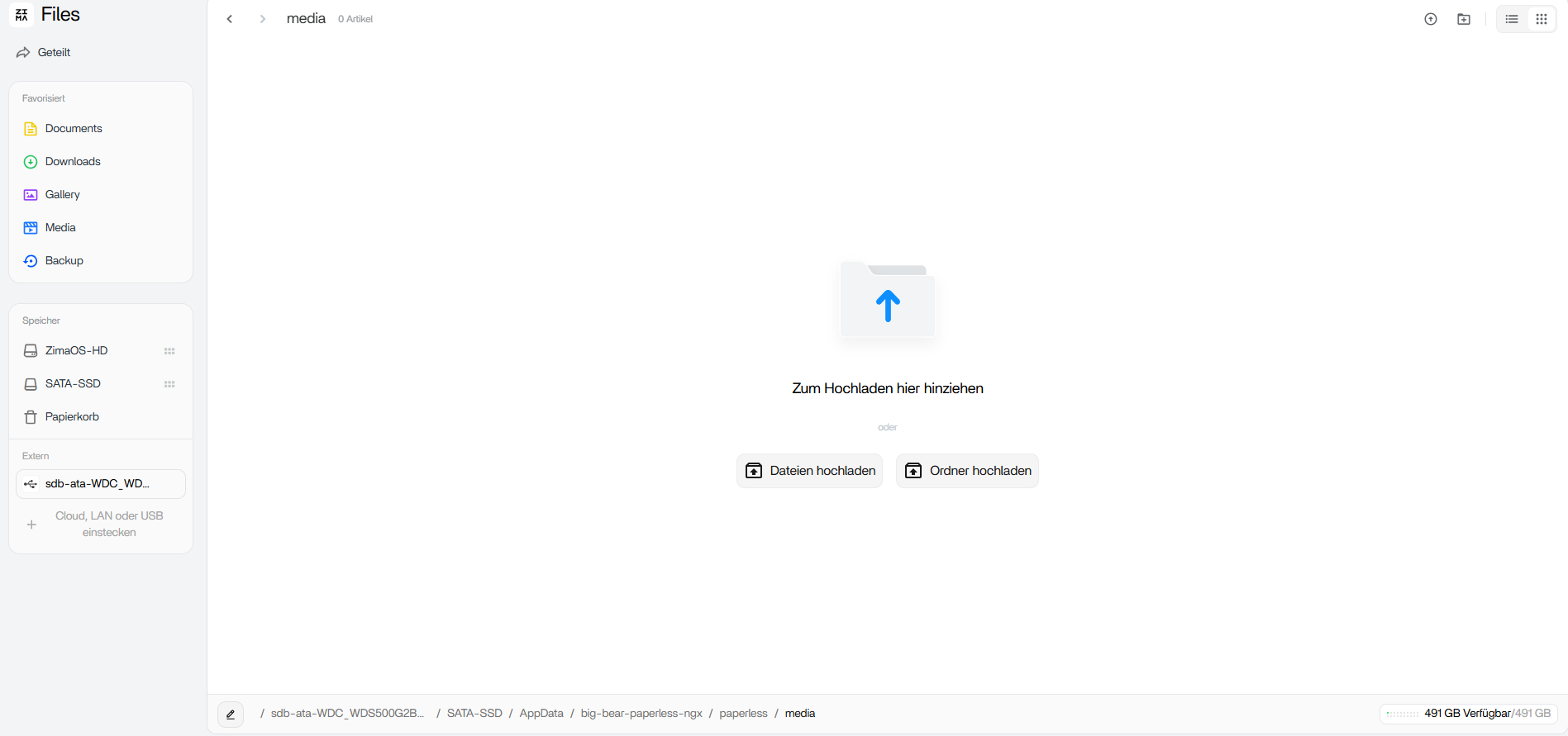
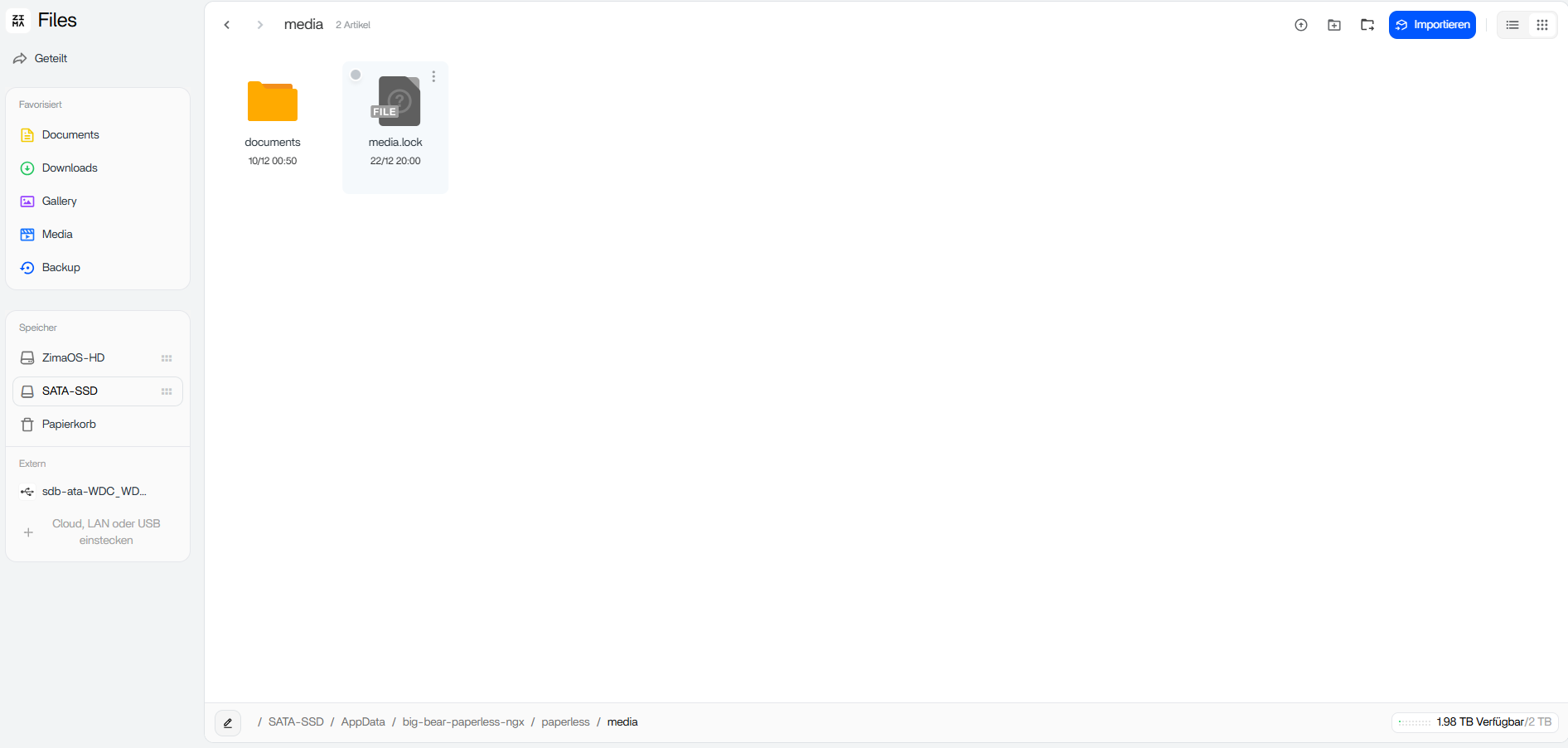
Regarding the backup of data disk. I setup the backup several times. Last time was about 24 hours ago and there are still no files backupped yet.

That’s what the backup window looks like right now (backup “running” since about 24 hours):

And in the files app, i can see, that there are no files backed up:

This is the paperless-ngx media folder on the backup device for example:

That’s the one on the Data-Disk:

It seems like every time i stop the backup and start it again, it gets some more files from the data-disk and then stops working again.

Regarding encryption, I would agree, that it would be ok to use another app, like Duplicati, to get an encrypted cloud backup from an unencrypted local backup. Anyway, the local backup needs to be reliable.

I am missing an option to setup time based backups for example. You can setup a continuous backup, which is not suitable for a second backup to cloud, as i would need to have a consistent data-source to setup the cloud backup with duplicati. So i would like to see an option, where i can say, backup my data locally each day at time X, so i can then setup an encrypted cloud backup via duplicati for example after the local backup is done.

By the way, as i use apps with databases and so on, i think it would be a also a nice option, if i could setup in the local backup, that apps should be stopped before the backup and automatically get started again after the backup to make sure, that the backup contains consistent data.

Thanks for sharing the screenshots, that really helps clarify things.

I believe your interpretation is correct: the backup task is clearly initializing and creating the directory structure, but the file transfer itself is progressing very slowly and only in small increments. The screenshots confirm that this is not a UI misunderstanding, but a backup process that is still working through the dataset.

From what is visible, I believe this behavior is typically caused by one or more of the following, especially on home-lab hardware:

  • A large number of small files (like app media, thumbnails, or database files)
  • Active applications writing to the DATA disk during backup
  • USB disk performance or filesystem sync delays during the first full backup

This also explains why stopping and restarting the task appears to copy “a bit more” each time. Each restart forces a partial re-scan and continues from where progress was last recorded.

I suggest letting the backup run uninterrupted for a longer period, ideally while minimizing disk activity (for example, temporarily stopping apps like paperless-ngx during the initial full backup). Once the first full backup completes, subsequent backups are usually much faster and more predictable.

Regarding migration and app recovery, I believe the workflow is:

  • Install ZimaOS fresh on the ZimaBoard eMMC
  • Attach or restore the DATA partition
  • Reinstall the apps from the App Store

Once the apps are reinstalled, they automatically reuse the existing data and databases stored on the DATA disk. So yes, apps do need to be reinstalled, but their configuration and content are preserved as long as the DATA partition is intact.

On encryption and scheduling, I believe your thinking is spot on. A reliable local backup is the correct foundation, and using a tool like Duplicati on top of that for encrypted cloud backups is a very solid approach. Having a consistent, time-based local backup makes that workflow much cleaner.

I also believe your suggestion about stopping apps before backup is a good one. For database-backed apps, this is the safest way to guarantee consistent backups, and it’s a pattern many users follow even manually today.

Overall, I believe your setup goals align very well with how ZimaOS is meant to be used: simple hardware, low power, no RAID dependency, clean data separation, and fast recovery through reinstall plus restore. The screenshots confirm the backup process is working, just progressing cautiously on its first full run.

Thanks again for taking the time to document this so clearly.

Regarding migration and app recovery, I believe the workflow is:

  • Install ZimaOS fresh on the ZimaBoard eMMC
  • Attach or restore the DATA partition
  • Reinstall the apps from the App Store

But this would mean, i need to save all settings done in each app like environment-variables, volumes, port settings, and so on.

This is an important concern, and in practice it is usually much simpler than it sounds.

In ZimaOS, most app configuration such as environment variables, volume mappings, databases, and general app state is stored on the DATA partition rather than on the system disk. This design makes apps portable across reinstalls and hardware changes.

When you reinstall an app from the App Store, ZimaOS typically detects the existing app data on the DATA partition and reuses it. Because of that, most apps come back exactly as they were, without needing to re enter environment variables, remap volumes, or redo database settings.

You may need to make small adjustments only if an app was heavily customized outside the default ZimaOS paths, or if ports were intentionally changed from the defaults.

I suggest, before migrating, doing a quick check that your apps are using the standard ZimaOS data locations on the DATA disk. If they are, reinstalling the app after attaching the DATA partition is usually just a formality.

For extra peace of mind, I suggest taking a few screenshots or notes of any unusual custom settings. In normal usage, however, app recovery is very smooth.

Overall, migration is straightforward. You can reinstall ZimaOS, attach the DATA disk, reinstall the apps, and everything resumes from where it left off.

Would it also be a possibility to use your Tutorial you posted here:

Or wouldn’t that work when creating the backup from a system with nvme as system-partition and restore it to a eMMC?

By the way, how would i make the restore in that guide? Could i install ZimaOS on the eMMC and after that restore the backup to the eMMC even though the eMMC is the active system partition?

That is a very good question, and yes, both approaches can be useful, just for slightly different purposes.

One option worth mentioning first is the Migration Tool in ZimaOS. I suggest having a look at it if you want a more guided and structured way to move to new hardware. The migration tool is designed to help carry over app data and settings, and it can simplify the transition when reinstalling ZimaOS on another device. Even if you end up doing a manual reinstall, it is still useful as a reference to understand what data and settings are preserved and how ZimaOS expects them to be restored.

Regarding my USB system restore tutorial, that method is best seen as a system recovery or rollback solution rather than a general migration tool. It works very well when the source and target system disks are the same type and size, or when restoring on the same or very similar hardware.

In a scenario like yours, where the system disk changes from NVMe on the Odroid to eMMC on the ZimaBoard, I would not suggest using a full system disk restore as the primary migration path. Differences in disk layout and boot configuration can introduce unnecessary risk.

For moving from the Odroid to the ZimaBoard, the safest and simplest approach remains:

  • Install ZimaOS fresh on the ZimaBoard eMMC
  • Attach or restore the DATA partition
  • Reinstall the apps so they reconnect to the existing data and settings

Used this way, the Migration Tool helps guide what is preserved, and the USB restore method remains an excellent safety net for recovery on the same hardware. Together, they give you both flexibility and confidence when planning the move.

One option worth mentioning first is the Migration Tool in ZimaOS . I suggest having a look at it if you want a more guided and structured way to move to new hardware.

Where do i find that migration tool?

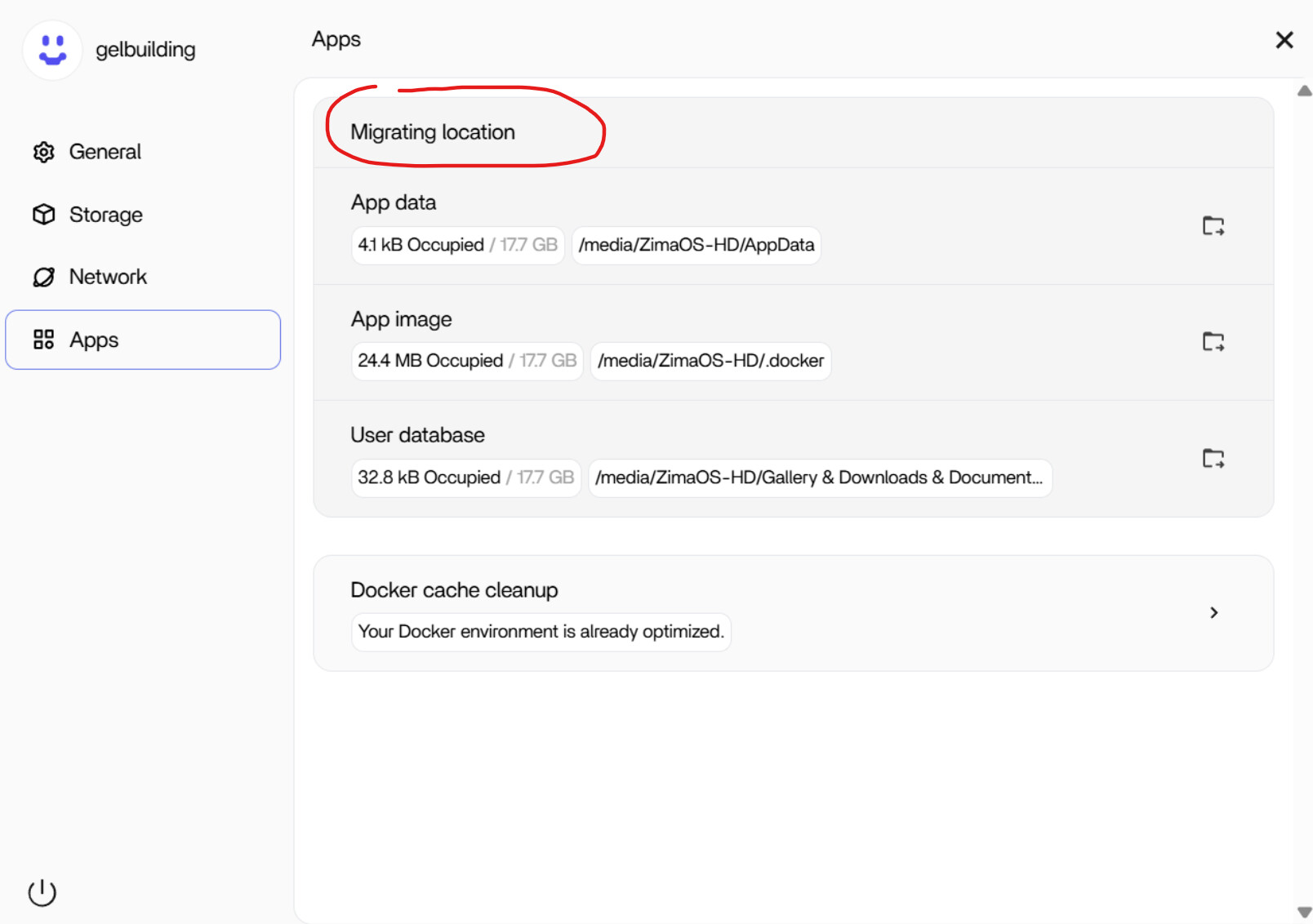
Edit: Searching for the Tool, i found that:

I wonder if that would also work to migrate from ZimaOS to ZimaOS on a new hardware?

Edit 2: Unfortunately it doesn’t


Let me clarify what I meant by that, because the wording can easily be interpreted too broadly.

When I mentioned the Migration Tool in ZimaOS, I was referring to the tool under Apps > Migrating location. That tool is designed to help migrate app data, Docker data, and related settings between disks, which is exactly why it is useful when moving to new hardware.

It does not migrate the operating system itself, but it does help ensure that all app data and settings live in the correct place on the DATA disk before you move. In that sense, it simplifies the transition, because once the DATA disk is attached to a fresh ZimaOS install, the apps can reconnect to their existing data and configuration.

So the idea is:

  • Use the migration tool to consolidate app data and settings onto the DATA disk
  • Back up that DATA disk
  • Reinstall ZimaOS on the new device
  • Restore or attach the DATA disk and reinstall the apps

Used this way, the migration tool absolutely plays a role in moving to new hardware, just not by cloning the OS. It helps prepare the system so the reinstall and restore process is smooth and predictable.

That’s what I meant by it being useful as a reference and preparation step, even when doing a manual reinstall.

OK, i have this data already moved to the SATA-SSD.

I will do the following:

  1. Install/update ZimaOS on the ZimaBoard 2.
  2. Attach the SATA-SSD to the ZimaBoard 2.
  3. Use the migration tool at the Zimaboard 2 to move the locations to the SATA-SSD (correct? It will then use this files?)
  4. Reinstall apps with the same settings (environment variables, ports, volumes, etc.) like on Odroid.

Regarding reinstallation of the Apps. Is there a way to Export the yml-files from the current System?

You’re very close, you just don’t need to repeat one of the steps.

Since you’ve already moved all the data to the SATA SSD on the Odroid, there’s no need to run the migration tool again on the ZimaBoard, as long as that SSD already contains the app data in the expected locations.

A clean and simple way to do this would be:

Install or update ZimaOS on the ZimaBoard 2.
Attach the SATA SSD to the ZimaBoard 2 and set it as the DATA disk.
Reinstall the apps from the App Store.

Once the SATA SSD is attached and recognised as the DATA disk, ZimaOS will use the existing files on it. When you reinstall the apps, they will automatically reconnect to their data, databases, and configuration stored on that disk.

In most cases, you won’t need to re-enter environment variables, ports, or volume mappings. Those settings typically live inside the app data on the DATA disk and are picked up automatically during reinstall.

Regarding exporting YAML or compose files, there isn’t currently a supported way in ZimaOS to export them from the UI. ZimaOS intentionally hides that layer to keep app management simple. If you’ve made unusual custom changes, taking a few screenshots of the app settings is a good safety net, but for standard setups this usually isn’t necessary.

Overall, your plan is solid. With the data already on the SATA SSD, the reinstall on the ZimaBoard should be straightforward and low stress, and your apps should come back exactly as expected.

Regarding exporting YAML or compose files, there isn’t currently a supported way in ZimaOS to export them from the UI. ZimaOS intentionally hides that layer to keep app management simple. If you’ve made unusual custom changes, taking a few screenshots of the app settings is a good safety net, but for standard setups this usually isn’t necessary.

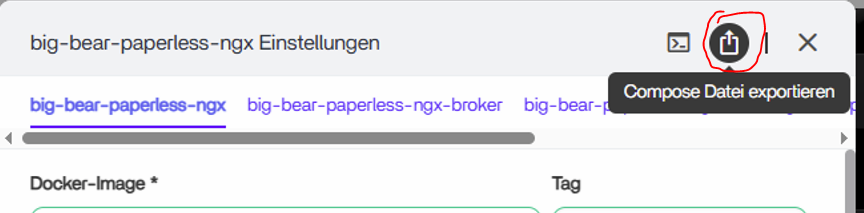
Seems like there is a possibility:

I guess this should make the process quite easy. Unfortunately the Zimaboard will most likely arrive only on saturday and not today…

You’re absolutely right. For BigBear apps, there is indeed an option to export the compose configuration, and the icon you highlighted does exactly that. That makes the process much easier if you want a reference of environment variables, ports, volumes, and service layout before moving to new hardware.

So to clarify cleanly:

  • ZimaOS does not provide a global or system-wide export of app YAML files.
  • However, some apps, especially BigBear apps, do expose a Compose export button in their settings.
  • Using that export is a perfectly valid and practical way to keep a copy of the app configuration for migration or reference.

I suggest exporting the compose files for any apps you consider important or heavily customised. Even if you don’t end up needing them, they give you confidence and a clear reference when reinstalling apps on the ZimaBoard.

Combined with having all app data already on the SATA SSD, this should indeed make the migration quite straightforward once the ZimaBoard arrives.

And yes, the wait is always the hardest part, but you’re very well prepared for when it does arrive.