[Tutorial] ZimaOS Backup and Restore using USB drive (Shared by @gelbuilding)

This tutorial and script are written by our MOD @gelbuilding. Welcome to test it in the test environment, and give us the feedback.

Zima System Restore to USB (Complete Tutorial + Suggestion for Integration)

I’ve read many posts across the forum where users were asking for a proper system-level restore method or struggling after a bad update, system corruption, or reinstall. Because of that, I put together a complete and safe method for backing up and restoring the ZimaOS system disk to a USB device.

This lets users create a 1:1 clone of the OS disk that can be restored in minutes on ZimaBlade, ZimaCube, Proxmox, or bare metal.

It also avoids touching DATA disks, which ZimaOS will re-mount automatically after restoration.

This tutorial now includes everything needed: correct USB mounting, device verification, ZimaBlade onboard eMMC support, optional checksum validation, and complete backup + restore commands.


1. Why Only the OS Disk Should Be Backed Up

ZimaOS is designed like modern NAS systems:

  • The OS and system partitions live on a small partition (32–64 GB)
  • All media, AppData, containers, downloads, and user files sit on DATA partition

Backing up just the OS partition:

  • Keeps the backup tiny (2–6 GB compressed)
  • Finishes in under 2 minutes
  • Avoids cloning terabytes of data
  • Restores cleanly regardless of hardware

After restoration, ZimaOS automatically re-mounts DATA partitions, other storage space, and all apps reappear instantly.


2. Safety Checks Before You Begin

Identify the OS disk and USB drive

Always confirm the correct disk to avoid overwriting the wrong one:

lsblk

# In most cases:
# ZimaCube / NVMe systems: `/dev/nvme0n1`
# ZimaBlade / onboard eMMC: `/dev/mmcblk0`
# Proxmox / SATA systems: `/dev/sda`

Check USB size

Ensure at least 8–16 GB available:

df -h /media/<USB drive>

USB formatting

ext4 is recommended for large image files.
FAT32 cannot store files above 4 GB.

Format if needed:

mkfs.ext4 /dev/sdX1

3. Creating the System Backup on USB

Step 1. Identify the USB device

lsblk

Find something like /dev/sdb1.

Step 2. Create USB mount point

mkdir -p /media/usb
mkdir -p /media/usb/backup

Step 3. Mount the USB

(This step is required)

mount /dev/sdX1 /media/usb

Verify:

mount | grep /media/usb

Step 4. Back up the OS disk

NVMe systems (ZimaCube / PC / Proxmox)

dd if=/dev/nvme0n1 bs=64M status=progress | gzip > /media/usb/backup/zimaos_system_backup.img.gz
sync

Emmc onboard storage

dd if=/dev/mmcblk0 bs=64M status=progress | gzip > /media/usb/backup/zimaos_system_backup.img.gz
sync

Step 5. Optional: verify the backup

sha256sum /media/usb/backup/zimaos_system_backup.img.gz > /media/usb/backup/backup.sha256

Later check:

sha256sum -c /media/usb/backup/backup.sha256

4. Restoring ZimaOS From USB

Step 1. Confirm USB is mounted

mount | grep /media/usb

If not:

mount /dev/sdX1 /media/usb

Step 2. Restore the system image

NVMe systems

gunzip -c /media/usb/backup/zimaos_system_backup.img.gz | dd of=/dev/nvme0n1 bs=64M status=progress

Emmc onboard storage

gunzip -c /media/usb/backup/zimaos_system_backup.img.gz | dd of=/dev/mmcblk0 bs=64M status=progress

Step 3. Reboot into the restored system

reboot

ZimaOS will return exactly to the state captured in the backup.
All DATA disks will auto-mount and all apps will reappear as before.


5. How the Commands Work

dd if=/dev/nvme0n1
Reads the entire OS disk byte-for-byte.

bs=64M
Improves performance.

status=progress
Shows live status.

gzip
Compresses the output.

sync
Flushes all pending writes to USB.

gunzip -c
Decompresses the backup image for restore.

dd of=/dev/...
Writes it back exactly as it was.


Suggestion for ZimaOS

This would be a great built-in feature for ZimaOS.
A simple UI could:

  • Detect the OS disk automatically
  • Detect and validate a USB device
  • Check available space
  • Perform the backup and compression
  • Provide a one-click restore option
  • Prevent overwriting DATA disks

This would eliminate most user errors and give ZimaOS a fast, reliable, pro-level recovery system.
6 Likes

+1 thx

1 Like

Beautiful work. Thank you @gelbuilding!

2 Likes

This is great work! Simple to run, and only backs up what is needed!

Thanks @gelbuilding

2 Likes

I think it would be a good idea to do the same thing HomeAssistant does with its backups; it’s very simple.
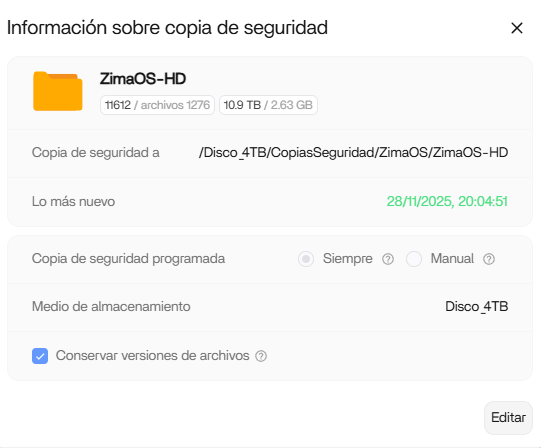
I’m currently backing up all of ZimaOS, and I’d like to migrate the folders to a USB drive, but it won’t let me. Is this correct?
Or should I uncheck the option to keep file versions?

What should we see as output to verify this? I Apparently did something wrong trying to do this last night. I thought I had followed all the instructions. but apparently something didn’t work right. I have a 1TB drive the OS is installed on (Bare metal) , the gz file was over 700gb, and filled up to full the boot drive. This is the exact command I ran. I see 2 problems. Problem 1 is, it didn’t backup to the thumb drive. I’m sure that is related to it not mounting and me not realizing that properly, That is on me. Problem 2 is a puzzling one to me. The SIZE of it.

This is all of the partitions on the boot drive.

nvme0n1     259:2    0 931.5G  0 disk
├─nvme0n1p1 259:3    0    32M  0 part  /mnt/boot
├─nvme0n1p2 259:4    0    24M  0 part
├─nvme0n1p3 259:5    0     6G  0 part  /
├─nvme0n1p4 259:6    0    24M  0 part
├─nvme0n1p5 259:7    0     6G  0 part
├─nvme0n1p6 259:8    0     8M  0 part
├─nvme0n1p7 259:9    0    96M  0 part  /var/lib/rauc
│                                      /var/lib/zerotier-one
│                                      /mnt/overlay
└─nvme0n1p8 259:10   0 919.3G  0 part  /var/log
                                       /var/lib/libvirt
                                       /var/lib/icewhale
                                       /var/lib/extensions
                                       /var/lib/docker
                                       /var/lib/casaos
                                       /DATA
                                       /var/lib/bluetooth
                                       /opt
                                       /media
                                       /var/lib/casaos_data

And this is the command I ran

dd if=/dev/nvme0n1 bs=64M status=progress | gzip > /media/usb/backup/zimaos_system_backup.img.gz

I think the problem was I followed the example at the top

It is a NVME system, and I should have probably had ran this command (assuming the destination was correct.

dd if=/dev/nvme0n1p1 bs=64M status=progress | gzip > /media/usb/backup/zimaos_system_backup.img.gz

Just the part that is /mnt/boot ? Or would that be the p3 one that it is 6G with just /

What about data consistancey. What will happen if something is changed in configs or data bases during backup?

ZimaOS is safe to back up live because the OS disk doesn’t hold any active databases or high-write data. The core system is read-only (squashfs), and the writable overlay is tiny and low-activity. All app data and databases live on the separate DATA disks, which are not part of the system image. So even if something changes during backup, it won’t affect consistency of the OS backup.

You were very close, but here’s the key thing:

You must back up the entire OS disk (/dev/nvme0n1), not an individual partition like nvme0n1p3 or the 6G partition.

That 6G partition is only one piece of the system.
ZimaOS uses multiple partitions together:

  • boot
  • two squashfs system partitions
  • overlay
  • casaos-data

All of these form the OS.
So the correct input device for backup is always the whole disk:

dd if=/dev/nvme0n1 bs=64M status=progress | gzip > /media/usb/backup/zimaos_system_backup.img.gz

Not /dev/nvme0n1p1, not /dev/nvme0n1p3, not a 6G partition, the full disk.

The reason your backup grew huge is simply because the USB wasn’t mounted, so the file was written to your internal drive instead. Once the USB is properly mounted, you’ll get a normal compressed size (2–6 GB).

If you run:

mount | grep /media/usb

and it returns nothing, the USB isn’t mounted and dd will fill your OS disk again.

Mount the USB first and everything will work as expected.

The Backup app doesn’t allow moving the destination to a USB drive because it only supports internal ZimaOS-managed disks for versioned backups. USB storage isn’t treated as a managed data volume, so migration is blocked.

Unchecking “keep file versions” won’t change that, it still won’t let you move the backup target to USB.

If you want a USB-based backup of the system, the correct method is the System Restore tutorial above (dd + gzip). That creates a full, consistent OS image and doesn’t rely on the Backup app.

So yes, what you’re seeing is expected behaviour.

Por este motivo digo que lo mejor seria que ZimaOS tuviera un sistema de copias de seguridad como hace Home Assintant que el mismo genera un fichero comprimido y si tienes que cambiar de maquina solo con ese fichero y montando la base se restaura solo sin hacer nada es muy sencillo y fácil.
Sin meter nada de código al igual ZimaOS esta bloqueado al acceso root por este motivo deberíamos tener esta opción, y desde el Backup interno subirla al drive o USB o lo que sea pero ese fichero comprimido que contenga todo el ZimaOS configuraciones y actualizaciones contenedores etc.

Se podria aplicar ese sistema para el ZimaOS?

Good point, and the Home Assistant model makes a lot of sense.

ZimaOS can support this idea within its current design boundaries. Because the system is immutable and root access is restricted by design, a full single-file system image restore like Home Assistant is not currently available.

What can be achieved today:

  • Backup of app data, containers, and user configuration
  • Export to USB or cloud storage
  • Restore of apps and settings after a fresh ZimaOS install

For the community, I created and shared a USB-based backup and restore method that works within these boundaries. It’s intended as a practical community solution and a reference for what’s possible today.

A Home Assistant–style backup workflow would be a great long-term enhancement and would need to be implemented directly within ZimaOS to align with its architecture and security model.

1 Like

First at all, thank you for the guide.

I want to add a comment to make sure things are not going in the wrong direction.

In my opinion, you should clarify, that it is absolutely crucial that users of course backup their DATA-partition too. Harddrives can break down and the DATA-partition is where all the app-data is saved.

In my opinion, backup is, right now, one of the things, I don’t like about ZimaOS. It is absolutely necessary that there will be two things added in the system:

  1. A simple way to perform bare-metal backup of the system drive with the option to back up to local drives, e.g., USB drives, and to cloud storage such as OneDrive, etc.
  2. A simple way to backup the DATA-Drive, also local and cloud.

Both backups need to have the option to encrypt the backups. When I backup my system and data to one drive for example encryption of the backup is a must have.

And there need to be easy recovery solutions too. The best backup is worthless, if recovery in case of disaster is a pain in the ass.

I really hope we will see very soon integrated backup solutions that meet the above requirements.

Muy buen trabajo y bien explicado, gracias por su aporte

Gracias, he realizado la copia de seguridad del sistema, importante hacerla antes de culaquier actualización importante.