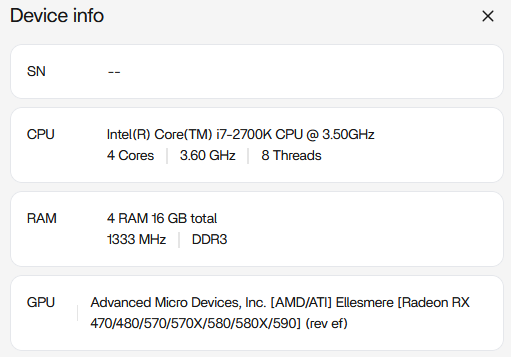
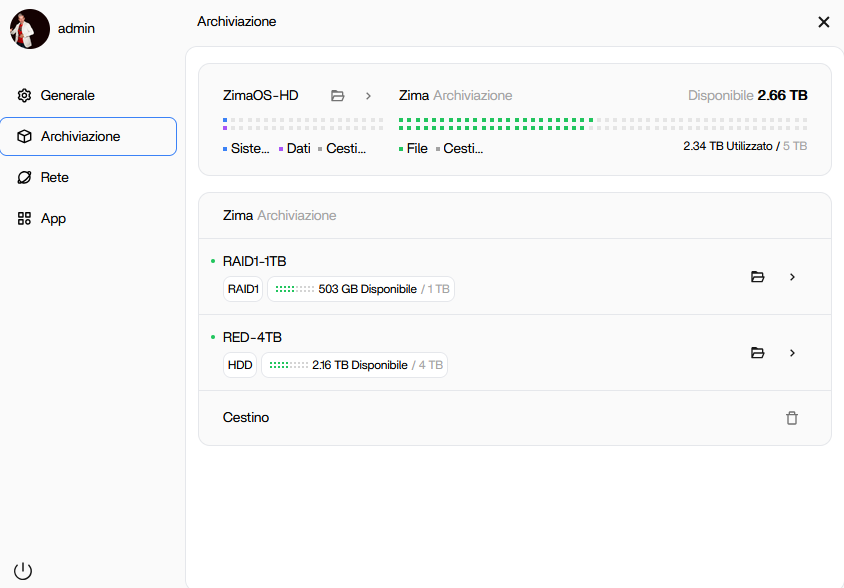
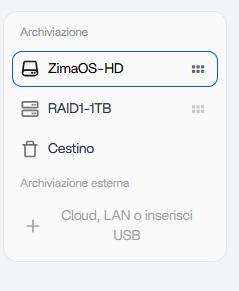
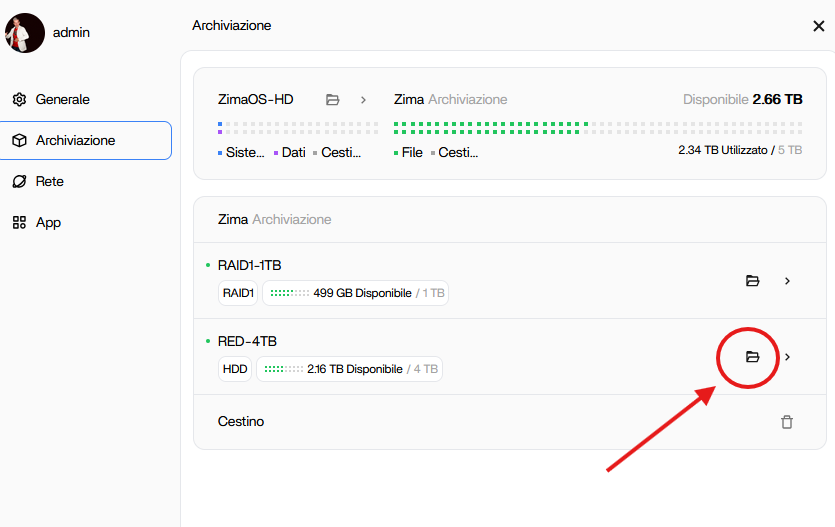
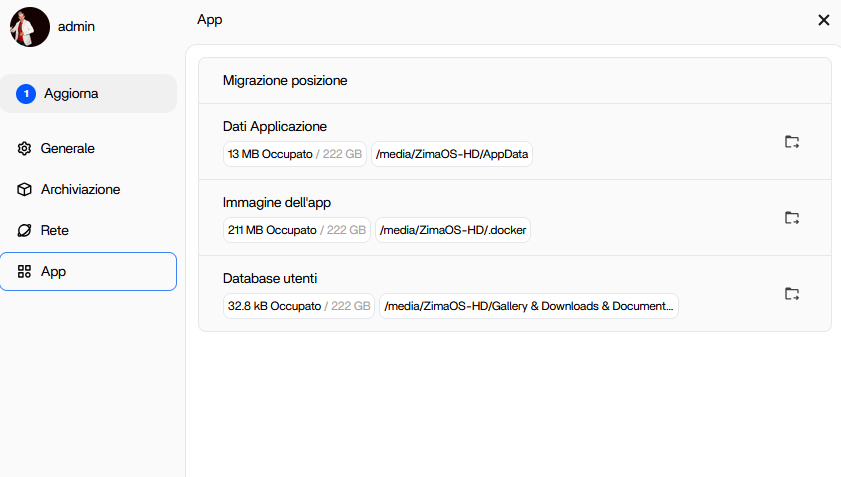
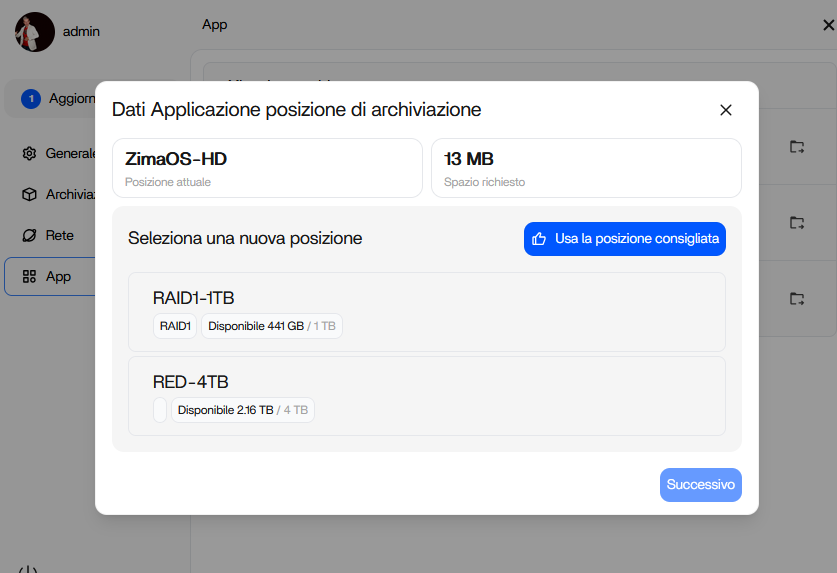
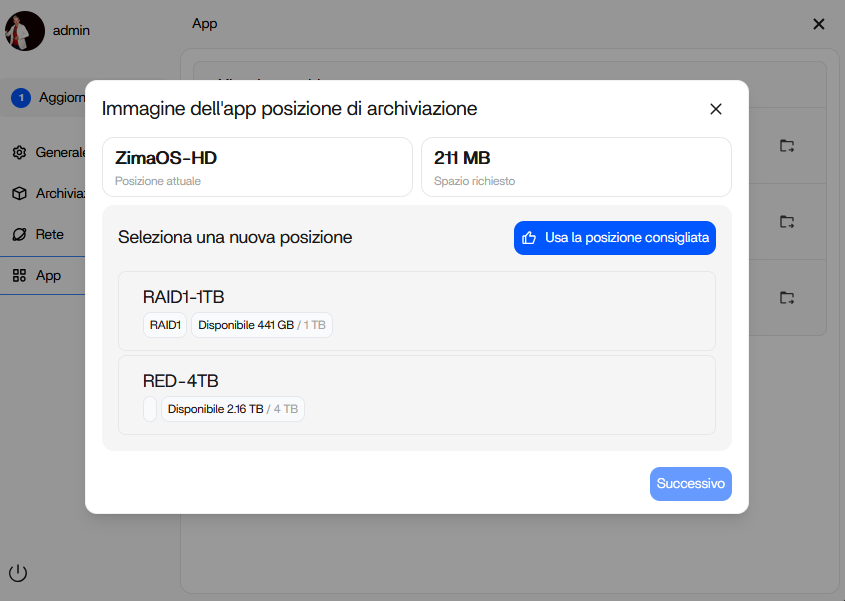
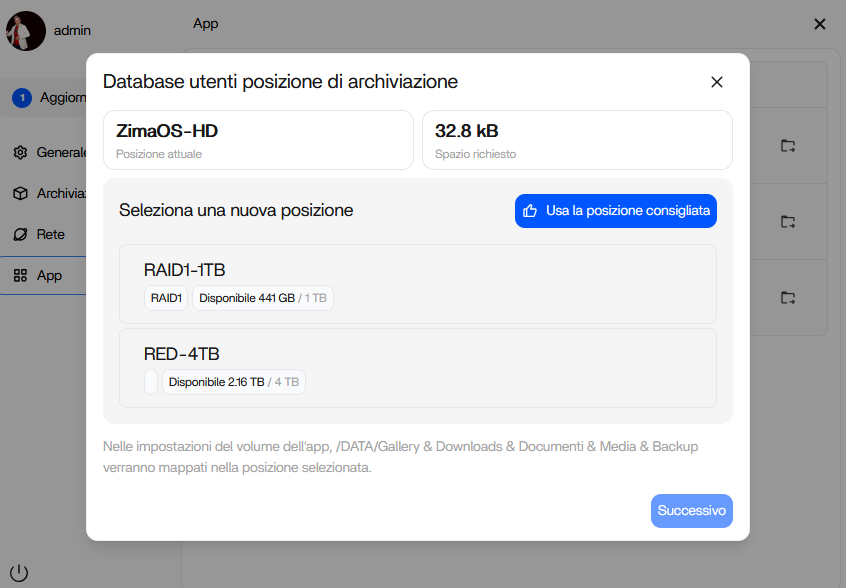
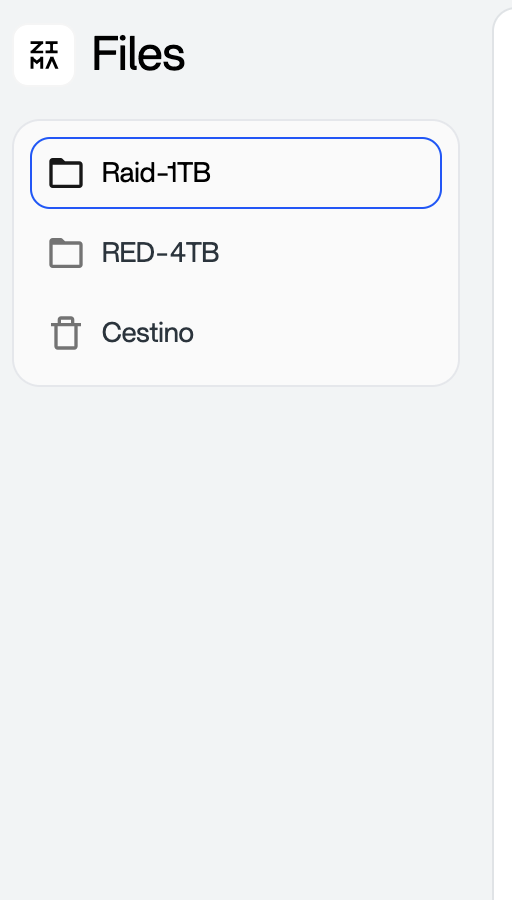
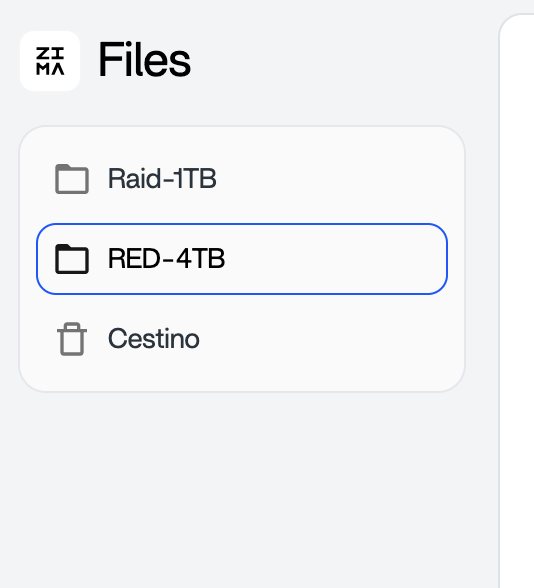
Hello community, I have a question (I’ve attached screenshots to better explain):
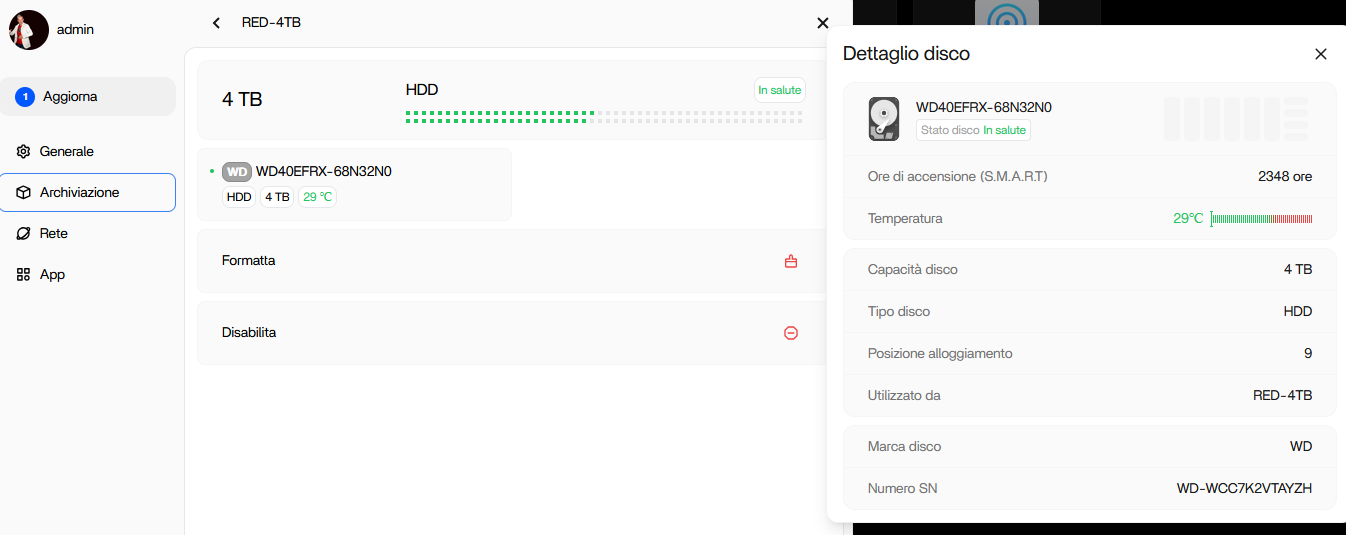
I can’t see the “RED-4TB” hard drive in the ZimaOs file manager, but I can only access it by clicking on Settings. Can you explain why?
I’m using ZimaOs 1.5.0
Thanks for any help.
I believe the disk is detected correctly, but ZimaOS doesn’t show a completely empty disk in the File app. I suggest creating a simple folder on the RED-4TB volume, once a folder exists, the File Manager will display it normally. This doesn’t enable network sharing; it just gives the File app something to present.
Good morning, thank you very much for your reply, the disk is new and contains 2TB of data including folders and files created with ZimaOs via its File Manager by opening it from the settings, but all this did not help to solve the problem.
From the first post, we can see the RED-4TB volume is detected, but I believe we still need to confirm its mount path. If it’s mounted outside /DATA/, the File app won’t show it even though the data is there.
I suggest opening the RED-4TB details page and sending a screenshot of the mount location.
Also, you can also run:
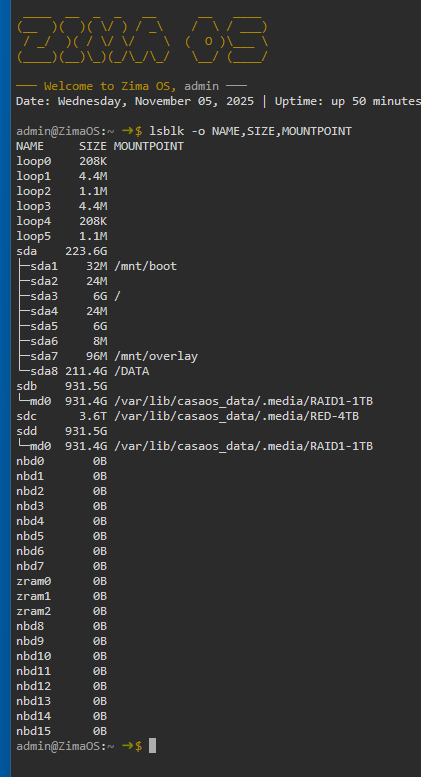
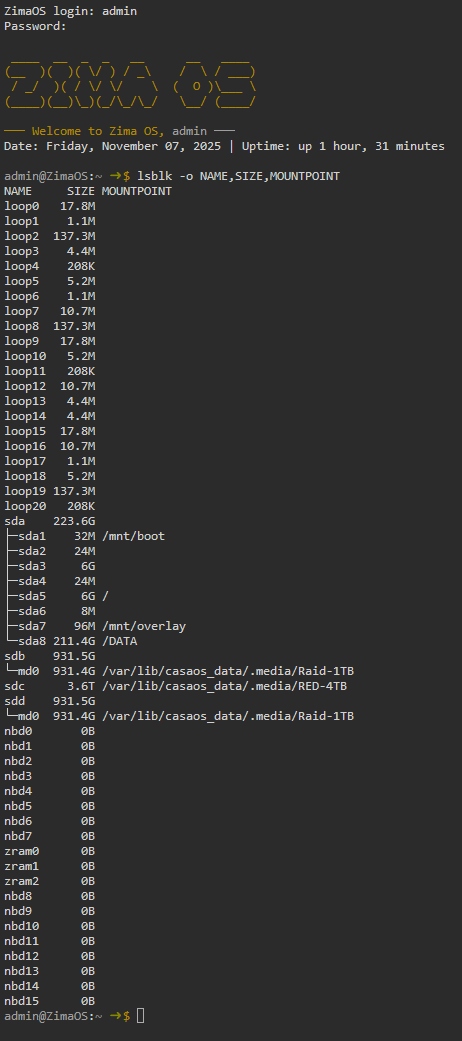
lsblk -o NAME,SIZE,MOUNTPOINT
and share the result.
Thanks for the support, maybe I understood the problem… The RED-4TB disk is physically internal to the PC, looking closer your suggestion seems to be independent from the file manager, I attach some screenshots
This is my first time using this type of system, so I have zero experience.
Thanks for the lsblk output, I believe this confirms the situation.
Your RED-4TB drive is mounted here:
/var/lib/casaos_data/.media/RED-4TB
In my opinion, because it is mounted under the CasaOS fallback path instead of /DATA, it will not appear in File Manager or App storage selectors.
I suggest holding off on making changes for now.
Since the disk may contain data, the most reliable next step is to check with Zima Support so they can advise on the correct approach.
We can share what we understand, but support can confirm the official path.
support@icewhale.org
2 Likes
I also need some command line outputcurl http://127.0.0.1/v2/local_storage/storages
George, thanks for your time and response.
I’ll write to support to explain this issue for me.
1 Like
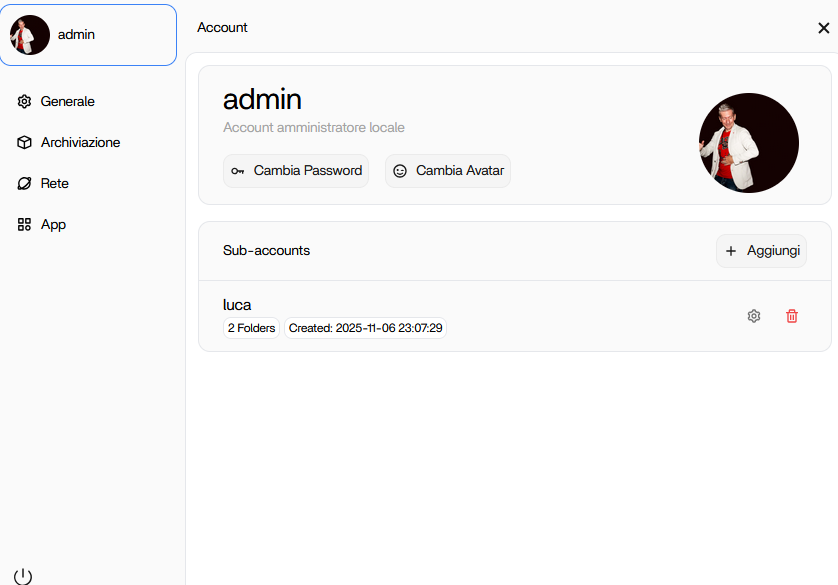
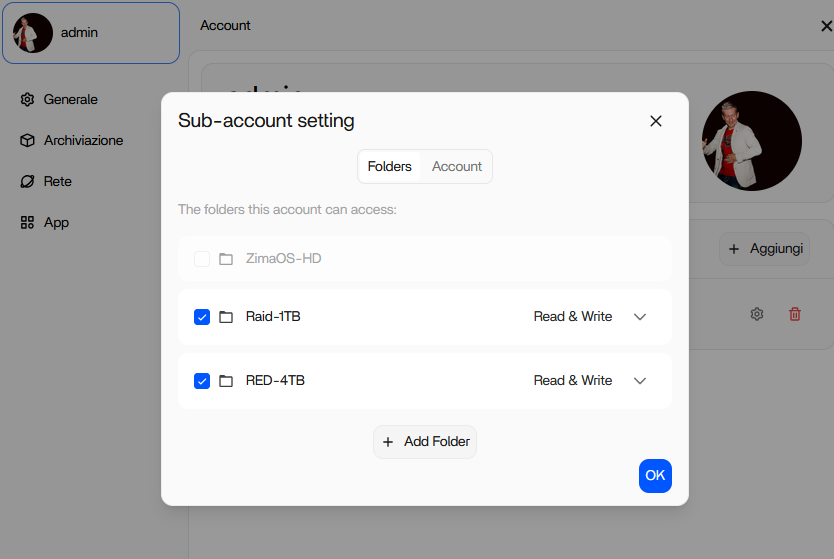
Good morning, George, yesterday I created a user with admin permissions, and as if by magic, the “RED-4TB” drive appears perfectly in the default ZimaOs File Manager application.
I’ve attached two screenshots.
Have a nice day!
Hi Luca,
Great to hear everything is now visible in File Manager.
Since @raller1028 (IceWhale staff) needs some command-line output from the request he shared earlier, I suggest posting those results. It may help others understand the behaviour if they encounter the same situation.
1 Like
Hi, I didn’t do anything special, except create a new user and grant read and write permissions to the hard drives.
I’m attaching the screenshots.
Have a nice day.
1 Like
So there was no RED-4TB situation before, and I logged in with an account that did not have permission for the folder?
Hi, no, the problem still exists. With the main user (administrator), I don’t see RED-4TB in the file manager, but I can only access it from the settings (see screenshots above). However, with the new user I created and granted permissions, I can see RED-4TB in the file manager. Obviously, this user can’t manage any of the server settings.
I hope I’ve been clear, this is my first experience with software of this type, so this is all new to me.
Have a nice day.
I need the return of the following command:
curl http://127.0.0.1/v2/local_storage/disk
curl http://127.0.0.1/v2/local_storage/storages
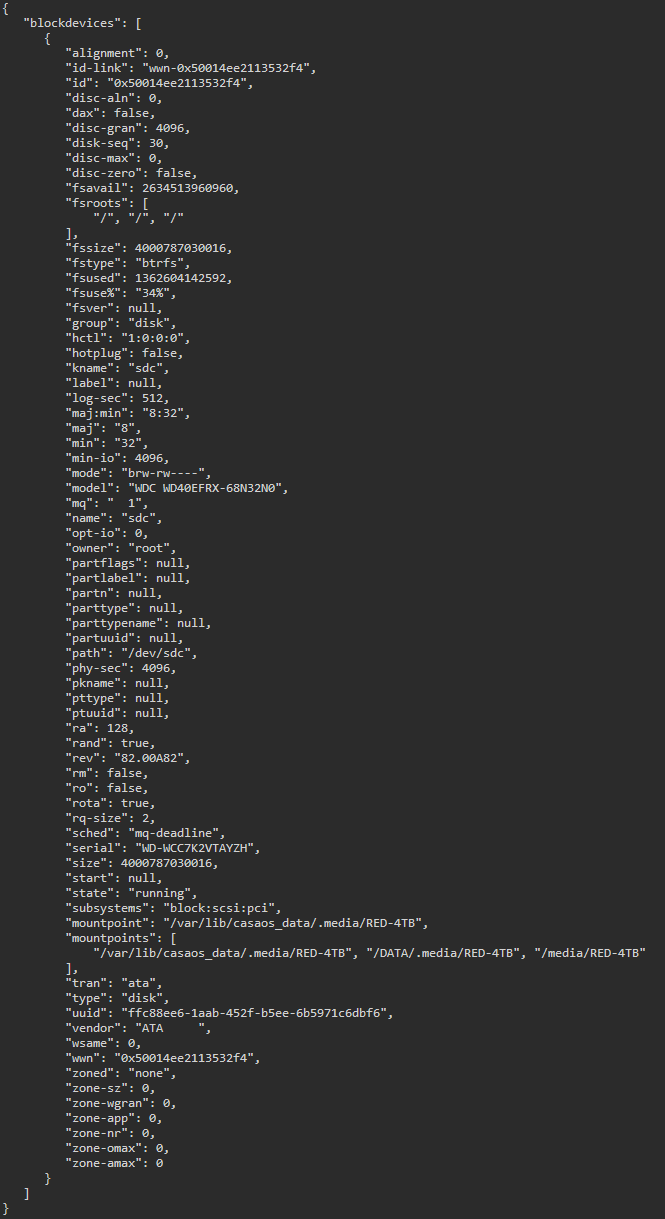
DEV=$(findmnt -n -o SOURCE --target /media/RED-4TB) && lsblk -OJb "$DEV"
1 Like
Hi, I just emailed support, hoping they can help me.
As soon as I hear anything, I’ll post it here.
Thanks everyone.
@raller1028, I’ll try this solution as soon as I get home.
Thanks, and I’ll update you tonight.
1 Like
Hi @raller1028, this is the command report:
Thank you for sharing the JSON output.
From what I can see, the system is detecting the RED-4TB drive correctly, but in my opinion it still appears to be mounted under a fallback path rather than the standard /media location. This might explain why behaviour changed when a new user with permissions was created, as it may have triggered ZimaOS to refresh how the drive is presented in the File Manager.
I think this points to a mapping or metadata issue rather than a problem with the physical disk itself. Since you have already contacted Support, I suggest continuing with them so they can review the backend info and guide the correct approach.
Thanks for keeping the thread updated, it will help others who encounter similar behaviour.
2 Likes
You seem to have missed the return of these two commands
curl http://127.0.0.1/v2/local_storage/disk
curl http://127.0.0.1/v2/local_storage/storages
1 Like