Blinking cursor immediately after Installing ZimaOS

I’m attempting to install ZimaOS v1.4.1 on my recently purchased hardware setup:

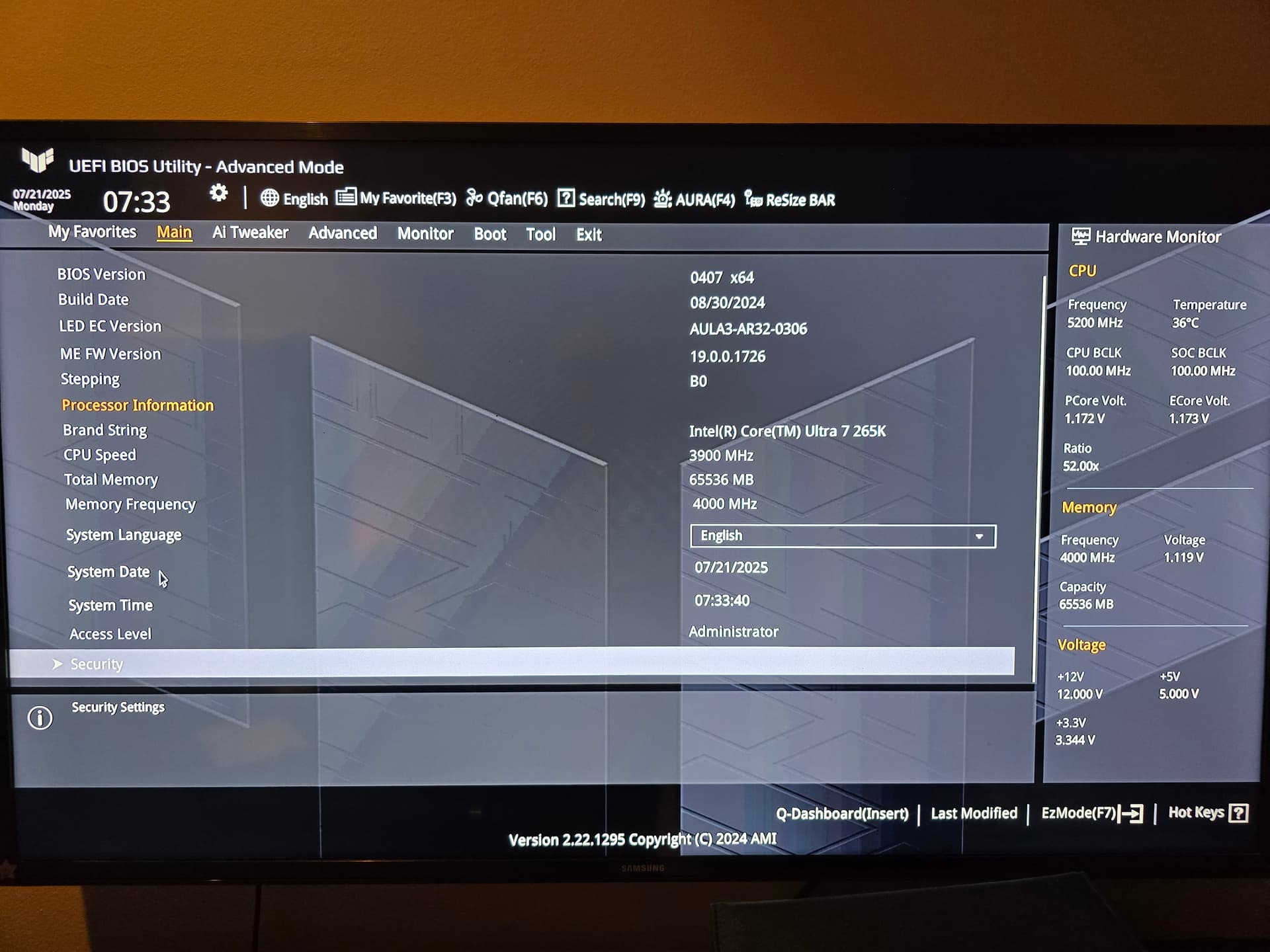
Motherboard: ASUS TUF GAMING Z890-PLUS WIFI (BIOS version 0407, built 08/30/2024)

CPU: Intel Core Ultra 7 265K Desktop Processor

NVIDIA RTX 2000, 16GB GDDR6 ECC, PCI-E 4.0, 4x Mini DisplayPort 1.4a, Dual Slot, Ada Lovelace

Storage: Samsung 990 PRO 2TB NVMe SSD

RAM: DDR5 memory

Issue Experienced:

When booting from a correctly flashed ZimaOS USB installe

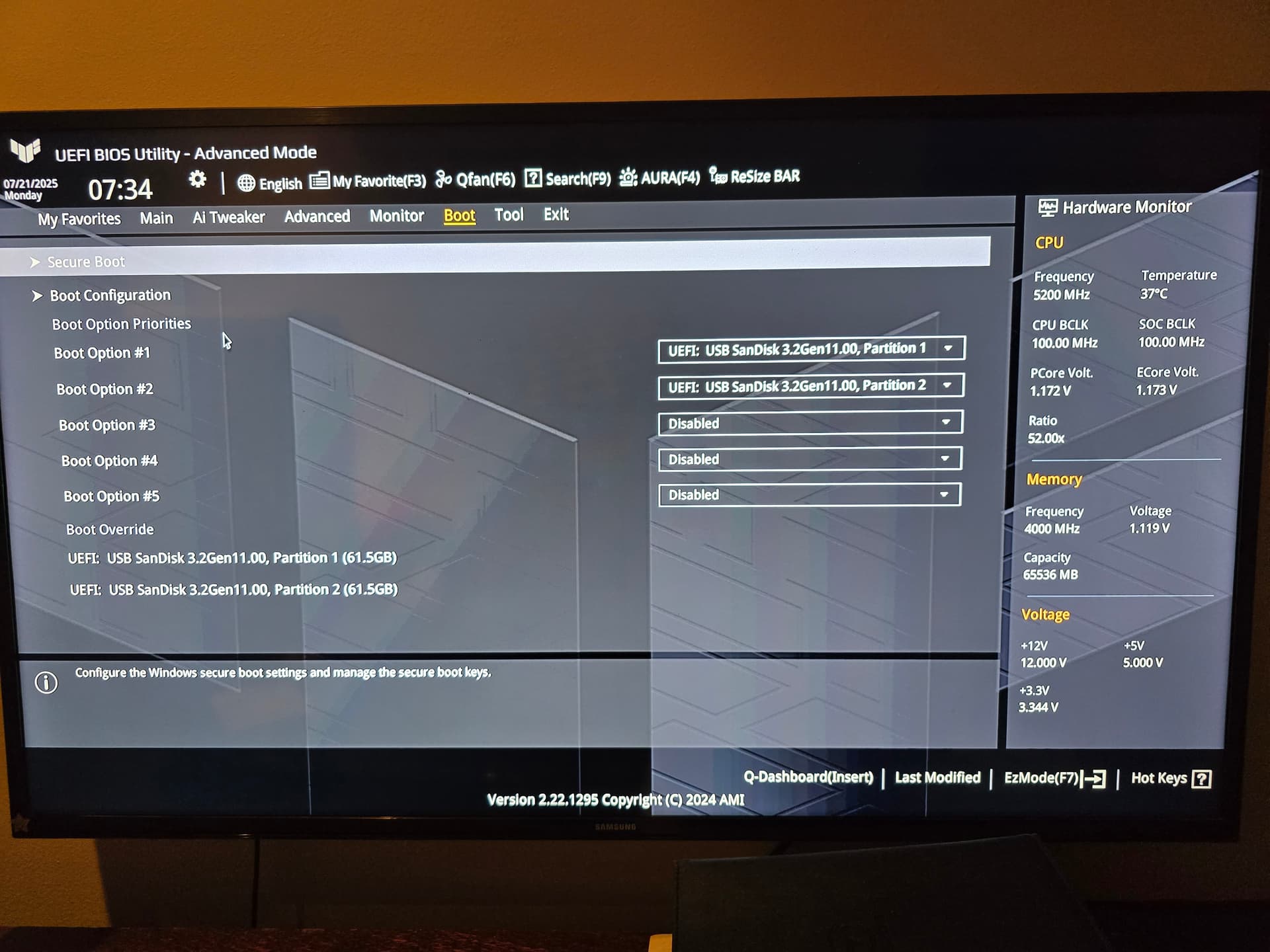
The BIOS correctly recognizes the USB.

The ZimaOS installer briefly flashes on the screen.

Then the system gets stuck indefinitely at a black screen with a flashing cursor.

No installer menu or further progress occurs.

Secure boot is disabled.

UEFI-only mode (no CSM) is set.

Windows drives disconnected completely; no competing EFI boot entries.

This strongly suggests a compatibility issue between ZimaOS’s current kernel or drivers and the latest ASUS Z890 chipset or related hardware components (Intel CPU, NVMe controller, etc.).

Steps taken already

Thoroughly wiped and reflashed USB installer multiple times (Balena Etcher, Rufus, dd from Ubuntu).

Verified hardware health: booted successfully into Ubuntu 24.04.2 Live USB.

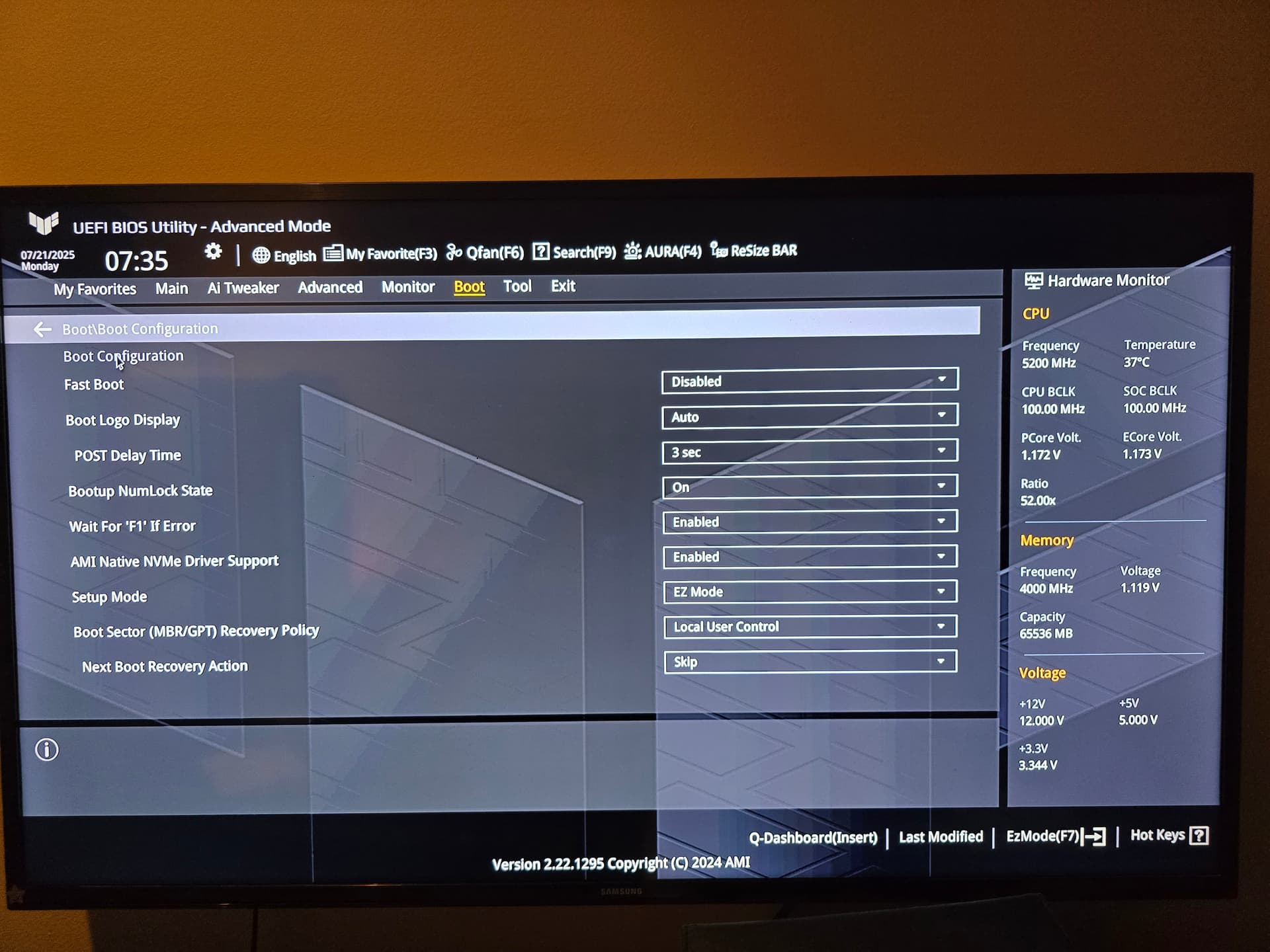
Adjusted BIOS settings extensively: Secure boot disabled, Fast Boot disabled, UEFI mode only, UEFI Variable Protection disabled, and removed any conflicting boot entries.

Physically disconnected secondary drives to avoid conflicts.

Actual outcome:

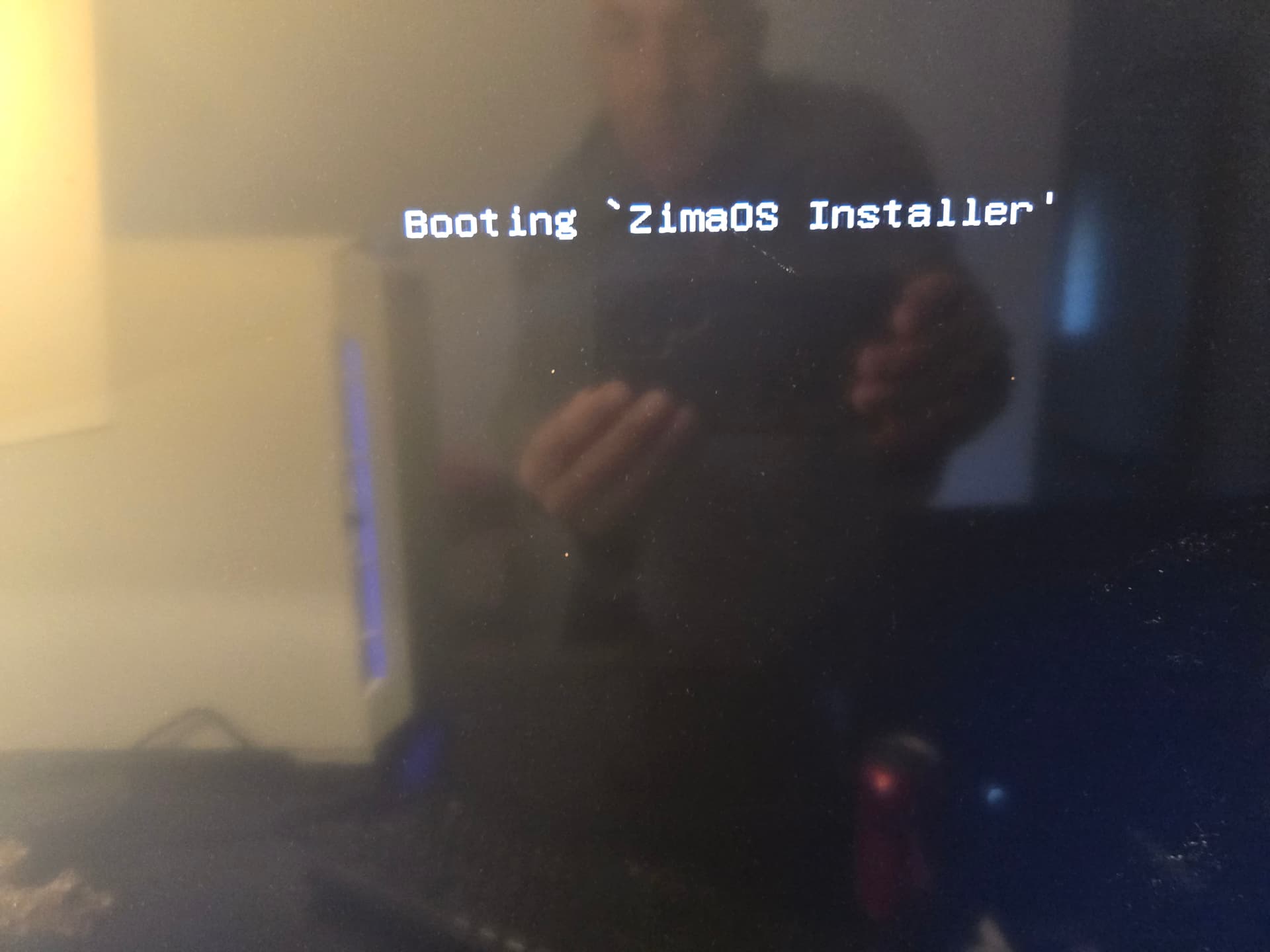
Black screen, blinking cursor immediately after the “Booting ZimaOS Installer” message.

I’m posting this to seek advice or updates on compatibility/support timelines for newer Intel Z890 chipset motherboards.
Have you read this:

Yes, Extensively

It may be helpful if you provide a screen record of your installation process.

this is usually, 100% an issue with how you burnt the USB
use balena etcher and nothing else, no rufus, nothing else

this is actually a linux issue and pervasive across later kernels

Thanks for the responses — just wanted to follow up with more findings:

I’ve confirmed that ZimaOS v1.4.1 does not currently boot on the ASUS TUF GAMING Z890-PLUS WIFI (Z890 chipset + Intel Ultra 7 265K), likely due to early kernel or iGPU/firmware incompatibilities.

However, I’ve since successfully installed Ubuntu 24.04.2 on the same system and layered CasaOS on top of it. While it doesn’t replicate the full ZimaOS UI experience (which I actually prefer), it works flawlessly with all hardware components — including GPU, NVMe, and network interfaces.

I also tested the following during additional ZimaOS boot attempts:

  • Tried booting with nomodeset, acpi=off, noapic, and irqpoll kernel flags — still results in black screen or blinking cursor
  • Swapped DisplayPort for HDMI — no effect
  • Enabled CSM in BIOS and retried boot — no improvement
  • Tested ZimaOS installer on older hardware (Z690) — boots successfully

Based on this, I strongly suspect the ZimaOS installer uses an outdated kernel/initramfs that lacks support for 14th-gen Intel iGPUs and newer chipsets like Z890.

Would love to know if a newer ISO or kernel update is on the roadmap — or if there’s a known way to inject newer drivers manually into the ZimaOS live environment.

In the meantime, I’m running Ubuntu + CasaOS for testing, but still hoping to get a native ZimaOS install working soon.

Thanks!

Copy that. Thanks for your feedback!

Thanks for the feedback, I’m not sure if you’re describing a problem with the installer image or an installed ZimaOS system.
In the case of ZimaOS it uses the latest 6.12 kernel and should be able to be compatible with most iGPUs.
If it’s an installer image, I’ve built an iso version of the installer image. You can try it out here:
zimaos_zimacube-1.4.2-beta1_installer_slim.iso

Thanks Jerry, very much appreciated.

Looking forward to your feedback.

I agree with Jerry, Zima OS has super up to date kernels.

The issue you describe absoolutely sounds like it was with the installer - there was a change in 6.x kernels that impacted the way installers work and it can be dependent on how your BIOS handles installers. I hit exactly what you describe several times on multiple hardware platofrms with multiple different OSs.

The ISO should help, IMGs are more problematic and the kernel changes it behaviour depending on how it sees it is booting.

You never mentioned if you had switched to Balena Etcher or not. What did you use to burn the IMG file?

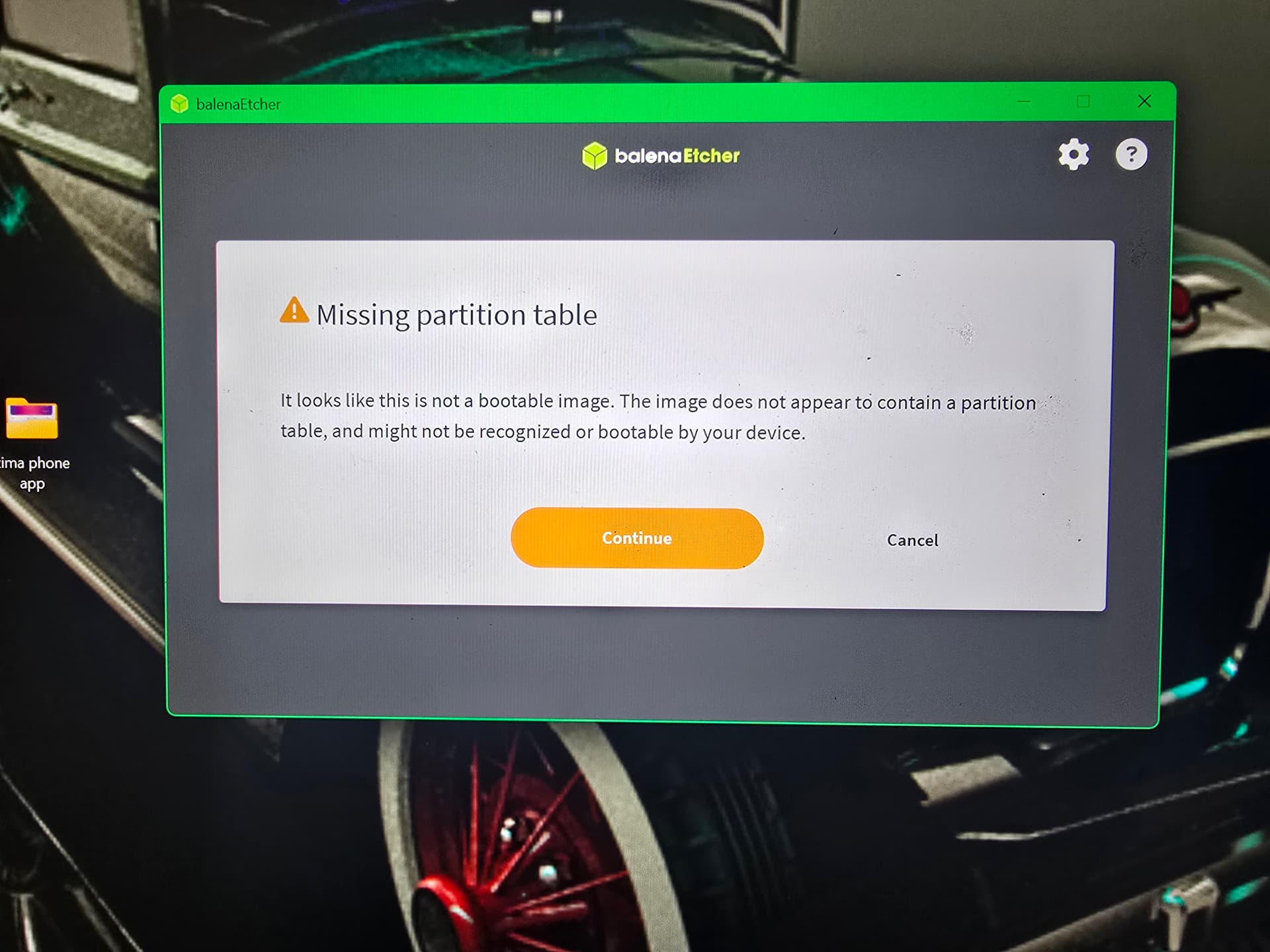
Initially tried flashing zimaos_zimacube-1.4.2-beta1_installer_slim.iso using Balena Etcher, but got the following warning:
“Missing partition table – this image does not appear to contain a partition table, and might not be recognized or bootable by your device.”
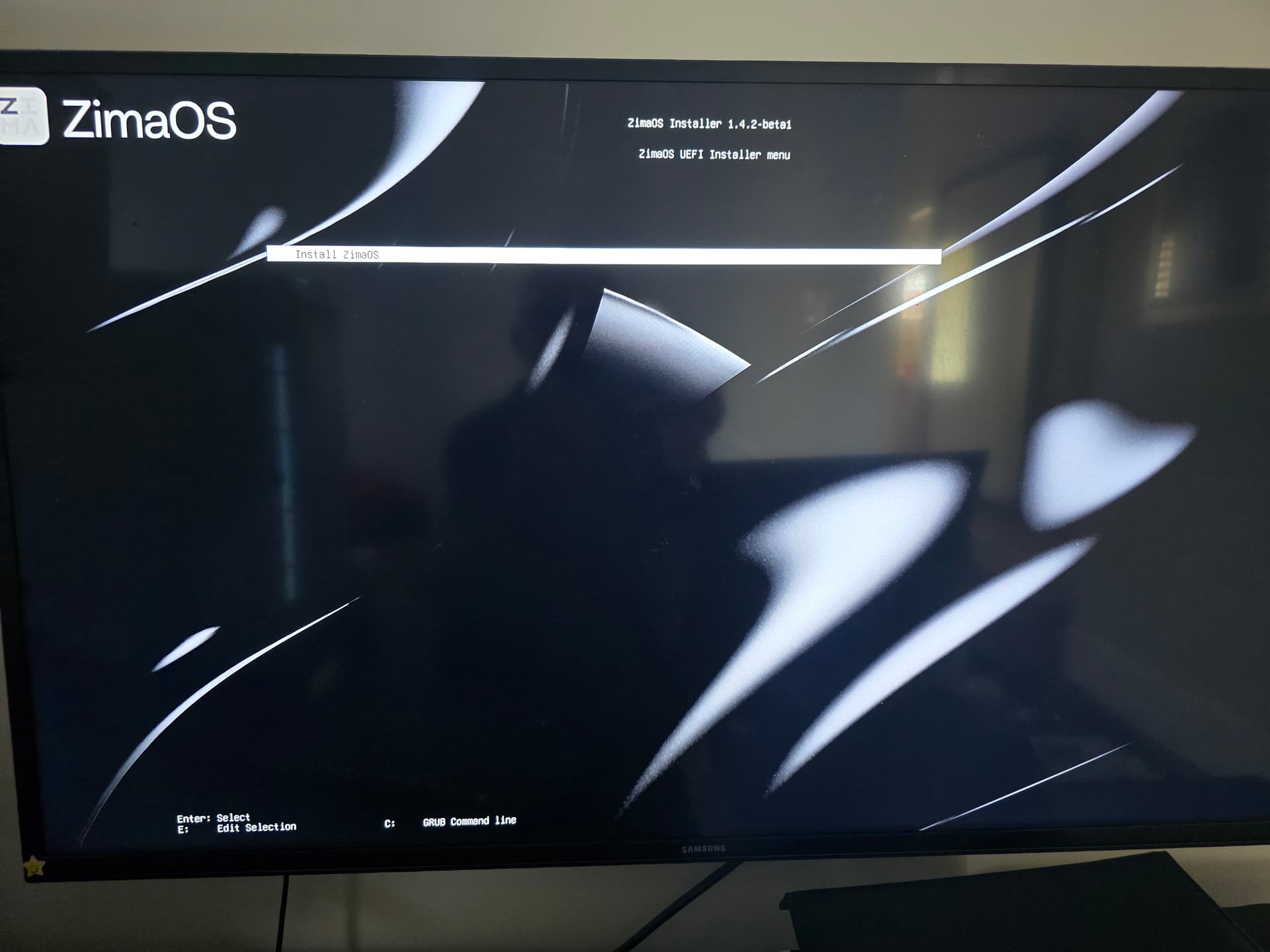
Despite that, we proceeded. It booted to “Booting ‘ZimaOS Installer’”, then froze there with no further progress (see screenshots attached).

To rule out the slim version, we then downloaded and flashed the full installer from GitHub:
zimaos_zimacube-1.4.1-1_installer.img

Unfortunately, the same problem occurred — same partition table warning, same hang after boot message.


Would you please try this img file?

https://github.com/IceWhaleTech/ZimaOS/releases/download/1.4.2-beta1/zimaos_zimacube-1.4.2-beta1_installer.img

And remember to use the latest version of balenaEtcher.

Hi Giorgio,

Unfortunately, the issue persists.

I used the latest version of BalenaEtcher to flash the image you linked (zimaos_zimacube-1.4.2-beta1_installer.img), but it still doesn’t boot successfully.

The system reaches the message “Booting ‘ZimaOS Installer’”, then freezes — no further output or activity after that point.

My hardware specs:
Motherboard: ASUS TUF GAMING Z890-PLUS WIFI (BIOS version 0407, dated 08/30/2024)
CPU: Intel 14th Gen (UEFI boot enabled, Secure Boot disabled)
GPU: NVIDIA RTX 2000 Ada Generation, 16GB ECC GDDR6, PCIe 4.0

Thanks,
George


The alternative option is:

Would you please try it? If you try it this way, use this img file.

There are also three extra tips:

  1. Install it on one external USB drive (Not the installation media)
  2. Show us your internal drive mode
  3. Try another USB drive as the installation media

sounds like the flash drive is missing the partition table. If on windows, download minitool partition manager and create a partition table on the flash drive. If on linux install gnome-disks and do the same then flash the zima iso to the drive and is should work without issue. I have had to do this in the past with other installers.

my gut is you are having some weird balena etcher issues on linux (thats a linux desktop right?)

try downloading using a mainline browser (chrome / egde) on windows after you have removed all the partitions on the USB stick (you are not using a usb stick with a r/o manufacture partition with something on it are you?) and formatting with windows Fat32

1 Like

Thanks again to everyone for the incredible support and thoughtful suggestions throughout this process. I’ve gone through everything carefully and wanted to share a full update.

I used a Samsung BAR Plus USB 3.1 flash drive and followed the community advice precisely. To ensure the USB was completely clean, I used MiniTool Partition Wizard on Windows to remove all partitions and create a fresh MBR partition table. I then formatted the drive as FAT32. This was done to avoid any hidden manufacturer read-only partitions or leftover data that might interfere with the installer. After that, I used the latest version of Balena Etcher on Windows — not Linux — to flash each of the available ZimaOS images.

I tested several different installer images, including the .img files and the ISO shared by Jerry. Unfortunately, with all of them I ran into the same issue — a black screen with a blinking cursor immediately after the “Booting ZimaOS Installer” message. None of them would progress to the installer interface.

The only image that successfully launched the ZimaOS graphical installer was the slim version:
zimaos_zimacube-1.4.2-beta1_installer_slim.iso

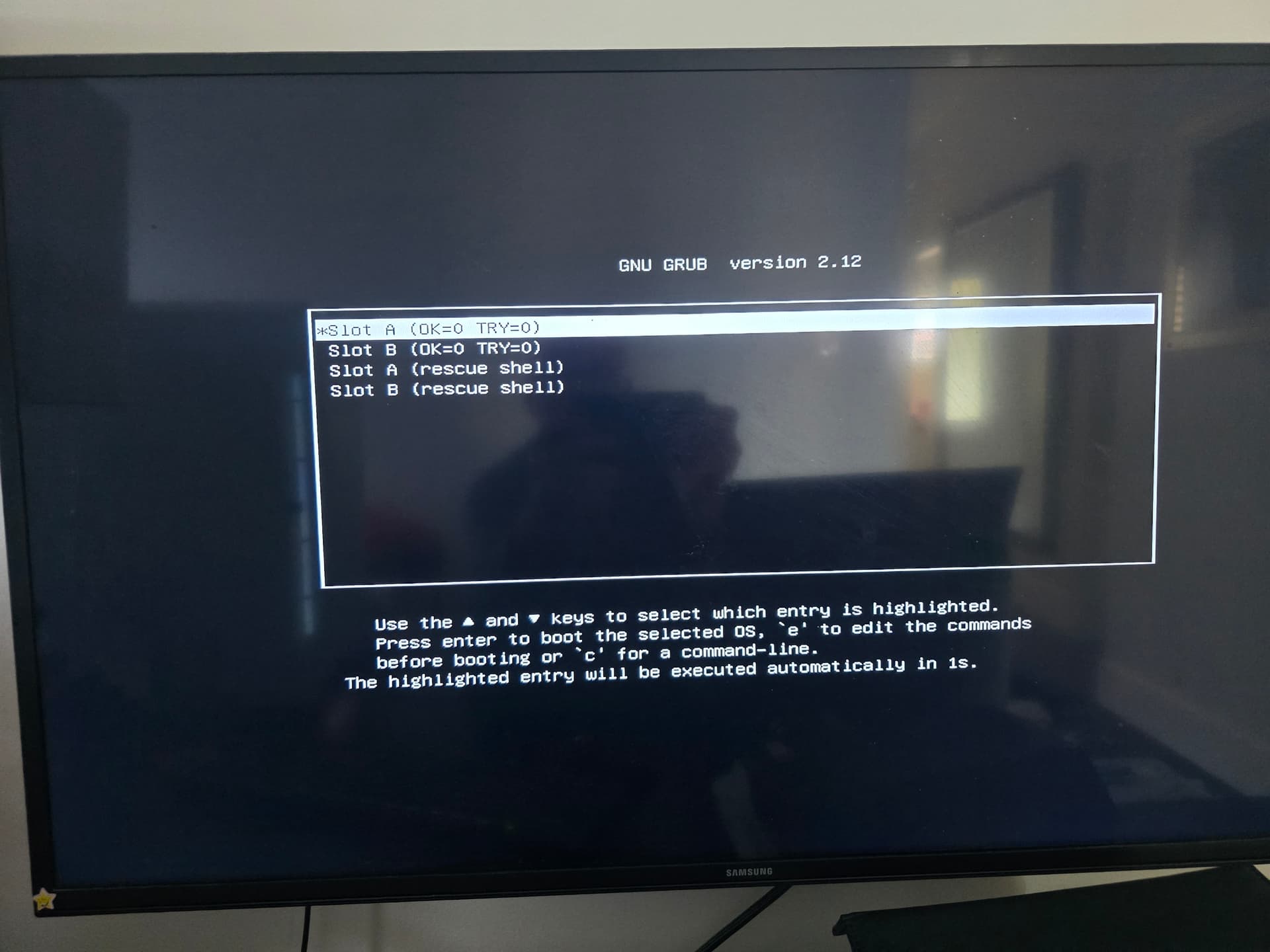
Using that slim ISO, I was able to proceed through the full installation process and install ZimaOS onto my Samsung 980 NVMe SSD without any apparent errors. However, after rebooting, I was met with a boot menu showing Slot A, Slot B, and Rescue Shell — all showing as “slot 0”. No matter which option I chose, it either returned to a blank screen or dropped me into a shell prompt.

I also tried some of the other troubleshooting tips mentioned earlier in the thread. I flashed the installer onto a second USB drive just in case, but the result was the same. I even attempted to install ZimaOS onto an external USB SSD instead of the internal NVMe, but the installer didn’t recognize it either. I checked my BIOS settings again, and everything looks correct —the internal drive is in NVMe AHCI mode and fully visible.

At this point, it seems the slim ISO is the only version that actually boots into the installer, but something still breaks after installation, preventing the system from booting properly. I genuinely appreciate all the time and help from the community. Every reply helped us move forward, and we’re almost there — thank you all.

I’m not sure if this helps you, but I had also weird issues because my NVMe SSD had a different logical block address size:

Maybe check it in a Live Linux with:

sudo nvme id-ns -H /dev/nvme0n1 | grep "Relative Performance"

Thanks for the suggestion regarding the LBA format — it’s definitely a useful tip. In my case though, I had this exact Samsung 980 NVMe drive running ZimaOS without any issues on my ZimaBoard setup. That tells me the drive’s block format and configuration are already compatible. So I don’t think the problem is with the NVMe itself. It seems more likely that the issue has to do with how the Slim installer interacts with this particular desktop’s hardware — possibly something related to the boot process or how drives are detected during installation.