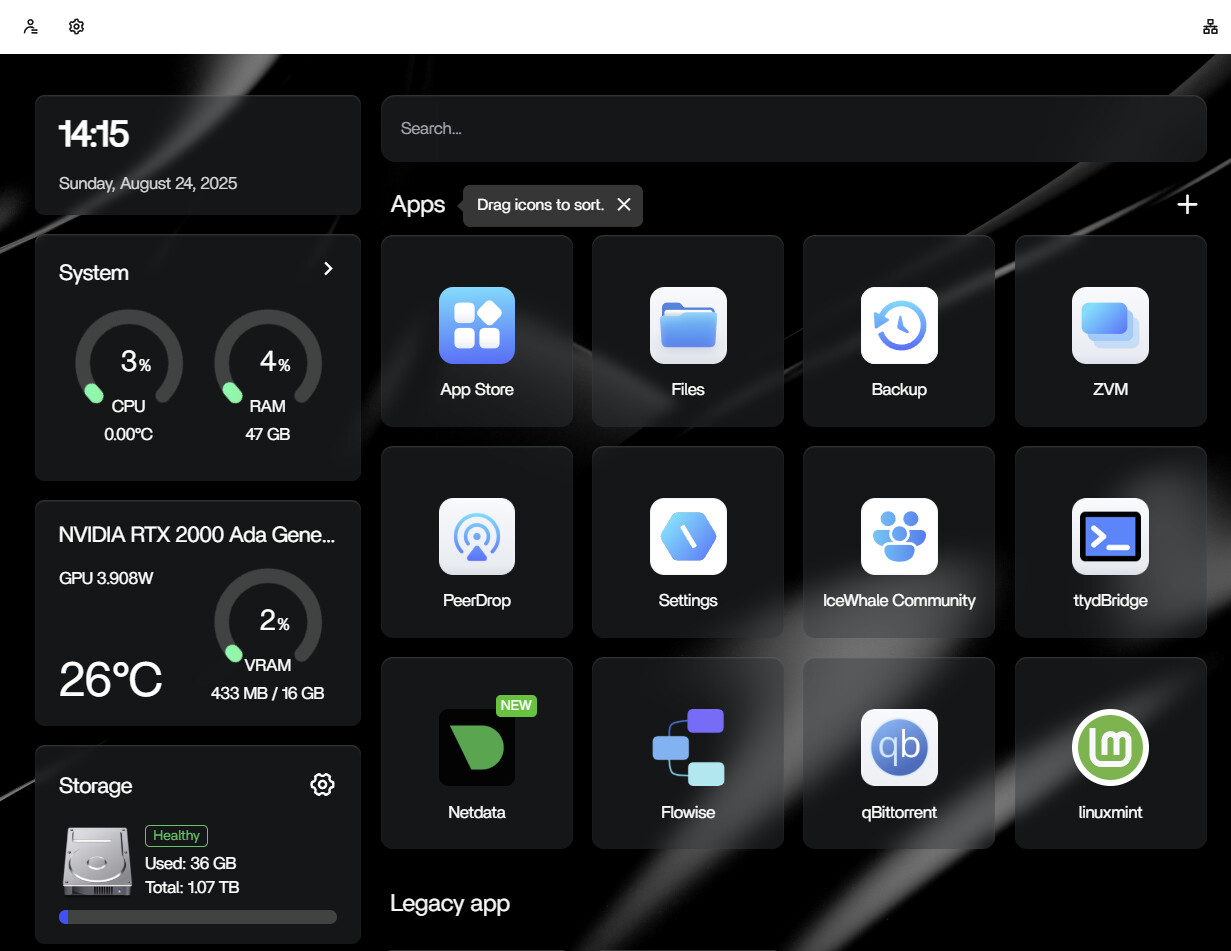
I couldn’t get the ZimaOS installer to boot on my ASUS Z890 (black screen + blinking cursor), so I moved to Proxmox and now run ZimaOS as a VM using the generic x86-64 image. It’s been flawless—fast boots, a snappy Web UI, solid networking/Docker, and smooth updates. I also enabled GPU acceleration (RTX 2000); heavy workloads now run on the GPU and CPU usage is way down, the Proxmox VM route is a reliable fix that just works.
May I know which guide you followed to install ZimaOS on PVE? Or do you have your version? Please share it with us. Thanks in advance.
Sure,
I didn’t use a formal guide, here’s exactly what I did on Proxmox VE.
I grabbed the generic x86-64 ZimaOS disk image, decompressed it, and created a new VM with UEFI/OVMF (q35), CPU set to “host,” and VirtIO for both the network and the SCSI controller. I added an EFI/NVRAM disk with pre-enrolled keys, imported the ZimaOS image into Proxmox storage, attached it as the primary SCSI disk, set it first in the boot order, and started the VM. I also added a second VirtIO disk for /DATA.
That’s it, boots fast, the UI is snappy, networking/Docker are solid, and updates have been smooth.
I did watch a couple of Proxmox Youtube videos along the way just to sanity-check the VM settings.
Awesome, why didn’t you record the screen? 
I didn’t record it because it was a bit of trial and error—tried a couple of images, tweaked VM settings, a few reboots, and sanity-checked with some Proxmox YouTube videos. Once I landed on UEFI/OVMF + VirtIO and imported the generic image as the SCSI boot disk, it just worked—and I was more focused on getting it stable than hitting “record.”
If it helps, I’m happy to write up a simple step-by-step with screenshots next time.
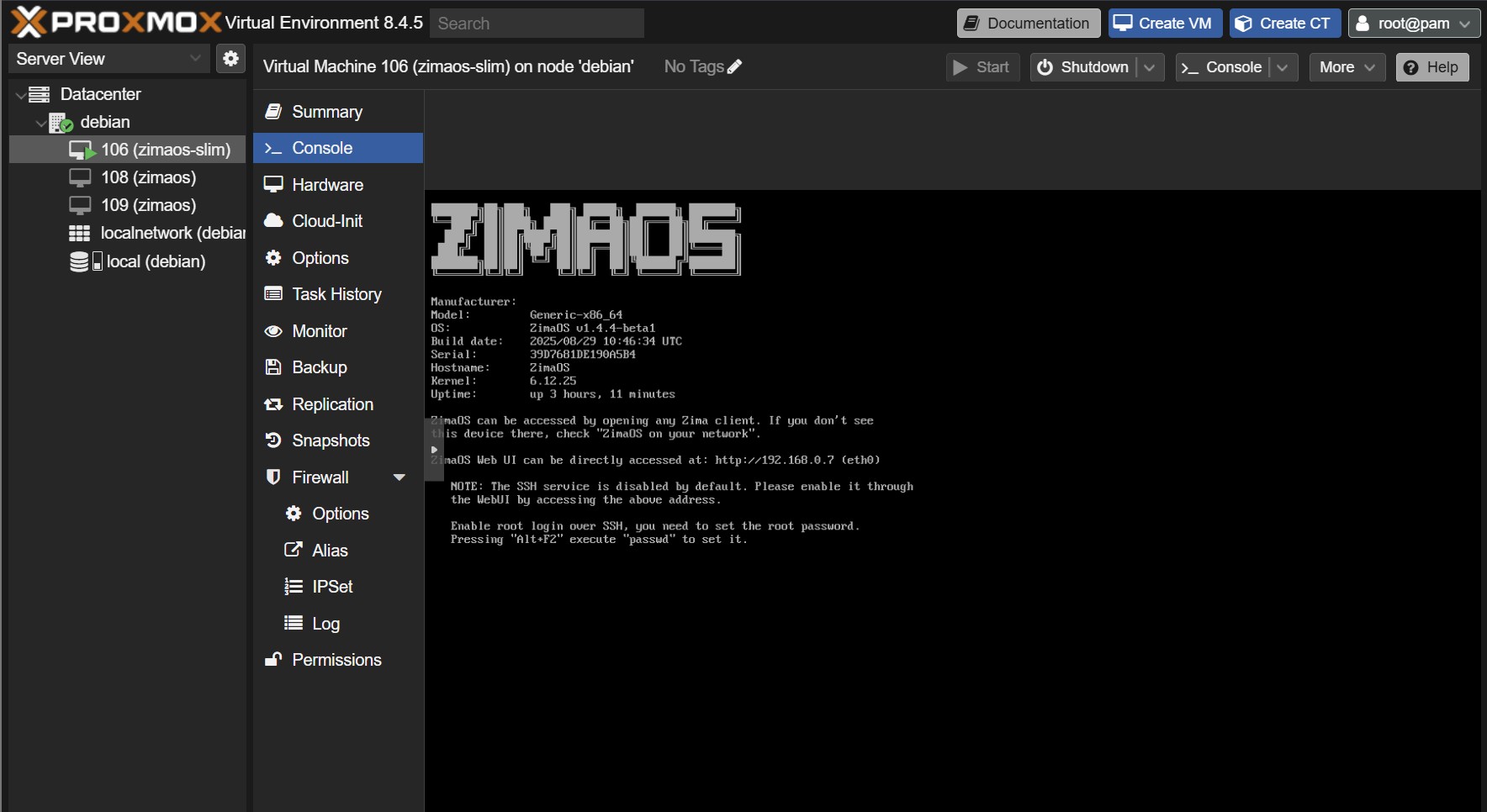
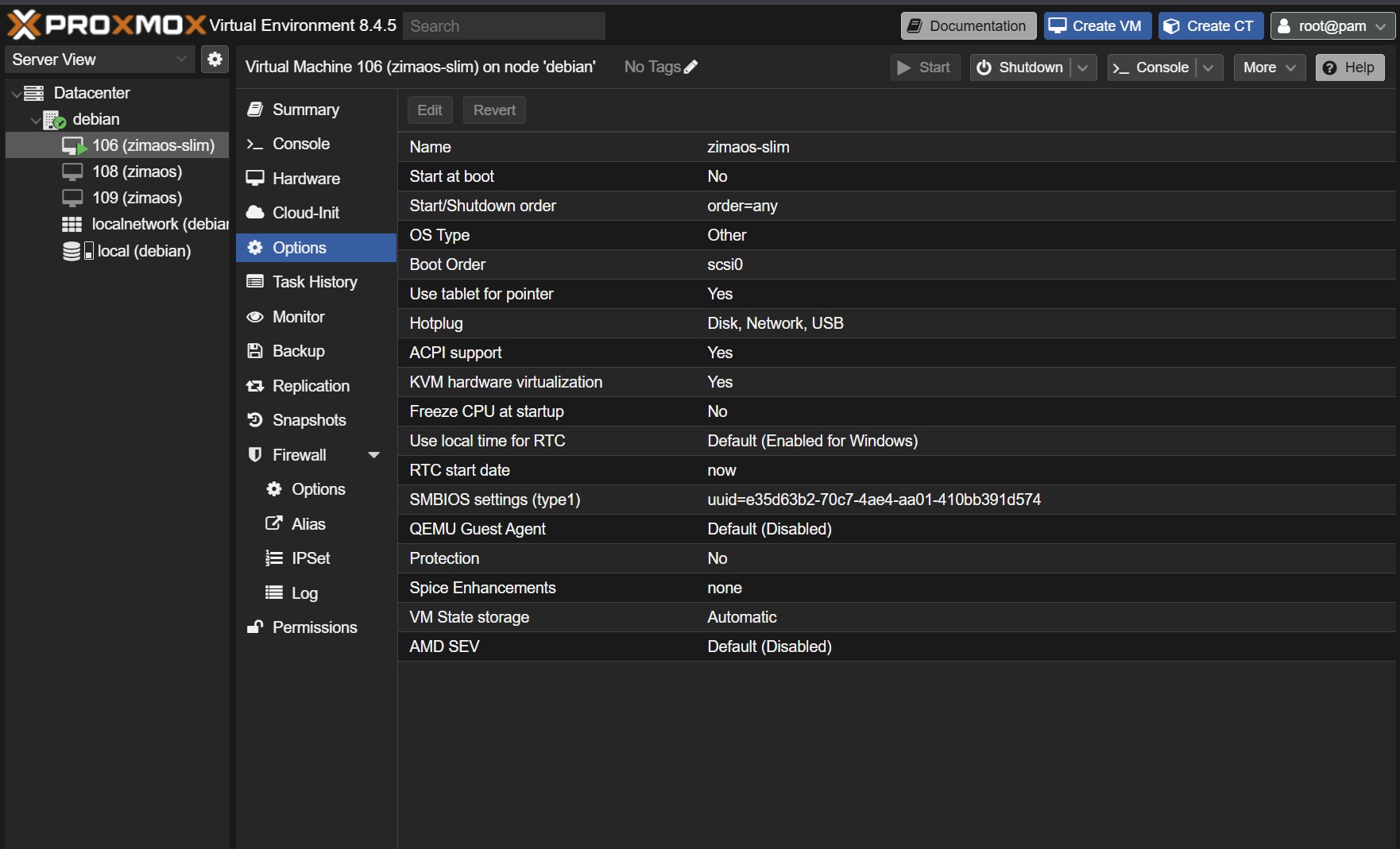
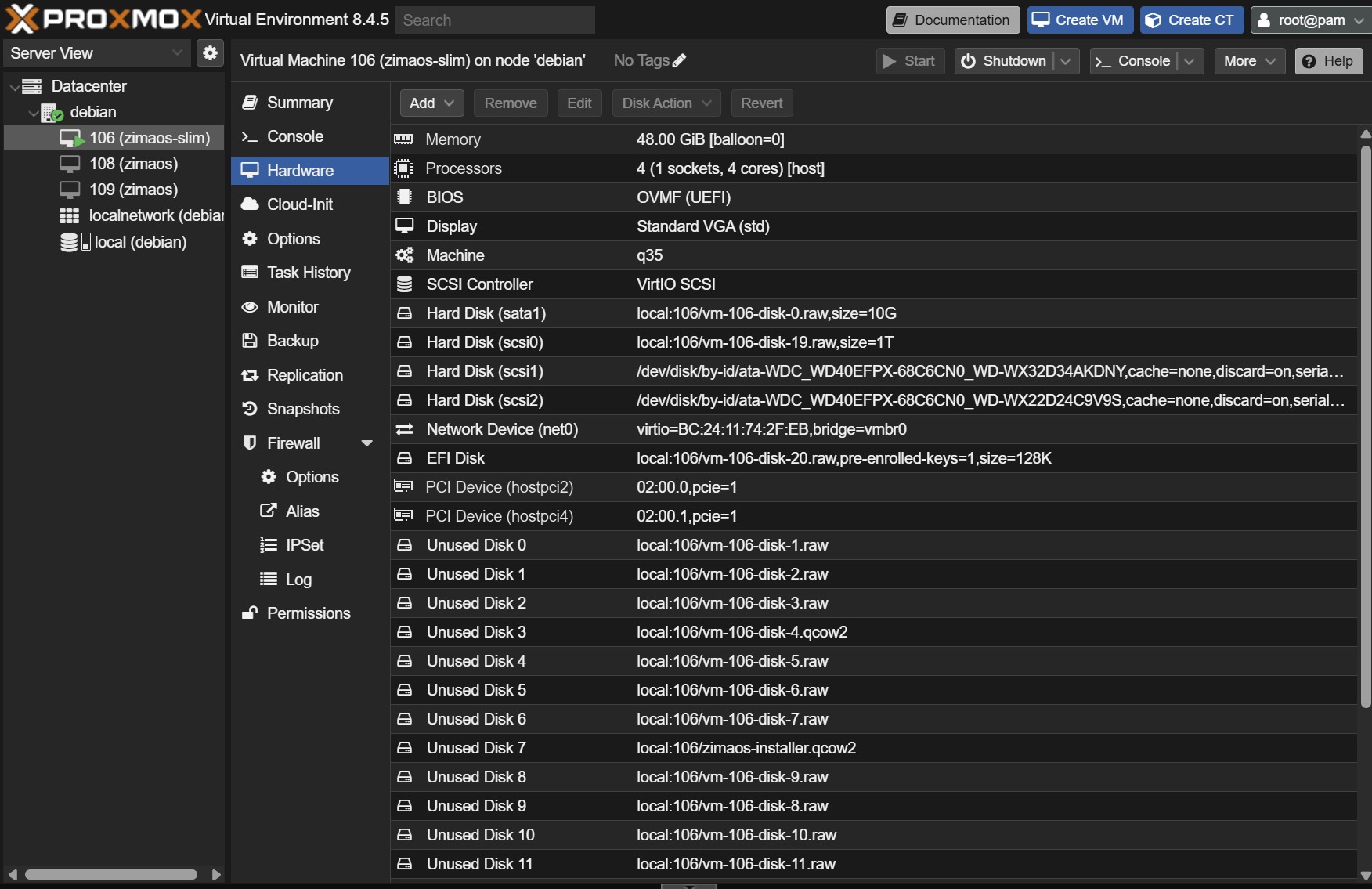
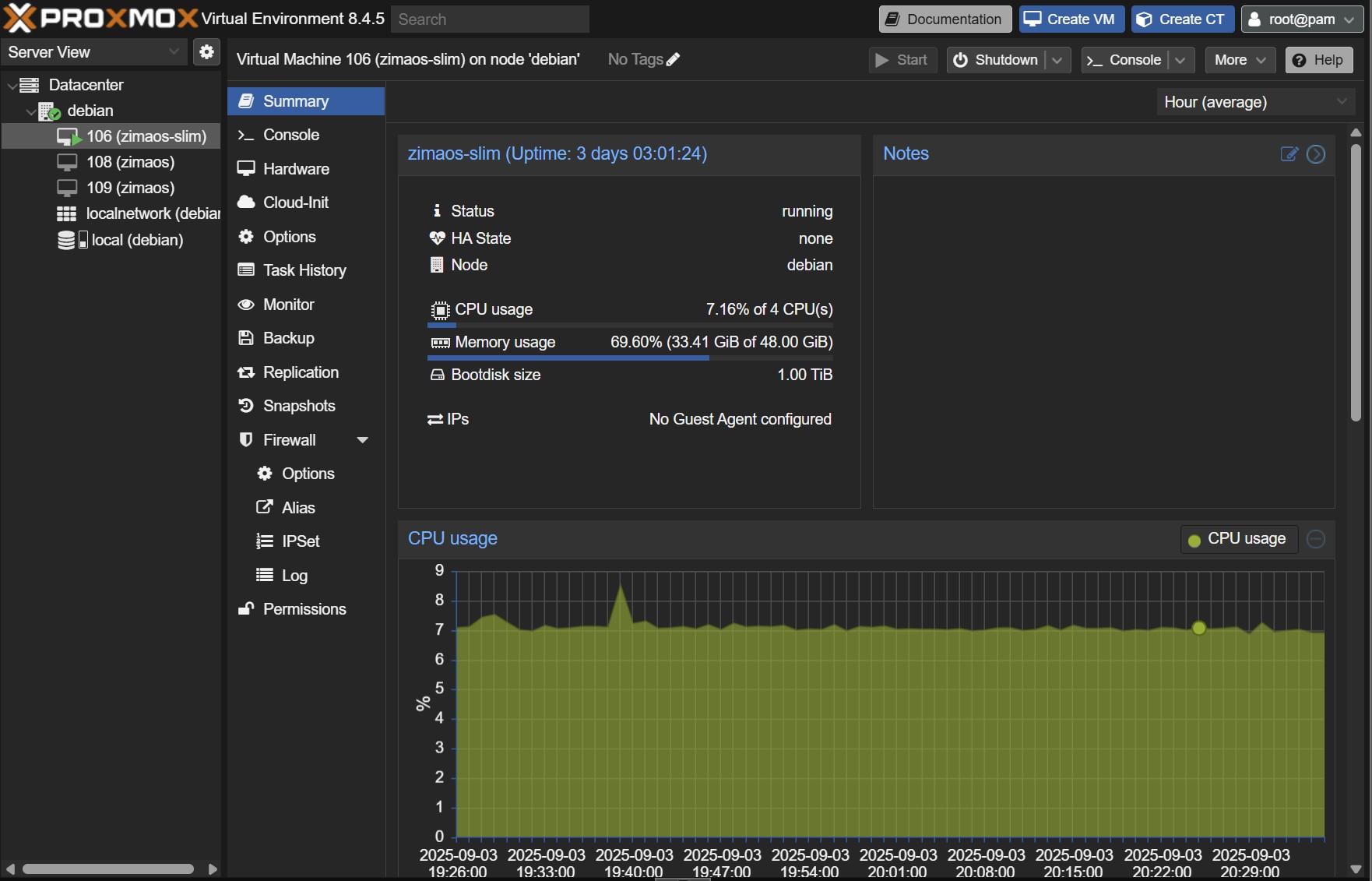
Got ZimaOS running perfectly on Proxmox VE. I used the generic x86-64 image, created a UEFI/OVMF (q35) VM, VirtIO for network + SCSI, added an EFI/NVRAM disk, imported the image as SCSI0 (boot), and added a second VirtIO disk for /DATA. Boots fast, UI is snappy, networking/Docker are solid, updates smooth. I also enabled GPU acceleration (RTX 2000)—heavy workloads now run on the GPU and CPU load is way down.
Screenshots:
Console: ZimaOS boots cleanly; shows kernel, uptime, and the Web UI URL.
Summary: VM is running and stable (multi-day uptime), CPU in single digits most of the time.
Options: Boot order = scsi0, KVM virtualization = Yes, Hotplug = Disk/Network/USB. (Optional: turn on Start at boot and QEMU Guest Agent so the IP shows on Summary.)
Hardware: OVMF/UEFI, q35, VirtIO-SCSI single, scsi0 (SSD + discard), scsi1 as data disk, net0 = VirtIO on vmbr0.
Happy to share exact commands if anyone wants them.
It’s nice of you and very helpful that you provide steps and commands. Thanks.
Hello,
i have a similar hardware setup with an ASUS PRIME 7890M-PLUS-WIFI motherboard and experience the same message “Booting ZimaOS Installer”.
@gelbuilding did you stay on your install with a proxmox vm like you explained in latest posts or did you try again to install directly zimaos on your hardware ?
Hey there, I am in the same boat as you were originally, was this ever figured out if it can run on a 265k Intel ultra 7? I have the pretty much the same hardware and also stuck at a frozen boot screen
Hey mate, I’m sticking with the Proxmox VM. It’s flawless, so I didn’t keep chasing bare-metal.
On my Z890 board, bare-metal just doesn’t work right now. Most ISOs hang at “Booting ZimaOS Installer.” The only one that reached the GUI was the slim ISO (zimaos_zimacube-1.4.2-beta1_installer_slim.iso), but after install it wouldn’t boot (Slot A/B/rescue shell loop). I tried the usual BIOS tweaks and multiple USBs, same result. So for me, bare-metal isn’t viable on this chipset at the moment
The Proxmox route with the generic x86-64 image has been rock-solid: fast boots, snappy UI, Docker stable, and GPU acceleration working. If you follow the steps I posted above, you’ll get ZimaOS running perfectly on Proxmox.
I second that, I’m having the same overwhelming positive experience by running ZimaOS as VM through Proxmox. It just scales better for some reason and it also gives us the data integrity of full VM disk backups and ZFS/XFS too.
Whenever they implement NonRAID and/or MergerFS it will be a true game changer to take on unRAID and TrueNAS head on in a couple of years.
Couldn’t agree more. Running ZimaOS as a VM on Proxmox has been a home run for me too, performance scales nicely, maintenance is painless, and I get proper snapshots/rollbacks plus full-disk backups with ZFS/XFS. Add optional GPU passthrough when needed and it’s a super flexible setup.
If/when ZimaOS ships NonRAID and/or MergerFS, that’ll be huge. Pooling + flexible redundancy + the current app ecosystem would put it in serious contention with unRAID and TrueNAS. For now, Proxmox + ZimaOS is a rock-solid combo.
The only reason why I was asking is because 1. I’m a proxmox newbie. I’m just starting to dabble in it right now due to Zima working on the 265k with the compatible motherboard. And 2. I was really hoping to use the whole server for Zima so that all of the system resources were available to Zima and it could scale all of the jobs accordingly. What’s your proxmox set up for Zima for cpu/memory?
Totally get it, and fair question.
Short version: Proxmox adds only a tiny overhead, and you can still give ZimaOS most of the box. I size it so Proxmox has a little breathing room and Zima has everything else.
Here’s what works great for me (and scales well):
- CPU type: host
- vCPUs: 6–8 for a mid-range box; 10–12 if you’re running lots of Docker apps or GPU workloads.
- Rule of thumb: leave 1–2 cores for Proxmox/housekeeping.
- Memory: 16–24 GB for general use; 32 GB+ if you run heavy services (databases, Immich, AI, etc.).
- Leave 2–4 GB for Proxmox itself.
- Ballooning: I usually disable it for Zima (more predictable performance). If you need elasticity, enable ballooning with a realistic minimum.
- Machine/virt: q35, OVMF (UEFI), VirtIO for disk and net, SCSI controller = VirtIO SCSI single.
- Disks: give Zima its own fast virtual disk for / and a larger one for /DATA; enable discard and mark as SSD. Snapshots/backups love this layout.
- GPU: optional; pass it through only if you actually need it. Otherwise keep it on the host or a separate GPU VM and point Zima apps to it.
If you want numbers, on a 24-thread CPU and 64 GB RAM I run:
- ZimaOS VM: 10 vCPU, 32 GB RAM, no ballooning
- Host reserve: ~2 cores + 4 GB RAM for Proxmox and services
You can absolutely dedicate “nearly all” resources to Zima and still keep the convenience of snapshots, backups, and quick rollbacks. Start with 8 vCPU / 16–24 GB; watch CPU/RAM graphs for a day; bump up if you see sustained pressure.
Is there any particular reason to not use ballooning feature with ZimaOS VM? Just genuinely curious since I have it active on mine so I’m not quite sure what to expect, still learning my way into Proxmox.
Ballooning works, but I usually leave it off for ZimaOS so performance stays predictable.
Why I skip it: ZimaOS often runs lots of Docker services that benefit from steady RAM (page cache, databases). If the host trims memory at the wrong time, you can get little hiccups, slow pulls, laggy UIs, DB stalls. It’s also easier to troubleshoot when the VM always has the same RAM.
When it’s fine: light/idle setups, lab boxes, or if you really want to overcommit. Just set a sensible minimum close to normal usage.
If you keep it on: pick a realistic floor after watching a day of RAM graphs, avoid memory-hungry DBs/JVM apps in that VM (or hard-cap them), and watch host pressure, if it’s reclaiming constantly, raise the floor.
Rule of thumb: want consistency (media, databases, GPU/AI, big Docker stacks)? Fix the RAM. Want density and can tolerate a little wobble? Ballooning is okay with a solid minimum.
References,
Many thanks
Thank you for the clarification and vast reference docs. Reading through it all.
I had this issue with only result was to use Clover EFI boot on a USB, as I have had a few issues booting this old server with anything that is UEFI, or EFI… ZimaOS, UmbrelOS, never got Qubes to boot on it, several others, but OpenMediaVault, TrueNAS, Mint, Debian, many other boot and install right off Ventoy disk.
Basicly follow the Clover EFI boot disk to make the USB, have ISO of whatever your installing on another USB. Boot from the Clover disk without the ISO pluged in, wait for menu, stick the ISO usb in and another menu item pops up with Boot whatever ISO is selected with EFI in front, then hit enter and your ISO installer or live will start up. When done installing, shut down (not restart), remove the ISO disk only, (leave the Clover disk in) and power up. Your OS should start up, or bring a menu back up, choose EFI “YOUR OS” hit enter. If no boot, reboot and make sure BIOS that the Clover USB is first boot. It will have to stay in at every boot.
It basically fakes the bios into EFI mode.