I can still access my files, just not get to the dashboard, and the files app is no longer working.
Can I access the machine locally, meaning plug a screen and keyboard into it?
I believe the reboot didn’t actually clear the migration task — the system is still stuck in the “migrating” state, which is why the dashboard is blocked and now the Files app is also failing.
Yes, I suggest you can absolutely access it locally by plugging in a monitor + keyboard (local console). That’s often the quickest way to recover access when the UI is stuck.
Most importantly: I suggest you run the two commands that raller1028 requested:
du -sh /media/* --exclude=.media
du -sh /media/ZimaOS-HD/* --exclude=.media
I believe this is the best next step because it will immediately show what folder is consuming the space and what the migration is trying (and failing) to move.
Also, I suggest following raller1028’s guidance closely, I believe he is one of the IceWhale engineers and will be the best person to solve this efficiently once you paste those command outputs here.
I’m back in the dashboard finally. SSH was turned off, I turned it on and this is what the results are:
admin@ZimaOS:~ ➜ $ du -sh /media/* --exclude=.media
100G /media/192.168.0.81
du: cannot read directory ‘/media/Zima/.trash/smb/Jamari’: Permission denied
du: cannot read directory ‘/media/Zima/.trash/smb/Alex’: Permission denied
du: cannot read directory ‘/media/Zima/.trash/smb/Shantell’: Permission denied
190G /media/Zima
4.0K /media/Zima 1TB
0 /media/ZimaOS-HD
admin@ZimaOS:~ ➜ $ du -sh /media/ZimaOS-HD/* --exclude=.media
4.0K /media/ZimaOS-HD/AppData
4.0K /media/ZimaOS-HD/Backup
4.0K /media/ZimaOS-HD/Documents
4.0K /media/ZimaOS-HD/Downloads
4.0K /media/ZimaOS-HD/Gallery
du: cannot read directory ‘/media/ZimaOS-HD/lost+found’: Permission denied
16K /media/ZimaOS-HD/lost+found
16K /media/ZimaOS-HD/Media
Is it possible that my backup to another nas is being seen on this drive? 192.168.0.81 is the nas I set up the Zima to back up to.
Mind you the swap file is also quite large
admin@ZimaOS:/media/192.168.0.81 ➜ $ cd /media/ZimaOS-HD
admin@ZimaOS:/media/ZimaOS-HD ➜ $ ls -la
total 2649052
drwxr-xr-x 20 root root 4096 Jan 13 16:56 .
drwxr-xr-x 19 root root 310 Nov 4 08:21 ..
drwxrwxrwx 2 root root 4096 Nov 19 14:57 AppData
drwxrwxrwx 2 root root 4096 Nov 19 14:57 Backup
-rw-r–r-- 1 root root 65 Nov 19 14:57 .bash_profile
-rw-r–r-- 1 root root 6635 Nov 19 14:57 .bashrc
drwx------ 3 root root 4096 Nov 19 14:57 .bluetooth
drwxr-xr-x 16 root root 4096 Jan 14 09:04 .casaos
drwx–x— 11 root root 4096 Jan 7 05:58 .docker
drwxrwxrwx 2 root root 4096 Nov 19 14:57 Documents
drwxrwxrwx 2 root root 4096 Nov 19 14:57 Downloads
drwxr-xr-x 2 root root 4096 Jan 14 00:00 .extensions
drwxrwxrwx 2 root root 4096 Nov 19 14:57 Gallery
drwxr-xr-x 3 root root 4096 Nov 19 14:57 .icewhale
drwxr-xr-x 13 root root 4096 Jan 13 16:52 .libvirt
drwxr-xr-x 8 root root 4096 Nov 19 14:57 .log
drwx------ 2 root root 16384 Nov 19 14:56 lost+found
drwxr-xr-x 5 root root 4096 Nov 27 09:41 .media
drwxr-xr-x 5 root root 4096 Nov 19 14:57 Media
drwxr-xr-x 3 root root 4096 Nov 19 14:57 .opt
drwxr-xr-x 4 root root 4096 Dec 5 13:17 .ota
-rw------- 1 root root 2712518656 Dec 27 12:34 .swapfile
drwxr-xr-x 3 root root 4096 Dec 5 14:17 .trash
-rw-r–r-- 1 root root 1662 Nov 19 14:57 .wgetrc
I believe your output confirms something important:
1) Your Apps are NOT taking up the space on ZimaOS-HD
/media/ZimaOS-HD is basically empty (all folders show 4K).
So I believe the huge storage usage is not actually inside AppData/Docker on ZimaOS-HD.
2) The big usage is on /media/Zima (190G) and the mounted NAS share (100G)
This line is key:
190G /media/Zima100G /media/192.168.0.81
So I believe the Zima system is counting space from:
- your local disk mount (
/media/Zima) - plus your NAS mount (
/media/192.168.0.81)
3) Yes, your backup NAS mount is being seen by ZimaOS
You asked if 192.168.0.81 is being seen as part of the drive:
I believe yes — it’s mounted under /media/192.168.0.81, so ZimaOS will see it as accessible storage and it will appear in disk usage scans.
It’s not “stored on ZimaOS-HD”, but it’s still part of what du sees under /media.
4) The swapfile is large, but it’s not the main problem
You’ve got:
.swapfile = 2.7GB
I believe that’s normal and not the cause of the migration taking days.
5) Why migration got stuck
I believe the migration likely got stuck because there are permission-protected folders inside trash:
du: cannot read directory ... Permission denied
That means the migration/scan tool may be hitting unreadable paths and stalling (especially under .trash / SMB trash).
What I suggest next (simple + targeted)
To identify what’s actually taking the 190G under /media/Zima, I suggest these commands:
sudo du -h --max-depth=2 /media/Zima 2>/dev/null | sort -h | tail -50
sudo du -h --max-depth=2 /media/Zima/.trash 2>/dev/null | sort -h | tail -30
mount | grep 192.168.0.81
That will show:
- the biggest folders under
/media/Zima - whether trash is consuming space
- confirm the NAS mount
If you paste that output, I believe we can pinpoint the exact folder causing the storage pressure and why migration/Files app became unstable.
Hi again,
Thanks for all the help, I feel like I’m starting to uderstand things a lot more.
admin@ZimaOS:~ ➜ $ sudo du -h --max-depth=2 /media/Zima 2>/dev/null | sort -h | tail -50
186M /media/Zima/SCC Groups/man
198M /media/Zima/Rem/Mark
202M /media/Zima/SCC Group/CCF
207M /media/Zima/Alex/map
208M /media/Zima/Corrine/glass house
212M /media/Zima/Jamari/Desktop
219M /media/Zima/Alex/Rem
225M /media/Zima/Jamari
226M /media/Zima/Rem/Supplies
235M /media/Zima/Corrine/Island Paradise 11C
269M /media/Zima/Christophe/Camera
297M /media/Zima/SCC Groups/SCCs
315M /media/Zima/Alex/kirbie
318M /media/Zima/SCC Groups/FM
339M /media/Zima/Alex/brochures
444M /media/Zima/Stats/Scc EC
461M /media/Zima/Accounts
536M /media/Zima/Alex/visuals
550M /media/Zima/SCC Groups/Manuals
650M /media/Zima/Alex/2. Commercial
740M /media/Zima/Stats/RemEC
796M /media/Zima/Hector/Sals
909M /media/Zima/Hector
1.2G /media/Zima/Alex/Magazines
1.6G /media/Zima/SCC Group/broc
1.7G /media/Zima/Stats
2.0G /media/Zima/Christophe/Scans
2.1G /media/Zima/Alex/Billboard
3.4G /media/Zima/Alex/1. Sal
3.4G /media/Zima/Corrine/backup 17-10-20
3.6G /media/Zima/Christophe/chris
4.0G /media/Zima/SCC Groups
5.8G /media/Zima/Justin/Th
5.9G /media/Zima/Justin
6.3G /media/Zima/Corrine/Original backup
6.6G /media/Zima/Archives
6.6G /media/Zima/Archives/Rem
7.0G /media/Zima/Rem/Rens
8.4G /media/Zima/Rem/Photos
9.7G /media/Zima/Alex/phone backup
16G /media/Zima/Rem
17G /media/Zima/Christophe/Thunderbird backup
20G /media/Zima/Alex
23G /media/Zima/Christophe
24G /media/Zima/Applications/Mac
34G /media/Zima/Applications/Windows
46G /media/Zima/Corrine/Macmini desktop
56G /media/Zima/Corrine
57G /media/Zima/Applications
190G /media/Zima
admin@ZimaOS:~ ➜ $ sudo du -h --max-depth=2 /media/Zima/.trash 2>/dev/null | sort -h | tail -30
108K /media/Zima/.trash/smb/Alex
200K /media/Zima/.trash/smb/Shantell
6.9M /media/Zima/.trash/smb/Jamari
63M /media/Zima/.trash/smb/Rem
81M /media/Zima/.trash/smb/Hector
150M /media/Zima/.trash
150M /media/Zima/.trash/smb
Is there a way to empty the trash using the command line? Or do I have to go into said folders as su and rm individually or recurringly? That sounds pretty dangerous to do as su
A thought occured to me. If it’s because the backups are going to 192.168.0.81 and it’s mounting and counting the space as filled space, the apps are currently disabled and I can’t find a way to disable the back up.
How do I stop this?
Thanks for running those commands, I believe this output clears things up.
1) What is actually using space?
I believe the space is not coming from Apps at all.
Your results show:
/media/Zima= 190G (real data: Applications, backups, personal folders, etc.).trash= only 150M (small, not the issue)/media/ZimaOS-HD= basically empty
So I believe your “storage problem” is mainly just the actual files stored on your Zima disk (Applications folder alone is ~57G).
2) Is the backup NAS mount being counted as disk usage?
I believe yes, /media/192.168.0.81 is a mounted share, so it appears in /media/* scans and some dashboards.
But important: I believe this does not mean it is filling your internal disk. It just means the mount exists and has data on it.
Emptying trash safely (CLI)
Yes — I believe it’s safe to empty the .trash folder from command line as long as you only target .trash.
I suggest doing this (safe + specific):
sudo rm -rf /media/Zima/.trash/*
sudo rm -rf /media/Zima/.trash/.[!.]* /media/Zima/.trash/..?*
Then confirm:
sudo du -sh /media/Zima/.trash
That removes only trash contents, not your real folders.
Stopping the backup mount / backup job
I believe the backups going to 192.168.0.81 are being done via a mounted SMB/NFS share, and that’s why you see /media/192.168.0.81.
If Apps are disabled and you can’t stop backups in the UI, I suggest simply unmounting it (this immediately stops any job writing to it):
Check what it is:
mount | grep 192.168.0.81
Unmount it:
sudo umount /media/192.168.0.81
If it says “busy”, then:
sudo umount -l /media/192.168.0.81
That will detach it safely.
Interestingly, I lost SSH access again and for some reason the machine is going into a migration loop. Sometimes the dashboard works, sometimes I get the migration in progress screen. When the dashboard came back I still couldn’t log in to ssh in windows command prompt but I think that might just be my syntax. I was able to get a temrinal window open through the dashboard though.
mount | grep 192.168.0.81
prints out a red cursor but no actual results, if i type in ls -la is prints out the results of the current folder, wherever i am.

I was able to empty the trash successfully, thanks. But no difference as it was just 60mbs or whatever.
I tried to empty the 192.168.0.81 backup of files to make space in file explorer but it says I don’t have permissions. So I tried ssh and am able to delete files but then the dashboard went into migration mode again for some reason. I can’t tell if the deleting of files in terminal made a difference yet.
For the unmount, should I be expecting a return of some kind?
I’m going through the back up folder of the 192.168.0.81 drive and I’m finding a lot of these folders called $History. The terminal doesn’t see them, so guessing they’re hidden folders. Is this zima making them or the back up nas?
I’m not able to delete them for permission issues in windows and because the terminal can’t see them even with ls -la or hitting tab to autofill I can’t get rid of them.
It was the backup. I cleaned out some things from 192.168.0.81 and my apps came back finally.
So there seems to be something with how the internal backup works and how it looks at memory on connected samba drives.
I’ve left my nas at 192.168.0.81 unplugged from the power and the zima box still sees it in /media/192.168.0.81 even though there is nothing on the network powered on at that address
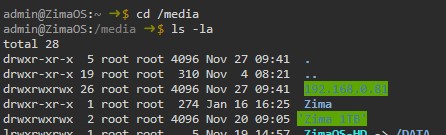
So it looks like it is actually filling up some kind of internal storage for some reason because I still have
I believe what you’re seeing is normal, /media/192.168.0.81 is just a local mountpoint folder, not proof that the NAS is still connected.
That’s why:
mount | grep 192.168.0.81returns nothing = not mounted- but
/media/192.168.0.81still exists = local folder remains
So if your NAS is powered off, it’s not actually mounted, ZimaOS just doesn’t remove the mountpoint.
If you want to remove it completely (only if it is not a real mounted share):
mount | grep 192.168.0.81
If nothing prints (not mounted), then you can safely remove the mountpoint folder:
sudo rmdir /media/192.168.0.81
If it won’t delete because it’s “not empty”, then:
sudo rm -rf /media/192.168.0.81
Safety note (important)
I suggest being extremely careful here — only remove /media/192.168.0.81.
Do NOT delete anything under:
/media/ZimaOS-HD(this is the OS disk)/media/Zima(this is your main data)/media/Zima 1TB(this is another disk)
Deleting those would remove real system/data files.
I also believe the “migration loop / apps disappearing” was triggered because the backup target was full — once you freed space on the NAS, Docker/apps could resume normally.
For unmount: yes, you often won’t see output if it succeeds. You can confirm with:
mount | grep 192.168.0.81
If nothing prints, it’s unmounted.
I’ve removed 192.168.0.81 and did a hard reboot and i’m in. For some reason it’s still giving the main drive out of diskspace error at the top
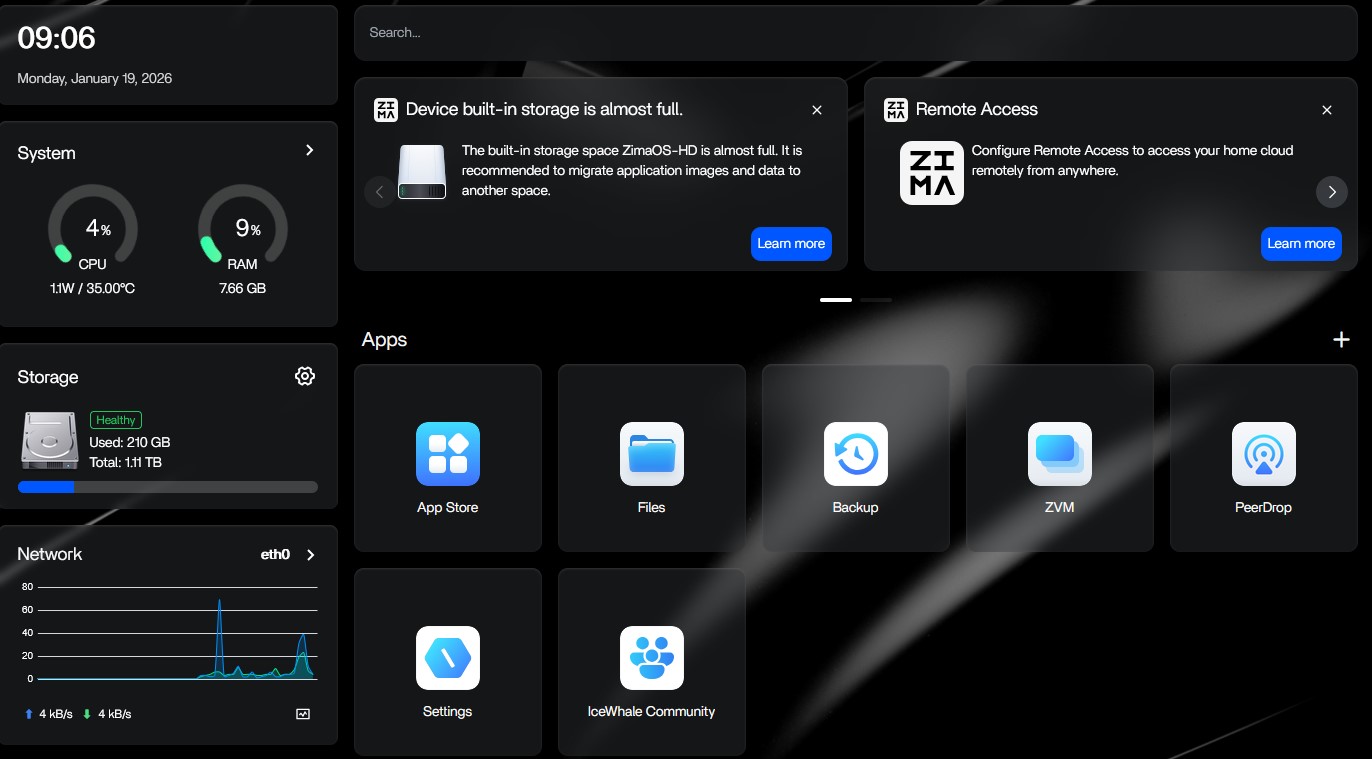
but in storage everything is fine
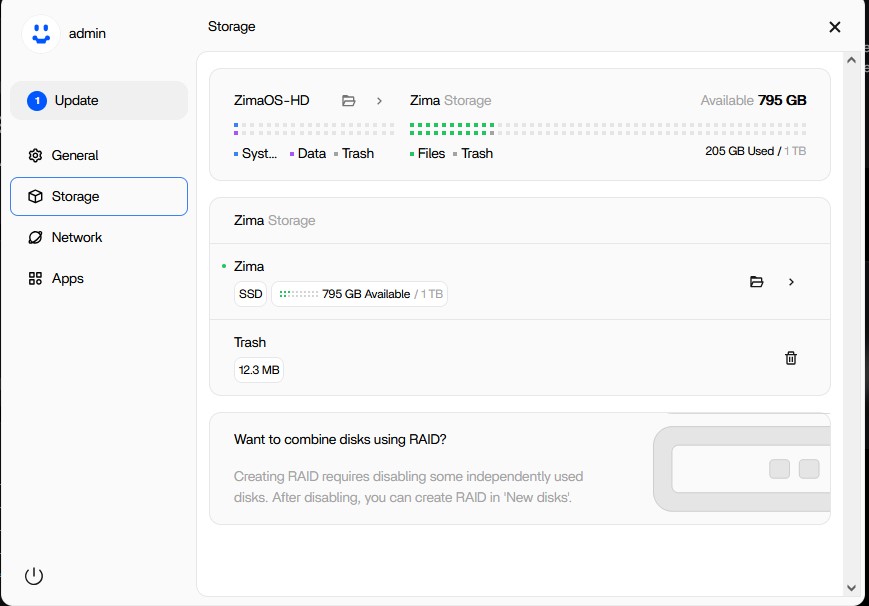
So my last question for my zima box then is how do I back up without it taking up space on the main drive? Do I have to use another app rather than the internal backup function or is there a flag I can set for it to not take up “internal storage” like this?
My lack of understanding for docker is going to show here but I’ve installed duplicati and tried running it but it’s not opening.
It’s “running” but when I try to open the app it sits and eventually goes to an error page
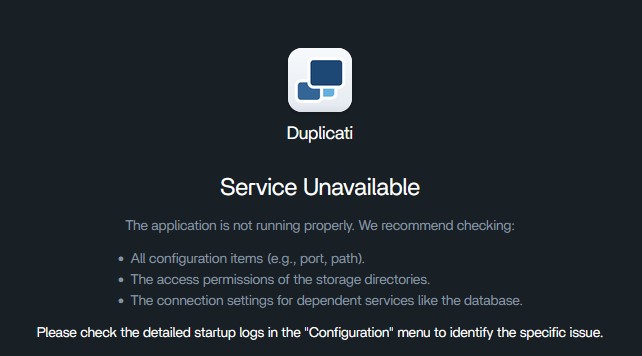
I checked the logs and it says no encryption key found. Ideally I’d like to disable the encryption key and followed the instructions
DUPLICATI__DISABLE_DB_ENCRYPTION=true: This setting disables encrypting data in the database, which should be stored on the host system.
found here: duplicati/duplicati - Docker Image
by adding it to the settings - didn’t work. So I tried adding an encryption key using this
Set
DUPLICATI__DISABLE_DB_ENCRYPTION=falseandSETTINGS_ENCRYPTION_KEY=<key>: This will enable database encryption using the supplied key and reduce the risk of leaking credentials from the database. Note that theSETTINGS_ENCRYPTION_KEYis not the password used to connect to the UI.
from the same page. I used 1234 as the encryption key which I used as a placeholder just to test. Still didn’t work
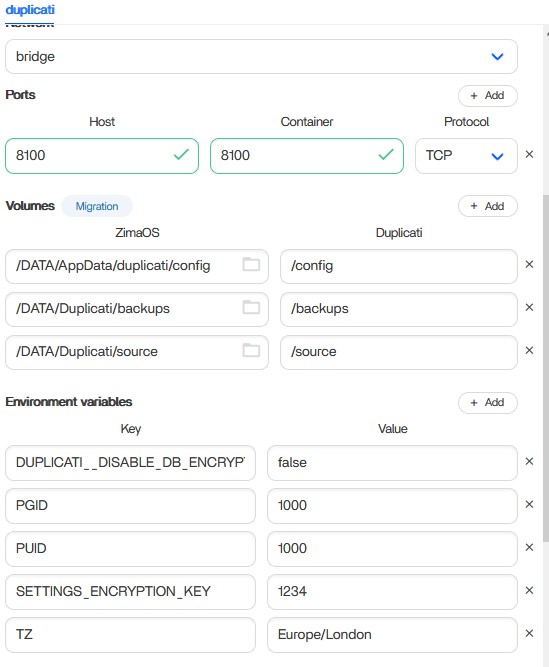
Note that I had to change the port because I was trying to do this in terminal as well and I think I inadvertently setup a docker of duplicati on 8200 while testing which also doesn’t work.
admin@ZimaOS:~/AppData/duplicati/config ➜ $ sudo docker run -d \
-e DUPLICATI__DISABLE_DB_ENCRYPTION=true \
-v /DATA/AppData/duplicati/config:/config \
-p 8200:8200 \
lscr.io/linuxserver/duplicati:latest \
Password:
Unable to find image ‘lscr.io/linuxserver/duplicati:latest’ locally
latest: Pulling from linuxserver/duplicati
fa320a8bcf11: Pull complete
f6a4c3e338ed: Pull complete
d662074283bf: Pull complete
27d26dfb2332: Pull complete
281193377f04: Pull complete
5eb77ae98956: Pull complete
ead2c5851e51: Pull complete
744073494f37: Pull complete
90a0e245a768: Pull complete
76b1b394c2cc: Pull complete
So it got installed, but trying to go to the page doesn’t do anything and it times out. This is somewhat confusing to me. I have some basic understanding on unix and linux but more familiar with mac and windows.
Should the web interface update with app icons when you manually install a docker through the terminal? If not, how do I get rid of that duplicati that I installed in the terminal?
Hi mate, no stress at all, I believe you’ve run into two separate issues at once, which is why it feels confusing.
1) I believe you now have TWO Duplicati installs
- One from the ZimaOS App Store
- One you created manually in terminal with
docker run
ZimaOS will not automatically show icons for containers you start manually via terminal. Those are “outside” the App Store UI.
So I suggest we clean this up and keep only one Duplicati.
2) I believe your manual docker command is mapped wrong
You used:
-p 8200:8200
But Duplicati container listens on 8200 inside the container only if configured. Most default images expose 8200, but you must confirm.
Also: your ZimaOS App version shows port 8100, so now ports may conflict.
What I suggest (safe cleanup plan)
Step A: list all duplicati containers
sudo docker ps -a | grep -i duplicati
Step B: remove the manual one (safe)
Pick the container name/ID from above and remove it:
sudo docker rm -f <container_name_or_id>
This does not delete your backup data unless you mapped it somewhere else. It only removes the container.
Step C: remove any leftover port conflicts
sudo ss -tulpn | grep -E "8100|8200"
If you want Duplicati working FAST (best option)
I believe the simplest path is: use only the App Store Duplicati and remove the manual one.
Then fix only the encryption key setting.
In the ZimaOS Duplicati App settings, I suggest:
DUPLICATI__DISABLE_DB_ENCRYPTION=true- remove
SETTINGS_ENCRYPTION_KEYentirely (don’t set it)
Then restart the app.
3) Why the web page times out
I believe the timeout happens because the container is either:
- not running properly (crashing due to config/db issue)
- or bound to a different port than you’re opening
- or conflicting with the other duplicati container
So the key thing is: don’t troubleshoot encryption until we confirm only one container exists and the port is free.
Extra safety note (important)
I suggest not deleting random folders in /DATA/AppData/ unless we confirm which container is using them, because you can lose configs. Deleting containers is safe. Deleting appdata folders is not.
If you paste the output of:
sudo docker ps -a | grep -i duplicati
sudo docker logs --tail=80 <container_name_or_id>
…I believe we can pinpoint the exact reason it’s failing.
Thanks much for all the help.
I followed your steps but still getting service unavailable unfortunately, here’s the print out
admin@ZimaOS:~/AppData/duplicati/config ➜ $ sudo docker ps -a | grep -i duplicati
Password:
47d60511e295 linuxserver/duplicati:2.1.0 “/init” About a minute ago Up About a minute 0.0.0.0:8200->8200/tcp, :::8200->8200/tcp duplicati
admin@ZimaOS:~/AppData/duplicati/config ➜ $ sudo docker logs --tail=80 47d60511e295
[migrations] started
[migrations] no migrations found
───────────────────────────────────────██╗ ███████╗██╗ ██████╗ ██║ ██╔════╝██║██╔═══██╗ ██║ ███████╗██║██║ ██║ ██║ ╚════██║██║██║ ██║ ███████╗███████║██║╚██████╔╝ ╚══════╝╚══════╝╚═╝ ╚═════╝Brought to you by linuxserver.io
───────────────────────────────────────To support LSIO projects visit:
Donate | LinuxServer.io───────────────────────────────────────
GID/UID
───────────────────────────────────────User UID: 1000
User GID: 1000
───────────────────────────────────────
Linuxserver.io version: v2.1.0.5_stable_2025-03-04-ls262
Build-date: 2025-10-18T03:53:58+00:00
───────────────────────────────────────*** Missing encryption key, unable to encrypt your settings database ***
*** Please set a value for SETTINGS_ENCRYPTION_KEY and recreate the container ***
Not sure how to tackle this.