Hi again,
I’ve got two zimaos machines running that are experiencing similar issues with remote login.
Both machine are back home in the Caribbean, both are on the same network at home. 1 is my personal, the other is shared for the house.
I’ve been using them both consistently for the 2 weeks that I’ve been traveling in Europe, accessing files and and using the apps on android, map and pc.
-
home server issues
The one for the house has users for the family, wife and kids while the other one is just me for my small projects. The house one has an issue where using the zima client on mac, I need to log in as admin, then log in through the mac os finder as my wife so she can access her files. She cannot log into the zimaclient as her account for whatever reason. Going back 3 or 4 weeks now, if memory serves correctly, I gave access to someone else as a test and they were able to log into the zima client using their account and then access files through the mac os finder.
Further to this, I’ve even had issues with my wife’s account accessing specific folders despite what is set on the zimaos dashboard and in the files app. Her original account could never access some folders remotely no matter what I tried, and she originally had trouble with a second account I made her. This is not as much an issue now since we have that aspect working but is it normal for her to not be able to log into the zima client using her username?
-
my projects zima box
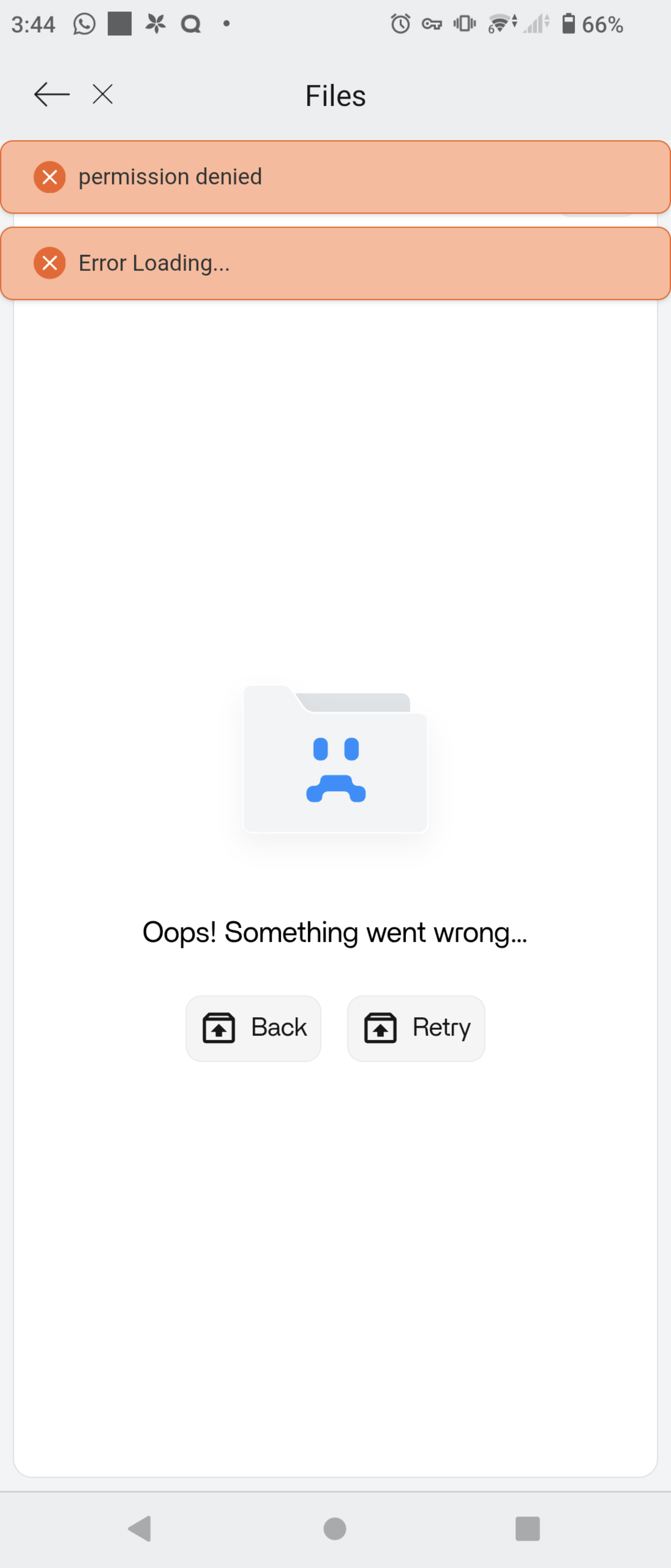
I finished working on a file on my pc and wanted to share it with someone on whatsapp. I don’t have whatsapp or whatsapp web on the pc so thought, let me just grab it using my phone and zima client on android. On my android, I was originally logged into the zima home server and couldn’t remember my zima remote key for my personal zima so I logged out on windows, knowing that it was saved there. Got the remote key, logged in on android open files and was hit with a yellow bar saying could not access files in the location.
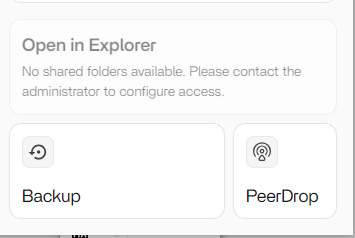
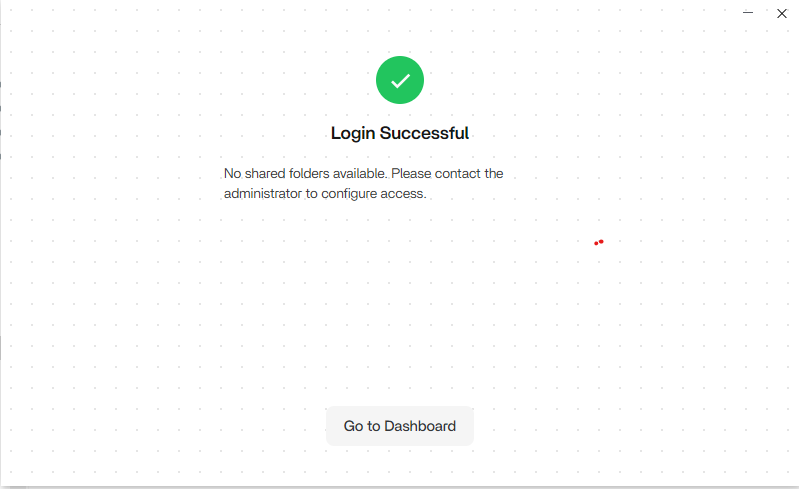
Logged back in on windows and was hit with this in the zima client in the login window and then clicking zima icon in system tray brought up no shares as well.
Explorer did not see them either, and One Command was spitting out could not find path errors.
The only way I could connect was by manually inputting the zima remote ip address in explorer, then opening the shared drives I wanted. After opening the drives, they’re still not showing up as shared drives in my computer.
I’ve tried rebooting the windows machine, no difference. I’m able to open files, save them without issue, but zimaclient just does not recognize my shared drives which is preventing windows from recognizing connected drives.
Here’s a screenshot of when logging in using Android.
Can you confirm if there are sharing permissions for a certain folder within the sub-members?
For the home server, yes, wife had permission to everything but could not see certain folders.
For personal server, I’m the only one on it and haven’t changed anything. I’ll be back home tomorrow so can connect inside of the network then to get more information, but honestly speaking, I haven’t changed anything with my account on my personal box before disconnecting and reconnecting.
You want other users to access only some of the specified folders, not all of them, right?
Sorry for the tardiness. I’ve been trying to catch up with work.
This is my personal box
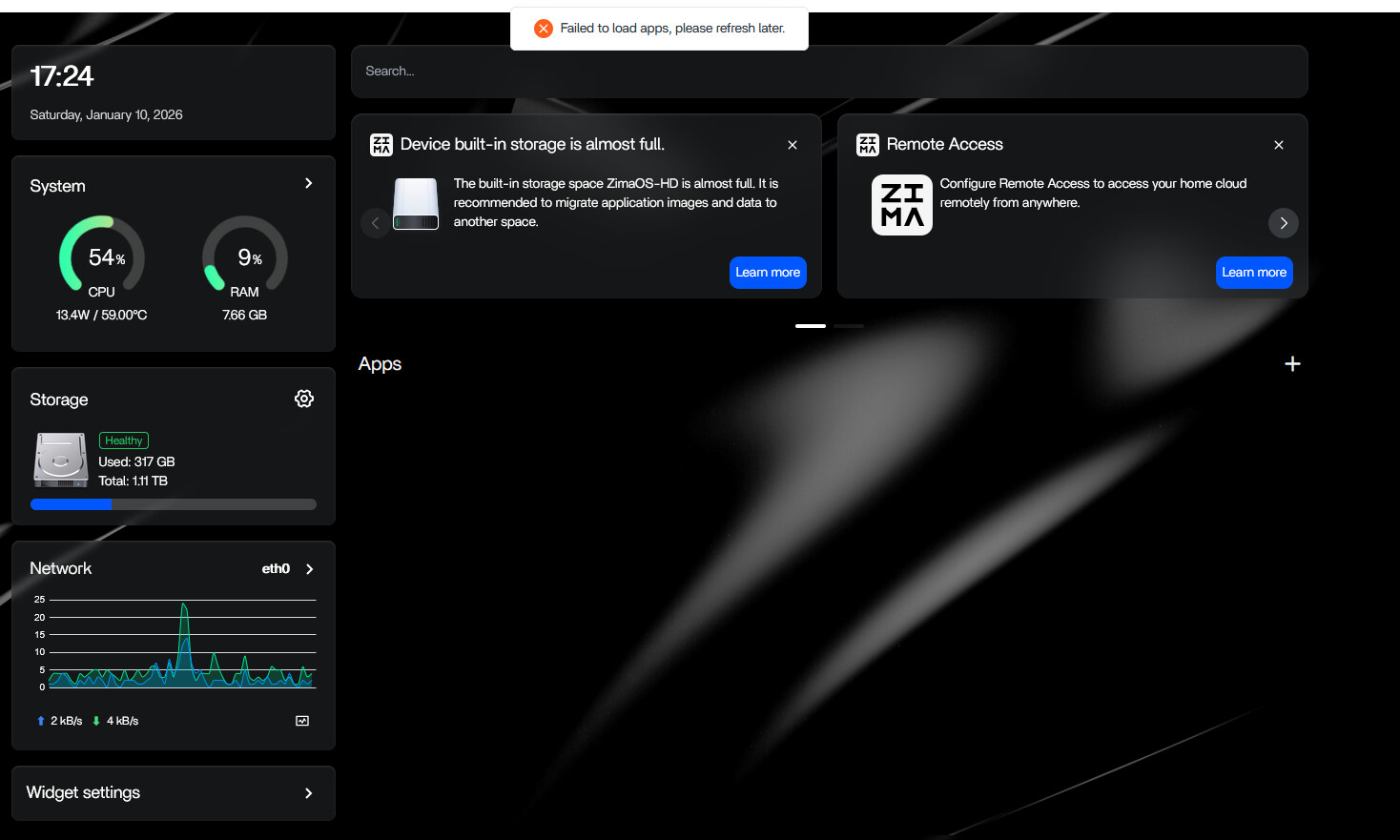
I’m on the same network now and able to log into the dashboard through the internal network. I believe this gives me more access to see what’s going on and I’m seeing some very very strange things happening.
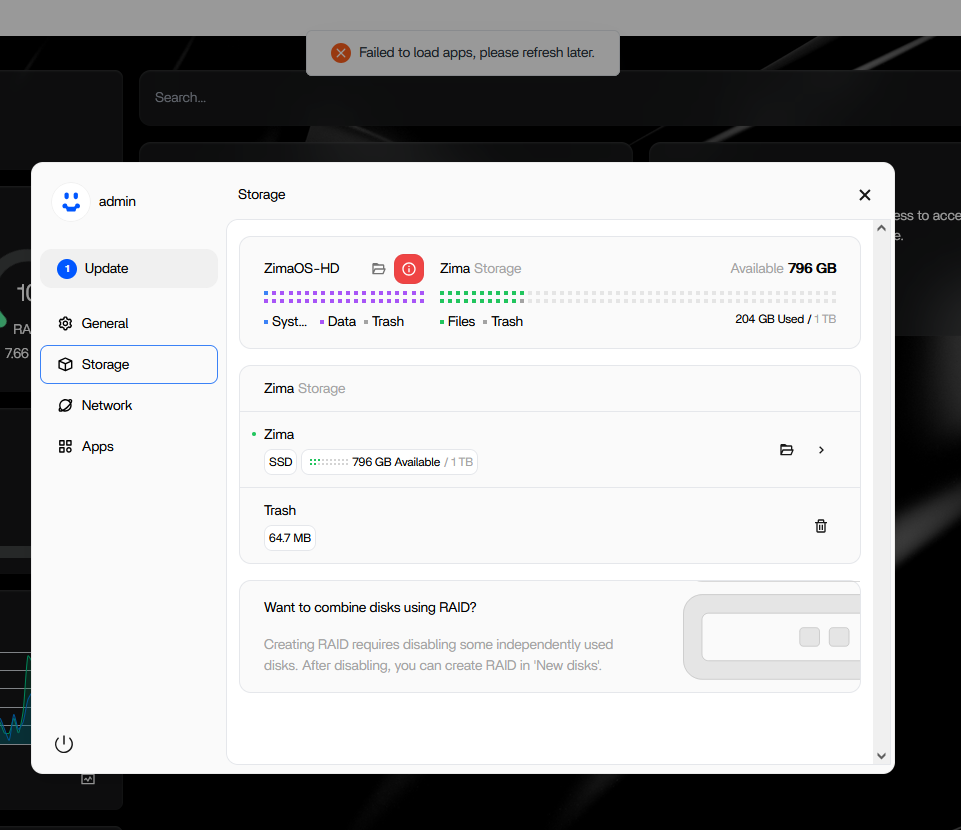
Once logged in, non of the icons for the apps are loading and I’m getting a pop-up message repeating itself that says failed to load apps, plrease refresh later. No matter what I do, non of the apps are showing up.
Next, apparently I’ve filled up the Zima OS main drive. I don’t touch the drive and don’t have any apps installed. I’ve been using the system for storing files on an nvme in the pc and haven’t given access to anything on the main drive.
It’s only 120gigs but I figured since I’m just using it as a storage device and using the nvme this wouldn’t be a problem. I clicked learn more and it opens the files app but all the folders on the drive are empty except trash which has 64mbs of stuff in it. I emptied it, but didn’t make a difference.
Here are screenshots of all the folders
I can only upload five images apparently and the images of the other empty folders will have to be cut
In retrospect, I’ve tried to empty the trash, but it won’t go.
The cpu is now going crazy because the appmanager is freaking out.

I’m tempted to, but worried, reboot my machine. I don’t want to lose anything and I definitely don’t want to have to reformat this thing.
Leaving the CPU running at 100% was worrying me, so trying to reboot.
No difference, the internal os drive is still full with “data”. Cpu dropped to 50% though, but still at 59c
Also interesting to note is that ssh is enabled, but I cannot log in on default port 22.
Finally, looking at the settings page for the apps, the apps installed are as follows:
And they don’t take up any space.
Where the hell is all the space going?
I believe what you’re seeing is because your Apps storage is still sitting on the OS/internal drive, so Docker is filling the system disk (images, volumes, logs). When the OS disk gets tight, apps start “loading forever”, go zombie/legacy, and the UI becomes unstable.
I suggest going to:
Settings > Apps > Migrating location
…and migrate all 3 items to a separate disk (preferably NVMe/SATA SSD):
- App data
- App image
- User database
This moves Docker/AppData off the OS disk and usually resolves the issue immediately.
Important: I suggest avoiding unstable USB drives for the app location, because if the disk drops out, apps can disappear or break again.
I’m trying this now, does it normally take this long?
Also, doesn’t really explain why the apps (there aren’t any apps) are taking up so much space
Is there an easy way to see what is taking up space on a drive?
I believe yes, migration can take quite a while, especially if it’s moving tens/hundreds of GB and there are lots of small Docker files. If it’s on a slower drive (USB / HDD), it can take hours.
Also, even if you “don’t have apps”, Docker can still consume a lot of space from:
- downloaded Docker images / layers
- old containers
- volumes left behind from previous installs
- logs + cache
So it may look like “no apps” in the UI, but the Docker storage is still full.
I suggest the easiest way to see what’s taking space is via SSH:
df -h
du -h --max-depth=2 /var/lib/docker | sort -h
docker system df
And if you want to safely reclaim space (without deleting your installed apps), I suggest using the ZimaOS UI option:
Settings > Apps > Docker cache cleanup
This will usually free a good chunk of space.
It’s still sitting there, even if it was 100g, to transfer from an internal ssd to an internal nvme shouldn’t take this long.
Is it safe to reboot this thing?
It’s been stuck at 6% since i started Saturday or whenever.
On top of that, I believe I had enabled ssh but when trying to log in it’s saying connection refused and I have no way to get into the device since it’s blocking me while transfering the files.
I believe if it’s been stuck at 6% for many hours (or days), that’s not normal, even 100GB should complete much faster between internal SSD > internal NVMe.
I suggest treating it as a hung migration task (often stuck on Docker volumes / permission locks / database files).
Is it safe to reboot?
I believe a reboot is usually safe, and at this point it’s the only practical recovery option.
Worst case, migration rolls back and ZimaOS continues using the original storage path (it shouldn’t delete your data).
SSH “connection refused”
I believe SSH is either:
- not actually running (UI toggle didn’t start the service), or
- blocked because the system is overloaded / migration lock is hanging
So I suggest rebooting first to recover UI + services.
After reboot — 2–3 commands to identify what’s locking it
If you can get into Terminal/SSH after reboot, I suggest running:
df -h
docker system df
lsof | grep -E "AppData|\.docker" | head -50
That will quickly show:
- whether the OS disk is full (
df -h)
- how much Docker is consuming (
docker system df)
- what process is actively holding files open during migration (
lsof ...)
If you paste the output here, I can point out exactly what is blocking the migration.
Run the following two commands to see if there are any files or folders that take up a lot of space
du -sh /media/* --exclude=.media
du -sh /media/ZimaOS-HD/* --exclude=.media
Interestingly, I powered off the machine and powered it back on, it went back to the migrating screen.
I’m going to unplug it and see if that makes a difference. Maybe it didn’t power off.