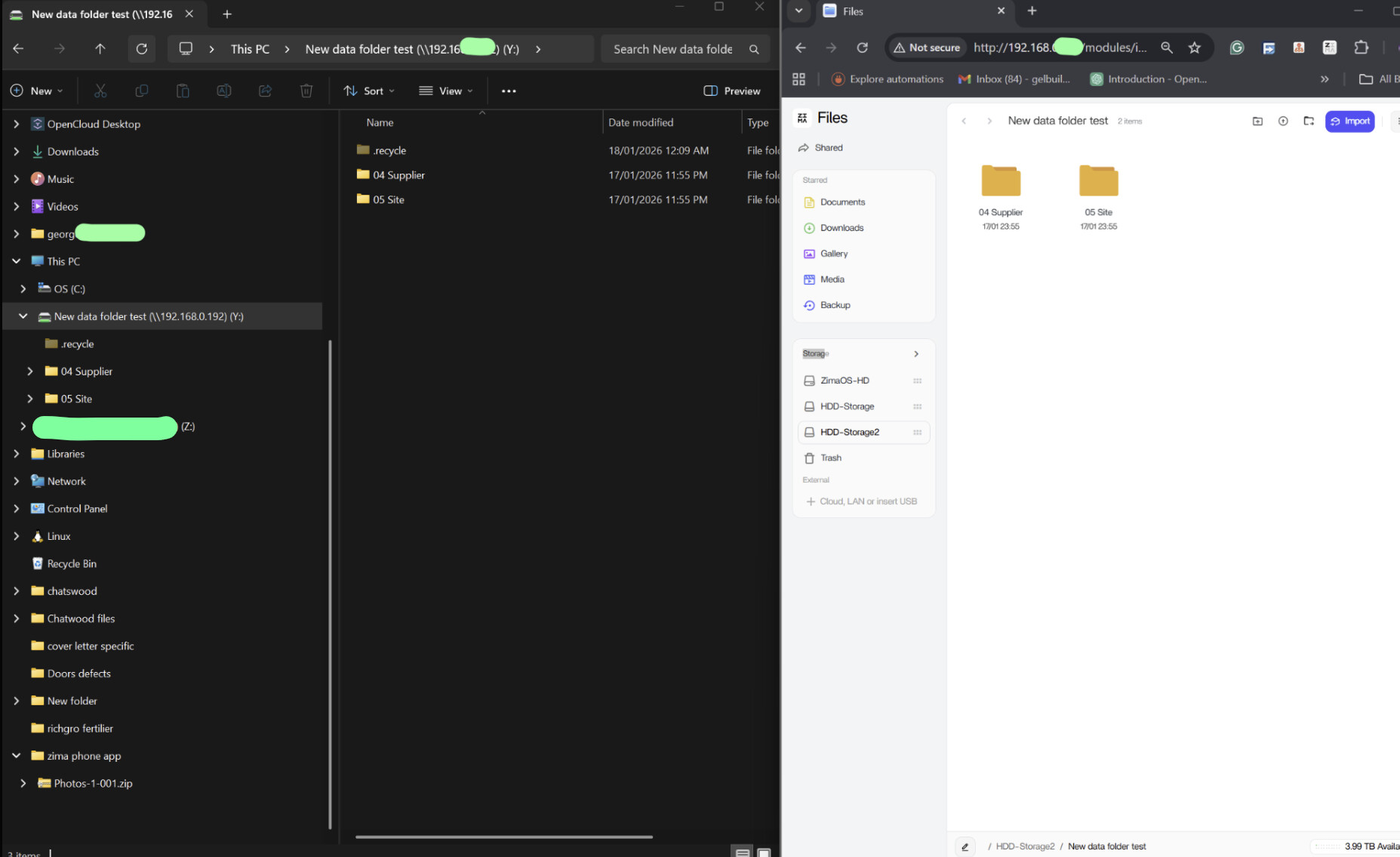
I’m still fairly new to this community and could use some guidance.
I have a hidden share on a QNAP NAS, and I’m using the Files app to migrate data from my ZimaOS instance to the QNAP. When I use the migration feature, I don’t see any option to manually edit the destination file path. I can edit the path when browsing through the Files app normally, but that option doesn’t appear during migration.
Is there something I’m overlooking?
You are not overlooking anything. In the ZimaOS Files app, the Migration tool does not allow you to manually enter or edit the destination folder path (especially when the destination is a network share like QNAP / hidden share). It only lets you pick the share/storage, not the exact sub-folder path you want.
Also important: Migration is mainly intended for moving data between ZimaOS storage disks, not for advanced network-share folder targeting.
My recommended method (reliable and gives you full control of the destination path) is to use SMB mapped drives instead of the Migration tool:
- On ZimaOS, create a normal shared folder (example: “Transfer” or “New data folder test”)
- Share it via SMB (Files > right click folder > Share via samba)
- On your Windows PC, map the ZimaOS share as a network drive (it becomes a drive letter like Y:)
- Map your QNAP share as another network drive (another drive letter)
- Now just copy/paste files in Windows Explorer from the Zima drive into the QNAP drive (you can choose any sub-folder you want, including hidden shares)
This method gives you full control of the destination folder structure on QNAP, because Windows Explorer lets you browse and select the exact sub-folder path, which Migration does not.
Note:
You can still use Migration for disk-to-disk inside ZimaOS, but for QNAP / network share transfers, SMB mapped drive copy is the cleanest and most reliable option.