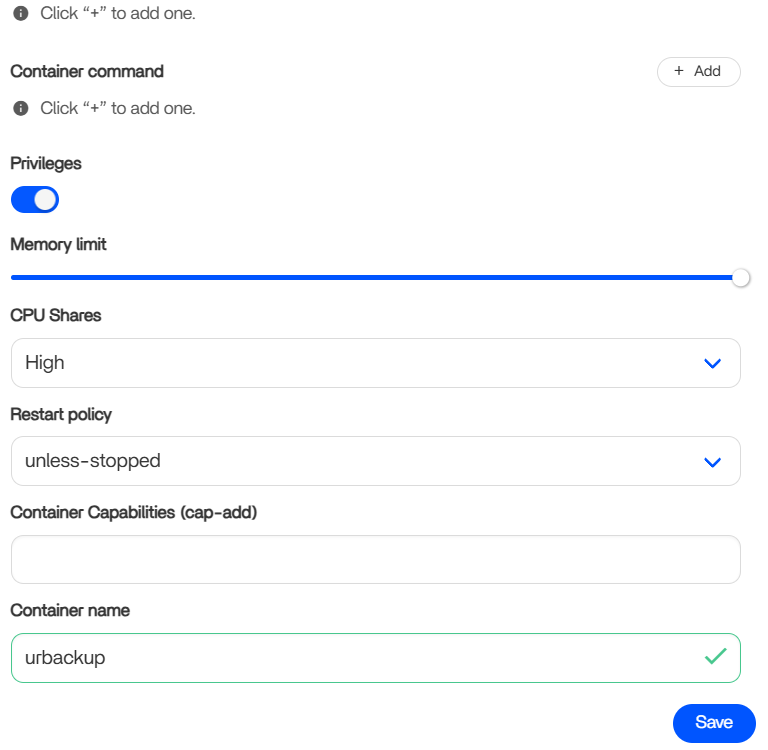
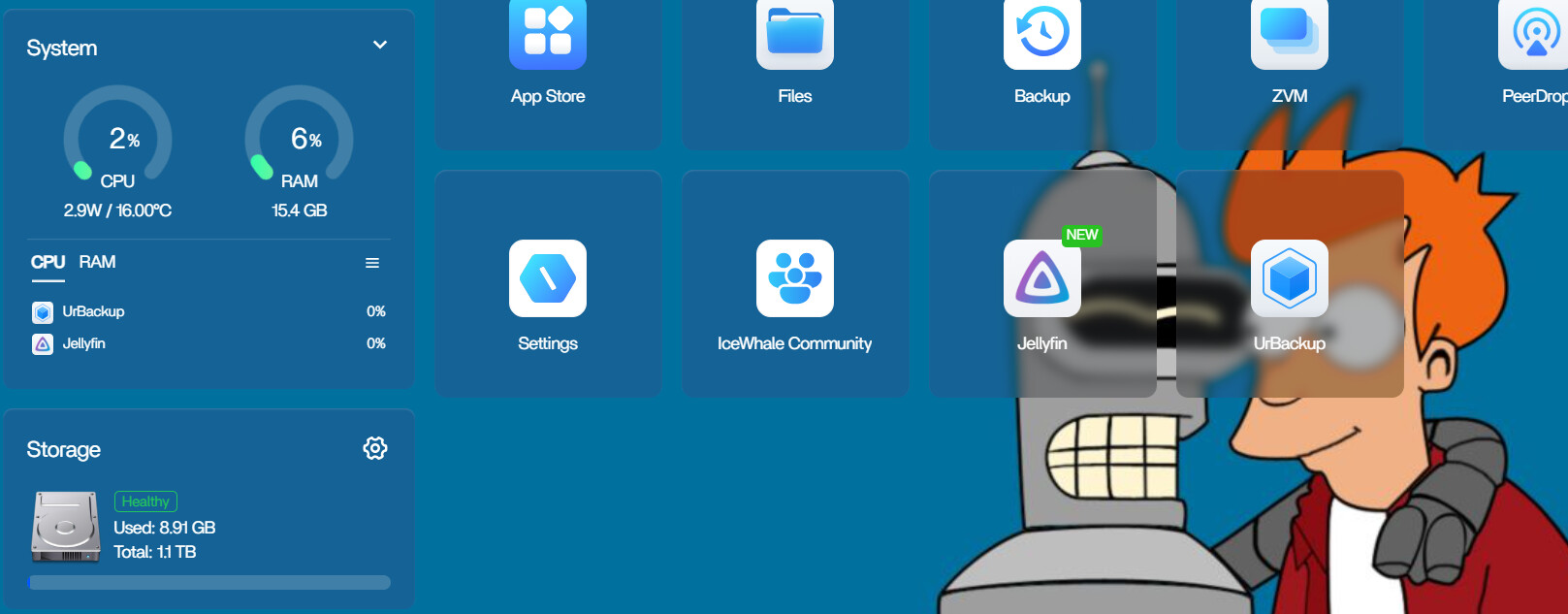
Yes i used ChatGtp im not a linux god, but with trails and errors its working now.
if any of you GURU’s read thru and see a security issue please do let me know… as i just followed the wise words of the almighty ChatGTP.
here is a recap as per ChatGTP, hope this helps implement this into ZimaOS easily later on
How to Properly Install UrBackup Server on ZimaOS with Docker
If you’re setting up UrBackup Server on ZimaOS using Docker, here’s a complete rundown of common pitfalls and how to fix them.
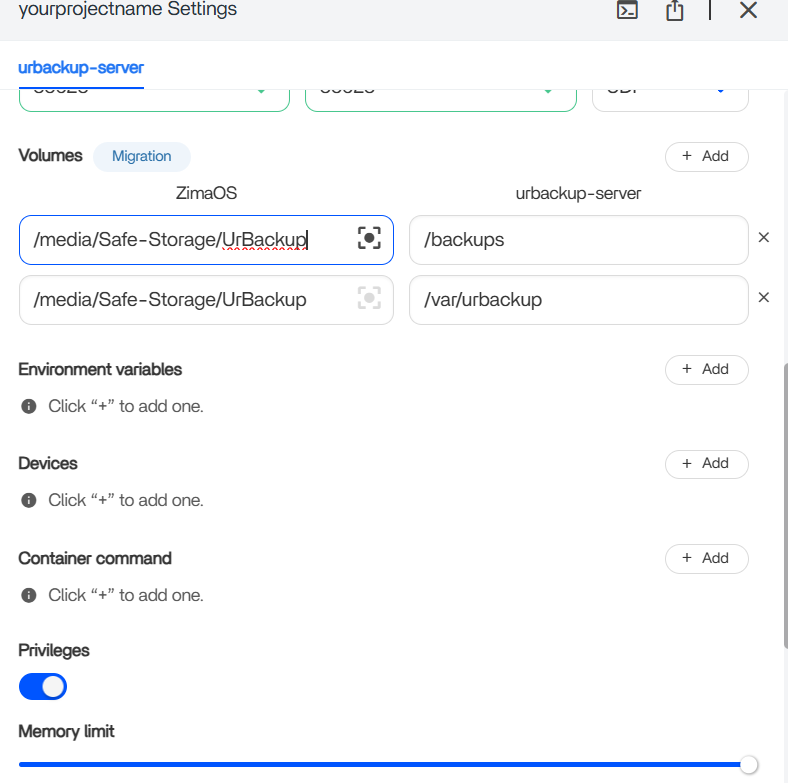
1. Use the Correct Mount Paths
Problem:
Docker throws an error like:
invalid mount config for type "bind": bind source path does not exist
because you tried to mount /safe-storage/UrBackup, which doesn’t exist on ZimaOS.
Solution:
ZimaOS mounts your RAID storage under /media/Safe-Storage/UrBackup. Use this full path in your Docker volume bindings, for example:
volumes:
  - /media/Safe-Storage/UrBackup/backups:/backups
  - /media/Safe-Storage/UrBackup/data:/var/urbackup
2. Set Proper Permissions
Problem:
Container logs show:
No permission to access "/backups/urbackup_tmp_files"
Solution:
Make sure the mounted directories have the right ownership matching the container user. Run:
sudo chown -R 1000:100 /media/Safe-Storage/UrBackup
Also, pass these IDs to Docker with environment variables PUID and PGID:
environment:
  - PUID=1000
  - PGID=100
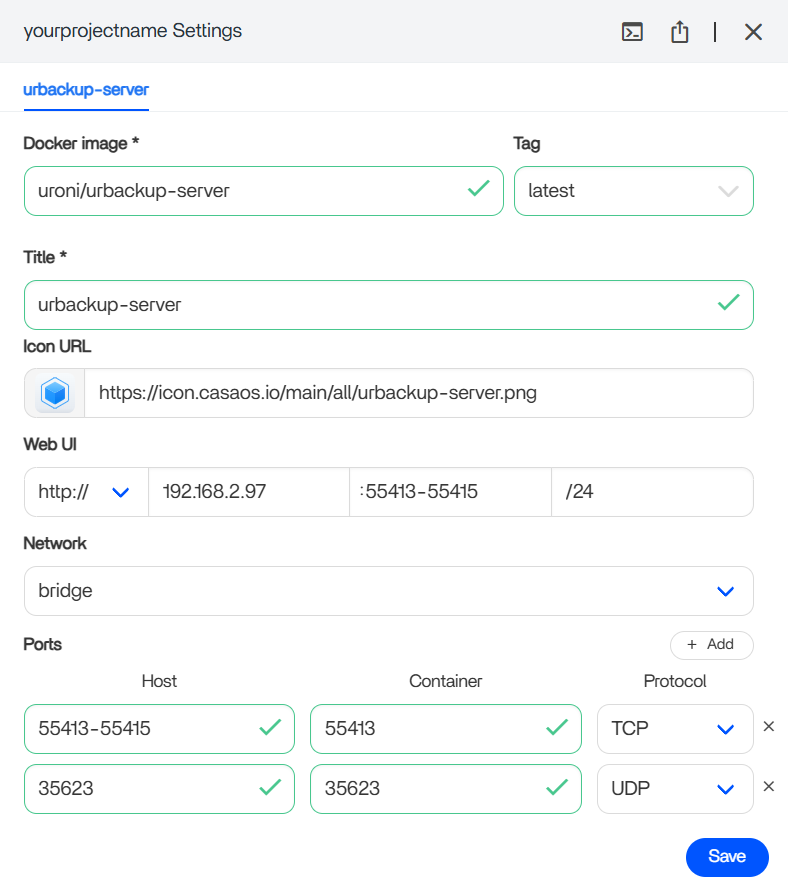
3. Use Host Networking Mode
Problem:
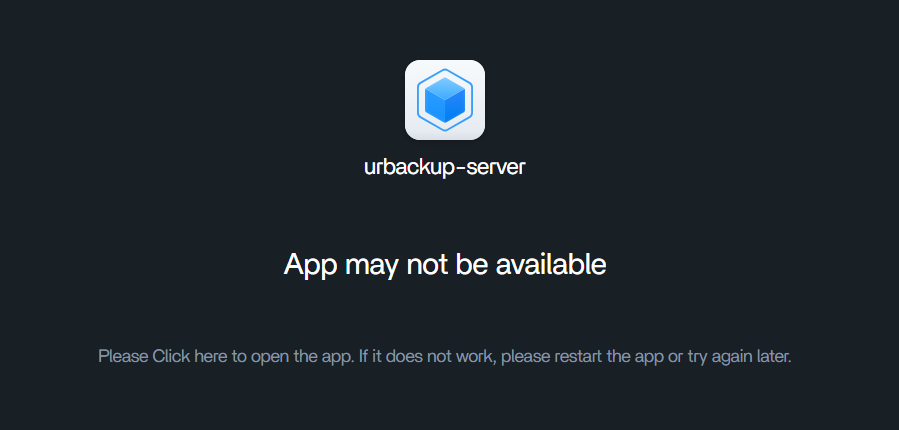
UI port seems unreachable or connection refused even though the container is running.
Solution:
Use network_mode: host in your docker-compose or CLI command. This removes port mapping issues:
network_mode: host
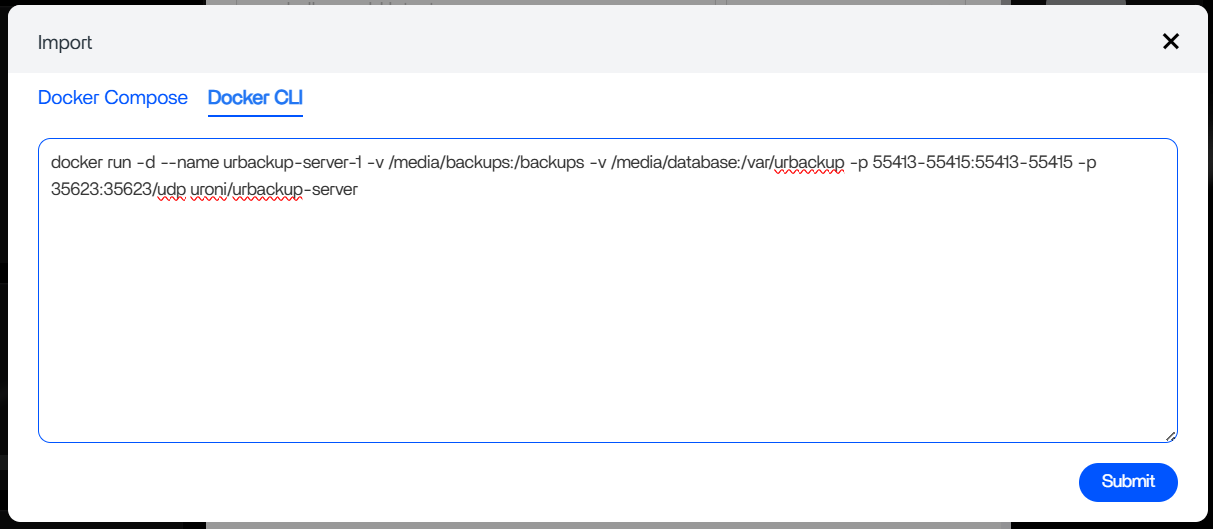
4. Docker CLI vs Docker Compose
Problem:
docker-compose command not found, or confusion between docker-compose and docker compose.
Solution:
Use the newer built-in Docker Compose with:
sudo docker compose up -d
If it’s missing, install docker-compose or adjust your commands accordingly.
5. Remove Conflicting Containers Before Recreate
Problem:
Getting container name conflicts like:
Conflict. The container name "/urbackup" is already in use
Solution:
Stop and remove the old container first:
sudo docker rm -f urbackup
Then recreate it.
6. Fix the ZimaOS App Launcher URL
Problem:
Clicking the UrBackup icon in ZimaOS opens a broken or incorrect URL.
Solution:
Edit the launcher settings in ZimaOS to point to:
http://<ZimaOS_IP>:55414/
Replace <ZimaOS_IP> with your actual ZimaOS device IP.
7. Testing & Troubleshooting Tips
- Test UI port accessibility from ZimaOS terminal with:
nc -zv <ZimaOS_IP> 55414
- Ignore
guestmount and snapshot errors if not using those features—they don’t prevent operation.
- Set your timezone properly with the
TZ environment variable (e.g., TZ=Australia/Melbourne).
Sample Minimal docker-compose.yml
version: "3"
services:
  urbackup:
    image: uroni/urbackup-server:latest
    container_name: urbackup
    restart: unless-stopped
    environment:
      - PUID=1000
      - PGID=100
      - TZ=Australia/Melbourne
    volumes:
      - /media/Safe-Storage/UrBackup/backups:/backups
      - /media/Safe-Storage/UrBackup/data:/var/urbackup
    network_mode: host
Final Notes
Check your container logs if you encounter issues:
sudo docker logs -f urbackup
This guide should get you running smoothly with UrBackup on ZimaOS!
Happy backing up!