[Solved] Need help with disks and files | Path change after 'Migrating location'

Hi all,

I’m new to ZimaOS (and Linux), so please bear with me.

I received my Zimaboard2 (model 1664).
I also received the nvme extension board which I installed with a 2TB nvme.
Storage configuration was: ZimaOS-HD with a drive called nvme of 2 TB.
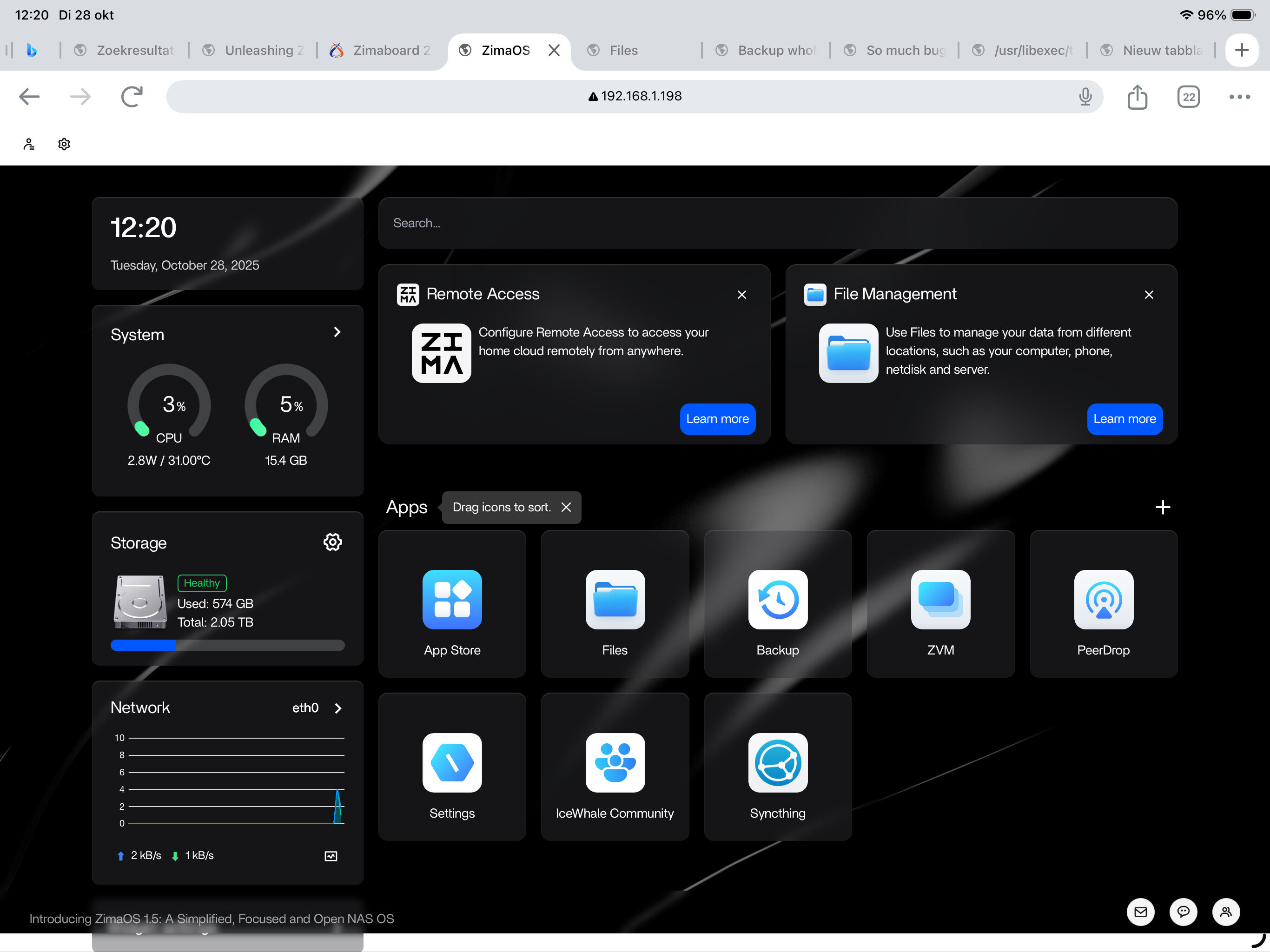
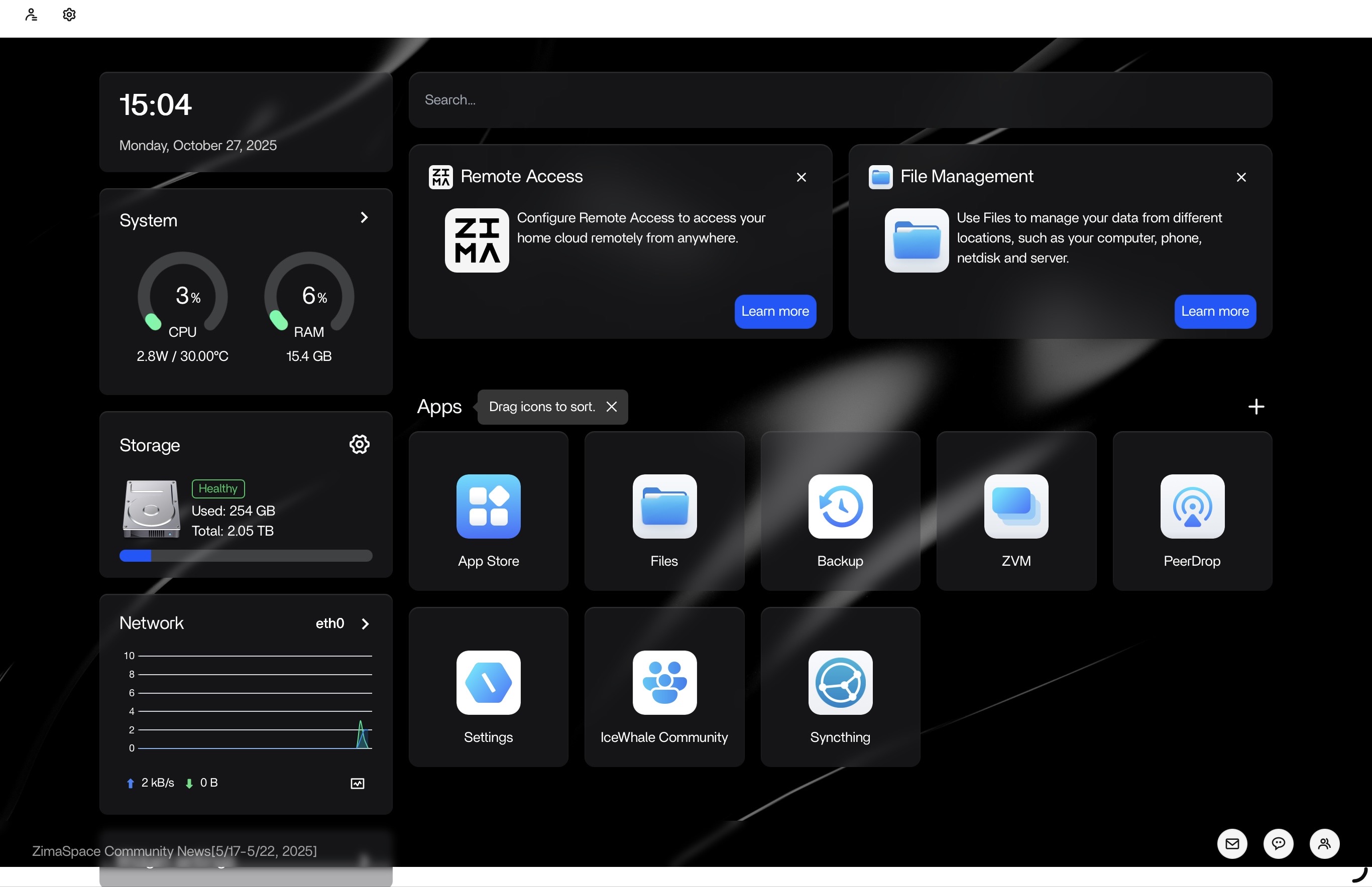
The storage widget tells me that I have 2.05TB storage capacity, which seems to me to be ok.

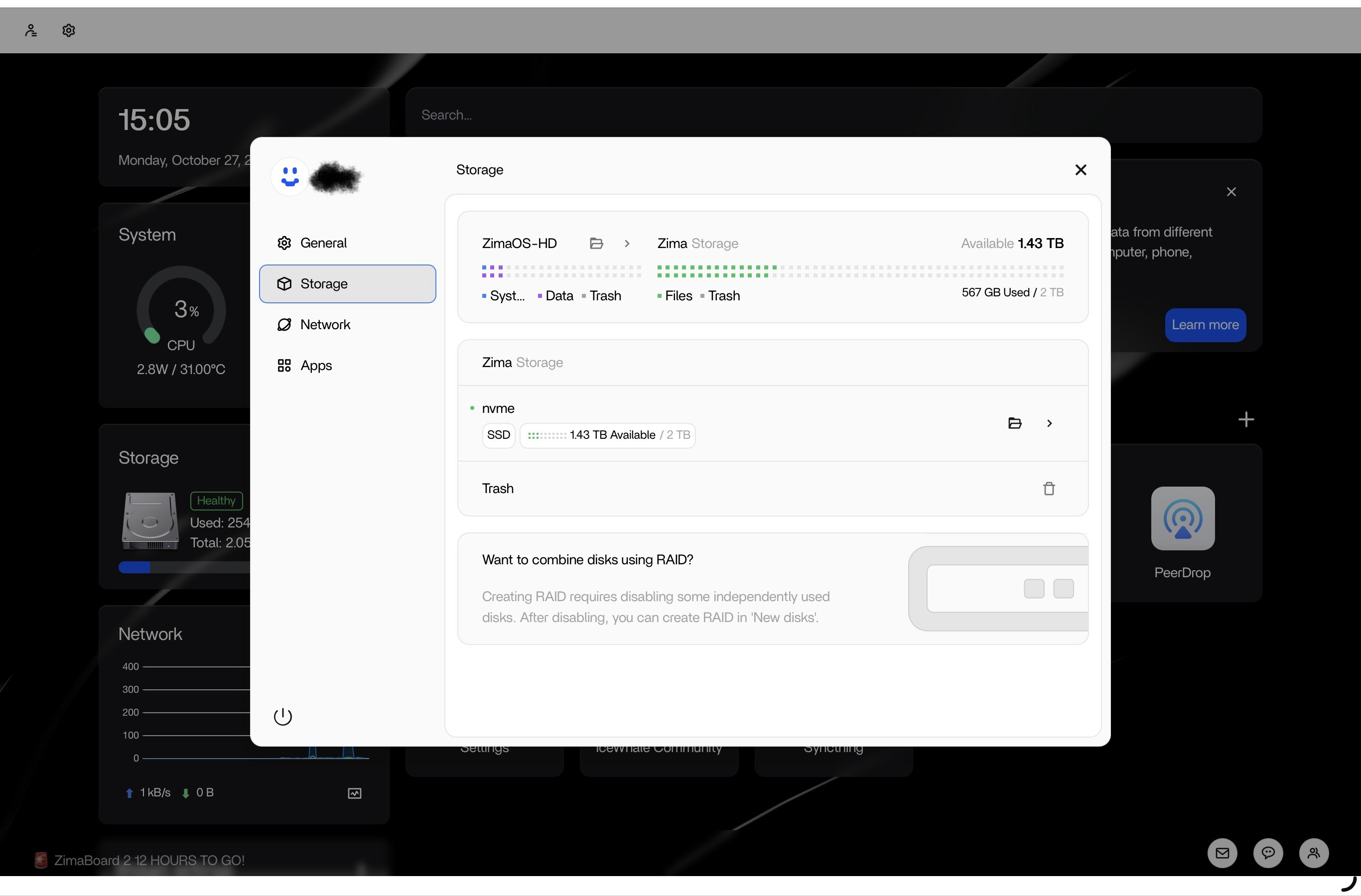
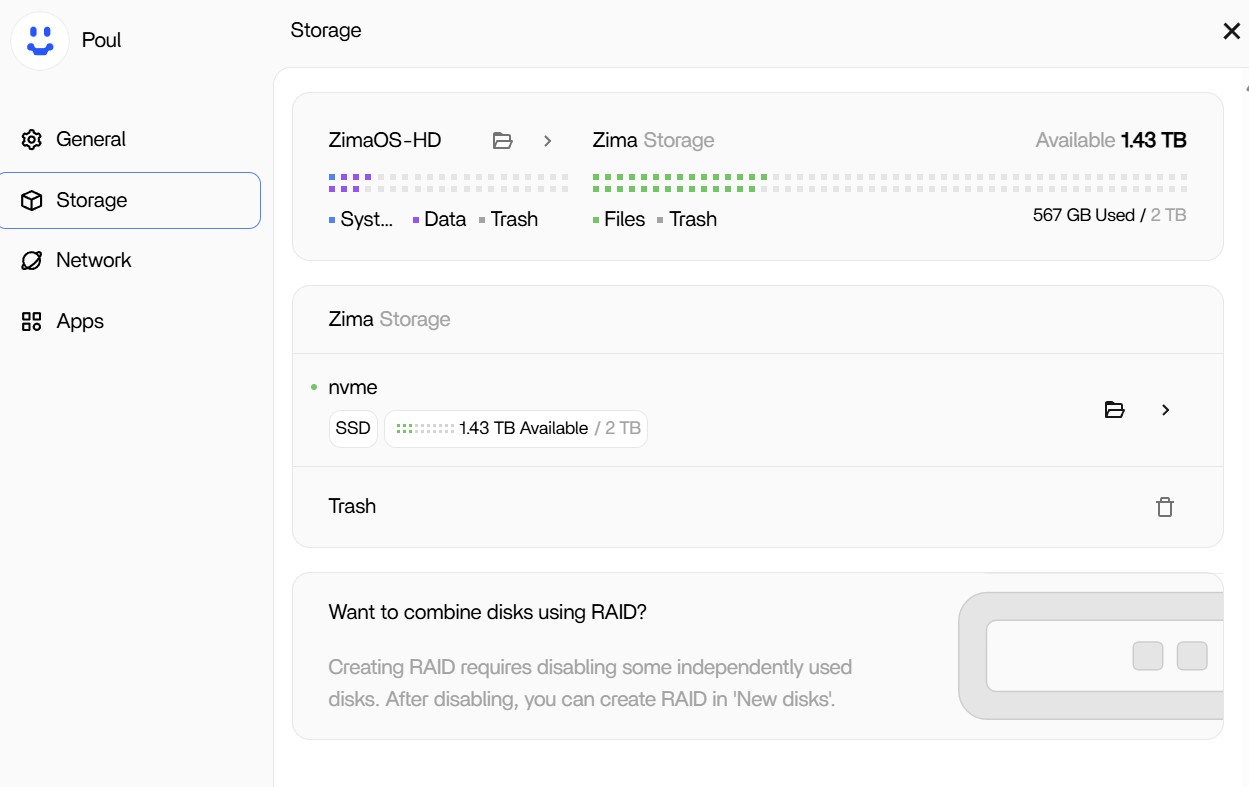
However the amount used in the storage widget is incorrect. If I go to the Settings app and select storage it is correctly stated that 567 GB is used and 1.43 TB remains. I found that the widget was only updated after booting the system. Seems not OK to me.
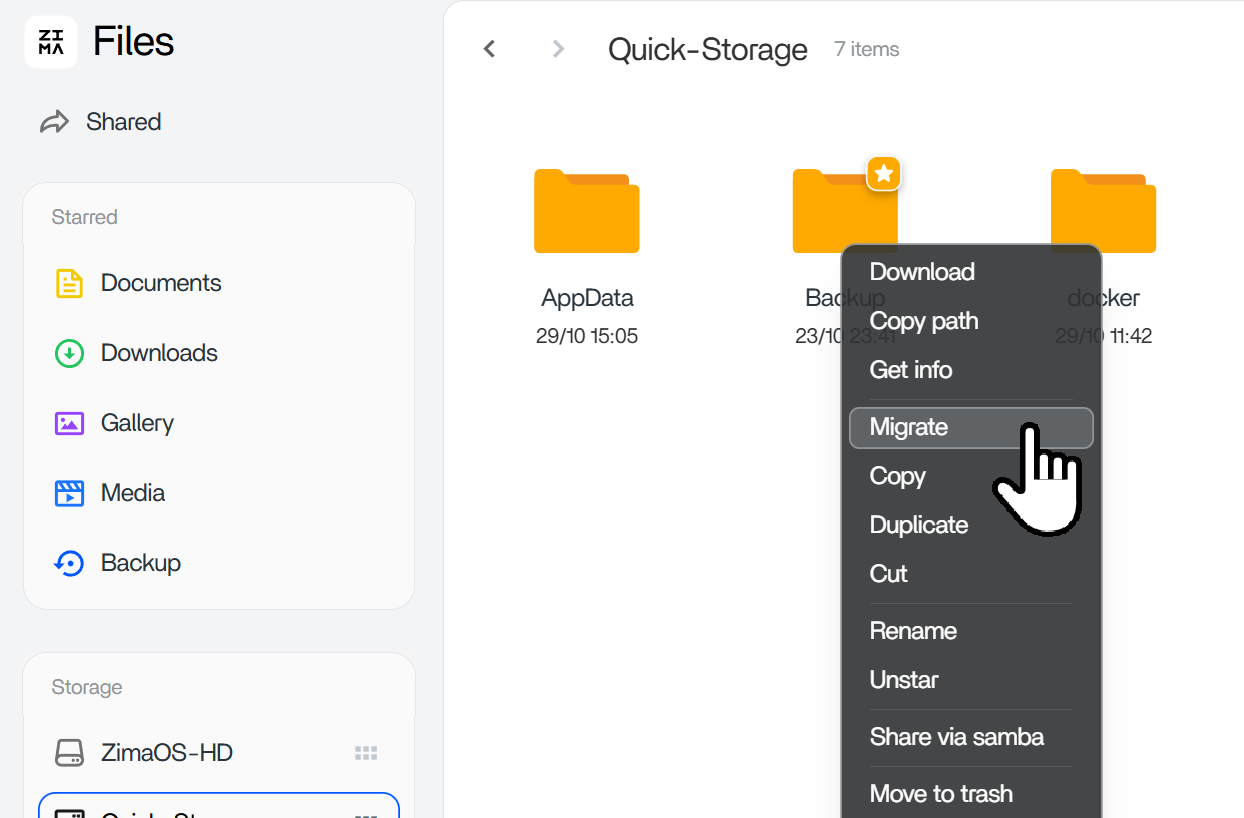
I saw that Media, Download, Documents etc were all allocated on ZimaOS-HD and I found the migrate option which I used to move them over to the nvme-drive.
That seems to have worked ok.
However when I install the Jellyfin container it seems that it will only look at the ZimaOS-HD for folders in the library definitions.
I have no way to point it to the nvme drive and search for the Media folder that resides there.
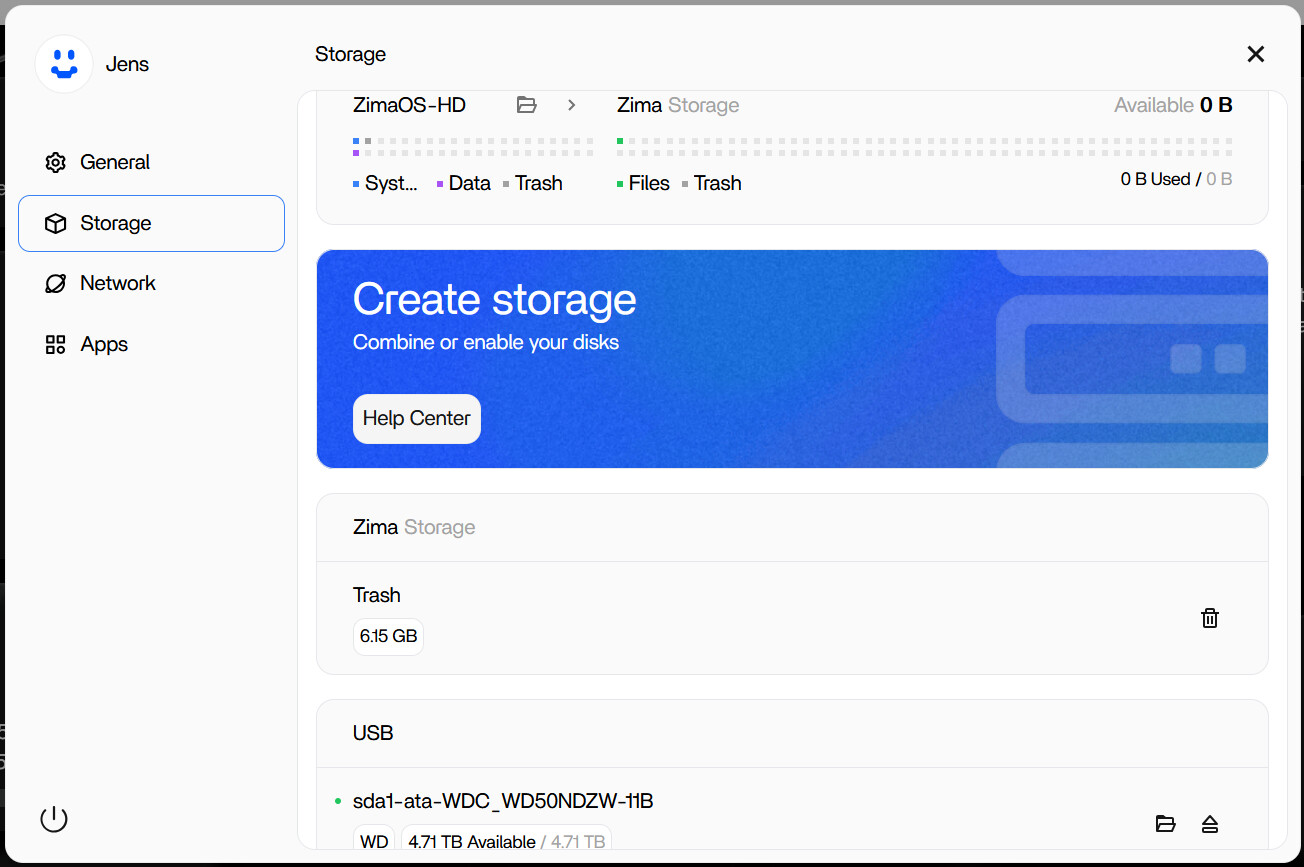
I also see in Settings/Storage that ZimaOS-HD holds System, DATA and Trash.
I am thinking that the issue with the apps only looking on ZimaOS-HD has to do with the fact that the OS thinks that DATA is located on the ZimaOS-HD drive. Correct thinking?
If so, how do I make sure that the OS knows that DATA is located on the nvme drive?

Last thing that I don’t understand is how to gain access to all the other OS directories, residing on ZimaOS-HD.
In the Files App, I only see an empty Media folder (which is a subfolder of the DATA folder that is there. How do I get to the root level of the disk to show all folders residing on that drive?
I was able to see them using Terminal by executing CD and LS commands, that’s also how I found that there is a DATA folder on the ZimaOS-HD drive.

Like I said, I am new to ZimaOS and new to Linux, so help would be appreciated.

One last thing has to do with this community.

I would have included pictures in this post if I knew how to do that. However if I click on the Image pictogram in the edit box, I see some tags added with a line in between that says >Add image here. How would I add that image there?

Thanks in advance,
Poul
There is another tab called “upload image” after you do the “add image”

Thanks for explaining that.
Have some pictures for the widget issue.
This is the storage as indicated in the widget:

Settings/Storage shows a completely difefrent picture:

After reboot of the device the widget shows:

What use is the widget if it doesn’t get update while the system is running?

Hi, @Poni99 . Thanks for your feedback.

the amount used in the storage widget is incorrect.

This issue is known, and we are fixing it.

when I install the Jellyfin container it seems that it will only look at the ZimaOS-HD for folders in the library definitions.

After the migration, the folders(like AppData) will be moved to the new location, while at the same time, there will be soft-links created in the /DATA(aka /media/ZimaOS-HD) folder for the folders moved to provide compatibility.

So, you install new apps, and those apps will still refer to ‘folders’ inside ‘/DATA’ folder. But you should know that the real locations of these folders have been moved. These references are soft-links, and they will not show in the ZimaOS-HD folder in the Files app on the ZimaOS dashboard.

how to gain access to all the other OS directories

Yes, the CLI is the easiest way for now. But as like said, we are improving the file/path selection function. You can find more info in this discussion:

Hope this is helpful. Look forward to your feedback.

Thanks Giorgio, I’ve read this and the linked discussions, but I am still not able to get any library defined in Jellyfin. You mention these soft links being created at migration time. Is there a method to show what soft links have been created? In the linked discussion it is mentioned to use the browse facility when setting up the Plex libraries. i imagine it is the same for Jellyfin, however I’m completely at a loss how to start that process. I see 4 folders in the list (; \config; \Media and \opt\vc\lib). Whichever I select, there are apparently no folders in them. If I go back I see a lot more folders but non of them bring me to the folders I have on the nvme drive.
So completely at a loss here.
Another thing that makes everything very unclear for me is, that when I migrate for instance the Documents folder to the nvme drive, there still remains a Documents folder on the ZimaOS-HD drive and it is clearly not the same folder, because when I create a subfolder in on nvme it is not shown on the Documents folder on ZimaOS-HD.
To me it is getting messy and I don’t know how to get any further. Actually Im on the brink of giving up on ZimaOS. I simply do not see that simple user friendly interface that is promised.
It probably is me, I get that, but I cannot find concise info on structure of the OS, file structures and all that stuff.

Sorry for the inconvenience. We really want you to make the app work. But some knowledge is necessary.

The first thing is to know the path and files associated with Docker. This article is helpful:

Is there a method to show what soft links have been created?

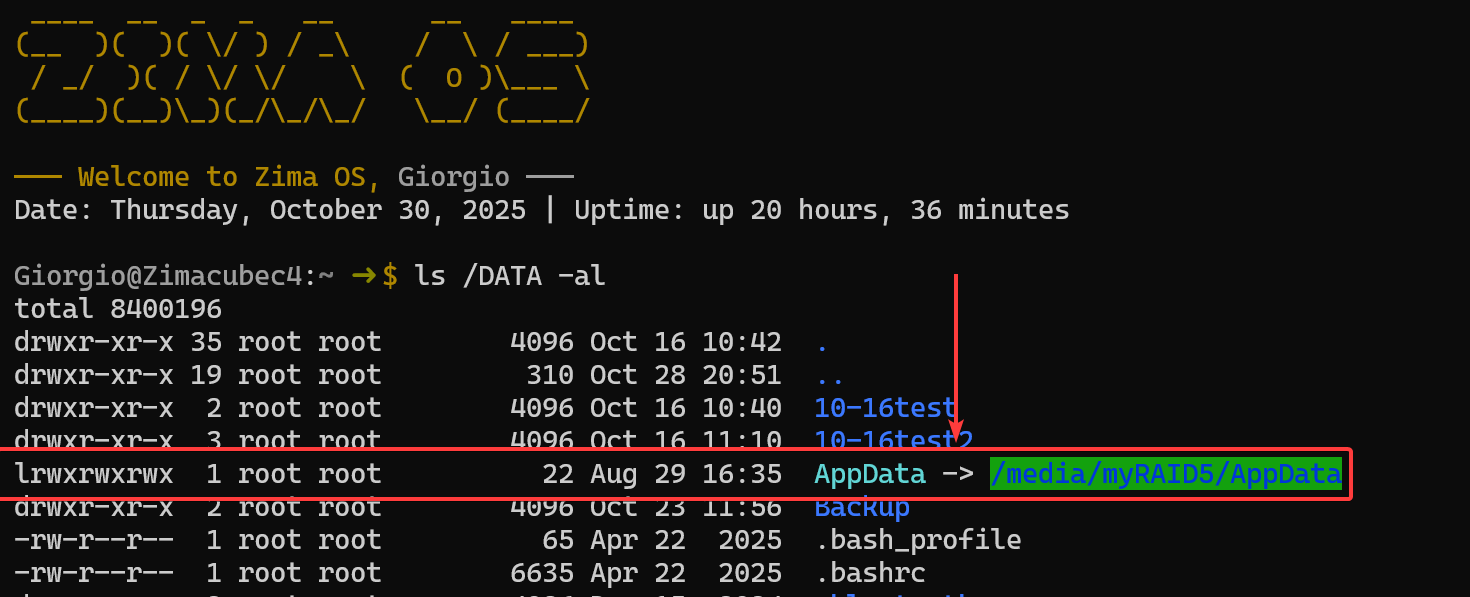
Yes, in CLI, type ls /DATA -al to show the soft-links after migration:

The arrowed part is a link, and the path after the right arrow is the ‘real’ path.

use the browse facility when setting up the Plex libraries.

The browse function is limited. For example, the LAN sharing folder is not shown or selectable. And we are improving it.

So, how to get the paths for folders, like shared by LAN? Currently, the CLI is an easy way. But for some users, it is hard to handle the command line interface. Will any GUI be implemented for this? Yes, we are improving this, and please give us more time to implement it.

when I migrate for instance the Documents folder to the nvme drive, there still remains a Documents folder on the ZimaOS-HD drive

Indeed, we have two levels of migration capabilities.

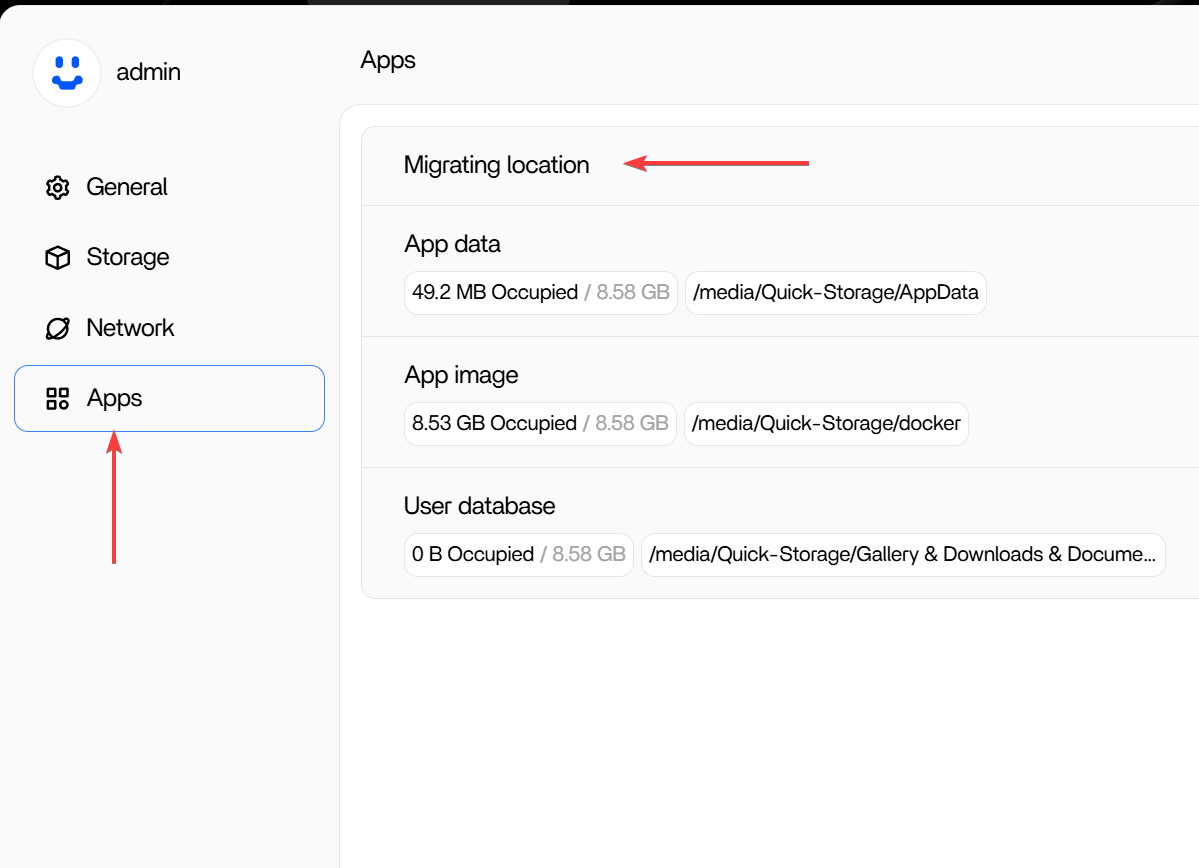
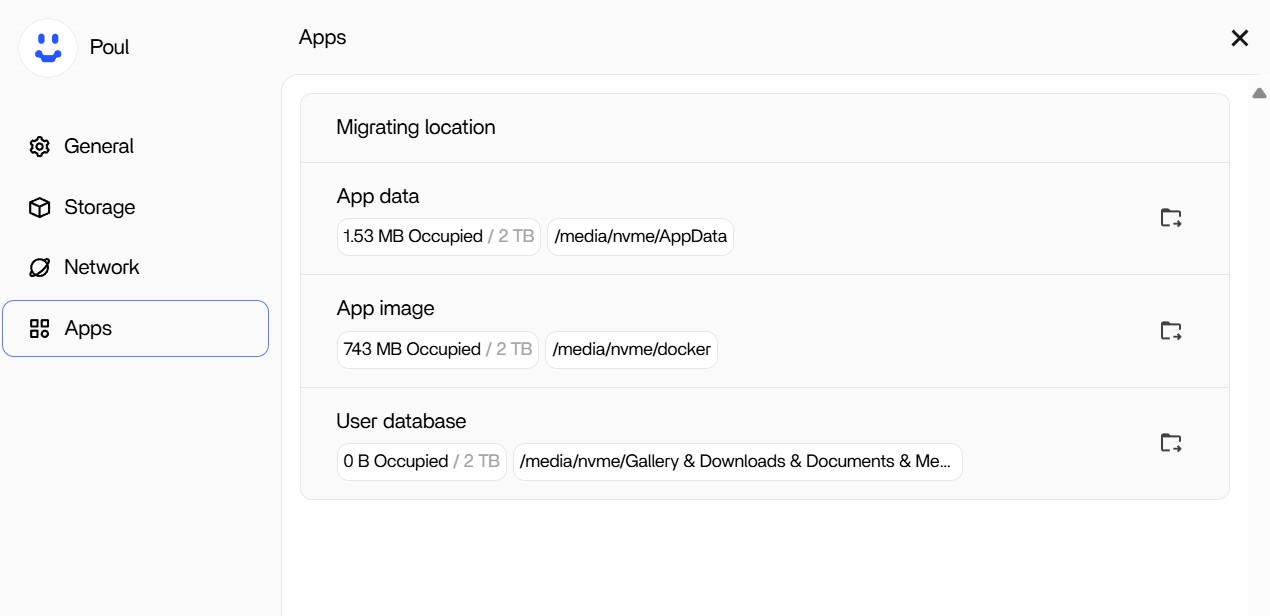
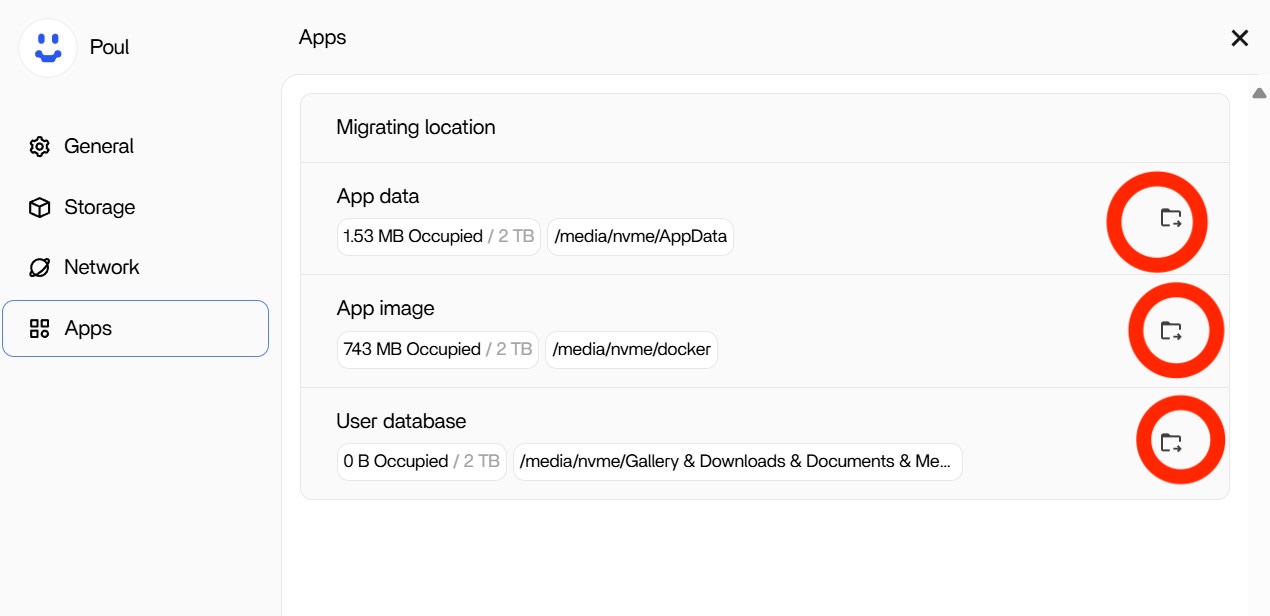
  1. The migrating location in Settings panel:

The migrating location function here will create those soft-links after you use it.

  1. The migrate function in the right click menu in Files app:

The migrate function here will do Folders/Files migration and give you a migration task report, which will give you confidence about file integrity after the migration. This migrate function won’t create soft-links.

We apologize again for any potential complexities associated with using Docker apps, and for any confusion caused by the current imperfections in ZimaOS’s path selection functionality. We will improve these aspects and provide more content to eliminate uncertainty. If you discover any better app installation experiences or path selection solutions, please feel free to provide feedback.

We are all ears.

Hope this is helpful.

Thanks again Giorgio. Ok, I think I got it now. I did migrate via Apps in the Settings, but only App data and App image. User Database I had left on ZimaOS-HD. Apart from that, I migrated the Media folder using the File migration facility so no softlink was created.
I now migrated the User Database to nvme using the Setting App and, lo and behold, Jellyfin was able to find the media folders. Anyway, it seems to work now, so thanks for helping out.
I understand that ZimaOS functionality is still work in progress and you do not need to apologize for that. I am happy to learn that our user input is accepted and that something is done with that.
I do think that documentation on ZimaOS can be improved on as that seems to be lagging a bit. Specifically that thing about softlinks and the difference between the 2 migration options would need some additional clarification.
Same goes for documentation regarding the Zimaboard 2.
Anyway, your help is greatly appreciated and now that I got it working, I am in a much happier place.

Regards, Poul\

Double post, apologies

To summarize and make it accessible for other who find themselves in the same predicament as I did, here follows what is necessary to get ZimaOS running with additional drives.

So I received a Zimaboard 2, 1664 version, further to be called the ZB
I started out with no knowledge of ZimaOS (ZO) and no knowledge of Linux.
I only have knowledge of Windows systems.
To get the ZB up and running was easy.
Indeed a plug and play experience, however one tends to want to use the computer and in my case I was planning to run Jellyfin on it instead of only running the Operating system.
With the ZB I received the PCie board that can contain up to 2 nvme drives.
I installed a 2TB nvme drive and attached the board to the ZB.

Here is where I ran in to troubles or actually challenges.
ZO did find the nvme drive and reported the additional 2TB in space, correctly.

Then I wanted to make sure that all application related data was allocated on the nvme drive and not on the small ZimaOS-HD boot drive (in my case 64GB).

I did not find a step-by-step instruction on how to do that, but I found a migrate option for folders by right-clicking on them in de Files-app.
That indeed moved them over to the nvme drive.
However, after installing Jellyfin and trying to define media libraries for it, it still only tried to locate them on the ZimaOS-HD drive.

So how to solve that?

Well luckily there is an active user community which can be accessed easily from the ZO-console and I posted my issues there.
Apparently the guys from Zima are keeping an open eye for issues that ZO users experience and Giorgio helped me out.
So, for those of you who want to separate all the APP and data from the ZimaOS-HD drive (and I think that everybody who starts out with a Zimaboard computer will want to do that), please take the following steps after you have added additional SSD or disk storage to your setup:

  1. to migrate the ZO storage locations, which are on the ZimaOS-HD drive, do not use the Files migration facility as that will not create the softlinks that ZO uses to locate them.
  2. Migrate those storage location by going into Settings, choose Apps and there you will find pointers to App data, App image and User Database.

3. Point all three entries to the storage drive where you want the data to reside (in my case the additional drive is called nvme). 4. Using this ZO will create the necessary softlinks so that after adding App, these apps are able to access the new location. Without step 3, they will only look at ZImaOS-HD and not at your additional drive.

You can check if the softlinks are created by using the CLI:

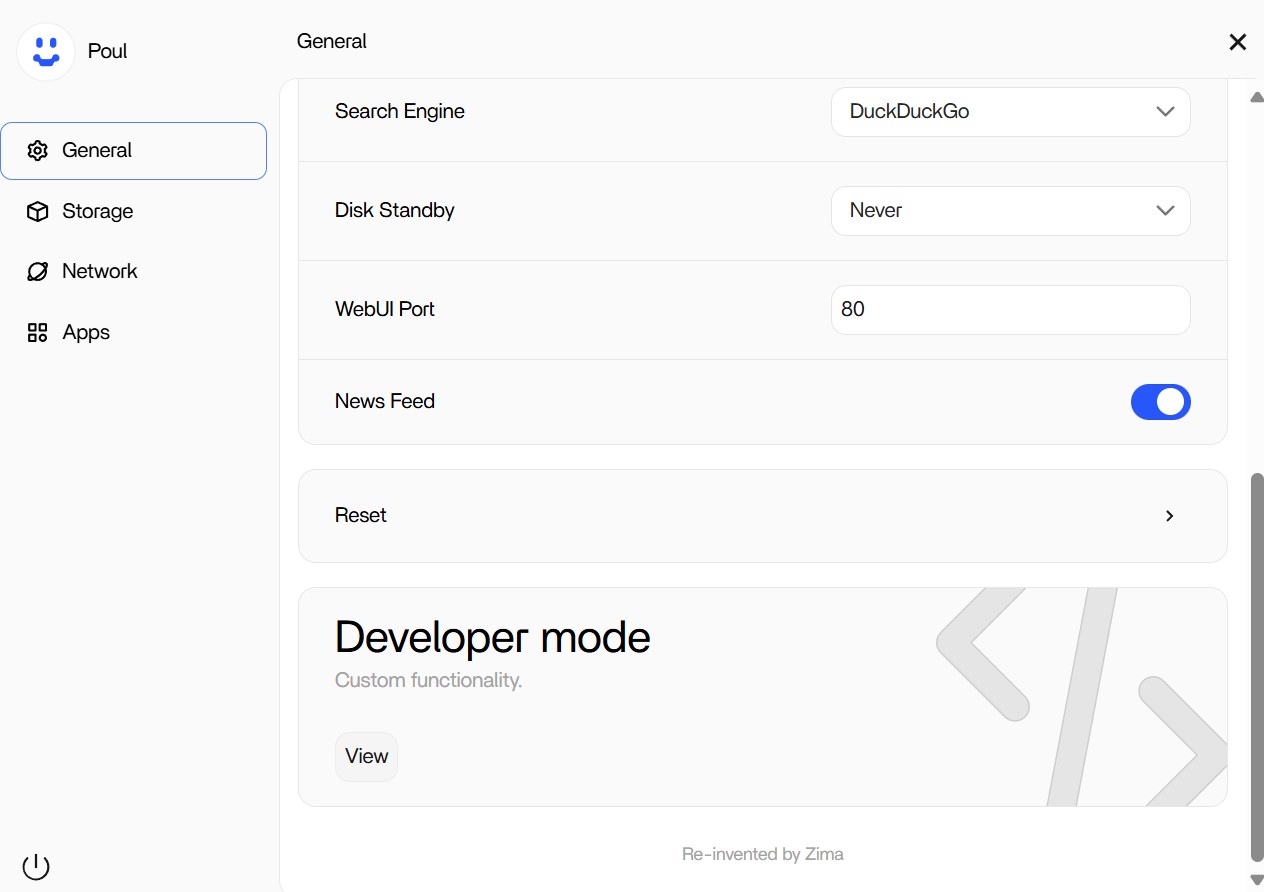
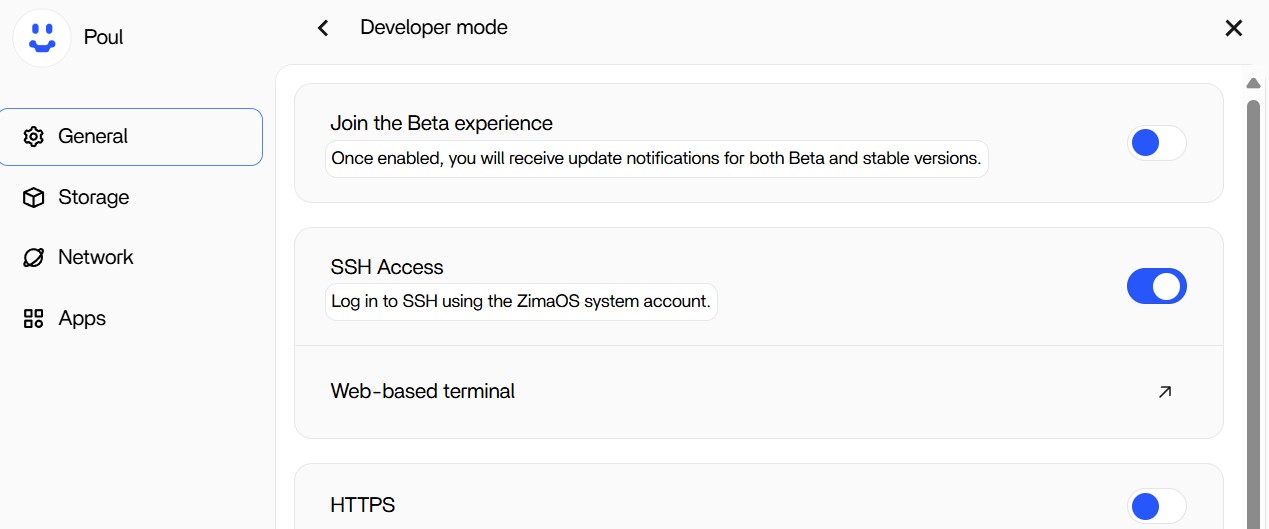
  1. Goto Settings-General-Developer mode and select View.

2. Switch on SSH Access and click on the arrow that appears just below that switch.

3. You are accessing the system through the CLI interface. Log in using user and password that you selected while setting up the system.
  1. You will see ZIMAOS and you’ll get command prompt ($ sign).
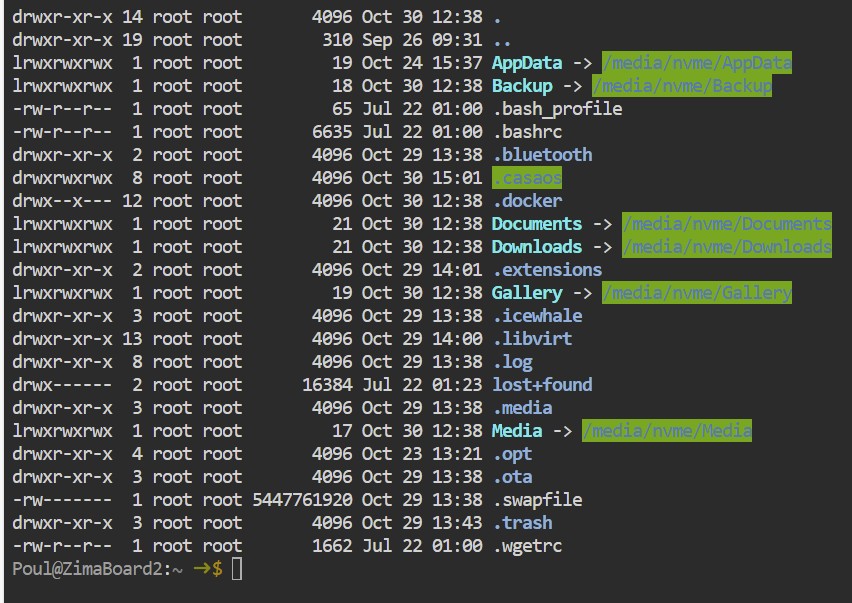
  2. Enter: ls /DATA -al - this will create a listing of the /DATA folder. It should look like this:

If all went well you will see several light blue folder names followed by an arrow and green high-lighted folder definitions. These are the softlinks and the path that is shown in green high-light is the actual location. So AppData, in my case, points to /media/nvme/AppData, where nvme is the additional drive in my system.

Understanding the notion of these softlinks and the method to create them pointing at the right location, was what I needed to get things going.

I hope this helps for all of you are struggling with understanding how ZO uses disk space and paths to storage locations

1 Like

Double post, Apologies

Thanks for the notes. Our community will benefit from this.

We also welcome you to share more of your experiences and insights with ZimaOS in the future. Thank you. Love :wink: