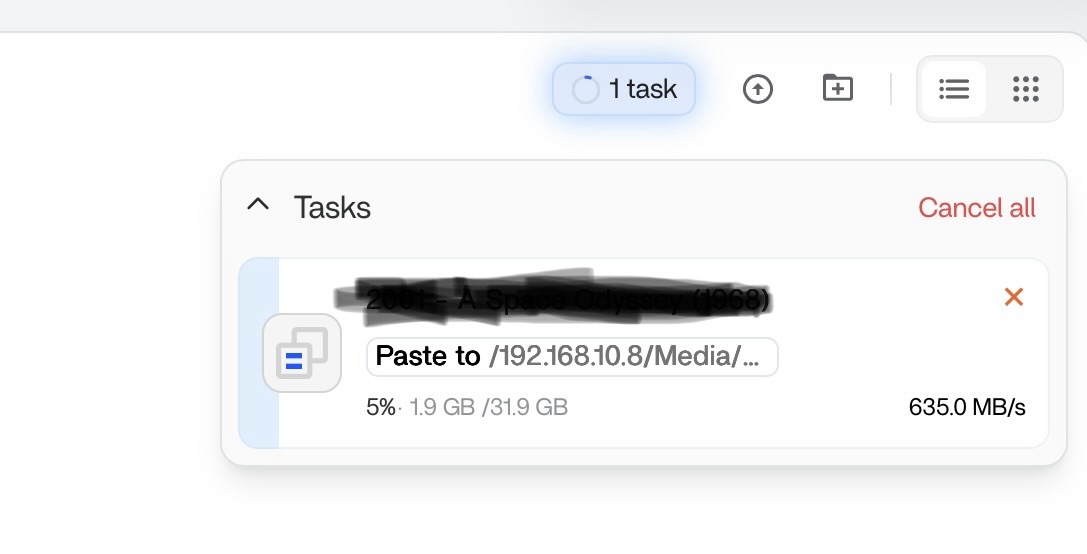
Slow internal speed With M.2 (Max 600mb/s)

Hey Guys,

Maybe somebody can help me out here.

I run a MS01 I9 13900H with 1 x 2TB Samsung 990pro for OS in 4.0x4 slot
Next to this 2 x ST Samsung 990pro in raid 0 in 3.0X4 slot
4x 2TB in raid zero in Acasis 4bay TB4 enclosure
2x 2TB in raid zero in Acasis 2bay TB4 enclosure

I am unable to go over 600mb/s with transfers.
This is a far cry from the capacity of my system.

Does anybody have a clue why this is?
If this because ZimaOs is just virtualised??

What kind of transfers are you particularly hitting that speed? eg. NFS, SMB, moving files across the SSD’s?

Viper,

These speeds are under any condition.
From single NVME to Single NVME
From Singel NVME to Raid 0 NVME pool
From Pool NVME to Single NVME
From Pool to 10Gbe
For network connection I use SMB multi channel.
I have my system also running in Turbo mode.
I noticed when I reduce P-cores or just go out of turbo mode this speed drops.
This why I think there is some layer inbetween the fysical access to the drives.`

All across every scenario it looks like I am stuck at Sata speeds (600MB/s)
If this was working correct Zima would be a steal for me at 29 euro.
But here I am just loosing the complete potential and purpose of what the system was built for initialy.

funny enough, i had the same happen, but my speed went down to like 10% of yours. at times as low as 35-40MB/s. Hasn’t happened in the last couple of days though.
Happened from NVMe to HDD RAID-1, From NVMe over Network (1Gb/s) and even from one folder to another inside the same HDD. I can’t come up with an explenation but as i said, the problem “fixed itself” … for now.

Same problem over here, but with an W680 chipset and an I5 13500T, LGA 1700, 32 GB of RAM

4 SSDs, one 512 GB for System, three 4 TB Lexar NQ790, all at x4 slots, as shown by lspci.

I can get full 10 Gpbs over the net when transfering from or to Windows 10 and 11 machines, or Android devices, but when copying files from one drive to another using the webinterface/GUi of ZimaOS, the maximum I get is 650 MB/s, while the drives are capable of more than 7.000 MB/s

It definetly is a thing of internal limits, since even tests with fio have shown that the operations should be a lot faster.

Yeah, it’s real weird. I recently moved a few files (10GB or so) from one folder to another on the same harddrive. And I’m not talking different partition or anything. it was basically a “move to different folder in the same parent directory “ situation. If it helps: it’s a HDD RAID1

THe thing is … if I copy from a Windows 11 PC to the NAS with ZimaOS, depending on how many files and how big they are, I get full 10 Gbps, that’a round twice the speed that the “inside” operations are giving and that’s not acceptable.

For me, that’s the reason why I am considering going back to TrueNAS, since it is obvious, that nobody ad Icewhale is interested in solving this issue.

ZimaOS is not good (enough) for NVME drives, since we encountered the same problems with a different NAS from a friend, based on a newer Intel CPU generation (265HX) and Samsung 990 NVME drives.

Hey guys in the mean time I have given up on Zima, I want my setup to work to its full potential, so I switched back to proxmox, that now has improved greatly on TB, and I can use everything to its full potential. Also apps and so forth are still to buggy for me to keep zima. I will follow the project, but happy I returned to proxmox

Hey all, I understand the frustration, but just to clarify something important:

That ~600–650 MB/s “internal copy” number looks like a limit of the ZimaOS Web UI / file manager copy workflow, not an NVMe hardware limit.

Reason: if Windows 11 → NAS over SMB can hit full 10GbE, then the disks + filesystem are already capable of high throughput. This points more to the internal copy pipeline (userspace/single-thread/buffered copy) than “ZimaOS is bad at NVMe”.

To confirm what’s really limiting, please run these tests (SSH terminal):

1) Filesystem info

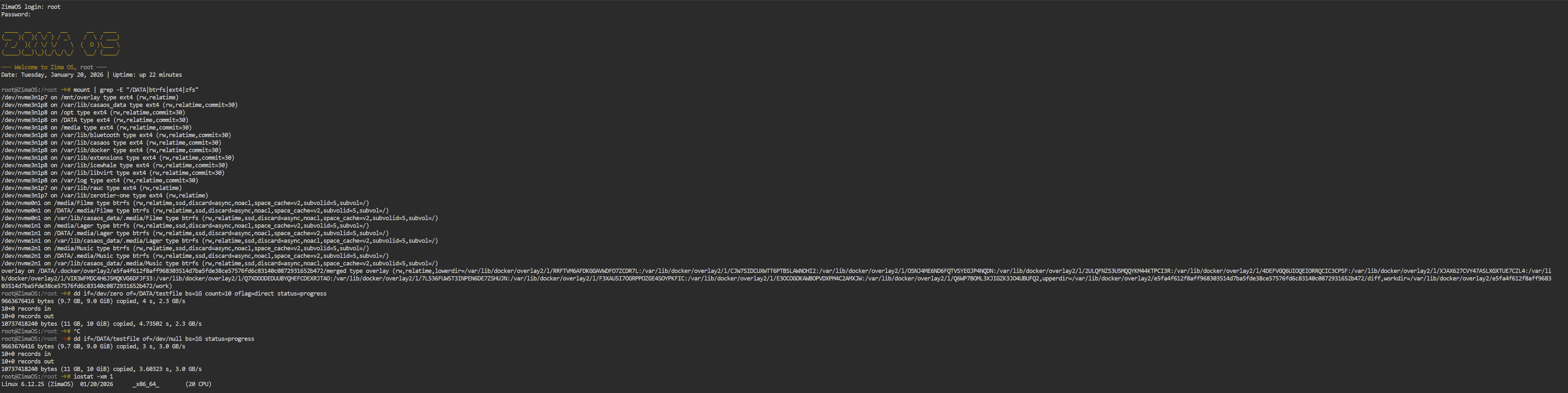
mount | grep -E "/DATA|btrfs|ext4|zfs"

2) Raw NVMe write test (10GB, bypasses UI copy)

dd if=/dev/zero of=/DATA/testfile bs=1G count=10 oflag=direct status=progress

3) Raw NVMe read test

dd if=/DATA/testfile of=/dev/null bs=1G status=progress

4) While it runs, check what’s bottlenecking (disk vs CPU)

Run in another terminal during the test:

iostat -xm 1

and:

top -o %CPU

If dd speeds are well above 600MB/s but the ZimaOS UI copy stays capped, then the NVMe stack is fine and this becomes a UI/internal-copy optimisation issue, not NVMe support.

Post outputs and we’ll know instantly what’s happening.

Thats exactly what I was saying, it is an internal GUI problem, cause if I can get maximum over the net, which is about twice the speed, then it must be something inside the GUi or cashing.
To me, I am just a techician, not a coder, it looks like ZimaOS is “limiting” every internal copy operation to the maximum of SATA III e.g. ~600B/s.

That’s why I stated,. that ZimaOS is not made for NVME and since this problem seems to happen on multiple plattforms, since I just started a Test on an AMD MoBo with X870 chipset and a Ryzen 7 9700X with 64 GB and ran into the same problems, it is a fact.

That would correspond to some weird infos I got when trying to measure the real speed with Zimas Terminal, cause those numbers also never got close to what the NVME drives are capable of.
On the other hand, my RAM never gets full, not even close and CPU also never get’s above 15 to 18 percent, which is no surprise, if there is an internal “throttle”.

So this is the output of my slowest NVME, the boot drive in the W680 machine and it looks fine, making the GUI/WebUI problem clear

Hey @Eysenbeiss — yep, we’re on the same page.

If you can hit close to full 10GbE from Windows (around 900-1100 MB/s real world), that already proves the underlying storage path can ingest data properly. So I agree: this looks like an internal GUI/file-manager workflow limitation rather than “NVMe can’t perform”.

But I’d be careful with the conclusion that:

“ZimaOS throttles NVMe to SATA III”

Because if there was a real SATA-style throttle at the OS/storage layer, then SMB writes would also hit the same ceiling.

Also a quick note on CPU usage: seeing 15-20% overall can still mean you’re bottlenecked, because a copy pipeline can be single-thread limited (one core pegged but overall CPU stays low).

To prove what’s really happening we need a clean test that bypasses the GUI and bypasses cache.

1) Raw NVMe speed test (direct I/O, no caching)

Run:

dd if=/dev/zero of=/DATA/testfile bs=1G count=10 oflag=direct status=progress

Read test:

dd if=/DATA/testfile of=/dev/null bs=1G status=progress

2) While dd is running, check bottleneck (disk vs CPU)

In another terminal:

iostat -xm 1

And:

top -H -p $(pgrep -n dd)

That last command is key because it shows if a single thread is maxed even when total CPU looks low.

3) Proper benchmark (best signal)

If you want the most reliable test:

fio --name=nvme --filename=/DATA/fio.test --size=10G --rw=write --bs=1M --iodepth=32 --numjobs=1 --direct=1 --runtime=30 --group_reporting

If these show speeds way above 600MB/s (which I strongly suspect they will), then the NVMe hardware + OS stack is fine and what you’re seeing is specifically the ZimaOS GUI internal-copy workflow.

That’s super valuable feedback for IceWhale because it becomes a clear target: optimise internal copy/move pipeline in the UI backend rather than blaming the NVMe layer.

I just put in the two top lines with this outcome …

─── Welcome to Zima OS, root ───
Date: Tuesday, January 20, 2026 | Uptime: up 56 minutes

root@ZimaOS:/root ➜ # dd if=/dev/zero of=/DATA/testfile bs=1G count=10 oflag=direct status=progress
9663676416 bytes (9.7 GB, 9.0 GiB) copied, 4 s, 2.3 GB/s
10+0 records in
10+0 records out
10737418240 bytes (11 GB, 10 GiB) copied, 4.73161 s, 2.3 GB/s
root@ZimaOS:/root ➜ # dd if=/DATA/testfile of=/dev/null bs=1G status=progress
9663676416 bytes (9.7 GB, 9.0 GiB) copied, 3 s, 3.0 GB/s
10+0 records in
10+0 records out
10737418240 bytes (11 GB, 10 GiB) copied, 3.5691 s, 3.0 GB/s

but I can’t use the iostat and top, cause this is happening way too fast and I doN’t know how to use two terminal side by side

this is the output of the fio command line

root@ZimaOS:/root ➜ # fio --name=nvme --filename=/DATA/fio.test --size=10G --rw=write --bs=1M --iodepth=32 --numjobs=1 --direct=1 --runtime=30 --group_reporting
nvme: (g=0): rw=write, bs=(R) 1024KiB-1024KiB, (W) 1024KiB-1024KiB, (T) 1024KiB-1024KiB, ioengine=psync, iodepth=32
fio-3.38
Starting 1 process
nvme: Laying out IO file (1 file / 10240MiB)
note: both iodepth >= 1 and synchronous I/O engine are selected, queue depth will be capped at 1
Jobs: 1 (f=1): [W(1)][100.0%][w=2179MiB/s][w=2179 IOPS][eta 00m:00s]
nvme: (groupid=0, jobs=1): err= 0: pid=61517: Tue Jan 20 02:11:41 2026
write: IOPS=2162, BW=2163MiB/s (2268MB/s)(10.0GiB/4735msec); 0 zone resets
clat (usec): min=401, max=7285, avg=434.48, stdev=312.80
lat (usec): min=421, max=7319, avg=462.08, stdev=312.99
clat percentiles (usec):
| 1.00th=[ 408], 5.00th=[ 408], 10.00th=[ 408], 20.00th=[ 412],
| 30.00th=[ 412], 40.00th=[ 412], 50.00th=[ 412], 60.00th=[ 412],
| 70.00th=[ 416], 80.00th=[ 420], 90.00th=[ 424], 95.00th=[ 437],
| 99.00th=[ 594], 99.50th=[ 701], 99.90th=[ 6259], 99.95th=[ 6259],
| 99.99th=[ 6325]
bw ( MiB/s): min= 2108, max= 2182, per=99.99%, avg=2162.44, stdev=24.84, samples=9
iops : min= 2108, max= 2182, avg=2162.44, stdev=24.84, samples=9
lat (usec) : 500=98.22%, 750=1.38%, 1000=0.10%
lat (msec) : 2=0.01%, 4=0.01%, 10=0.28%
cpu : usr=6.38%, sys=8.87%, ctx=10241, majf=0, minf=8
IO depths : 1=100.0%, 2=0.0%, 4=0.0%, 8=0.0%, 16=0.0%, 32=0.0%, >=64=0.0%
submit : 0=0.0%, 4=100.0%, 8=0.0%, 16=0.0%, 32=0.0%, 64=0.0%, >=64=0.0%
complete : 0=0.0%, 4=100.0%, 8=0.0%, 16=0.0%, 32=0.0%, 64=0.0%, >=64=0.0%
issued rwts: total=0,10240,0,0 short=0,0,0,0 dropped=0,0,0,0
latency : target=0, window=0, percentile=100.00%, depth=32

Run status group 0 (all jobs):
WRITE: bw=2163MiB/s (2268MB/s), 2163MiB/s-2163MiB/s (2268MB/s-2268MB/s), io=10.0GiB (10.7GB), run=4735-4735msec

Disk stats (read/write):
nvme3n1: ios=82/79977, sectors=516/20470100, merge=0/0, ticks=62/19604, in_queue=19667, util=85.04%

My line about the “throtteling” was an assumption and a good on.

Like I said, I am not a coder and I did also not say that this was on purpose, but it seems like this or something like this is happening and looking at what you just answered, that’s the point.

Legend, thank you for running those tests and posting the output.

Those results are excellent:

  • dd write: ~2.3 GB/s
  • dd read: ~3.0 GB/s
  • fio write: ~2163 MiB/s (~2.2GB/s)

So that’s the key conclusion:

Your NVMe + ZimaOS storage layer is NOT capped to ~600MB/s.
This completely rules out a “SATA III throttle” style limitation.

So what you’re seeing (600–650 MB/s) is almost certainly specific to the internal GUI/file-manager copy workflow, or a workload effect (small files/metadata/CoW on btrfs etc).


About the fio warning (quick explanation)

You saw:

iodepth will be capped at 1

That’s because the default engine shown is psync (sync IO). It still proved your speed is strong, but if you want a cleaner fio test later we can run it with ioengine=libaio.


How to run iostat/top when the copy is “too fast”

No stress, easiest solution on ZimaOS is to install ttydBridge so you can open multiple terminal tabs/windows.

Step 1: Install ttydBridge

Go to:
App Store > search “ttydBridge” > Install

That gives you a proper terminal in the browser and makes it easy to open 2 tabs.


Next test (this is the real one we need)

Now do the slow operation again (the GUI internal copy), and run monitoring in the second terminal.

Terminal A (monitor disks)

iostat -xm 1

Terminal B (watch CPU + threads)

top -o %CPU

Optional (even better: show copy process threads):

ps -eo pid,ppid,cmd,%cpu,%mem --sort=-%cpu | head -20

What this will prove,

When the GUI copy is running:

  • If one CPU thread is maxed but overall CPU looks low → single-thread userspace copy bottleneck
  • If disk util is high → storage/metadata/CoW limitation
  • If everything is low → GUI pipeline / buffering / copy method limitation

At this point your own tests have already proven NVMe performance is strong — now we just need to catch what the GUI copy workflow is doing under the hood.

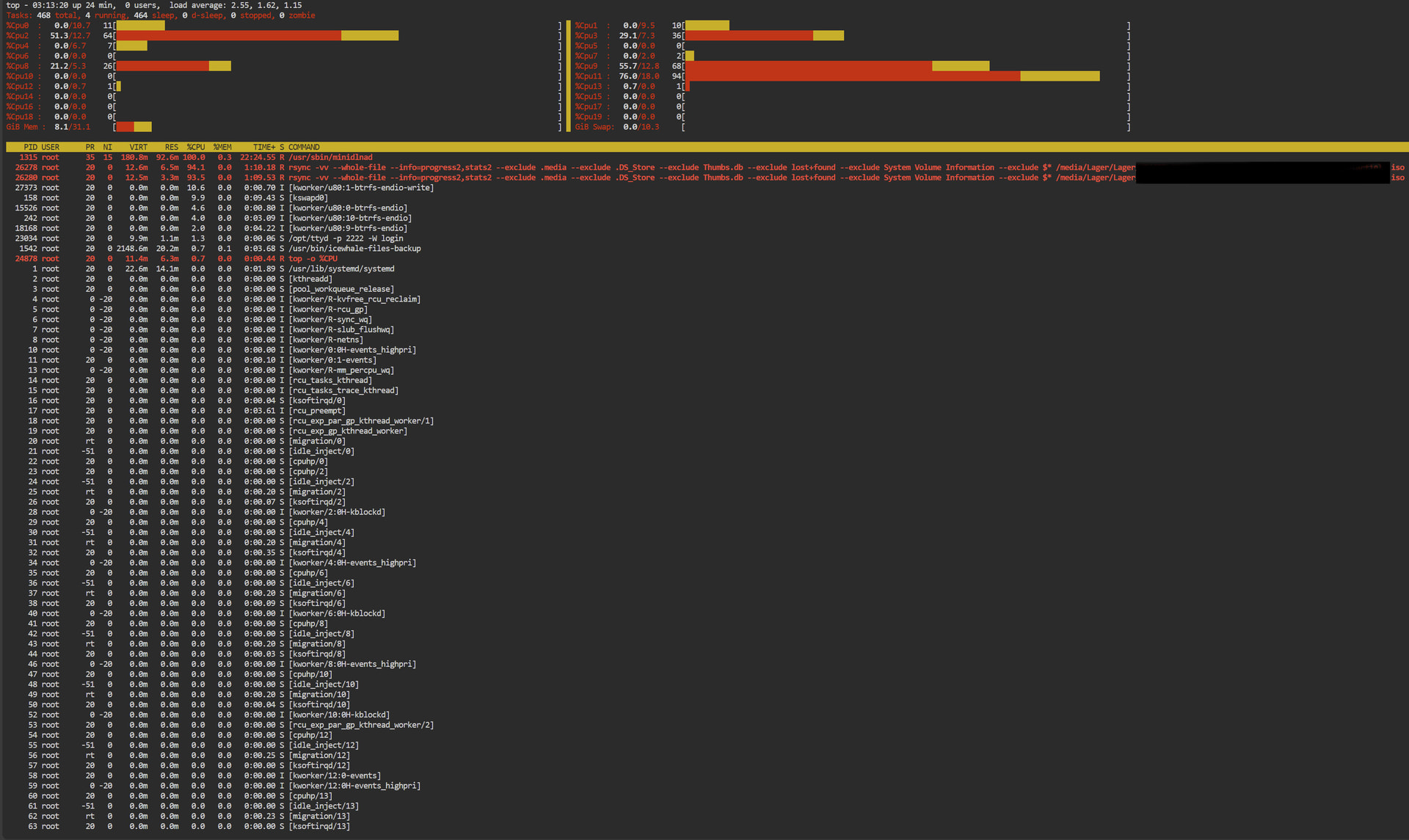
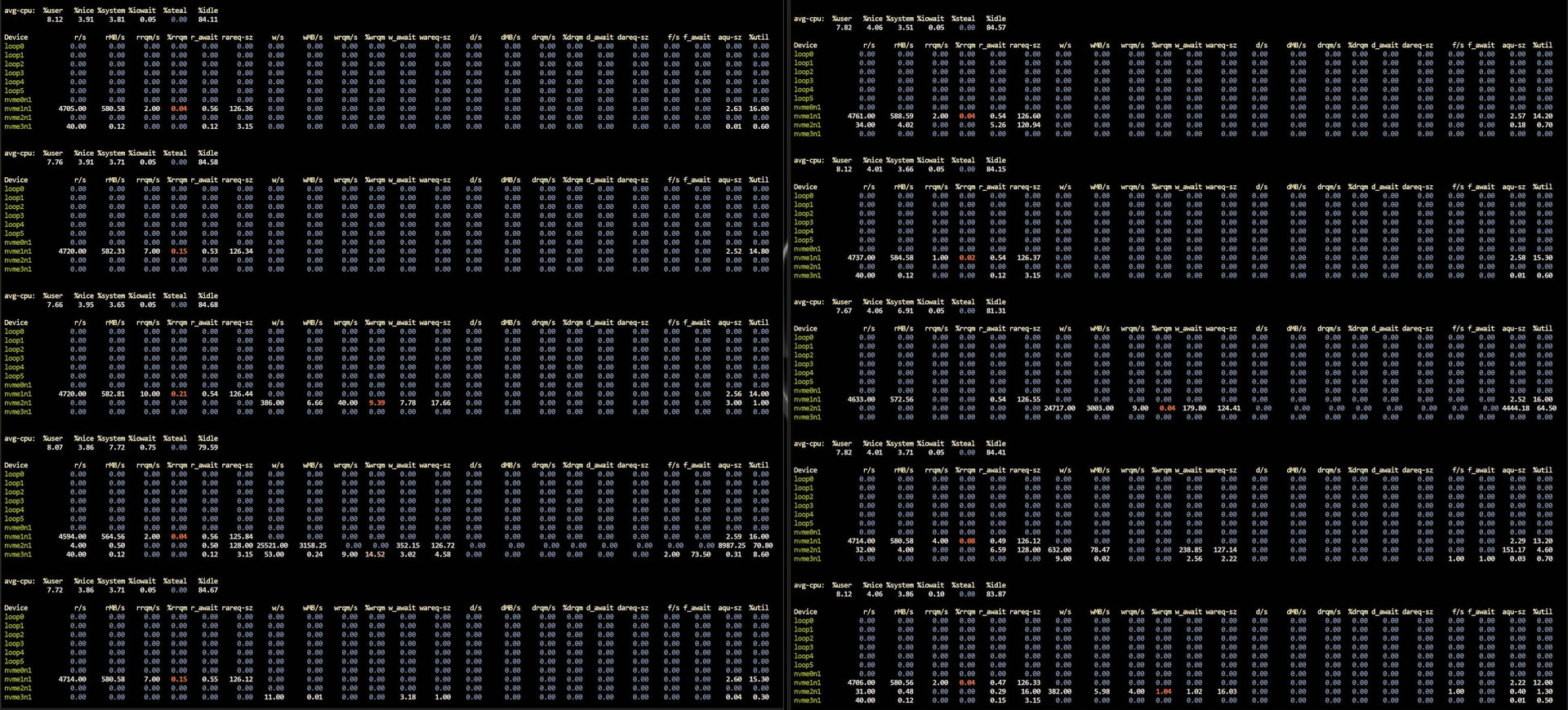
Okay, I could not resist to do it right now and this is the outcome …

had to enhance the last two, to make it more readable
the meters in the CPU load screen changed back and forth, but there was never just one, always six or more. spread all over the cores …

So for me, als the old nerd from the 80s, the outcome is absolutly clear … hope this helps

Mate, thank you again, this is the perfect set of tests :raising_hands:

Your results now make the situation crystal clear:

  • dd + fio show your NVMe performance is excellent (2–3 GB/s), so no NVMe or storage limitation
  • the ~600–650 MB/s only appears during ZimaOS GUI internal copy/move
  • CPU isn’t pegged on a single core and the disks aren’t maxed, which strongly points to the GUI internal copy workflow / software pipeline being the limiter

So the conclusion is:

Your setup is correct and your NVMe is performing properly
The limitation is isolated to the ZimaOS GUI internal copy workflow, not the storage stack itself

This is actually good news, because it’s a software optimisation opportunity for IceWhale (internal copy/move pipeline), not a hardware issue.

And love the “old nerd from the 80s” comment, I’m one too :grinning_face_with_smiling_eyes: DOS was a nightmare back then but we learnt the hard way and it made us who we are.

Really appreciate you taking the time to test it properly — this evidence is super valuable for the team