i was wondering if there is a way to see all the ports used and by what application
If you open terminal and sign in, or via ssh you can run this and get a list of docker assignments
sudo docker ps -a --format "table {{.Names}}\t{{.Image}}\t{{.Ports}}"
It will get you names with image name and then ports.
This will get a list with each assigned port group on a new line , separated for easy import to excel.
	 sudo docker ps -a --format '{{.Names}},{{.Image}},{{.Ports}}' \
| while IFS=    echo "$ports" | tr ',' '\n' | sed 's/^ *//;s/ *$//' | while read port; do
        [ -n "$port" ] && echo "$name,$image,$port"
    done
done >  /DATA/Documents/PortUsage.txt, read -r name image ports
It would be very cool if something along these lines could be built into ZimaOS Maybe a GUI list of Docker App to Port list.
I’m sure it could be refined, but it’s what I came up with quickly.
thank you. do you know of a way to release for like 80 and 443 cause they some how got stuck to a previous install of nginx
Port 80 and 443, 80 for sure is tied to the Zima OS UI, I would assume 443 is. If it is also tied to another nginx I don’t know.
you are right id love to see a list in the settings menue
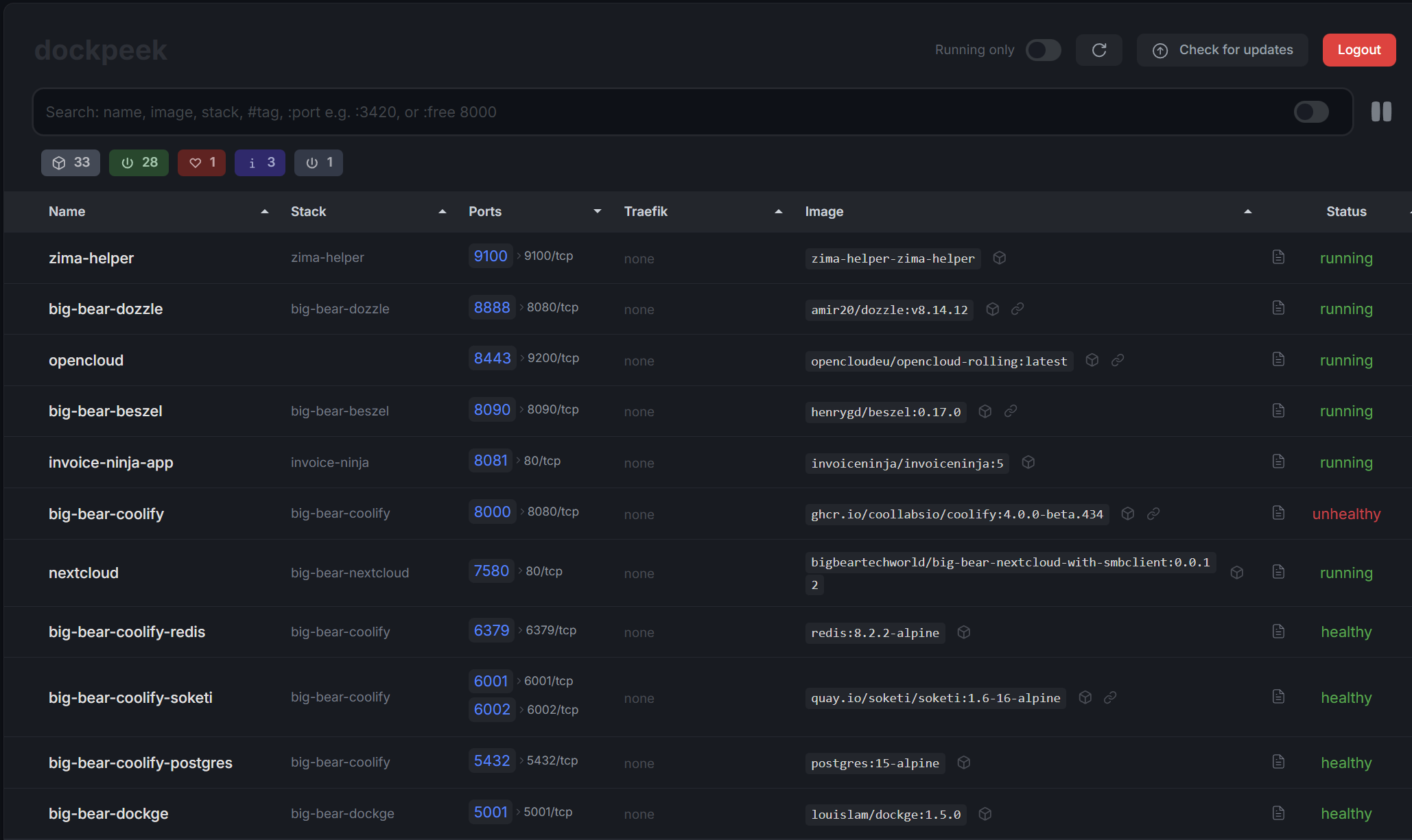
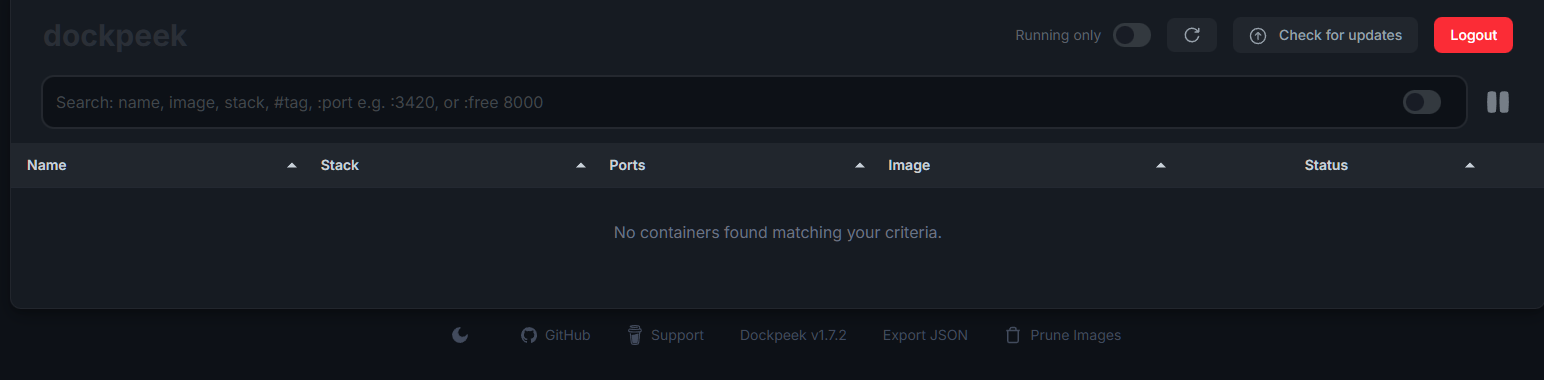
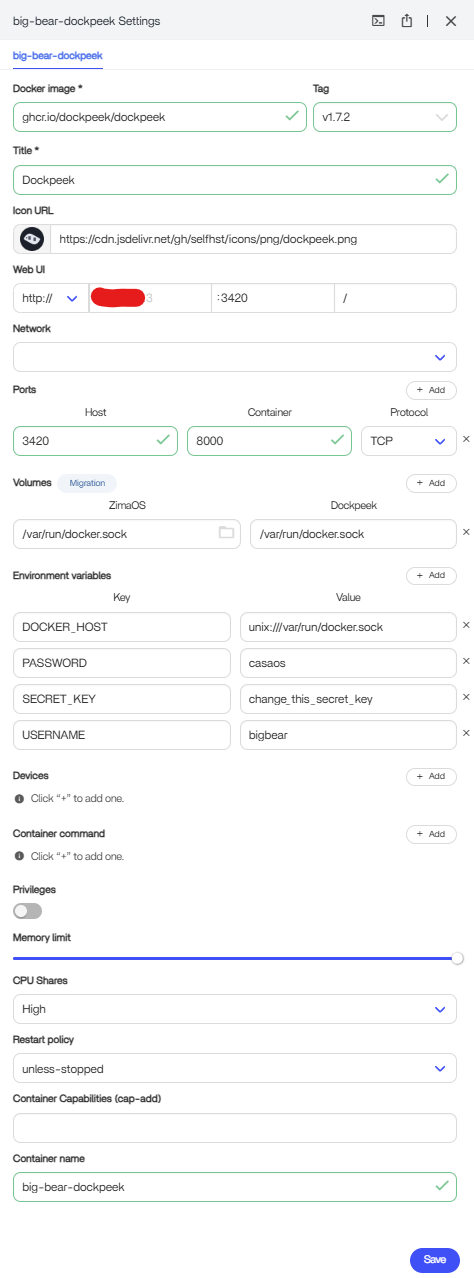
Thank you for that!
By default we have been trained to change the volume on the ZimaOS side to the standard
/DATA/AppData/AppName See How to understand Docker App's paths On ZimaOS | Zimaspace Docs
So, when I install stuff from the IceWhale store I tend to trust the paths. But I’ve learned from all the 3rd party stores, to change the shared volume. Since this is a BigBear app not an IceWhale app by default I changed that. I just uninstalled and reinstalled it and didn’t touch that this time and now it works.
I didn’t even compute that .sock part
So yeah I missed that. This is one that the only thing you need to touch is username/password/secret key
I don’t have any idea what the secret key is used for.
No worries at all, easy mistake to make.
Dockpeek is a bit different because it must keep the /var/run/docker.sock mapping intact. Changing it to /DATA/AppData/... breaks its access to Docker, which is why nothing shows up.
For this app, you’re right:
- Leave the volume mappings exactly as installed
- Only adjust username / password / secret key
- Reinstalling without touching the volumes is the quickest fix
The secret key is just used by Dockpeek for its own internal auth/session handling. If you’re not exposing it publicly, the default value is fine.