If you generate video content with AI tools regularly, you already know the mess that builds up fast: a dozen prompt variations for the same scene, source images that got reused across three different projects, draft clips with no clear versioning, and a client comment buried in a chat thread instead of next to the file it refers to. Cloud drives make this worse over time — search is unreliable, folder sync gets flaky with large video files, and you lose control over who can see what.
Running this workflow on a self-hosted ZimaOS box solves most of the practical pain points, but only if you set up a structure before the project pile grows. Here’s a system that holds up over dozens of projects.
Why flat folders fail
Most people start with one folder per project and dump everything inside: images, prompts as text files, output videos, all mixed together. This works for the first five projects. By project twenty, you can’t tell which prompt produced which clip, and you have no record of what was rejected and why. The core problem is that prompt text, source assets, and output files have different lifecycles — prompts get edited repeatedly, source images stay fixed, and outputs multiply with every regeneration attempt.
A structure that separates lifecycles
Instead of one folder per project, split by function first, then by project:
/sources/— original images, brand assets, reference stills. These rarely change once approved./prompts/— plain text or markdown files, one per concept, with a version suffix (_v1,_v2). Never overwrite a prompt file; save a new version instead./drafts/— generated clips, named with the prompt version they came from (e.g.,productdemo_v3_render2.mp4)./approved/— the small subset that made it past review, copied (not moved) so the draft history stays intact./notes/— a single markdown file per project logging what was tried, what failed, and why, updated as you go rather than reconstructed later.
This separation means you can always answer “which prompt made this clip” by filename alone, without opening a chat log or spreadsheet.
Practical steps on ZimaOS
- Create the five top-level folders as shared folders in ZimaOS storage, not as subfolders of a single project — this keeps permissions and backup rules consistent across all projects.
- Set a naming convention before you start the first project, not after. Retrofitting names onto fifty existing files is the task nobody finishes.
- Use ZimaOS’s built-in file versioning or a scheduled snapshot (via a cron-style task) on the
/prompts/and/notes/folders specifically. These are small text files, so frequent snapshots cost almost nothing in storage. - Keep
/drafts/on a separate backup schedule than/approved/— drafts are disposable and don’t need the same retention as finished work. - If multiple people touch a project, give each contributor a subfolder inside
/drafts/rather than a shared free-for-all folder, so you can trace whose regeneration attempt produced which file.
Where a browser-based generator fits in
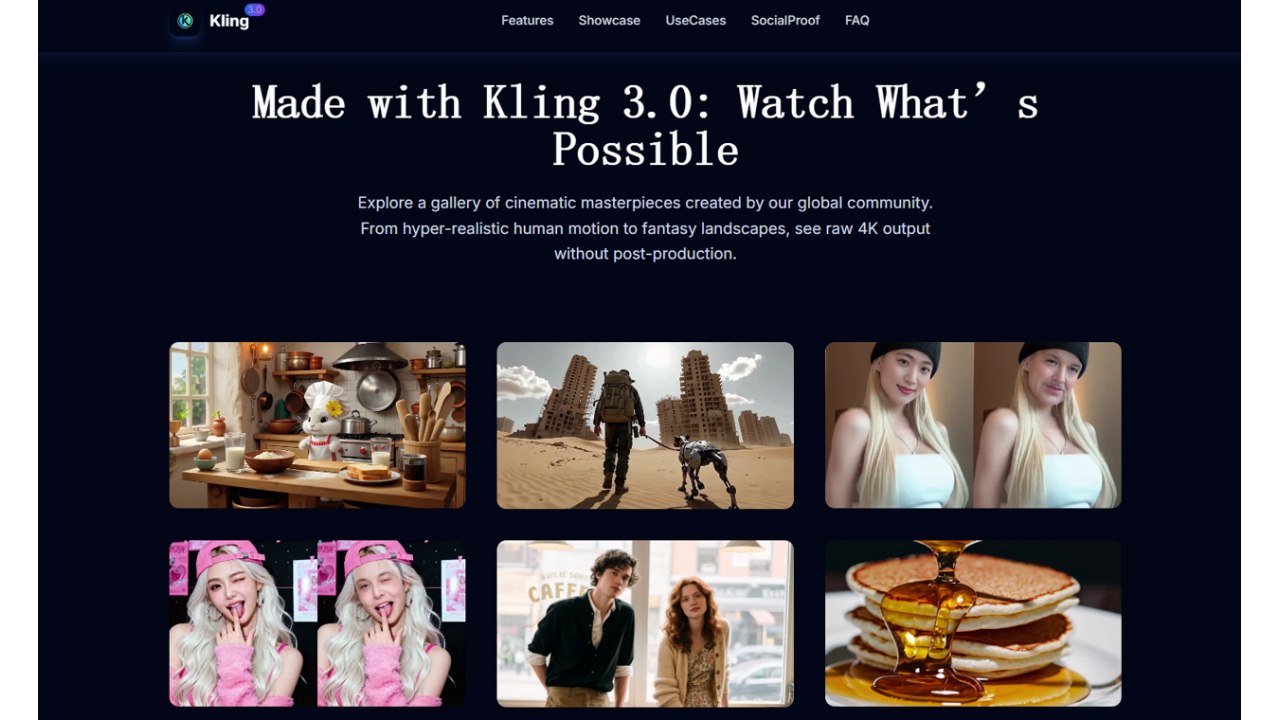
The generation step itself doesn’t need to happen on your NAS. Many creators draft prompts locally, generate the actual clips through a browser-based tool, then pull the results back into the ZimaOS folder structure above for storage and review. For example, Kling 3.0 AI Video Generator works from text prompts and source images in the browser, which fits into this workflow as the generation step — you write and version your prompt in /prompts/, generate through the tool, and drop the resulting clip into /drafts/ with the matching version name. The organizing system stays independent of whichever generator you use, which matters if you switch tools later or use more than one for different project types.
Limitations worth knowing
This structure assumes you’re disciplined about naming — nothing here enforces conventions automatically, so a script or a simple checklist habit is doing the real work. It also doesn’t solve large-file storage growth; video drafts accumulate fast, and you’ll want a retention policy (e.g., delete unapproved drafts after 60 days) rather than keeping everything forever. Finally, this setup is built for single-team or small-studio use; if you need fine-grained multi-client access control, you’ll want to layer proper share permissions on top rather than relying on folder naming alone.
None of this requires special software beyond what ZimaOS already offers for shared folders, scheduled snapshots, and basic permissions. The harder part is sticking to the convention once the project count climbs — but that’s true of any storage system, self-hosted or not.