I am using a custom build hardware with 4 network ports (2 2.5G RJ45 + 2 10G SFP+), after installing ZimaOS V1.5.0, I cannot find anywhere to configure those network interface, I did some research and I cannot find any on my UI, not sure if this is normal in V1.5.0. Below is my screenshot, I still can do it via SSH, but I wonder if it can be done easier through web UI, I just want to configure DHCP / Static IP for different interface… Does anyone got the similar issue? Or it is by design?
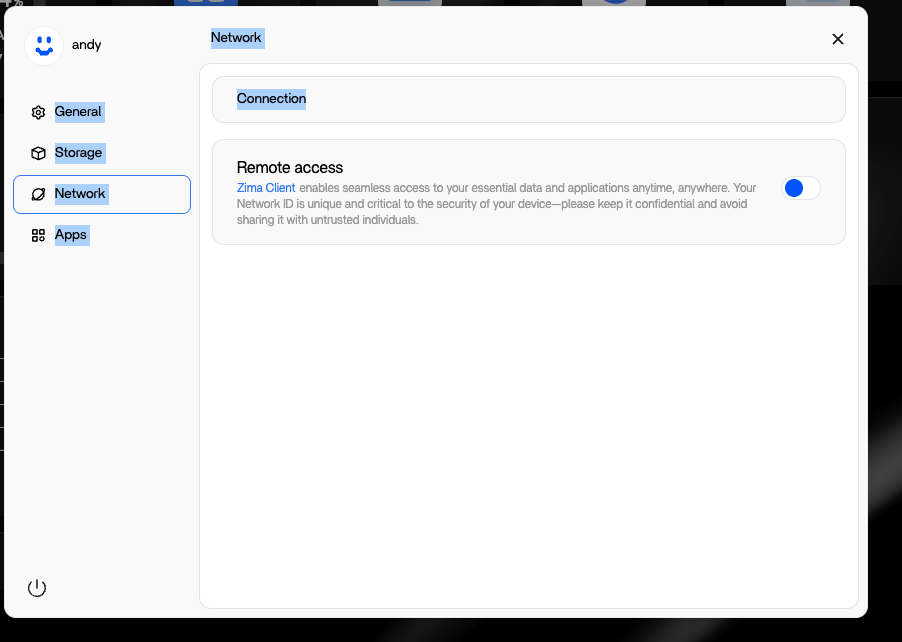
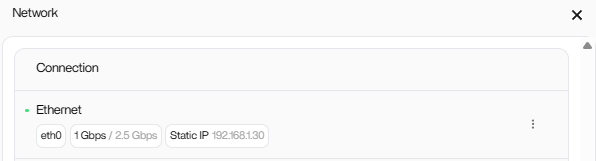
It’s on a physical hardware, it’s a Aoostar wtr max, running a amd chip…luckily it actually work, just show nothing on the web UI…but I really want to fix it…
Oh man, I so want 1 of those, I just looked it up. $600 barebone out of stock. Another month. But it would break the bank probably just getting it up to 128gb ram
Ya, I reviewed lots of NAS box and I think this one fit me most from both budget and specification perspective. there are other choices but either not as much IO as it or the price is way to high…
I think it support 96GB RAM the top? I can only afford 32 now, may upgrade later…but anyways, its kinda frustrated that I cannot see the config in UI…
From the product page
AOOSTAR WTR MAX 8845HS Mini PC has 2DDR5-5600 SODIMM slots (up to 128GB) , M.2 2280-NVME x 5(PCIE4.0 x21, PCIE4..0 x2 2; PCIE4.0 x12), and support ECC RAM.
Yeah, if I could get that now, I could put in 32gb and plenty of drives. Would be awesome. Hmm, Maybe what are the dimensions?
I even have an SFP+ Switch, that supports aggregation.
Hi Andy,
Try rebooting your NAS. I have the same Aoostar WTR MAX  and saw the same (no options) in the network settings after ZimaOS v1.5 install last week. I had it on for a few days, installed a bunch of apps, portainer… and decided to shut it down for the night. Turned it on today then saw your post, checked the network settings and it is now all there..
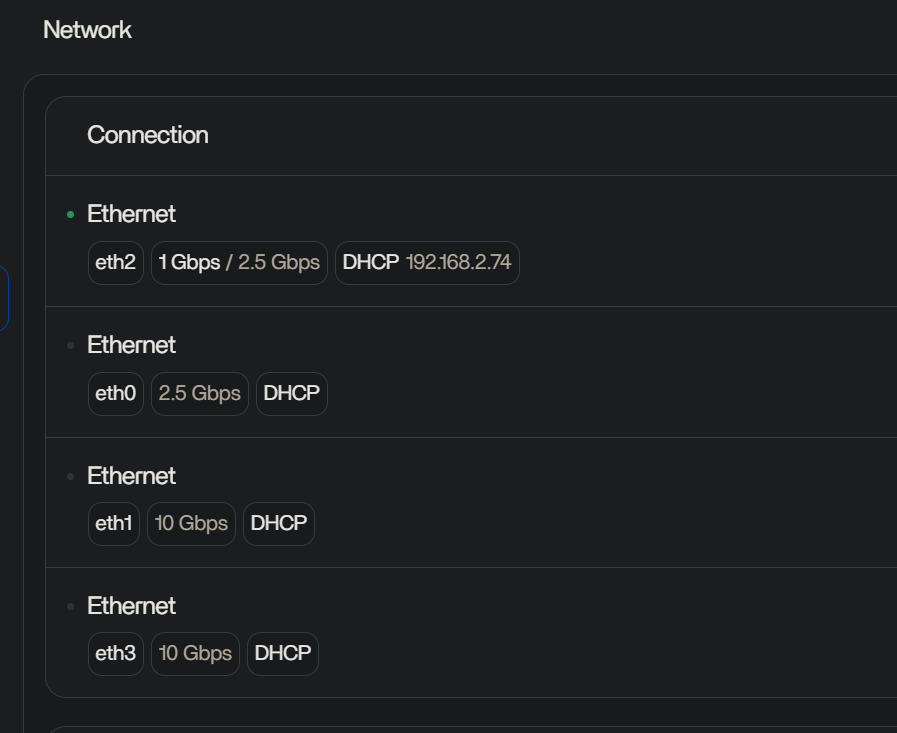
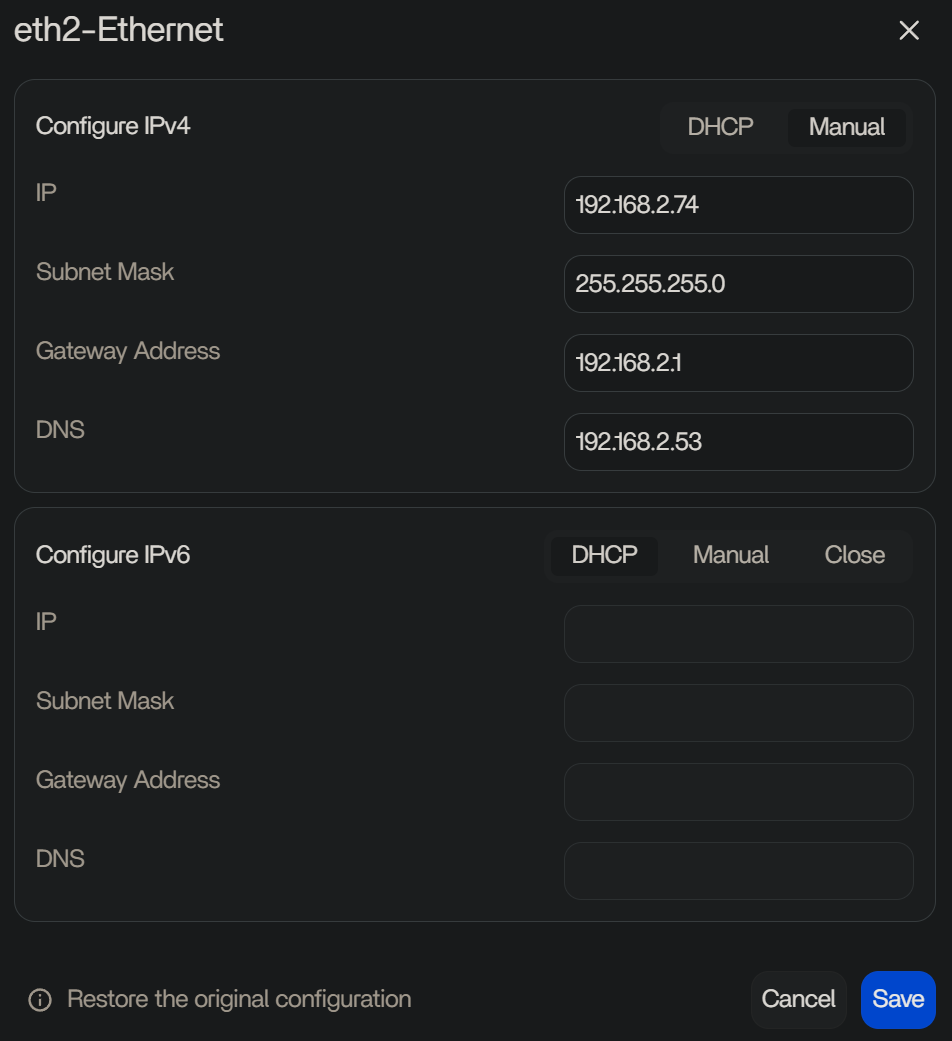
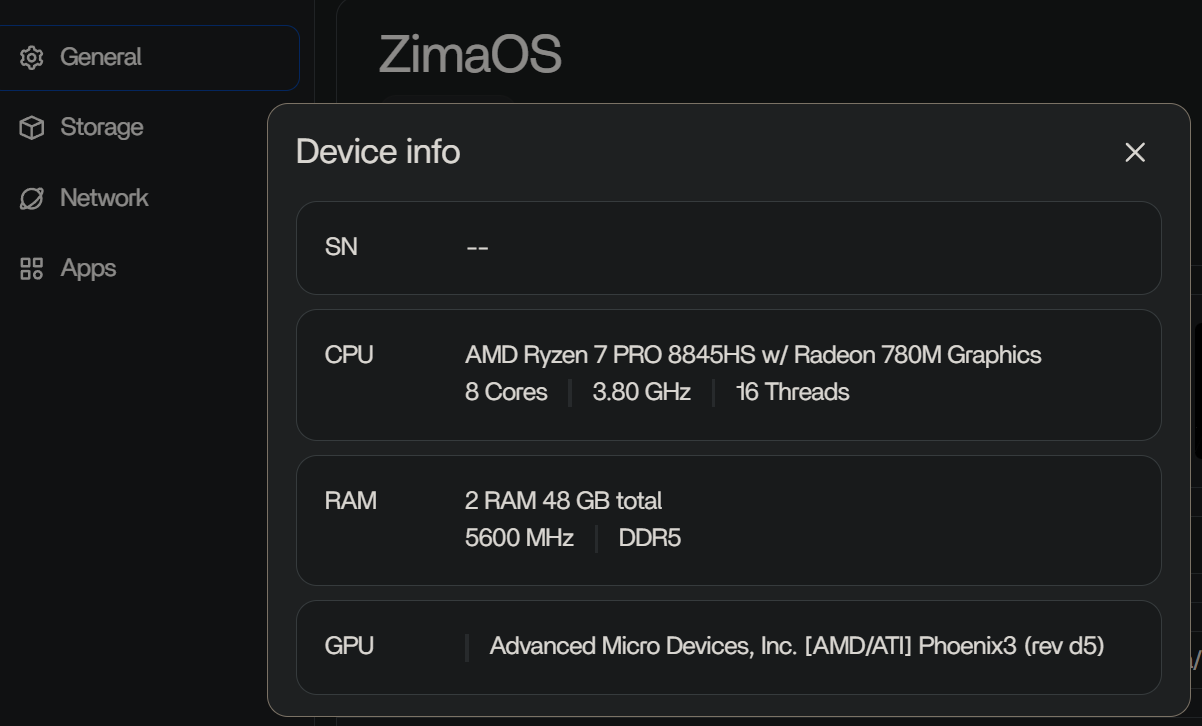
So far I love this thing, got it barebones and (48 GB Nemix ECC RAM from Amazon)! And ZimaOS is awesome!!
My main concern is to be able to run multiple Wordpress websites on it - with Nginx, MariaDB/MySQL. Still in the process of figuring it out… can’t make up my mind if I should use Portainer or ZimaOS built in Docker Apps. There’s a paid for members only YT video by the App Developer for CasaOS/ZimaOS I’m considering for that: CasaOS Tutorial: Run Multiple WordPress Sites Like a Pro
Coming from a Synology NAS, bye bye, it was a good time…
I also recently discovered a great value - ORICO Industrial SSD (IG740PRO) with PLP - Power Loss Protection built in that I’ll be using for the OS and additional Volumes
Hi Ivan,
I wish I could have same luck as you. I tried to shutdown for hours but it still doesnt work. May I know if you have unplug any power cable / network cables when you shutdown?
Hi Andy,
I was able to replicate your and my earlier problem and successfully got the network settings to load again, to my surprise:
I rebooted from ZimaOS and after startup - saw no network options in network settings again.
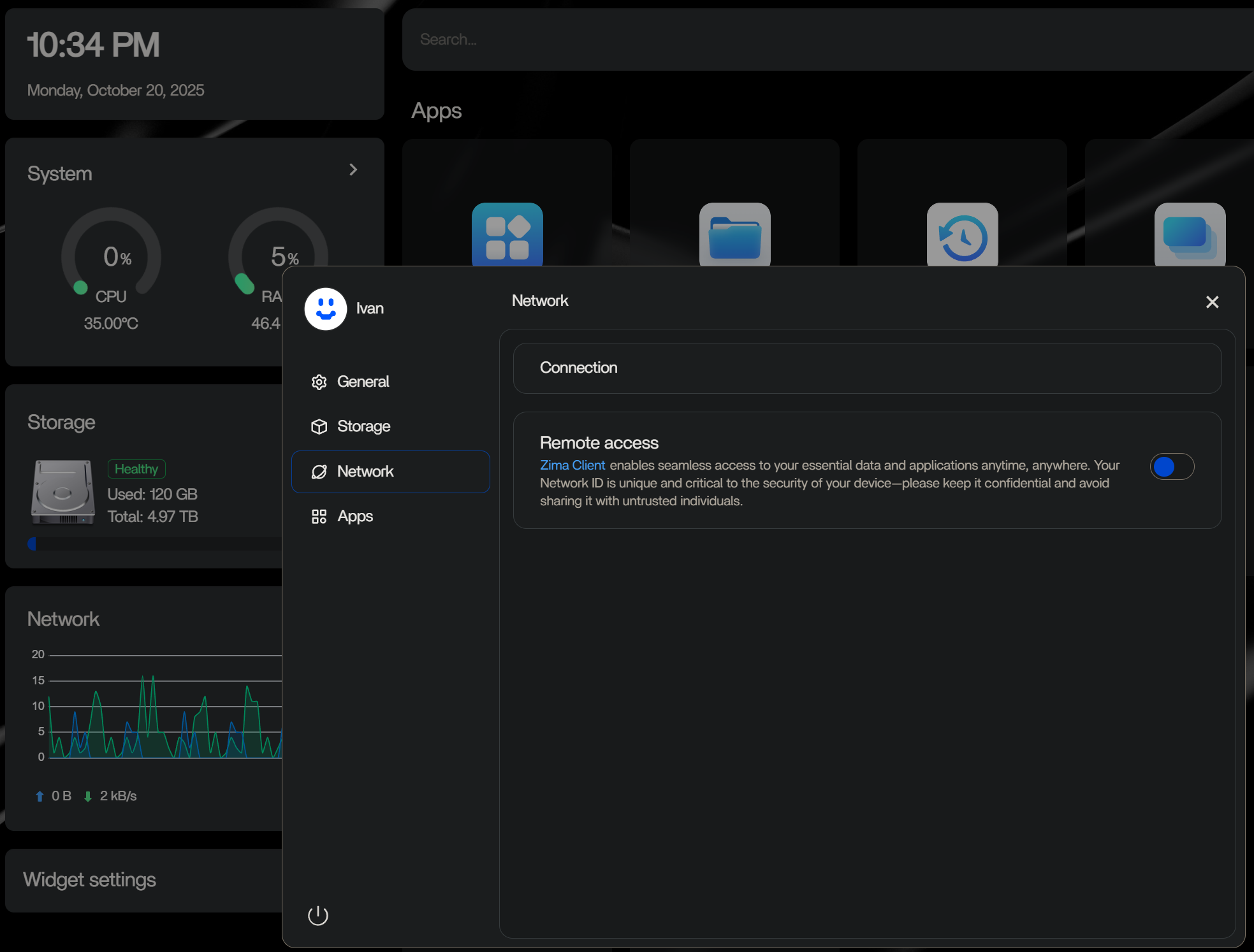
I tried doing what I did last time, but not quite to the full extent and it didn’t work. I wanted to replicate the system powering on automatically from a power outage, for which I enabled in the BIOS (to power on automatically on power restore) when I first booted the NAS - 5 days ago (I changed some power settings in BIOS). So I unplugged the power cord from the mains/power strip for roughly 5-7 seconds, power the plug back into the mains/power strip and watch the NAS boot up automatically. And unfortunately I didn’t see network settings show up. I even plugged in another network cable to the second 2.5Gb NIC on the NAS and my switch with no difference.
So, I tried to do EXACTLY what I did last time (other than shutting down for the whole night). I shut the NAS down. Unplugged power cord from the mains/power strip for EXACTLY 10 seconds (counted to 10 slowly ;). Plugged power cord to the mains/power strip, watched the NAS boot, logged in and saw all network settings show up again:
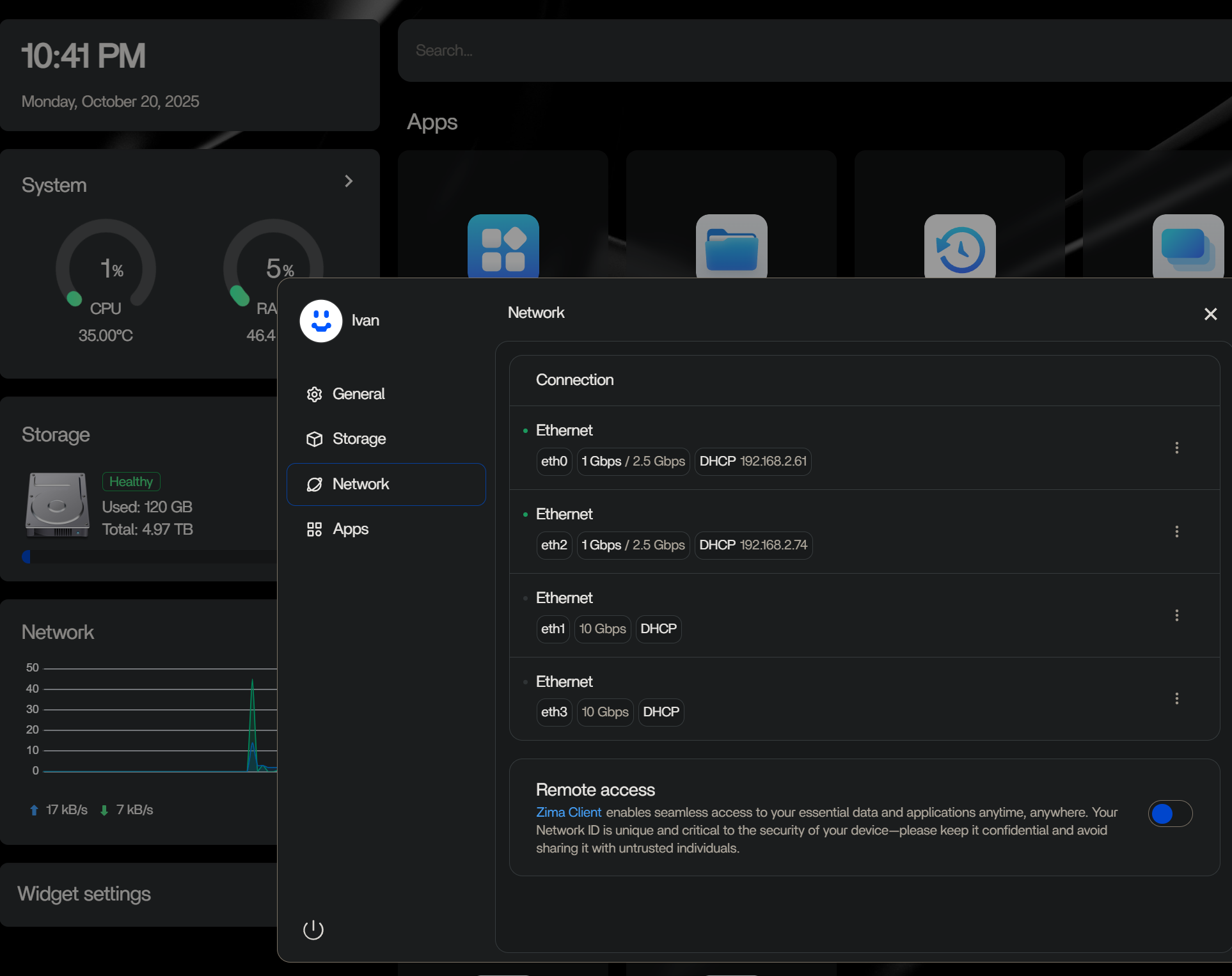
It might not be necessary to have it set to power on automatically on power restore in the BIOS, just unplug the power for 10 seconds after shut down, plug it in and press the power button.
I did not unplug any network cables during this process, the only other cable that’s still plugged in is the HDMI cable for when I set the root pass for SSH.
As far as my ZimaOS settings in summary I have SSH turned on and Remote Access OFF. And in the BIOS - I also have turned on Wake On LAN and I turned on SR-IOV. In case that’s something you might want to try to do if the 10 second power off method doesn’t work out for you
Hope this works for ya! Let us know. It is weird, not sure why this is happening…
I rebooted and shut down normally 5-6 more times since, and the network settings load every time.. 
Much appreciated Ivan, I will try it when I home tonight … Hope it works and definitely will keep you posted . Btw, have you installed the small screen program? I wonder where I can download it…the instruction it listed on the manual doesn’t seems to be right,I can’t find any of those software they mentioned.
Andy, the screen software seems to be currently missing as it’s being worked on by Aoostar:
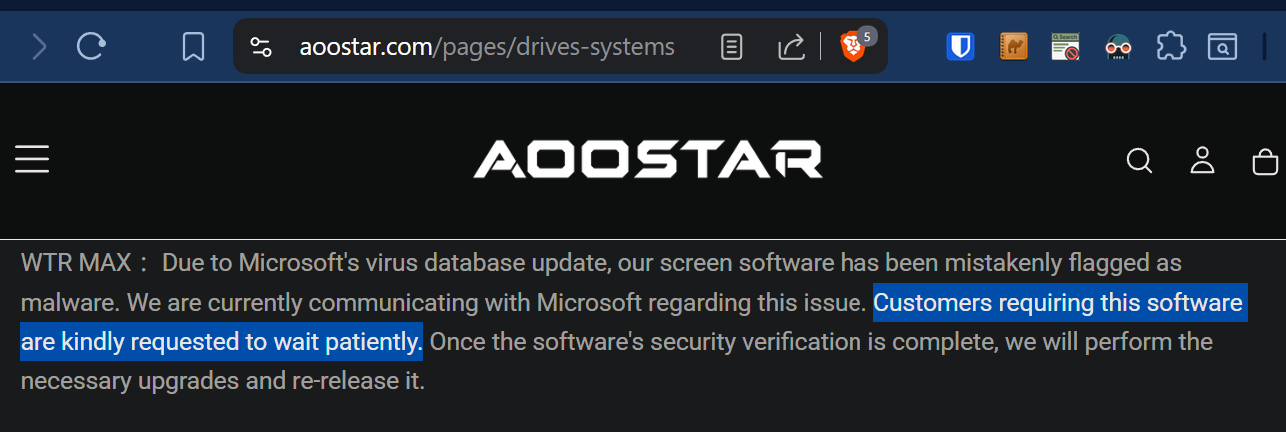
In the meantime I spent half a day trying to get it work for reasons unknown to me. 
 Someone reverse engineered it and made it open source on GitHub, however it’s still being worked on. I was able to get it working in ZimaOS, only to realize that it’s not worth the hassle. It’s a NAS and it will be on the network in a closet somewhere with a ZimaOS web GUI for all my monitoring needs.
In essence you’ll have to tinker with it - to get the right sensor values on the screen. You’ll need to SSH into it and if you upload the asset files from aoostar-rs GitHub into this directory i.e. ZimaOS-HD/AppData/asterctl and making sure you give both files: asterctl & aster-sysinfo executable permissions via SSH (chmod +x asterctl; chmod +x aster-sysinfo) then use this command to see your screen show some info:
./aster-sysinfo --refresh 3 --out /tmp/sensors/aster-sysinfo.txt & ./asterctl --config monitor.json --sensor-path /tmp/sensors/aster-sysinfo.txt --sensor-mapping sensor-mapping/sysinfo-to-aoostar.cfg
Then go to town and read the documentation to tailor the values you want shown on your screen.
Unfortunately this is where my assistance has to stop as I really don’t care for it - as it’s a NAS and it needs to be just that for me.
Good luck to you!
Haa, thanks Ivan, but I think it’s kind of too technical for me at the moment, I better focus on showing the network setting for now… I got no luck with the solution you proposed, so now I am backing up ALL the data and try to reinstall it… hope this can help…will keep you posted on that. Thanks, 
Went on preorder again today! First 50 got a discount to $649 for barebone. I snagged one. Delivered by 11/20. 128GB is max, 96GB can only be used with ECC.
I have to rethink my 10" rack I bought and layout. And I am returning the external USB Raid box to Amazon unused.
Now I’ll have to redploy everything on the new box when I get it.
I have an email into them asking a little more info on the SODIMM options. I saw a comment when someone asked if they could put in just 1 SODIMM and the answer was Yes.
I’d love to splurge and get 2 x64gb but ouch on the price And finding 1x64gb is virtually impossible right now.
So I’m exploring what I can get out there.
Don’t think I will need to get any more storage drives. I have some Zima questions I plan to ask about probably tomorrow.
@IvanITpro , I think I got it fixed, I have reset the ZimaOS and it comes back, also together with the “get plus” button, now I can officially purchase ZimaOS plus, and the network config comes back as well. Thanks for your help
Sounds great Andy, glad to hear you’re all set! 