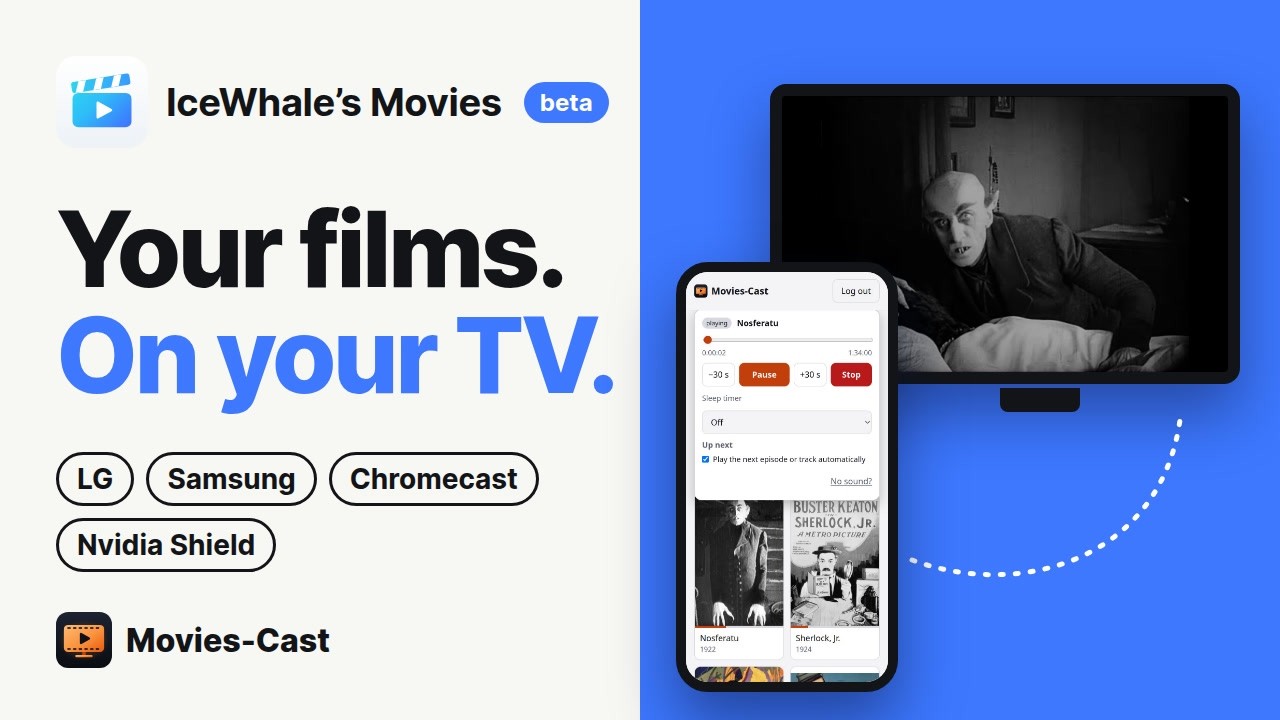
When the Movies beta arrived on ZimaOS 1.8, I noticed that it answers like a Jellyfin server. So I hoped the Jellyfin app on my LG TV would simply work. It didn’t: that app loads its whole interface from the server’s /web page, and Movies answers that with a 404. A developer at IceWhale has since explained why: Movies’ Jellyfin API is there for compatibility with Infuse. So nothing is broken. There was simply a gap for TVs, and Movies-Cast fills it.
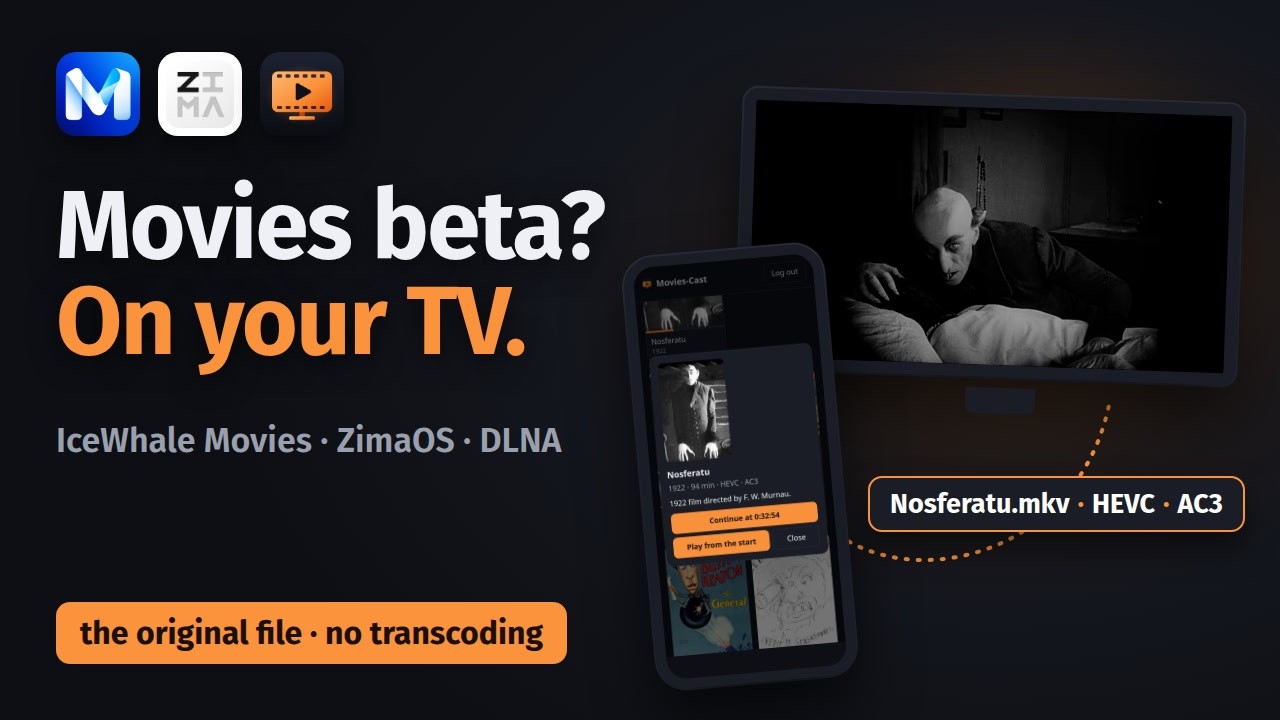
But my LG is also a DLNA renderer, and it plays the original 4K HEVC files from my library by itself, sound included. So I didn’t need a player at all, just something that hands the TV the right file. That became Movies-Cast: a small app on the ZimaOS box with a page for your phone. You log in with your ZimaOS account, pick a film, pick the TV, and the TV plays the original file. Nothing is transcoded.
The TV taught me a few things on the way:
It only seeks when it is told the file’s size and length, plus one DLNA flag. Without them it says “OK” and simply keeps playing.
It claims it can’t play HEVC and plays it anyway. So the app gives you a hint and a “Play anyway” button instead of refusing.
If a TV stays silent with a film’s sound, “No sound?” converts only the audio (Movies does that on the box). The picture stays untouched, and the film continues where it was.
The first version played on my LG on 28 October; today it is at 0.25.1. Along the way it got “Continue watching” synced with Movies, a player on the phone, 18 languages, light and dark mode, and an install that is just one compose file you import in the ZimaOS dashboard. There is also a small app for LG webOS TVs, but the phone page with DLNA is the main part.
So far I have tested it on one TV only, an LG OLED55B9. I’m looking for testers with other TVs. If you’d like to try it, tell me which TV you have.
Hello
I installed and tested Movies beta on my second ZimaOS server (test and backup).
I understood that TV clients were not yet created.
I just watched your video but didn’t understand everything.
I also have an LG TV but I only use my Shield TV Pro. I am a candidate to test it if it can be compatible. I understood that it is the cell phone that serves as the remote control…
I’m reviewing the video and your GitHub to try to better understand the setup steps.
Hi morgyann, thanks for testing – and sorry, the video shows mostly the LG TV app, which is not in the test package. That made it confusing.
How the test version works:
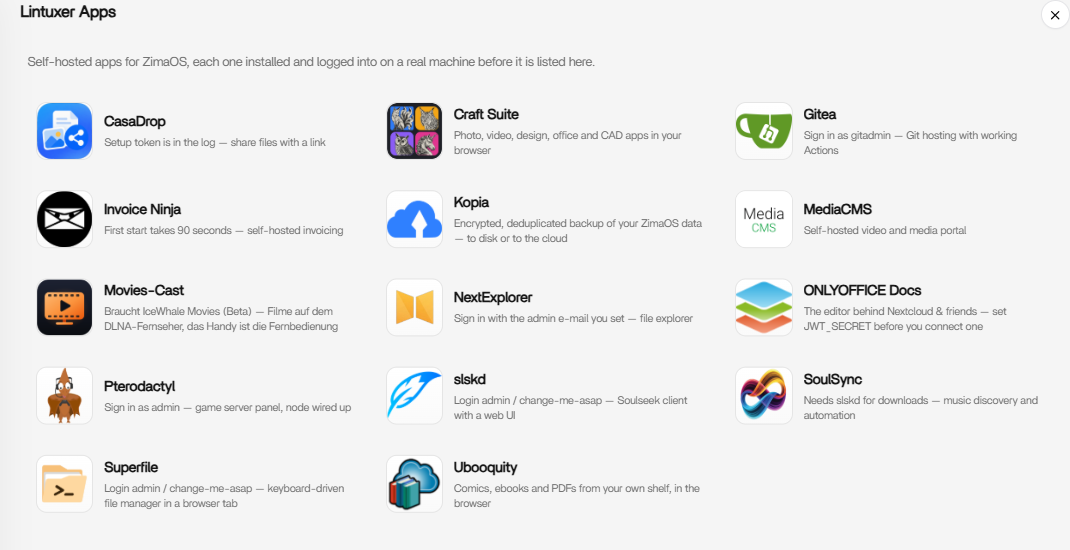
Movies-Cast is a second app on your ZimaOS, next to Movies. Since today it is in my app store: ZimaOS App Store → add a source → https://chicohaager.github.io/zima-appstore/store.json, then install “Movies-Cast”.
Your phone is the remote: open http://<your-zimaos-address>:8097 on the phone, log in with your ZimaOS account, pick the TV at the top, then a film.
Nothing is installed on the TV. It only has to answer as a DLNA “media renderer”; it then fetches and plays the original file itself.
About your Shield TV Pro: I have not tested one, and there is no Android TV app. The quickest check: install Movies-Cast, switch the Shield on and look at the TV list on the phone. If the Shield shows up, it answers as a DLNA renderer and you can try a film. If it does not, the line below the list says what the search found – a screenshot of that and of the “Status” card would help me a lot.
Your LG TV can be tried the same way over DLNA – my test TV is an LG OLED55B9, and reports about other models are very welcome.
It’s already installed on my ZimaOS n°2. I retrieved the YAML from your GitHub and indicated the image. I opened the application on my PC and provided the address of my Shield.
I sent a video but couldn’t respond to the request that appeared because I didn’t configure my phone. I’ll set up a second phone for this n°2 server and let you know.
My test was to recognize my ShieldTV and it doesn’t work. I will do a test later for my TVLG. But for my LG we know that it is recognized. What interests me is connecting my Shield which is in 192.168.1.15.
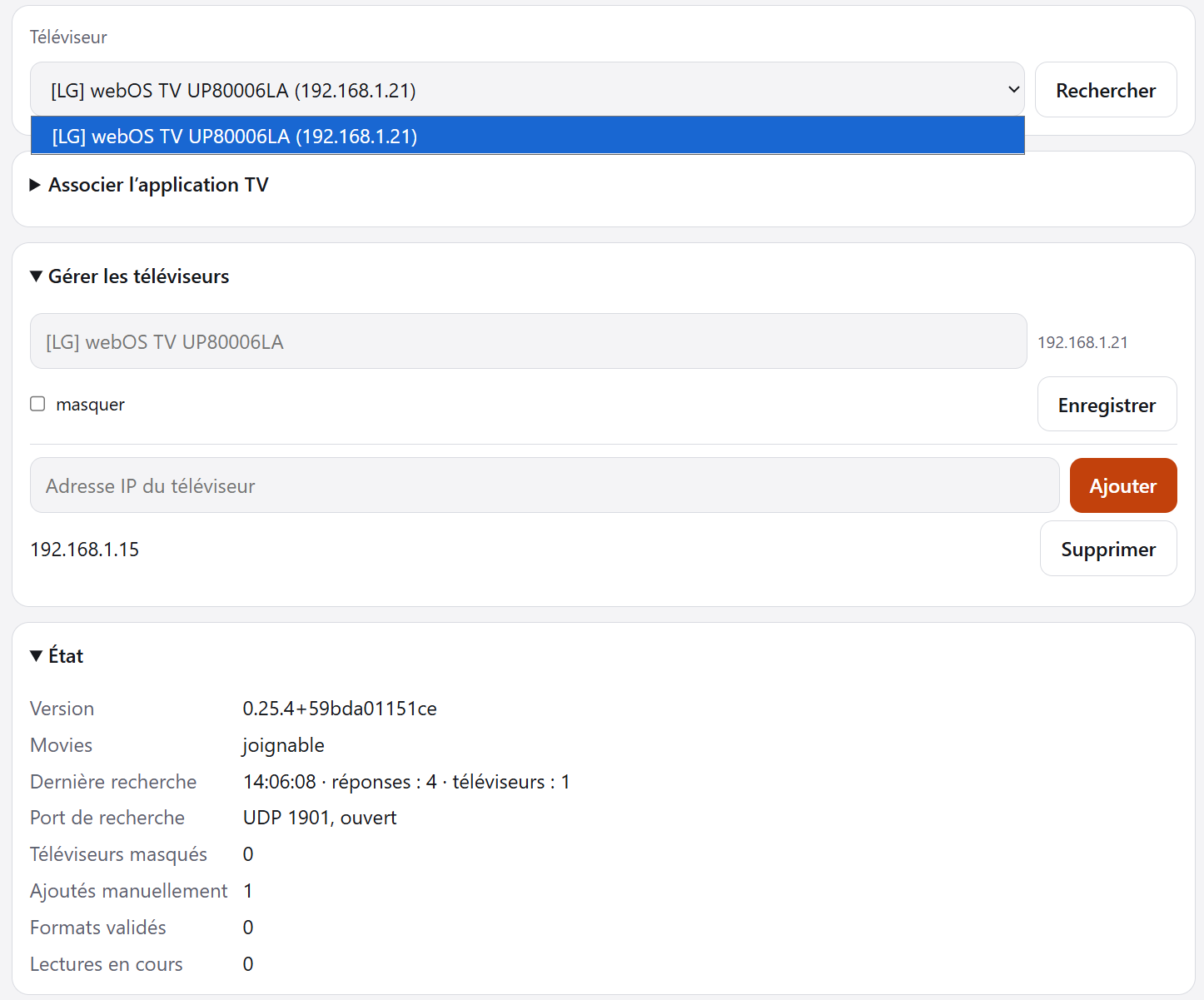
Movies-Cast searches for devices that offer the DLNA “AVTransport” service (a media renderer). Your status card shows 1 TV from 4 answers, and the Shield’s address was added by hand, but no TV came from it: the search found no renderer on the Shield.
An app on the Shield can do it. I have not tried this on a Shield myself, but in Kodi’s source code the setting exists and provides exactly that service:
Install Kodi on the Shield (Play Store) and open it.
Settings → Services → UPnP / DLNA → Enable UPnP support = on.
On the same page: Allow remote control via UPnP = on (it is off by default).
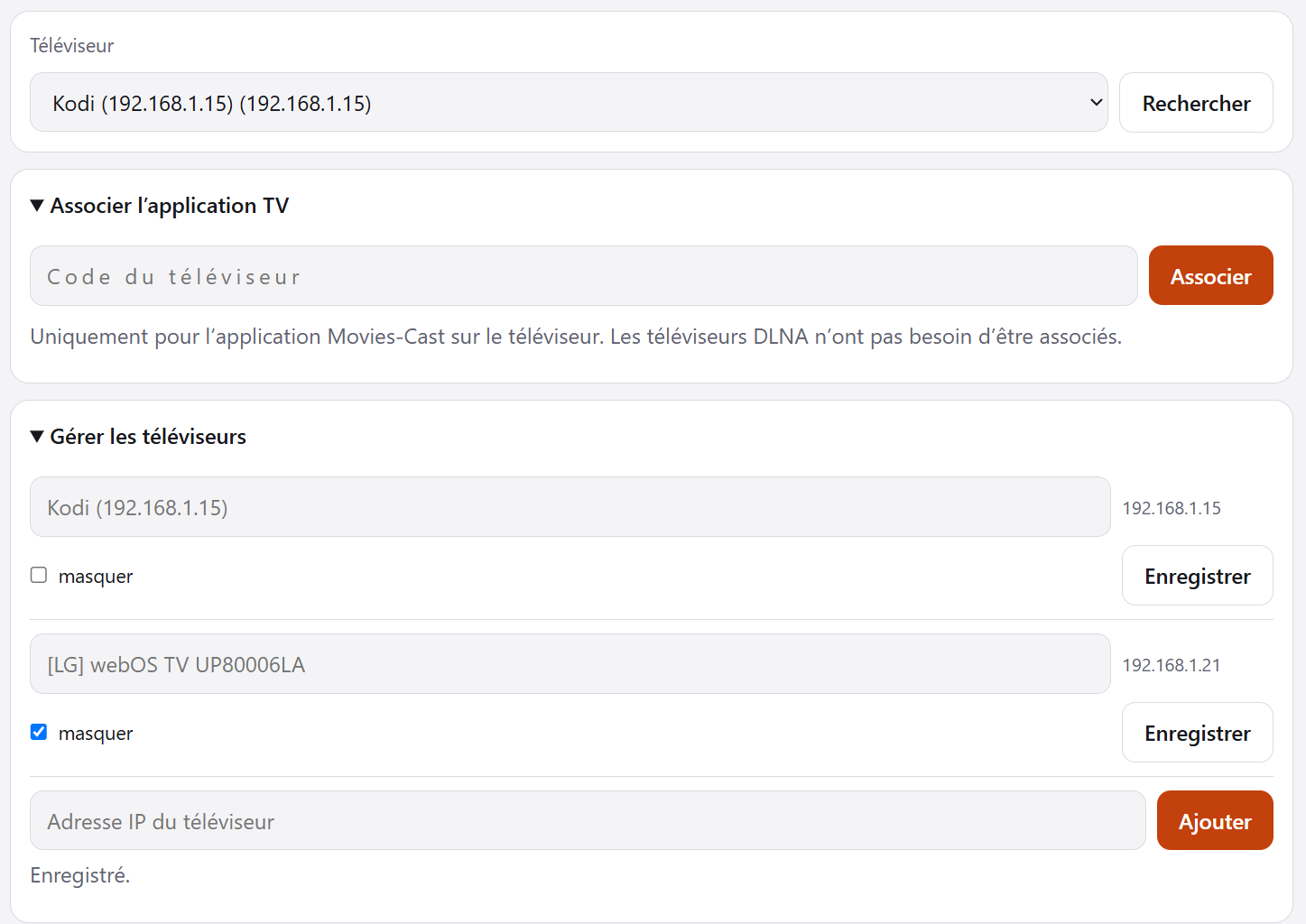
Keep Kodi open, then on the phone, in Movies-Cast, go to “Gérer les téléviseurs”. If the Shield appears in the list after the next search, it works (it stays in the list of added addresses, nothing to type again).
If it shows up, please try a film and tell me whether picture and sound work, and the line below the title (e.g. “HEVC · AC3”). If it does not show up, a new screenshot of the “État” card would help.
After the test, uninstall Kodi again like any other app on the Shield. In Movies-Cast you can then remove the Shield’s address under “Gérer les téléviseurs” → “Supprimer”.
Great, thanks for testing! That is the first report of Movies-Cast on a Shield.
Yes, with the DLNA route the player on the TV is always the one of the device that plays – here Kodi. Movies-Cast only hands it the file; your phone stays the remote (pause, jump, stop, and “Continue at …” goes back to Movies).
If you want the Movies-Cast interface on the TV itself (library on the screen, Shield remote, audio track and subtitles), that is what the new Android TV test app does – see my previous post (Movies-Cast 0.26.0 + movies-cast-tv-0.26.0.apk).
Two questions that help me a lot:
With Kodi: did a film with AC3 or E-AC3 sound (line below the title) play with sound?
If you try the Android TV app: the same question there – sound yes/no for an AC3/E-AC3 film and for an AAC film.
Install it on the Shield, e.g. with network debugging on the Shield and adb connect + adb install movies-cast-tv-0.26.0.apk on a computer.
Open “Movies-Cast” on the Shield and enter the address of your ZimaOS (port 8097 is added).
The Shield shows a six-digit code. On the phone: Movies-Cast → “Associer l’application TV” → enter the code.
Choose a film with the Shield remote. In the film: OK = pause, −10 s, +30 s, ▲ audio track, ▼ subtitles, Back = end.
What I could test: everything above in the Android emulator. What I could not test: a real Shield. One open point: in the emulator, films with AC3 or E-AC3 sound played without sound, while AAC worked. Could you try one film whose line below the title says AC3 or E-AC3, and one with AAC, and tell me “sound yes/no” for each? That decides what I build next.
Installed the APK and validated with the code. Played a video with AAC sound. The sound does not work. I indicated on the phone app “no sound” and “original sound”. The video works but not the sound.

 −10 s,
 +30 s, ▲ audio track, ▼ subtitles, Back = end.