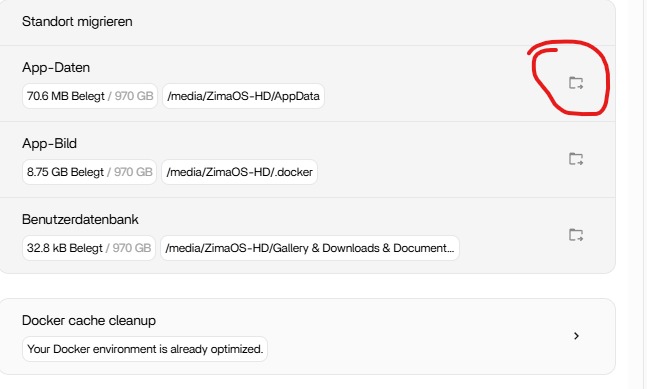
I want to move the Appdata-Folder to an external USB-Drive. But i have no option to start the migration tool.
It is greyed out, so i can not start it.
What could be the reasen for that?
I want to move the Appdata-Folder to an external USB-Drive. But i have no option to start the migration tool.
It is greyed out, so i can not start it.
What could be the reasen for that?
It sounds like the USB Drive isn’t properly mounted, so ZimaOS can’t see it, therefor can’t migrate to it.
From your screenshots, the reason the “Move AppData-Folder” option is disabled is simple and not related to permissions or a ZimaOS bug.
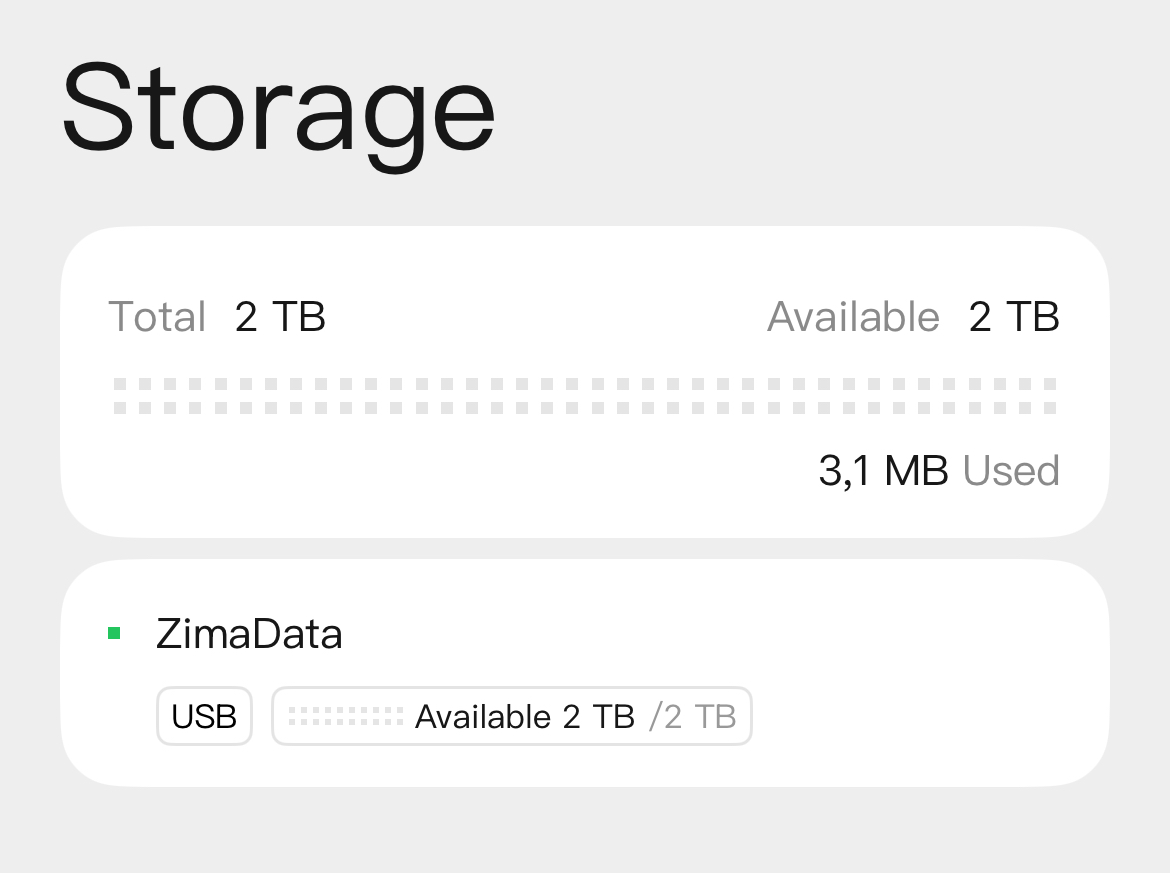
ZimaOS does not recognise your USB disk as a valid “data drive”.
Right now, the OS sees it only as a normal USB storage device, not as a ZimaOS-managed data disk, which is required for AppData migration.
Your screenshots confirm this:
Since AppData is a core system path, ZimaOS will only allow migration to:
Your USB stick is not mounted under /DATA, so the system blocks the operation.
I suggest doing the following:
After that, the OS will allow you to move the AppData folder to this disk.
I believe the OS enforces this because AppData contains:
If the drive is not properly mounted under /DATA, the system cannot guarantee stability or data protection.
Making the drive a ZimaOS-managed data disk solves that.
Thank you for the explanation.
But i still have a problem. There is no option for choosing Format / Initialize for ZimaOS
I formatted the drive before i connected it with GPT and ext4 filesystem.
should i delete that and just connect it unformatted?
I think the issue is exactly that the drive was pre-formatted manually.
When a disk already has a GPT table and an ext4 filesystem, ZimaOS assumes it is just a normal external USB drive, so it hides the “Initialize for ZimaOS” option.
ZimaOS will only offer that option when it sees an uninitialized / raw disk.
What I suggest:
At that point, ZimaOS should recognise it as a new device and show the Format / Initialize for ZimaOS button. After you initialise it, the drive becomes part of the ZimaOS storage system, which will then unlock the Move AppData-Folder option.
Why this matters
ZimaOS must create its own internal structure under /DATA, and it will only do this on a disk it fully controls. Pre-formatted disks bypass this detection, which is why the option never appeared.
Thanks again for the detailed answer.
I will check that later, when i am at home again, and let you know if that worked.
It seems like the SSD from Crucial is not supported.
I deleted the partitions. ZimaOS shows me a new device, but in Storage it is not visible.
I don’t think the Crucial SSD is unsupported.
If ZimaOS shows it in the “New device detected” pop-up, then the kernel is detecting it correctly and the hardware is fine.
The reason it doesn’t appear in Storage is almost always the same:
ZimaOS only shows a disk in the Storage app when:
Deleting partitions often leaves behind a GPT header or the backup GPT at the end of the disk. When that metadata remains, ZimaOS assumes the disk is already formatted and hides it.
That’s exactly the behaviour you’re seeing.
Before wiping anything, you must confirm the Crucial SSD is not the disk where ZimaOS is installed.
Device names can shift depending on boot order, so never assume /dev/sda or /dev/sdb.
You can confirm safely with:
lsblk -o NAME,SIZE,MODEL
Once you confirm the correct device name, you can wipe it fully:
sgdisk --zap-all /dev/sdX
wipefs -a /dev/sdX
(Replace /dev/sdX with the actual Crucial SSD device.)
After the disk is completely raw, ZimaOS will immediately list it in Storage and allow you to initialise it.
If you want zero risk, paste your lsblk -o NAME,SIZE,MODEL output here and I’ll point out the exact device to wipe.
And again, thanks for your detailed answer.
I will try that later too. I had the same thing with a brand new, never used SSD.
But i will check that. I guess i need to connect via SSH to do that, correct?
Unfortunately it did not help.
I ordered a 2TB WD Red now, as this is on the compatibility list.
Anyway, thank you very much for your help!
I appreciate that.
I’m also unable to get this working. I completely wiped a 4TB HDD, removed all partitions and formatting using the terminal commands above, but there is no option anywhere to initialize/format storage for ZimaOS, just a regular format into exFAT, NTFS, or ext4. The buttons to migrate under Apps do nothing and are grayed out. I’m guessing this feature was removed because of ZimaOS+ or something, and now you have to pay for it.
I just want to move my Nextcloud file storage to my HDD because it no longer fits on my mini PC’s internal storage, but it seems this may not be possible with ZimaOS. If that’s so, can anyone else recommend a better option?
Sorry for double posting, but I’ve now tried completely resetting my ZimaOS device, completely wiped all partitions from my drive (it is 100% raw data), and ZimaOS still doesn’t have an option to “initialize” the drive. You can only format it or add it to a RAID. I’ve looked everywhere and found no way to add it to the “storage pool” or have ZimaOS recognize it as a “data drive.” If I do format it, the options to migrate AppData remain unclickable and do nothing.
Did I buy external storage for nothing? It seems like there’s no way for ZimaOS to use anything but internal storage for its apps, which means users are severely limited. If this was made a paid feature, it needs to be disclosed to users. I know I wouldn’t have bothered with all of this if I was only going to find out months later that I was limited to the small internal drive my mini PC came with. What’s the point of even being able to add storage if it’s fundamentally useless? Sure, you can use volumes for many apps, but this doesn’t work for Nextcloud since it lumps everything in one big folder and refuses to launch if you use any other storage.
I’m running ZimaOS 1.6.2. I just got the notification today and the changelog does mention improvements to migration, so it presumably is still a thing, I just can’t find it or use it. This was happening on ZimaOS 1.6.1 as well, though.
Update:
I managed to figure out a workaround for putting Nextcloud on my external storage. I tried using the Files app migration feature to move its AppData folder onto the external drive, but that didn’t work. Apparently some files didn’t make it over and were causing problems, so I wiped that install.
Then, I installed Nextcloud normally onto ZimaOS’s default storage. From the Settings pane, I downloaded a copy of the default yaml file from Zima’s app store, then added it back as a customized app, where I manually edited it to map the AppData/nextcloud folder to one I had made on my external drive (/media/sda/Nextcloud), then installed. That seems to have done the trick. Nextcloud installed itself into that folder, everything is in there, and my other apps aren’t affected. Phew.
I still don’t know why the migration buttons don’t work, but at least I got something working.
Hi, thanks for sharing the details.
The reason you’re unable to migrate AppData is that the drive is connected via USB. At the moment, ZimaOS does not support USB drives as a destination for AppData migration.
This is not related to ZimaOS+ or any paid feature. I understand your use case, especially with the limited internal storage on your mini PC, and I’ll share this request with our team for further consideration.
Thanks for your feedback and understanding.