Hey,
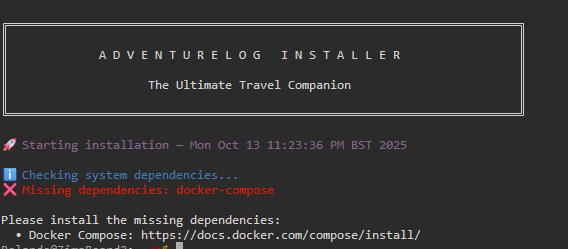
Sorry I don’t have an answer, but was wondering if you eventually found something. More than that, I have been trying to install AdventureLog myself, but I get stopped immediately with Missing Dependencies “docker-compose”. And I have no idea how to install that. Could you help me out? Thank you and sorry for hijacking your question
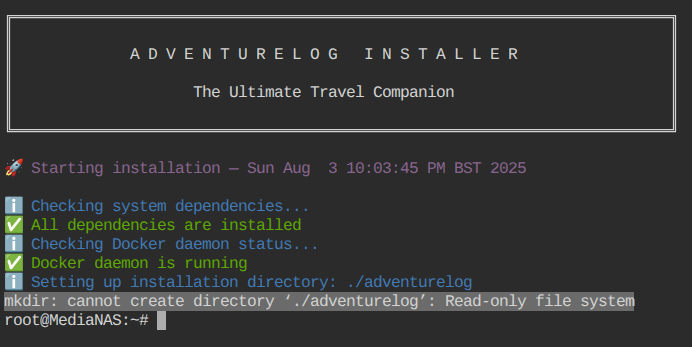
I’m not totally sure about this but… I think whatever drive you are trying to install this app to, is not mounted correctly. It only has read permissions, which the app is calling for Read and Write permissions.
Maybe try remounting the drive, making sure it has the proper permissions etc
I managed to get it to install by using Portainer. It all seems to install just fime by applying the .yaml and .env entries from the adventurelog github files but it doesn’t work unfortunately. Never mind, I’ll keep an eye on this and see if anything changes in the future.
The first thing to say is that we do not recommend users to enter the CLI under any circumstances, except when conducting some investigation under the guidance of our engineers.
However, if you already have knowledge related to computers and data security, I can try to help you install this program under the CLI.
Also, this is a demonstration in a test environment. If you use this machine in a real-life or production environment, please switch to a second created test environment instead for trial and testing.
Now, here we are on a new test machine.
When a user logs into the ZimaOS CLI via SSH using your dashboard account, you have limited permissions.
You can switch to root by sudo -i, so that you can create and modify some files and folders in some folders.
Here I will try to create a new folder named 10-16test2 in the /DATA directory to demonstrate it to you:
# Useful steps for entering the CLI using SSH:
# ZimaOS dashboard -> Settings-> General-> Developer mode view
#   -> SSH Access enable -> Web-based terminal -> Turn on

# Use your dashboard username and password to SSH in your ZimaOS

# Switch to root after SSH
sudo -i

# Install your app
cd /DATA
mkdir 10-16test2
cd  10-16test2/
curl -sSL https://get.adventurelog.app | bash
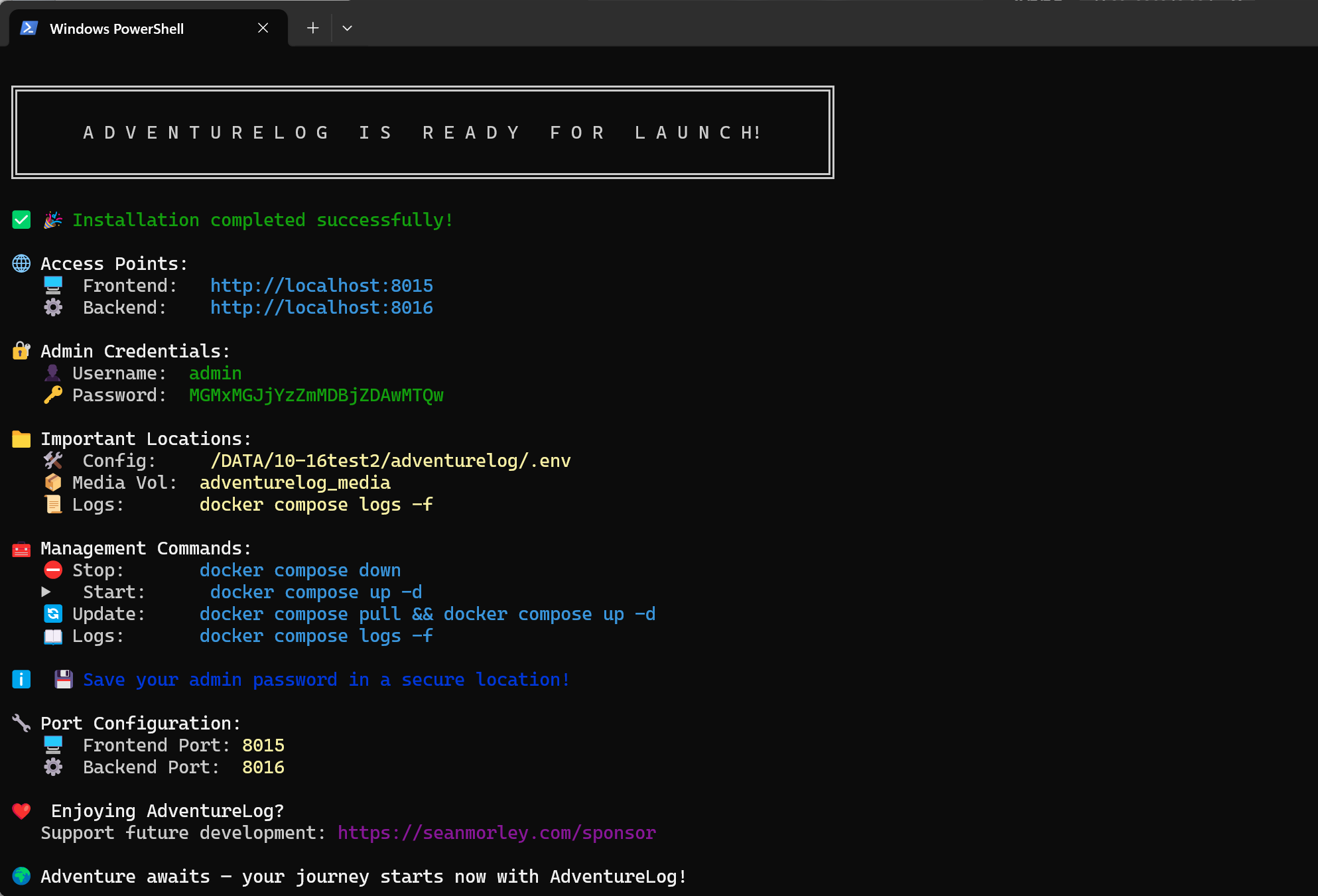
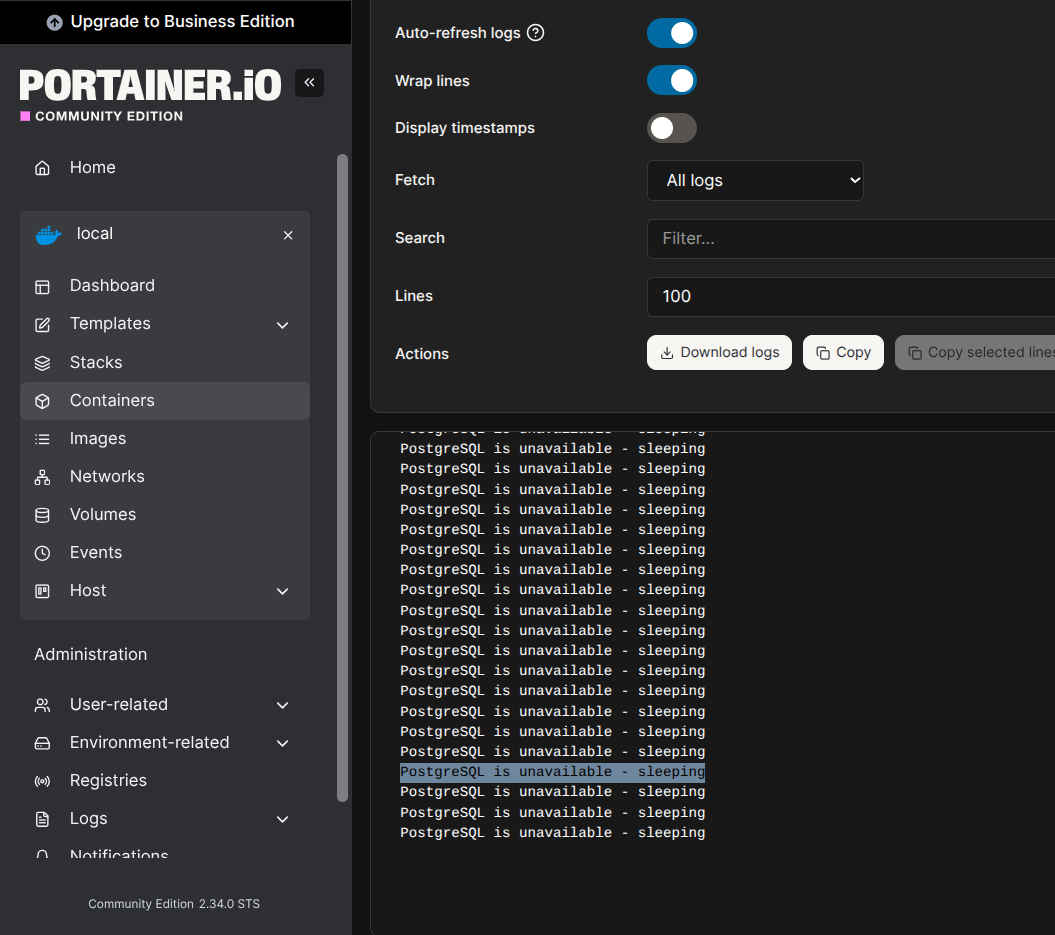
This was an excellent guide, I should have done this ages ago! I installed Adventurelog just fine and everything seemed to go well, except the backend doesn’t start so I get an error when trying to login to the main Adventurelog page. Check the logs, it complaind that “PostgreSQL is unavailable - sleeping” so I installed PostgreSQL from the App Store but it doesn’t seem to help at all?