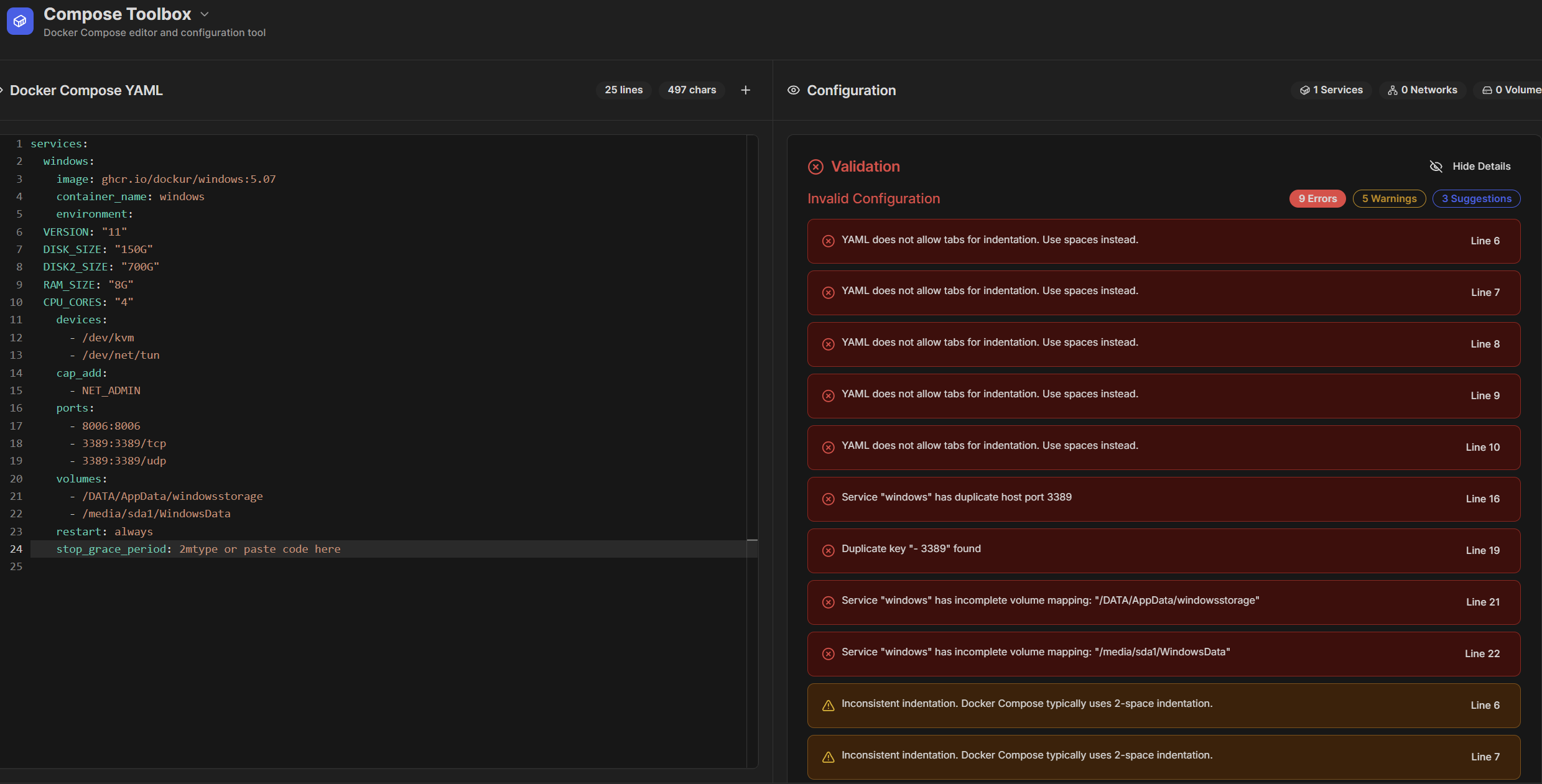
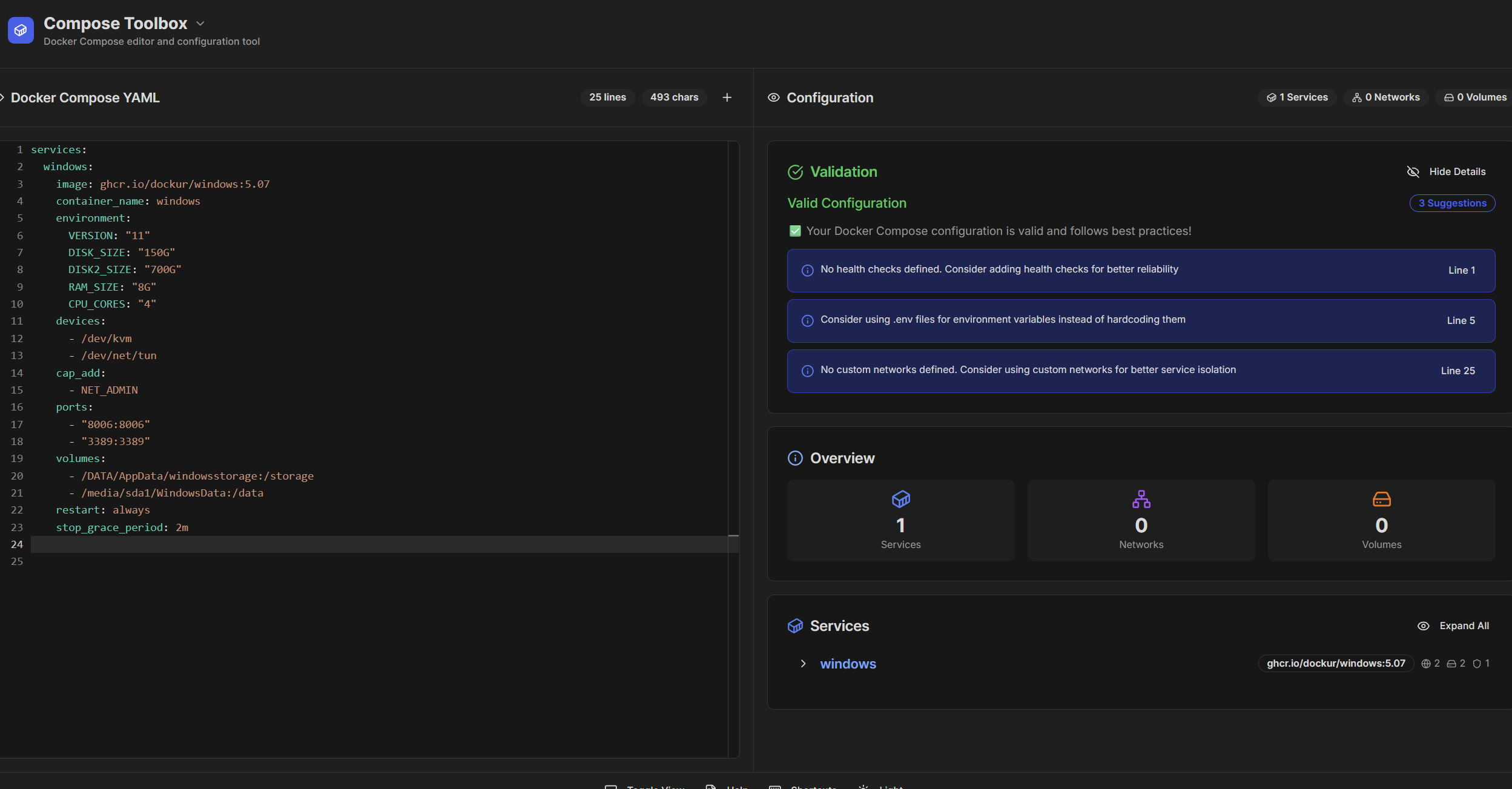
I’m trying to use the following docker compose in the Import I click on submit and nothing happens at all. Yes it is a Windows Docker image that will run Windows 11 Pro. I learned about it here. https://youtu.be/xhGYobuG508?si=ecTfqUBWDO4nJ98S
When you paste your Compose file into Compose Toolbox, it automatically checks if your Docker Compose syntax is valid before importing it. In your case, it’s flagging a few issues, mainly that the YAML is using tabs instead of spaces for indentation (YAML only accepts spaces).
You’ll also want to fix the duplicate port mapping for 3389, and make sure your volume paths are complete and properly formatted. Once you correct those, the validation on the right side should turn green, and you’ll be able to submit the compose successfully.
It’s a handy feature actually saves a lot of time chasing errors after deployment.
I should also mention, my plan is to have this be dedicated to using a windows onedrive client for now so I always have all of my onedrive on the ZimaOS system.
Well this is interesting. After installing this, several dockers don’t work anymore. I uninstalled this, I even rebooted the box, and I get this now when I try to start a few containers manually.
Any ideas?
I would try running the ones that are giving errors through the docker compose toolbox, then restart THEM and see if it fixes it. The compose toolbox is the proper syntax for a docker compose file. Even knowing some may run NOW, doesn’t mean they are within the proper syntax NOW
Yeah, that happens sometimes when the compose app glitches or a previous deployment didn’t clean up properly. The easiest fix is to open Zima Apps > Compose Toolbox, and if you see the “stuck” stack still listed, just remove it from there before trying again.
If it keeps throwing that error, go to /DATA/AppData/compose/ via File Manager or SSH and check for any leftover folders with the same name, sometimes they block new deployments. Once you delete those, the import should work fine.
It’s definitely worth using Compose Toolbox directly rather than the Docker Compose tab inside apps, it gives you proper validation, stack control, and logs all in one place. Makes things way smoother when you’re experimenting with custom setups like this.
That actually sounds like a really smart setup, using the Windows container as a dedicated OneDrive sync client is a clever way to keep all your cloud files mirrored locally on ZimaOS.
Once it’s running smoothly, you can map the synced folder back into your main storage pool or even share it via SMB so everything stays in sync automatically.
You’ll basically get the best of both worlds, native OneDrive sync inside Windows, and full NAS-style access from ZimaOS.