Install Fastfetch and ZimaOS Login Preset
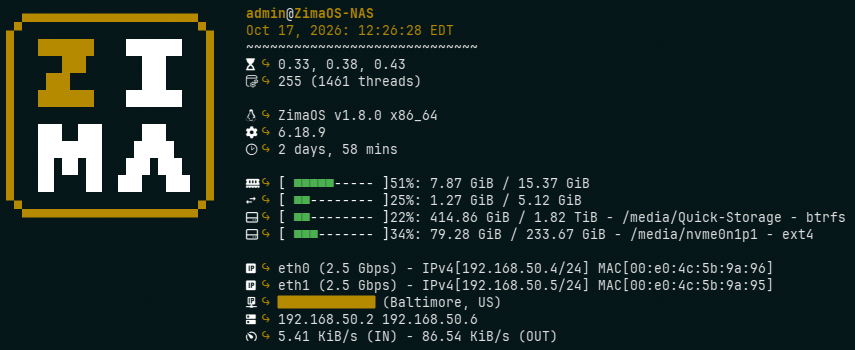
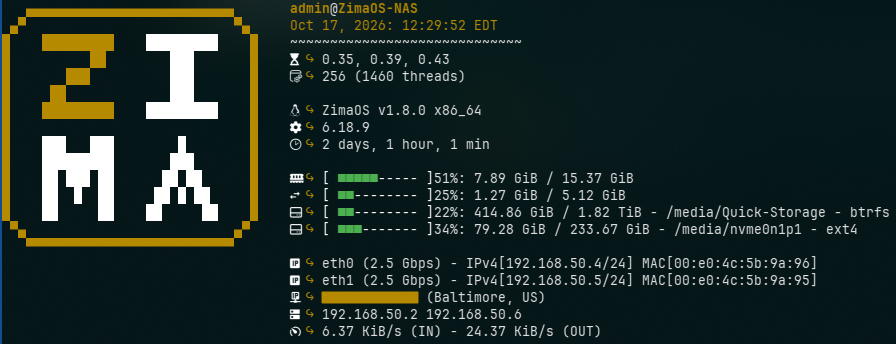
For a long time now I have had a custom Fastfetch preset that shows relevant system information when I start a new shell on my Linux PCs or log into my servers over SSH. This tutorial will show you how to install Fastfetch on ZimaOS and activate my custom login preset so it shows every time you log in or start a new SSH session.
Note: This is not like other tutorials that use a Docker container to run Fastfetch in your web browser. We will be installing the native Linux binary into your
/opt/bindirectory.
Download and Install Fastfetch
-
On another PC, download the latest release from the Fastfetch GitHub repo for your ZimaOS system’s architecture:
# Set the `FF_VERSION` variable for the latest release FF_VERSION=2.70.0 # Check the latest version on the releases page # For x86_64 wget https://github.com/fastfetch-cli/fastfetch/releases/download/$FF_VERSION/fastfetch-linux-amd64.tar.gz # For arm64 wget https://github.com/fastfetch-cli/fastfetch/releases/download/$FF_VERSION/fastfetch-linux-aarch64.tar.gz -
Transfer the downloaded tarball to the
/tmpdirectory on your server:# For x86_64 scp fastfetch-linux-amd64.tar.gz admin@server-ip:/tmp # For arm64 scp fastfetch-linux-aarch64.tar.gz admin@server-ip:/tmp -
Log into your ZimaOS server via SSH as the
adminuser, and enter the/tmpdirectory.cd /tmp -
Unpack the archive:
# For x86_64 tar -xvf fastfetch-linux-amd64.tar.gz # For arm64 tar -xvf fastfetch-linux-aarch64.tar.gz -
Copy the contents to the
/optdirectory:# For x86_64 sudo cp -r fastfetch-linux-amd64/usr /opt # For arm64 sudo cp -r fastfetch-linux-aarch64/usr /opt -
Make sure the
/opt/bindirectory is listed as a binary path on your system (it should be):echo $PATH | tr ":" "\n" -
If you do not see
/opt/binin the output, then add the following line to your~/.bashrcfile:# Open `.bashrc` in `nano` text editor sudo nano /DATA/.bashrc # Add this line export PATH=/opt/bin:$PATH # Use `Ctrl+O` to save and `Ctrl+X` to exit `nano` -
Run the
fastfetchcommand to make sure it is working.
Note: You can use these same steps to update Fastfetch when new versions are released. I plan on writing a script to automate this process in the future to make it easier to install and update Fastfetch. I will update this tutorial if/when I get it completed.
Download and Activate Login Preset
-
Still in the
/tmpdirectory, clone my GitHub repo:git clone https://github.com/benhaube/fastfetch-login-preset.git -
Copy the
login-zimaos.jsoncpreset file into the/opt/share/fastfetch/presetsdirectorysudo cp fastfetch-login-preset/login-zimaos/login-zimaos.jsonc /opt/share/fastfetch/presets -
Create the
/opt/share/fasfetch/logosdirectory and copy thezimaos.txtASCII logo file into itsudo mkdir /opt/share/fastfetch/logos sudo cp fastfetch-login-preset/login-zimaos/zimaos.txt /opt/share/fastfetch/logos -
Run the command
fastfetch -c login-zimaosto test the new preset. -
Add that same command to the bottom of your
.bashrcfile to print the preset on every login:# Open `.bashrc` in `nano` text editor sudo nano /DATA/.bashrc # Add this command at the bottom of the file fastfetch -c login-zimaos # Use `Ctrl+O` to save and `Ctrl+X` to exit `nano` # Reload Bash source /DATA/.bashrc
Congratulations! Now you will see a custom Fastfetch preset showing relevant system information every time you log into your ZimaOS server.
Tip: To use the version with the large ASCII logo, replace the file names in the copy commands with
login-zima-large.jsoncandzimaos-large.txt. You can also copy both versions if you want to have an option.