Immich keeps using System Storage

Hello Bro’s and Sis,

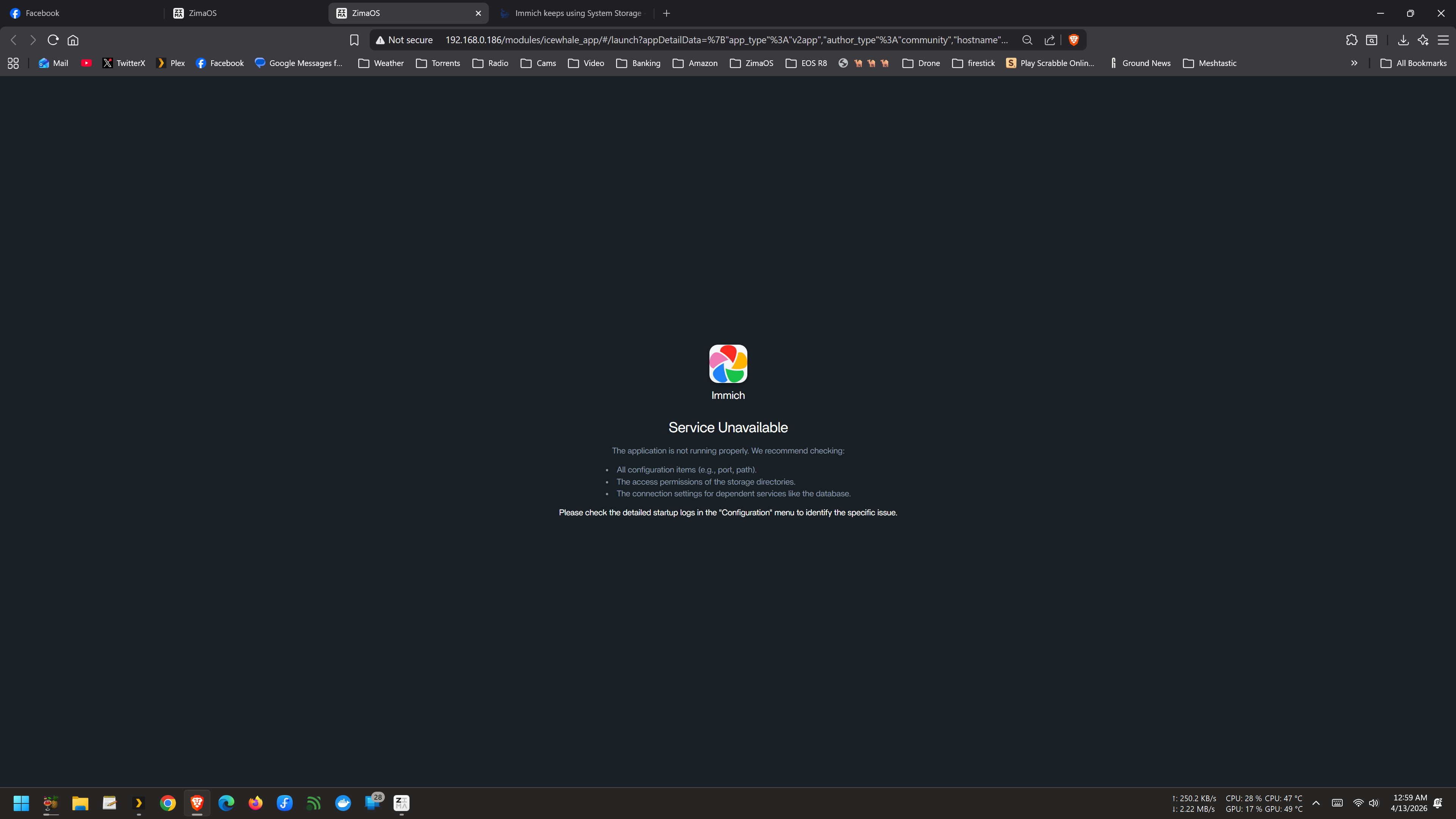
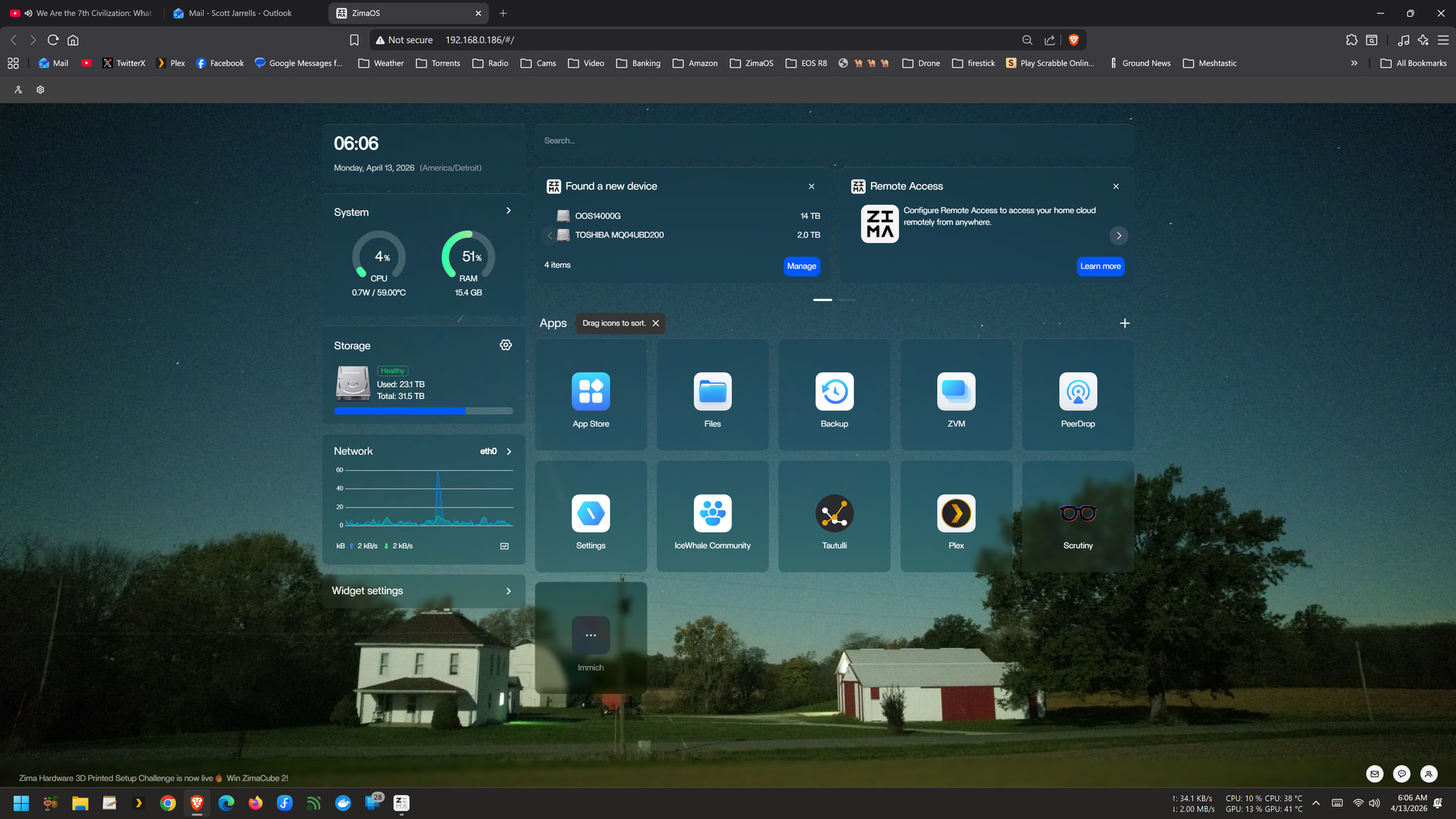
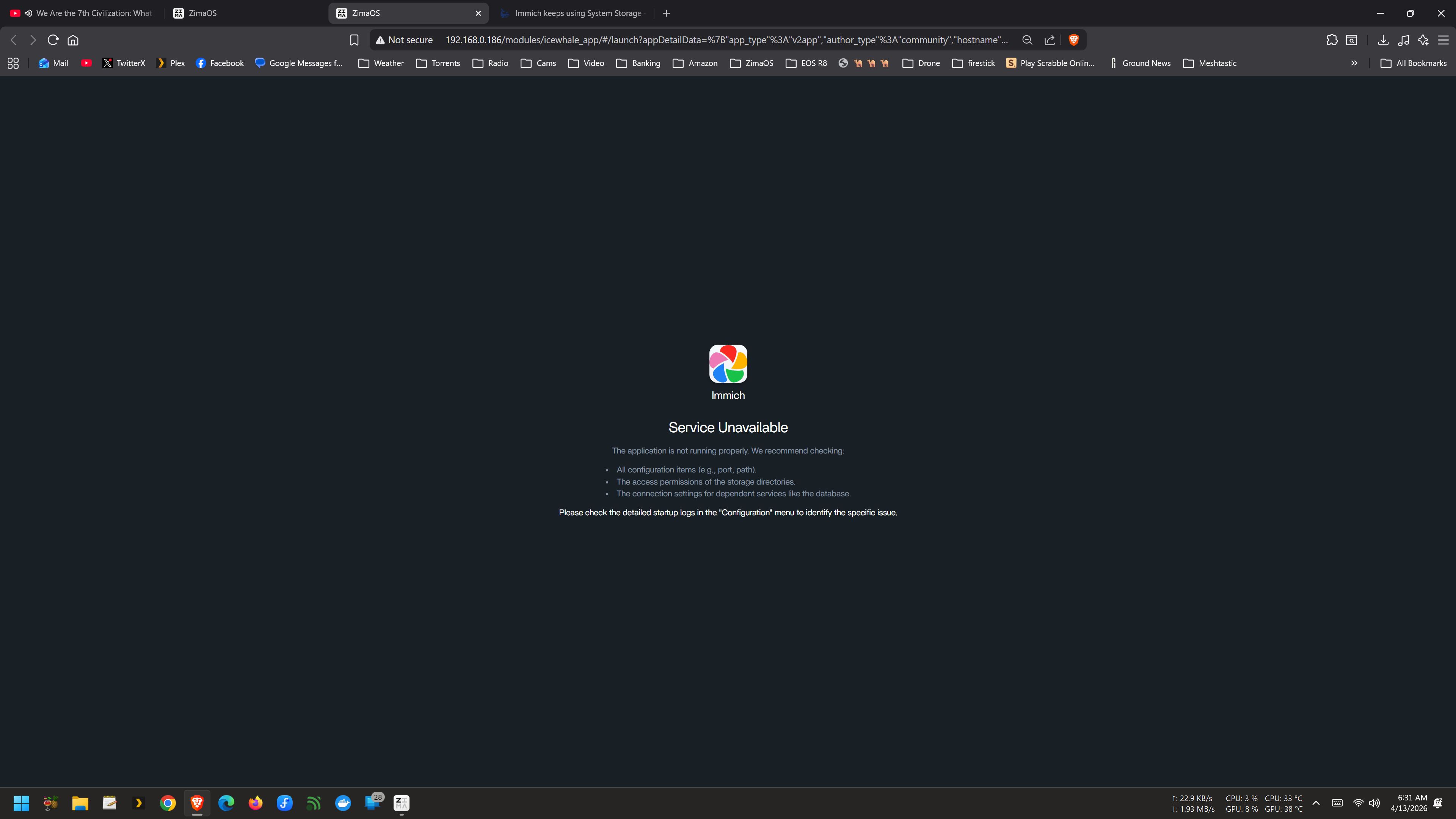
been trying this problem for a week now and kind of loosing my hair😂, sorry for such a noob here. I have searched the community and none of them really solved but gave me Ideas and thanks. My problem is I can’t seem to change the Storage location of Immich where it should save the Photos. It always use the System SSD with 250gb. I want it to store it in my 1TB HDD (for testing) but it’s not using it. I tried CogZog instruction (thanks for your effort) but Immich (version 2.7.4) keeps failing to start or it breaks. I tried the one that says before opening immich “In the immich-server tab, map your album storage location in the Volumes section (default is /DATA/Gallery/immich).” Keeps failing to start too after changing the Path. Even in my Mobile Phone when I tried to upload, the Storage shown is the System SSD. I appreciate very much for the help.

PS: I opened a new Topic cause I mostly see is from version 2.3.1 , I am not sure maybe there’s a difference since I just starting to make my own Homeserver. Sorry if it’s wrong for starting this Topic again, Thank you.

I agree. I want to be able to do similar. If Immich ran native on Windows, i’d be there in a flash…

Had similar problems with immich, tried for hours with no sucess. Finally decided to install photoprism and it works for me, with the help of chatgpt. all data (photos) on harddrive, program on my ssd. so maybe you could consider to install photoprism instead of immich.

:file_folder: How to Change the Photo Storage Folder in Immich (Simple Way)

In Immich, you can change where photos are stored by editing the storage (volume) path in your container settings.

:white_check_mark: Steps:

  1. Open your Immich container settings

  2. Go to Storage / Volume configuration

  3. You will see something like:

    • Host (your system / ZimaOS):
      /DATA/Gallery/immich

    • Container (Immich):
      /usr/src/app/upload

  4. To change where photos are stored:
    :backhand_index_pointing_right: Simply change the Host path to any folder you want
    (for example: /DATA/photos)

  5. Save the changes and restart the container


:warning: Important:

  • The container path /usr/src/app/upload should stay the same

  • Only change the Host path

  • Make sure the folder exists and has permissions

2 Likes

Didn’t seem to work for me. I had added an external path to a folder on my storage drive and that worked but replacing the default upload path to the same did not…

Hi! Thanks for your reply.

Could you please share a few screenshots of your container setup (especially the volume/storage configuration)? That would really help me understand what might be going wrong.

Thanks a lot!

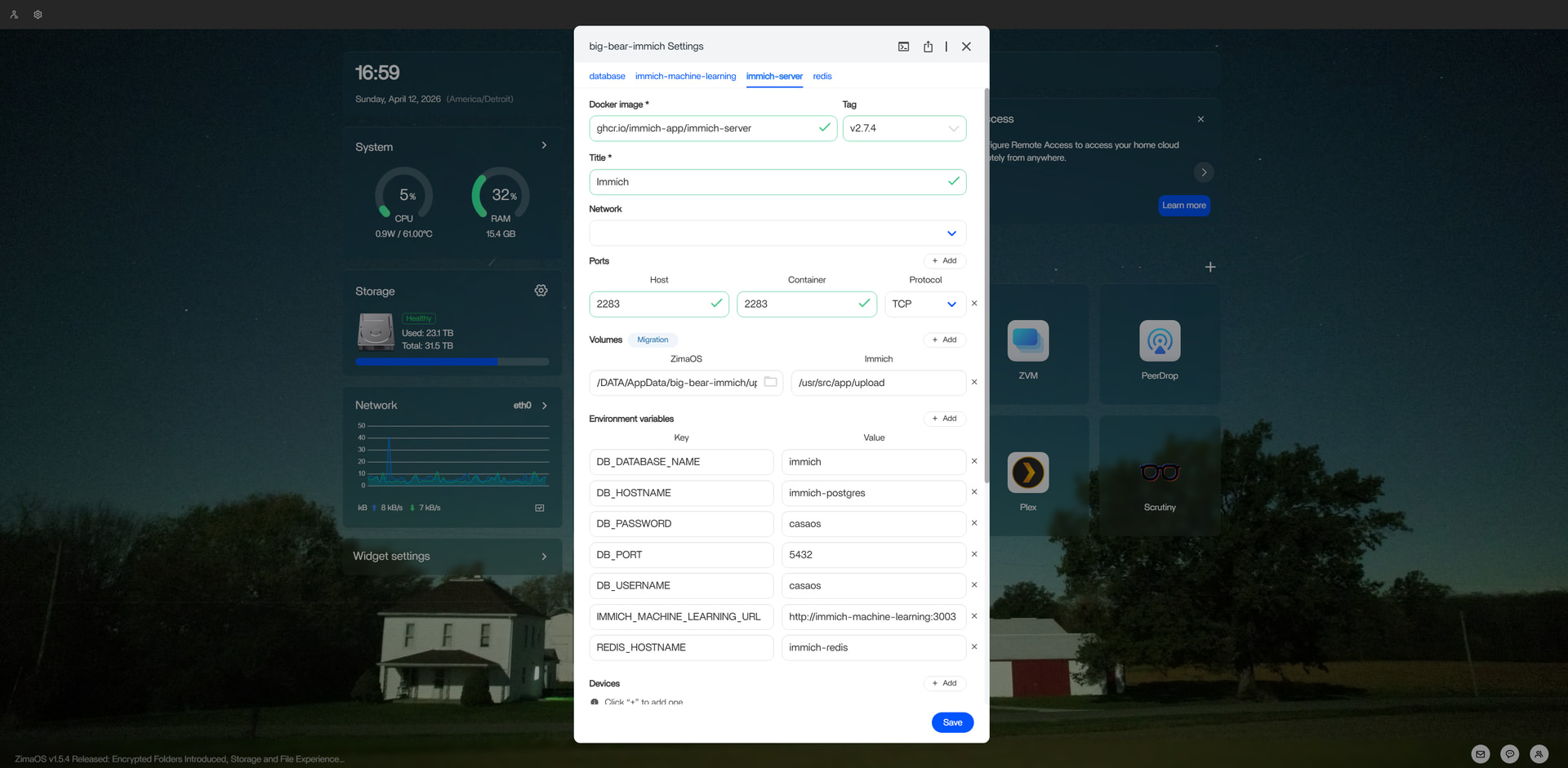
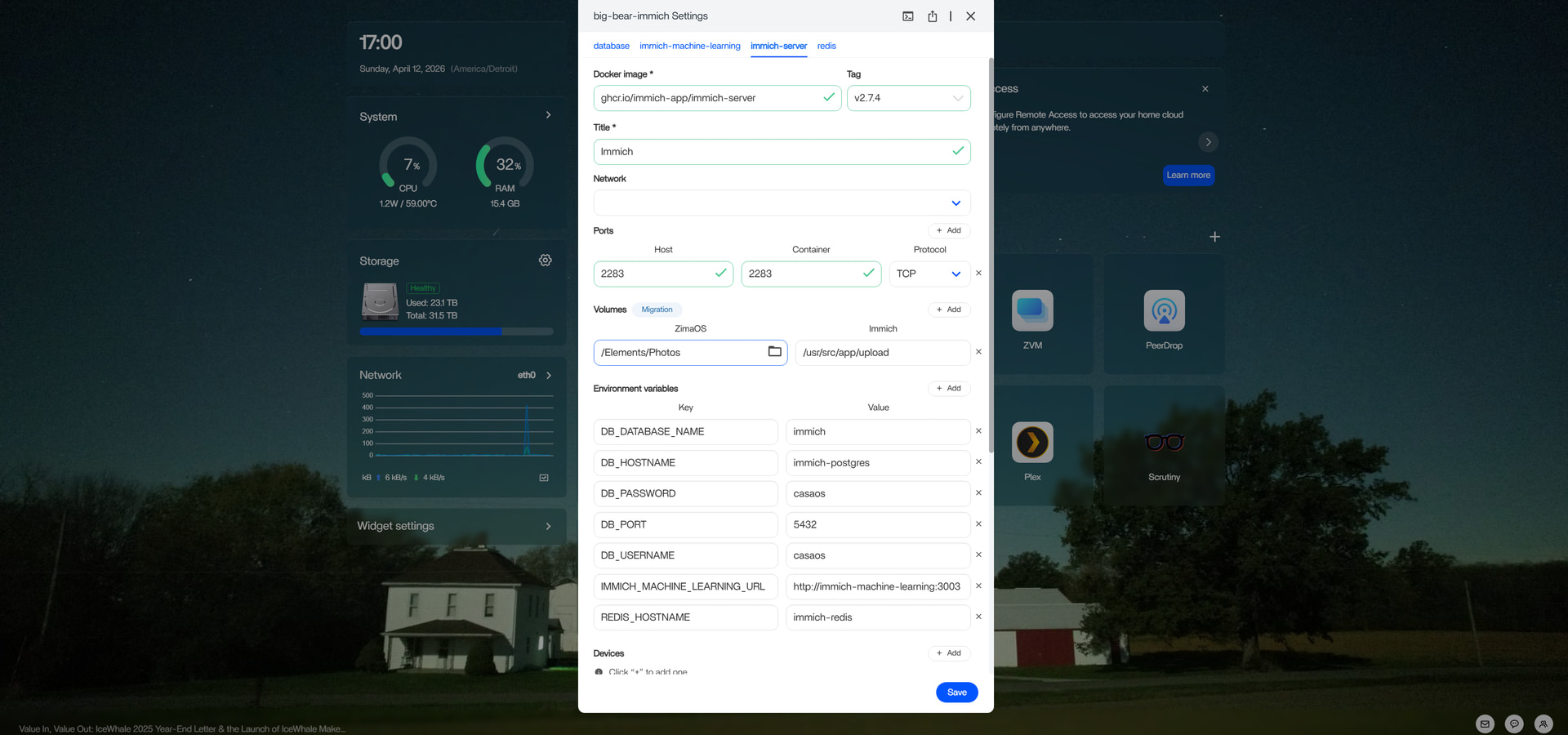
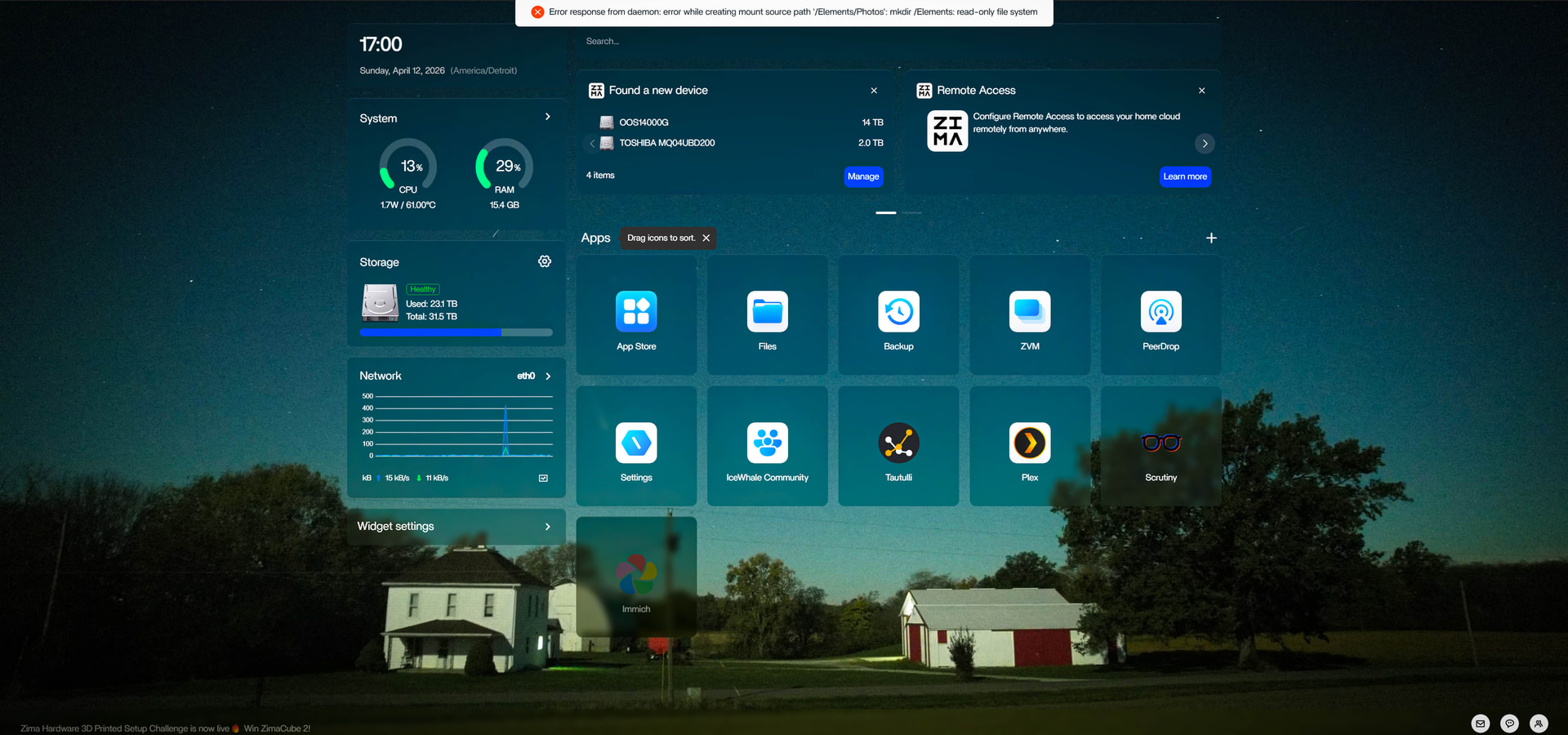
this is my attempt and fail.

Hi! Thanks again for your screenshots.

Instead of using:
/Elements/Photos

it should actually be:
/DATA/.media/Elements/Photos

I think I found the issue. My path was wrong before.

/DATA/.media/Elements/Photos/upload

nope that failed as well. a message came up and said the container was unhealthy and for the last hour it has continued to try to load.

i am beginning to wonder if it goes back to the message on the first image i shared with the warning saying that external hdd is read only. i find that hard to believe because the “Files” container allows me to transfer files from my windows pc…. and i had previously reformatted that hard drive in exfat. but the “/DATA/.media/Elements/Photos” allowed the container to actually start. It was not until i tried to actually run immich that it became a problem.

Hi! I’ll send you my YAML configuration now.

Could you please try it on your side and see if it works?

Thanks a lot!

name: database
services:
  database:
    cpus: 4
    cpu_shares: 90
    command: []
    container_name: immich-postgres
    deploy:
      resources:
        limits:
          memory: 4294967296
        reservations:
          devices: []
    environment:
      - PG_DATA=/var/lib/postgresql/data
      - POSTGRES_DB=immich
      - POSTGRES_PASSWORD=casaos
      - POSTGRES_USER=casaos
    image: ghcr.io/immich-app/postgres:14-vectorchord0.3.0-pgvectors0.2.0
    labels:
      icon: https://cdn.jsdelivr.net/gh/homarr-labs/dashboard-icons/svg/immich.svg
    mem_reservation: "2147483648"
    restart: unless-stopped
    volumes:
      - type: bind
        source: /DATA/AppData/big-bear-immich/pgdata
        target: /var/lib/postgresql/data
    ports: []
    devices: []
    cap_add: []
    networks:
      - big_bear_immich_network
    privileged: false
  immich-machine-learning:
    cpus: 4
    cpu_shares: 90
    command: []
    container_name: immich-machine-learning
    deploy:
      resources:
        limits:
          memory: 4294967296
        reservations:
          devices: []
    environment:
      - DB_DATABASE_NAME=immich
      - DB_HOSTNAME=immich-postgres
      - DB_PASSWORD=casaos
      - DB_PORT=5432
      - DB_USERNAME=casaos
      - REDIS_HOSTNAME=immich-redis
    image: ghcr.io/immich-app/immich-machine-learning:release
    labels:
      icon: https://cdn.jsdelivr.net/gh/homarr-labs/dashboard-icons/svg/immich.svg
    mem_reservation: "2147483648"
    restart: unless-stopped
    shm_size: "1073741824"
    volumes:
      - type: bind
        source: /DATA/AppData/big-bear-immich/model-cache
        target: /cache
    ports: []
    devices: []
    cap_add: []
    networks:
      - big_bear_immich_network
    privileged: false
  immich-server:
    cpus: 4
    cpu_shares: 90
    command: []
    container_name: immich-server
    depends_on:
      database:
        condition: service_started
        required: true
      redis:
        condition: service_started
        required: true
    deploy:
      resources:
        limits:
          memory: 4294967296
        reservations:
          devices: []
    devices: []
    environment:
      - DB_DATABASE_NAME=immich
      - DB_HOSTNAME=immich-postgres
      - DB_PASSWORD=casaos
      - DB_PORT=5432
      - DB_USERNAME=casaos
      - IMMICH_MACHINE_LEARNING_URL=http://immich-machine-learning:3003
      - REDIS_HOSTNAME=immich-redis
    image: ghcr.io/immich-app/immich-server:release
    labels:
      icon: https://cdn.jsdelivr.net/gh/homarr-labs/dashboard-icons/svg/immich.svg
    mem_reservation: "2147483648"
    ports:
      - target: 2283
        published: "2283"
        protocol: tcp
    restart: unless-stopped
    shm_size: "1073741824"
    volumes:
      - type: bind
        source: /DATA/.media/Elements/Photos/upload
        target: /usr/src/app/upload
    cap_add: []
    networks:
      - big_bear_immich_network
    privileged: false
  redis:
    cpus: 2
    cpu_shares: 90
    command: []
    container_name: immich-redis
    deploy:
      resources:
        limits:
          memory: 2147483648
        reservations:
          devices: []
    image: redis:6.2.20-alpine
    labels:
      icon: https://cdn.jsdelivr.net/gh/homarr-labs/dashboard-icons/svg/immich.svg
    mem_reservation: "1073741824"
    restart: always
    ports: []
    volumes: []
    devices: []
    cap_add: []
    environment: []
    networks:
      - big_bear_immich_network
    privileged: false
networks:
  big_bear_immich_network:
    name: database_big_bear_immich_network
    driver: bridge
x-casaos:
  author: self
  category: self
  hostname: ""
  icon: https://cdn.jsdelivr.net/gh/homarr-labs/dashboard-icons/svg/immich.svg
  index: /
  is_uncontrolled: false
  port_map: "2283"
  scheme: http
  store_app_id: database
  title:
    custom: Immich
    en_us: database

i thought for sure that was gna work. sadly it did not.

I was running into this exact same issue. Every time I mapped my 1TB HDD as the main storage location for Immich.

Fix that worked for me:

  1. Uninstall Immich.
  2. Go to your ZimaOS Files app.
  3. If you already have photos inside /ZimaOS-HD/Gallery/immich/, rename it to something like Saved_Photos so they don’t get deleted.
  4. Navigate to /ZimaOS-HD/AppData/ and Delete the Immich folder to destroy the corrupted database.
  5. Re-install Immich, clean official version from the App Store (ignore the BigBear versions).
  6. Voilà!

Hope it works for you.

2 Likes

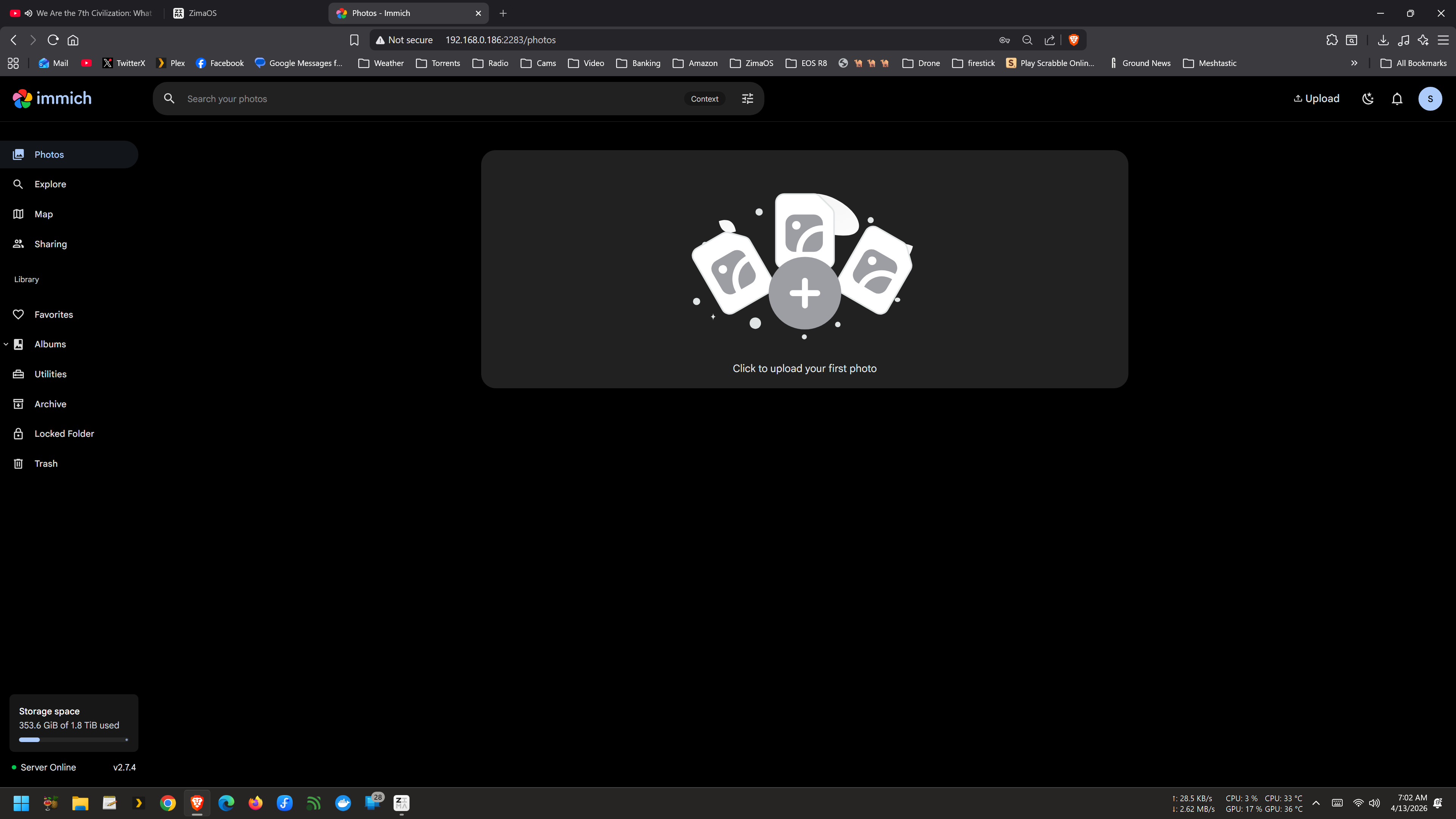
that did it. I followed your instructions then I used isanto1306’s YAML configuration to install immich and it now works.

1 Like

Glad it worked @scott492010!