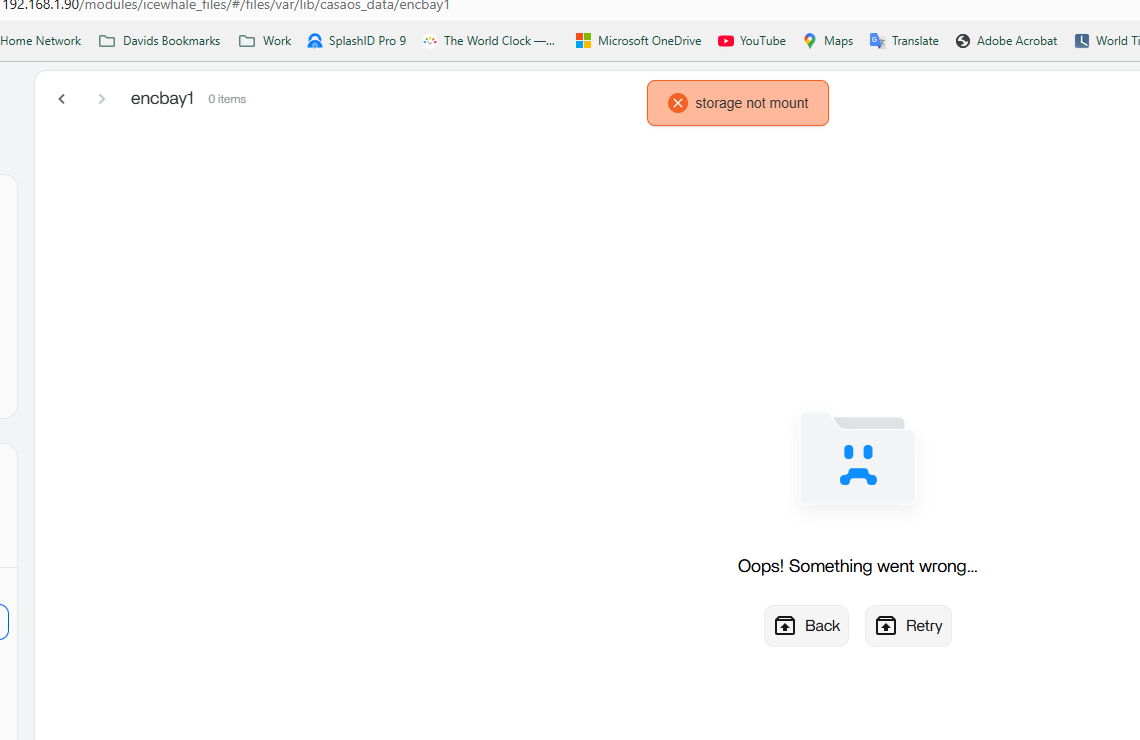
Files App Shows "Storage not Mount" Error message after manually mounting USB Drives by CLI

I have a GMTek mini computer connected via USB to a Terramaster 4 bay NAS enclosure.
Within the enclosure are 4 2TB Seagate HDDs.

I have mounted the disks within the command line and updated the /etc/fstab file with UUID entries of the drives to make the mount persistent.

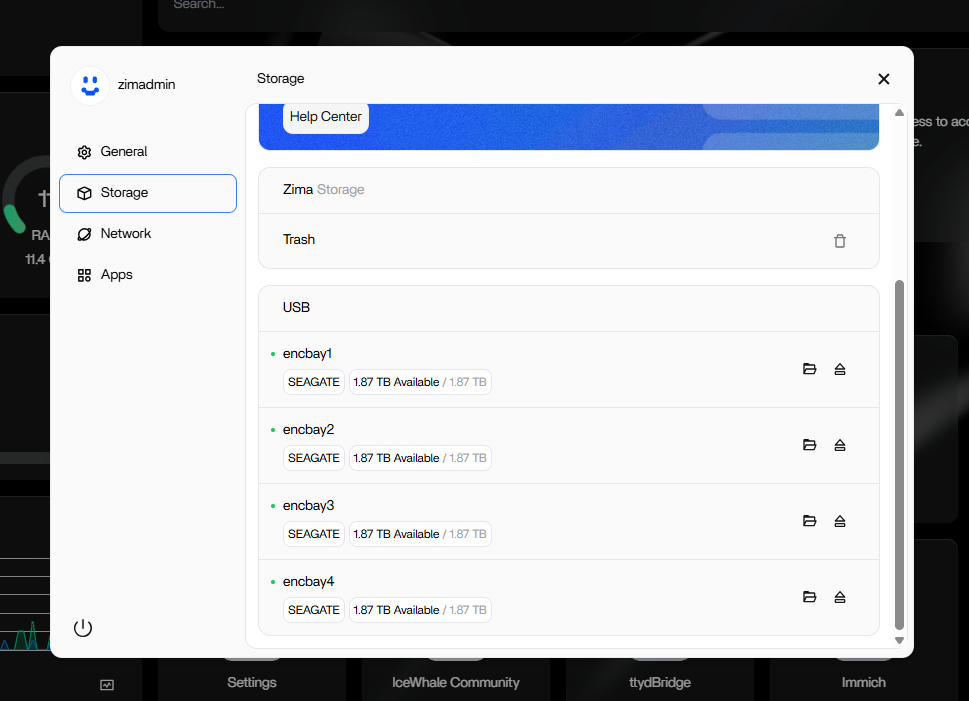
If i look in the storage section of the Dashboard, everything to my ey looks good

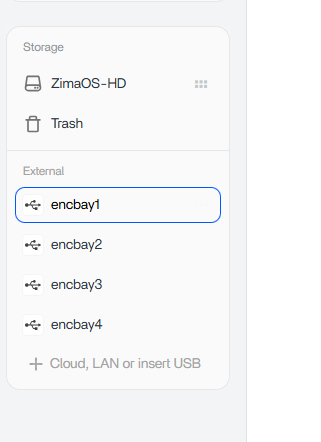
But when I go to the Files app and click on one of the drives in the left hand panel

i get a “Storage not Mount” error.

This suggests to me that the CLI mount has not been successful in some way.
Any ideas?

I believe what you’re seeing is expected.

Because the disks were mounted manually via CLI/fstab, Linux sees them, but ZimaOS never registered them in its storage database. So the Files app shows “Storage not Mount”, even though the mount is valid.

If you want the UI to recognise them, remove the fstab entries and add the drives through Storage in the dashboard.

If you keep using manual mounts, that’s fine, but the Files app will continue to show “not mount”.

Solution: How to Permanently Mount & Rename USB Drives on ZimaOS (Bypassing Read-Only Issues)

Hello bungo,

If you already want to mount the USB drives permanently, try the following instructions. It worked for me.

I successfully managed to permanently mount and rename two external USB drives (/dev/sdb1 and /dev/sdc1) on ZimaOS, bypassing an initial Read-Only file system restriction on the root directory (/).

This process forces ZimaOS to use consistent mount points (/media/USB_1, /media/USB_2) and names (USB_1, USB_2) instead of generic automatic names.


Phase 1: Overcoming the System’s Read-Only Restriction

The system’s root partition (/) was read-only, preventing the creation of new folders under /mnt.

  • Workaround: We used the alternative standard directory for external media, /media, which was writeable.
  • Action: Create the desired mount point directories:

sudo mkdir -p /media/USB_1
sudo mkdir -p /media/USB_2

Phase 2: Correcting Drive Labels (The Crucial Step)

The main issue was that the drives were labeled generically (e.g., 1.44.1-72806), which did not match the desired names in /etc/fstab.

  1. Unmount Drives: Disconnect the drives from the file system to safely change their labels.

sudo umount /dev/sdb1

sudo umount /dev/sdc1

  1. Rename/Label Drives: Since the drives use the ext4 filesystem, we used e2label to rename them, ensuring they match the future fstab entries:

`Rename the first drive

sudo e2label /dev/sdb1 USB_1

Rename the second drive

sudo e2label /dev/sdc1 USB_2

Phase 3: Permanent Mounting via /etc/fstab

We added the permanent configuration to ensure the drives are mounted automatically on every boot.

  1. Edit fstab: Open the configuration file:Bashsudo nano /etc/fstab

  2. Add Entries: Insert these lines. You can also add a comment line (#) to explain the six fields:

Code-Snippet# <Source> <Mount Point> <Type> <Options> <Dump> <fsck Order># LABEL=USB_1 /media/USB_1 ext4 defaults,nofail,x-systemd.automount 0 0 LABEL=USB_2 /media/USB_2 ext4 defaults,nofail,x-systemd.automount 0 0

IMPORTANT NOTE on Formatting: Please ignore the exact number of spaces between the entries. Linux only requires at least one space or a tab to separate the six fields. Both one space and many spaces (for cleaner column alignment) are technically correct.

(Note: The nofail option is critical, preventing boot failure if a drive is disconnected.)

  1. Reload & Mount: Instruct the system to reload the new configuration and apply the mount.

sudo systemctl daemon-reload
sudo mount -a

Phase 4: Verification

The drives are now permanently mounted and consistently named:

df -h | grep USB

Expected Output: showing /media/USB_1 and /media/USB_2

Result: The drives are now properly identified and mounted in the desired locations, overriding the automatic ZimaOS mounting. Hope this helps anyone facing similar issues!
This gives me a salt, but why not write a script for this to handle all the heavy lifting, like labelling, making directories, etc? So, hereafter follows my script, which I use to fix all those names where I was running around with when I didn’t read this message.

#!/bin/bash

DB="/var/lib/casaos/db/local-storage.db"

clear
echo "============================================================"
echo "  ZimaOS Disk Setup - Hardware & Database Sync"
echo "============================================================"
echo ""

# Automatic database backup
sudo cp "$DB" "$DB.bak.$(date +%Y%m%d-%H%M%S)" 2>/dev/null
echo "[Info] Safety backup of local-storage.db created."
echo ""

# 1. Storage Device Detection
DEVICES=()
while IFS= read -r line; do
  DEVICES+=("$line")
done < <(lsblk -l -o NAME | grep -E "^(sd|nvme)" | grep -vE "^sda$|^sda[0-9]" | while read d; do
  FSTYPE=$(sudo blkid -o value -s TYPE "/dev/$d" 2>/dev/null)
  case "$FSTYPE" in
    ""|swap|squashfs) continue ;;
  esac
  echo "$d"
done)

if [ ${#DEVICES[@]} -eq 0 ]; then
  echo "No data devices found."
  exit 0
fi

# 2. Construct Main Menu
echo -e "Data devices found:"
echo -e "--------------------------------------------------------------------------------"
echo -e "  [Nr]\tDevice  \tLabel\t\t(Type)\tMountpoint(s)"
echo -e "--------------------------------------------------------------------------------"

i=1
declare -A DEVICE_INFO
for dev in "${DEVICES[@]}"; do
  UUID=$(sudo blkid -o value -s UUID "/dev/$dev" 2>/dev/null)
  LABEL=$(sudo blkid -o value -s LABEL "/dev/$dev" 2>/dev/null)
  FSTYPE=$(sudo blkid -o value -s TYPE "/dev/$dev" 2>/dev/null)
  [ -z "$LABEL" ] && LABEL="<none>"

  mapfile -t ALL_MOUNTS < <(findmnt -n -o TARGET "/dev/$dev" 2>/dev/null)
  FIRST_MOUNT="${ALL_MOUNTS[0]:-not mounted}"

  if [ ${#LABEL} -lt 8 ]; then
    echo -e "  [$i]\t/dev/$dev\t$LABEL\t\t($FSTYPE)\t$FIRST_MOUNT"
  else
    echo -e "  [$i]\t/dev/$dev\t$LABEL\t($FSTYPE)\t$FIRST_MOUNT"
  fi

  ALL_MOUNTS_STR=$(findmnt -n -o TARGET "/dev/$dev" 2>/dev/null | tr '\n' ',')
  DEVICE_INFO[$i]="$dev|$UUID|$LABEL|$FSTYPE|$ALL_MOUNTS_STR"

  if [ ${#ALL_MOUNTS[@]} -gt 1 ]; then
    for ((j=1; j<${#ALL_MOUNTS[@]}; j++)); do
      echo -e "\t\t\t\t\t\t${ALL_MOUNTS[$j]}"
    done
  fi

  echo -e "--------------------------------------------------------------------------------"
  i=$((i+1))
done

echo ""
echo "  [Q] Exit"
echo ""
echo "Select a hardware device (number) to configure:"
read -p "> " choice

case "$choice" in
  [Qq]) exit 0 ;;
  *)
    if [[ ! "$choice" =~ ^[0-9]+$ ]] || [ "$choice" -lt 1 ] || [ "$choice" -gt ${#DEVICES[@]} ]; then
      echo "Invalid selection."
      exit 1
    fi

    IFS='|' read -r dev uuid label fstype mounts_str <<< "${DEVICE_INFO[$choice]}"

    echo ""
    echo "=== SELECTED DEVICE: /dev/$dev ==="
    echo "  Current Label: $label"
    echo "  Type:          $fstype"
    echo "  UUID:          $uuid"
    echo "------------------------------------------------------------"
    echo ""
    
    read -p "Enter new label [Enter = keep '$label']: " new_label
    [ -z "$new_label" ] && new_label="$label"

    if [ "$new_label" = "<none>" ] || [ -z "$new_label" ]; then
      echo "Error: A device without a label cannot be robustly mounted. Enter a valid name."
      exit 1
    fi

    TARGET_MOUNT="/media/$new_label"

    echo ""
    echo "The following actions will be executed LIVE NOW:"
    if [ "$label" != "$new_label" ]; then
      echo "  -> Change hardware label to: $new_label"
    else
      echo "  -> Hardware label remains unchanged ('$new_label')"
    fi
    echo "  -> Forcefully unmount old active mounts"
    echo "  -> DIRECTLY manually mount disk to: $TARGET_MOUNT"
    echo "  -> Clean up old, empty mount directories (if empty)"
    echo "  -> Synchronize ZimaOS database at path: $TARGET_MOUNT"
    echo "  -> Restart storage service"
    echo ""
    read -p "Are you sure you want to apply this? (y/n): " confirm

    if [ "$confirm" = "y" ] || [ "$confirm" = "Y" ]; then
      echo ""
      
      if [ "$label" != "$new_label" ]; then
        echo "[1/5] Modifying hardware label..."
        if [ "$fstype" = "ext4" ]; then
          sudo e2label "/dev/$dev" "$new_label"
        elif [ "$fstype" = "btrfs" ]; then
          sudo btrfs filesystem label "/dev/$dev" "$new_label"
        fi
      else
        echo "[1/5] Modifying hardware label skipped (no change)."
      fi

      echo "[2/5] Synchronizing database..."
      sudo sqlite3 "$DB" "INSERT OR REPLACE INTO o_disk (uuid, mount_point, created_at, is_deleted) VALUES ('$uuid', '$TARGET_MOUNT', strftime('%s','now'), 0);"

      echo "[3/5] Forcefully detaching existing active mounts (unmount)..."
      IFS=',' read -ra MOUNTS_ARRAY <<< "$mounts_str"
      for m in "${MOUNTS_ARRAY[@]}"; do
        if [ -n "$m" ]; then
          sudo umount -l "$m" 2>/dev/null
        fi
      done

      echo "[4/5] Directly separate mount disk to the new fixed path..."
      sudo mkdir -p "$TARGET_MOUNT"
      sudo mount "/dev/$dev" "$TARGET_MOUNT"

      for m in "${MOUNTS_ARRAY[@]}"; do
        if [ -n "$m" ] && [ "$m" != "$TARGET_MOUNT" ] && [ -d "$m" ]; then
          if [ "$(sudo ls -A "$m" 2>/dev/null)" = "" ]; then
            sudo rmdir "$m" 2>/dev/null && echo "      -> Cleaned up old empty folder: $m"
          else
            echo "      -> [Info] Folder $m is not empty and has been kept."
          fi
        fi
      done

      echo "[5/5] Restarting ZimaOS storage service..."
      sudo systemctl restart zimaos-local-storage 2>/dev/null || sudo systemctl restart casaos-local-storage 2>/dev/null
      
      sleep 4

      echo ""
      echo "============================================================"
      echo "  VERIFICATION CHECK"
      echo "============================================================"
      echo "The disk is separately mounted and the service restarted. Current status of /dev/$dev:"
      echo ""
      
      mapfile -t CHECK_MOUNTS < <(findmnt -n -o TARGET "/dev/$dev" 2>/dev/null)
      if [ ${#CHECK_MOUNTS[@]} -eq 0 ]; then
        echo "  STATUS: [ERROR] Device is currently NOT mounted!"
      else
        echo "  STATUS: [SUCCESS] Device is successfully active on:"
        for cm in "${CHECK_MOUNTS[@]}"; do
          echo "    -> $cm"
        done
      fi
      echo "============================================================"
      echo ""
    else
      echo "Cancelled. Nothing was changed."
    fi
    ;;
esac