I feel very close now. Everything is jellyfin.
When I go to benshoff.duckdns.org I am back to the same gateway error I got before. If I use the https. It takes me to my router login. So, it’s redirecting. Once this gets resolved. I am making an immediate backup of this drive. Lol.


Good update, this helps a lot. We’re down to one last routing detail.
What we know now
- Jellyfin works locally
- Domain resolves
- SSL cert exists
- NPM loads
- But
https://benshoff.duckdns.orgshows 502 Bad Gateway
A 502 means Nginx Proxy Manager cannot reach Jellyfin at the address it’s forwarding to. Nothing else.
Let’s fix this in the correct order.
Step 1 – Confirm how Jellyfin is listening
From your docker ps, Jellyfin shows:
- Internal port: 8096 (HTTP)
- Internal port: 8920 (HTTPS)
By default, Jellyfin uses HTTP on 8096.
So in NPM:
- Scheme must be
http - Port must be
8096
If you use https or 8920 without Jellyfin HTTPS fully configured, you will always get a 502.
Step 2 – Fix Nginx Proxy Manager (this is likely the issue)
Edit the Proxy Host and set exactly:
- Domain:
benshoff.duckdns.org - Scheme: http
- Forward Hostname: jellyfin
- Forward Port: 8096
- Websockets: ON
- Block Common Exploits: optional
- Nothing else enabled
Save.
Step 3 – Test without SSL (important)
Temporarily disable SSL on the proxy host.
Now test:
http://benshoff.duckdns.org
- If Jellyfin loads > routing is fixed
- If you still get 502 > the forward host or port is wrong
Do not touch DuckDNS, ports, or reinstall anything.
Step 4 – Re-enable SSL (last step)
Once HTTP works:
- Re-enable SSL
- Use the existing Let’s Encrypt cert
- Force SSL ON
Now test:
https://benshoff.duckdns.org
Why this keeps looping
Every symptom you’re seeing (Zima login, 502, SSL errors) comes from one of these being wrong at the same time:
- scheme (http vs https)
- internal port (8096 vs 8920)
- forwarding to host instead of container
You’re not doing anything wrong, this is just very unforgiving config.
Do those steps in that order, and this will land.
Here is a more clear way forward.
I think this is more straight forward to follow.
Stop. Do exactly this and nothing else.
You are getting 502 Bad Gateway because Nginx Proxy Manager is not talking to Jellyfin correctly.
We will fix only routing first. SSL comes after.
Step 1, Fix the Proxy Host (THIS IS THE IMPORTANT PART)
Open Nginx Proxy Manager > Proxy Hosts > Edit your domain
Set EXACTLY:
- Domain Name
benshoff.duckdns.org
- Scheme
http
- Forward Hostname / IP
jellyfin
- Forward Port
8096
- Websockets
ON
Everything else OFF.
Save.
Step 2, TURN OFF SSL (TEMPORARILY)
In the SSL tab:
- Disable SSL
- Do NOT force HTTPS
Save.
Step 3, Test (NO HTTPS)
Open your browser and go to:
http://benshoff.duckdns.org
Result should be Jellyfin.
- If you see Jellyfin > routing is now correct
- If you see 502 > the hostname or port is wrong (not SSL)
Step 4, TURN SSL BACK ON (LAST STEP)
Only after Jellyfin loads over HTTP:
- Re-enable SSL
- Select your existing Let’s Encrypt certificate
- Enable “Force SSL”
- Save
Then open:
https://benshoff.duckdns.org
IMPORTANT, DO NOT DO THESE
- Do NOT add any ports to the URL
- Do NOT use https while testing routing
- Do NOT reinstall Jellyfin
- Do NOT reset ZimaOS
- Do NOT touch DuckDNS
This is not multiple problems.
This is one routing issue, then SSL on top.
Follow the steps in order and it will work.
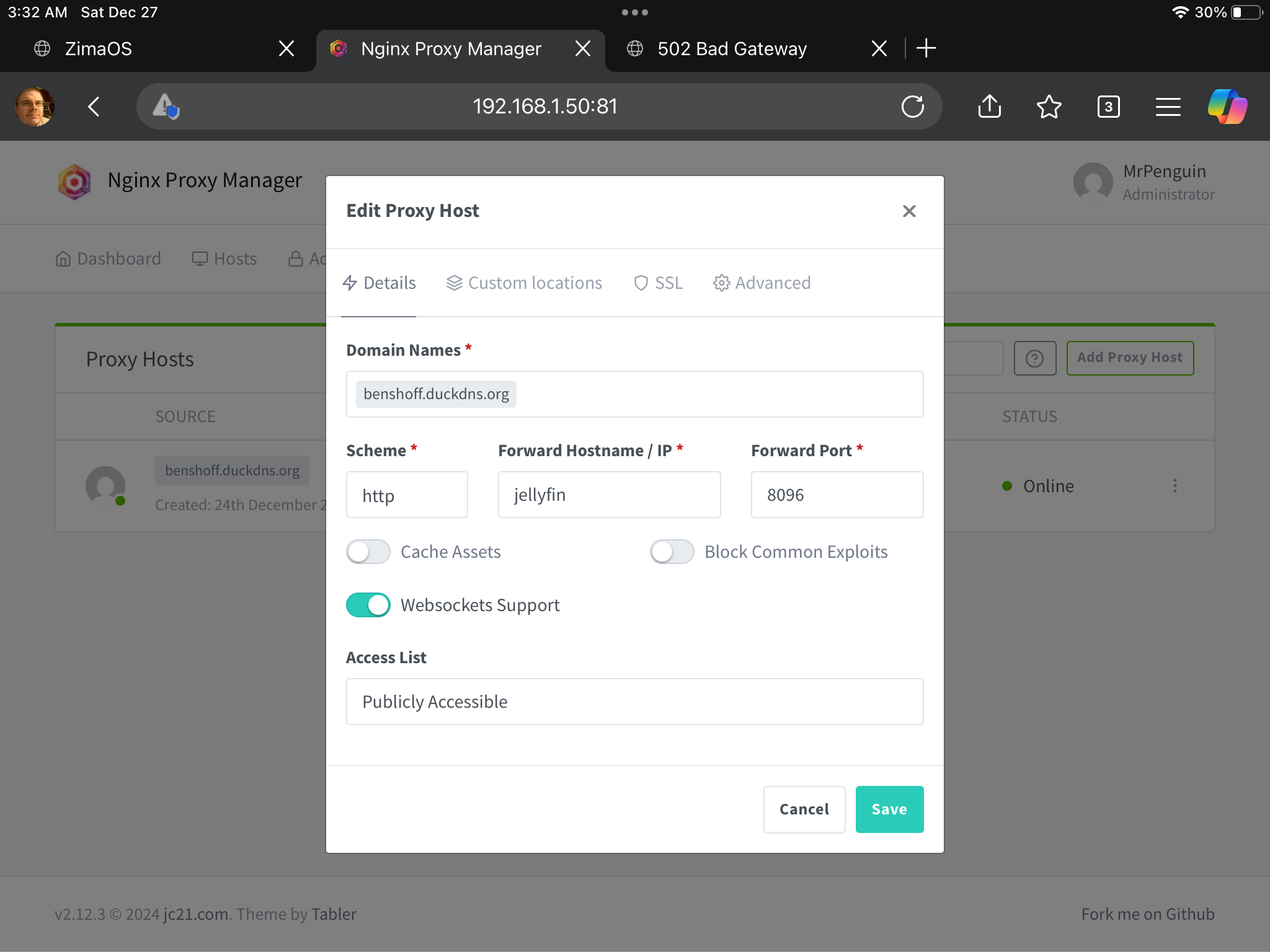

I do not see an option to disable ssl temporarily
I stopped at that point. As everything I have is what you have told me.
By turning on http2. Only. Which is what I think you wanted me to do, went to my router afterwards again. I. Now have it back to the screenshot I gave before
Thanks, this explains it. One clarification first:
HTTP/2 is NOT what needed to be turned on.
Turning on HTTP/2 does not disable SSL and does not fix routing. It actually changes nothing for this issue.
What we need to do is remove SSL entirely for a moment so we can test basic routing.
Do this exactly (no router changes)
Step 1, Remove SSL properly
- Open Nginx Proxy Manager > Proxy Hosts
- Edit
benshoff.duckdns.org - Go to the SSL tab
- In SSL Certificate, select:
None
- Make sure all toggles are OFF:
- Force SSL
- HTTP/2
- HSTS
- Click Save
This is the only way to “disable SSL” in NPM.
Step 2, Test routing (NO HTTPS)
Open:
http://benshoff.duckdns.org
- If you see Jellyfin > routing is correct
- If you see 502 Bad Gateway > NPM cannot reach Jellyfin
Do not add ports.
Do not use https.
Do not touch the router or DuckDNS.
Step 3, If it’s still 502
Then Jellyfin and NPM are not on the same Docker network.
Fix:
- In Portainer, check which network Nginx Proxy Manager uses
- Attach Jellyfin to that same network
- Redeploy Jellyfin
- Repeat Step 2
Step 4, Re-enable SSL (last step)
Only after Jellyfin loads over HTTP:
- Re-edit the Proxy Host
- Select your Let’s Encrypt cert
- Turn Force SSL ON
- Save
Then open:
https://benshoff.duckdns.org
Important:
- HTTP/2 is not required
- Router settings are not involved
- This is one routing check, then SSL
Follow the steps in this order and it will work.


Your setup is correct. The only problem is that Nginx Proxy Manager is not reaching Jellyfin by name.
Fix it like this:
In Nginx Proxy Manager > Proxy Host set:
- Scheme:
http - Forward Host / IP:
172.17.0.3 - Forward Port:
8096 - Websockets: ON
Save.
Then open:
http://benshoff.duckdns.org
You should see Jellyfin.
After that works, re-enable SSL and force HTTPS.
Do not change anything else.
99.99% there. It is now coming up with Jellyfin. Thank god. Now when I go into Nguni proxy manager and go back to turn on the ssl. I pick the duck dns one and it sends me back to my router login.
Great news, that means routing is now correct and Jellyfin is finally being reached
What’s happening next is normal. When you turn SSL back on and get sent to your router login, it means HTTPS traffic (port 443) is still being handled by the router instead of being passed through to Nginx Proxy Manager.
This is now purely a router port-forwarding step.
On your router, make sure port 443 is forwarded to your ZimaOS machine (the same IP you use for NPM), and that any router “remote management” feature using port 443 is disabled or moved to another port.
Once port 443 is correctly forwarded:
- Go back into Nginx Proxy Manager
- Re-enable SSL
- Select the DuckDNS certificate
- Enable Force SSL and save
After that, opening
https://benshoff.duckdns.org
should go straight to Jellyfin instead of the router.
You’re genuinely at the final step now, this one is outside Docker and inside the router.
Hot dog  were in. HTTPS. And http working. I had to disable the 443 port on my router for its internal NAS, that it is capable of. But don’t recognize half the drives to it. Lol. This has been a journey and I can’t thank you enough. I owe you a 6 pack. Lol or heck a 24.
1 Like
That’s awesome news, so happy you got it working
You did really well sticking with it through the whole journey, and disabling the router’s internal NAS service on port 443 was exactly the right call. Everything is now flowing where it should.
We’re always here to help, so don’t hesitate to reach out again. One tip going forward: take plenty of screenshots and notes now that it’s working, it makes life much easier if you ever need to rebuild, migrate, or help someone else later on.
Enjoy Jellyfin over HTTPS and a well-earned break 
1 Like
Hey. I am back. I just have a quick question regarding jellyfin. Everything is working as it should. My only hiccup is this. I downloaded the jellyfin app on my roku stick. And I can simulate the same thing using the phone app. The Jellyfin never shows up as an available server for me to click on, on the list. And if I try to enter it manually, it says cant be found. To use it on the tv is my main focus. Plex works. Knowing me, I am probably typing something wrong. Lol. Everything is Ethernet except for the roku. Also will be trying with Fire TV Stick in a bit. So this is probably a big clue. As of now if I put in 192.168.1.50 I get the congratulations message. The only way I can get into zima is by the same ip with the :8096. if I go to benshoff.duckdns.org, everything is good.
MrPenguin
This is normal behaviour and it explains exactly what you’re seeing.
What’s happening
- Jellyfin works in the browser via
https://benshoff.duckdns.org> external access (through Nginx Proxy Manager) - Roku / phone apps try to auto-discover Jellyfin locally > this uses local network discovery, not DNS
- Local discovery is often blocked by:
- Docker networking
- Firewalls
- Different subnets
- Wi-Fi isolation (very common on routers)
That’s why:
- Plex works (it uses its own cloud discovery)
- Jellyfin does not show up automatically
Nothing is broken.
The correct way to add Jellyfin to Roku / phone
Do NOT rely on auto-discovery.
Add it manually using your domain.
On the Jellyfin app (Roku / phone):
Server address:
https://benshoff.duckdns.org
- No port
- Must be https
- Exactly as above
Then log in.
This is the recommended setup once you’re behind a reverse proxy.
Important clarifications (this explains the confusion)
192.168.1.50showing a “congratulations” page = Nginx Proxy Manager landing page192.168.1.50:8096going to Jellyfin = direct local access- Apps will not find Jellyfin automatically when it’s behind NPM
- Roku especially is bad at local discovery
Optional (not required)
If you really want local discovery to work, you’d need:
- Host networking for Jellyfin or
- DLNA / SSDP allowed through Docker and firewall
But honestly: don’t bother. Manual entry via domain is cleaner and more reliable.
Bottom line
- Your setup is correct
- Jellyfin apps won’t auto-detect behind NPM
- Use:
https://benshoff.duckdns.org
- Plex working does not mean Jellyfin is misconfigured
You’re not typing it wrong, this is just how Jellyfin behaves in this setup.
Thank you for your explanation as always. Using the instructions as provided on your last comment to me, It still will not work on my app on my iphone. I have not tried it on roku or firestick yet. I ran out of time. I included a screenshot of the app on my phone
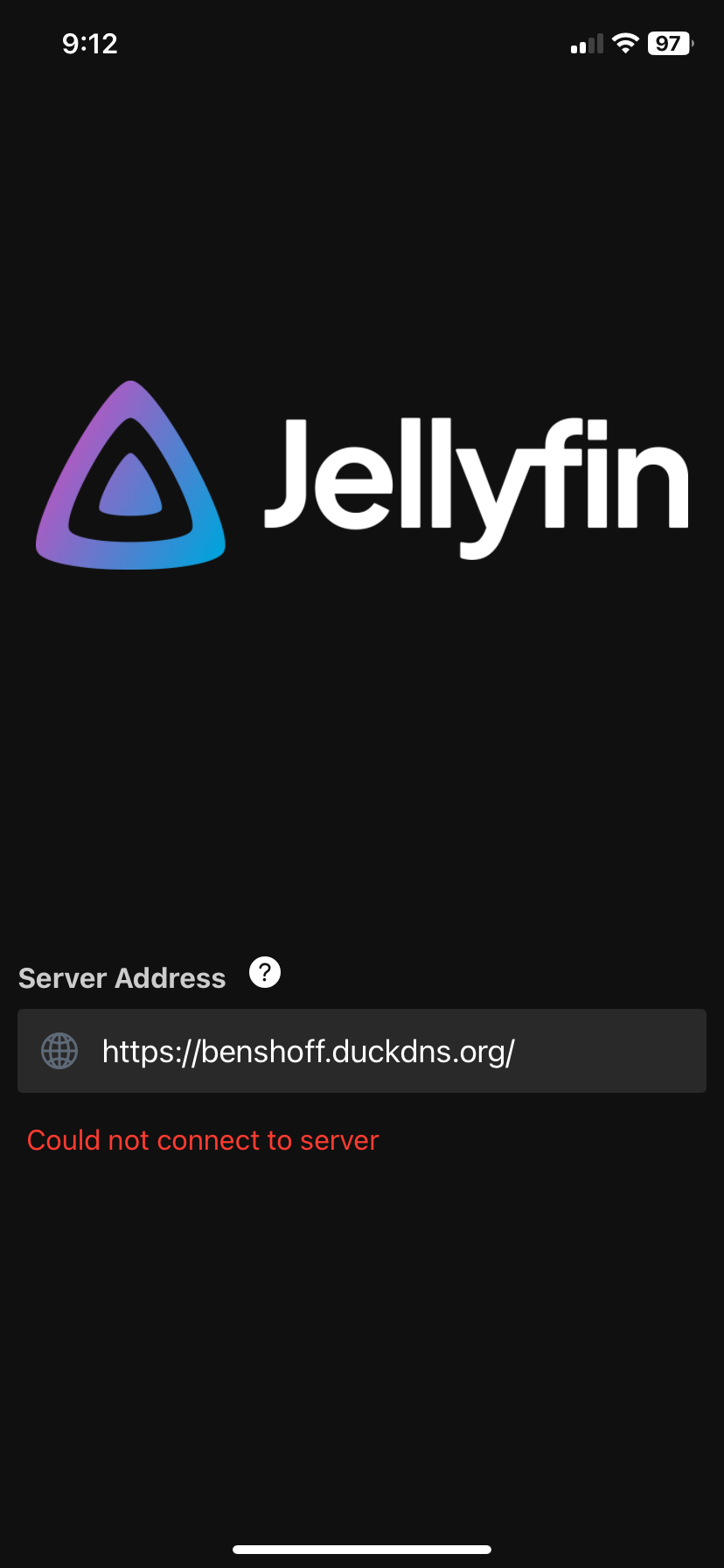
What’s happening
Your phone is on the same local network as Jellyfin.
When the app tries to reach:
https://benshoff.duckdns.org
it goes out to the internet and back in.
Your router does NOT support NAT loopback (hairpin NAT) for apps — very common.
That’s why:
- Jellyfin works in the browser
- HTTPS works externally
- Jellyfin mobile / Roku apps fail locally
- Plex works (it uses cloud relay)
Nothing is misconfigured.
The correct fix (simple)
While you’re at home (same Wi-Fi/LAN):
Use local IP in the app:
http://192.168.1.50:8096
That will work immediately.
When you’re away from home:
Use:
https://benshoff.duckdns.org
Why this matters
- Jellyfin apps do not handle routers without NAT loopback well
- Browsers are more forgiving
- This is a router limitation, not Jellyfin, not ZimaOS, not NPM
Optional (advanced, not required)
To make one address work everywhere, you’d need:
- NAT loopback enabled on the router or
- Split DNS (internal DNS points
benshoff.duckdns.orgto192.168.1.50)
Most home users don’t bother.
Bottom line
- Your setup is correct
- Use local IP at home
- Use DuckDNS externally
- Roku and Fire TV will behave the same way
You’re done, this is expected behaviour, not another problem.
Thank you as always for the reply. It shows the same error even when I put in the local address as well. However a work around for the roku stick bedroom tv is just using the roku media player using DLNA Server. It just found it and worked. So, good enough. lol.
So, since the last writing, everything was good. Or so I thought. We had a power outage that knocked out our internet and killed the Zima os NAS. I then came back to bad gateway for duck dns when going to benshoff.duckdns.org. I saw the ip address changed. So in my mind I am thinking I thought that was supposed to fix itself. So I put it to the current ip address in nginproxy. Now I am back to it going to zimaos again, and not jelly. Also can’t get back into ngin gives me an error on port 81 error.
New ip
174.104.40.18
Old IP:
172.17.0.3
Ngin proxy manager
I like to try and figure out stuff, so I can learn. But it also gets me into trouble. Once this works again, I want to export the config files to have a backup of everything for Zima. So if I do mess something up, I can import to a previous configuration. What is the best way to do that.
Thanks. Going to bed now. Lol
You didn’t break DuckDNS, the confusion is just between public IP vs internal Docker IP.
174.104.40.18= your public ISP IP
You never put this into Nginx Proxy Manager. DuckDNS updates this automatically.172.17.0.3= Jellyfin’s internal Docker IP
This is the only IP NPM should forward to.
When you changed NPM to the public IP, routing broke, which is why:
- DuckDNS went to ZimaOS again
- Port 81 stopped working
Fix (quick)
In Nginx Proxy Manager > Proxy Host:
- Forward Host / IP:
172.17.0.3 - Forward Port:
8096
If port 81 won’t load:
docker restart nginxproxymanager
Then open:
http://192.168.1.50:81
Rule to remember
- DuckDNS handles public IP changes
- NPM always points to internal Docker IPs
- You never edit NPM when your ISP IP changes
Backup (good thinking)
Back up:
/DATA/AppData/nginxproxymanager
/DATA/AppData/jellyfin
/DATA/AppData/duckdns
That’s it.
Got ngin back to the original address. Now back to 502 bad gateway. Error again. Restarted both jellyfin and ngin proxy. Its a slow day at work so messing around between calls.