Icon Shelf and Dashboard Icons
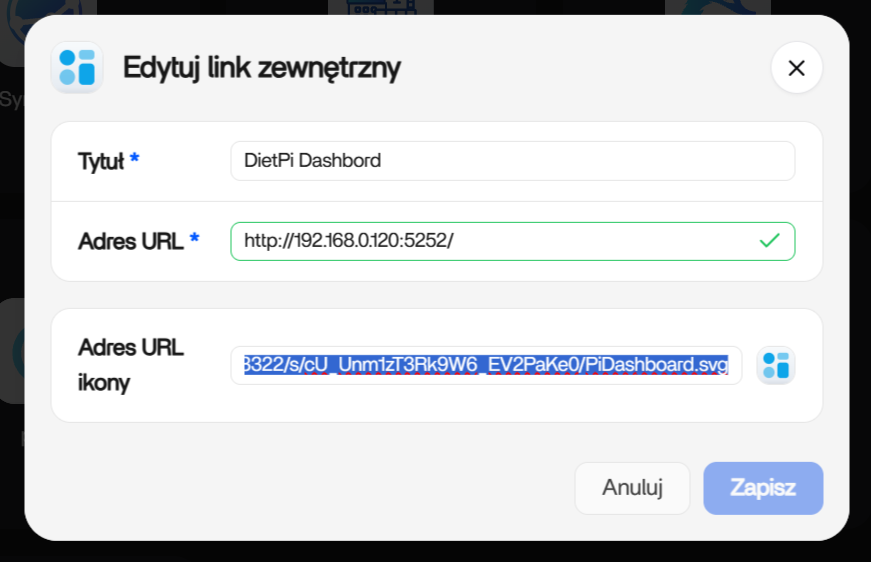
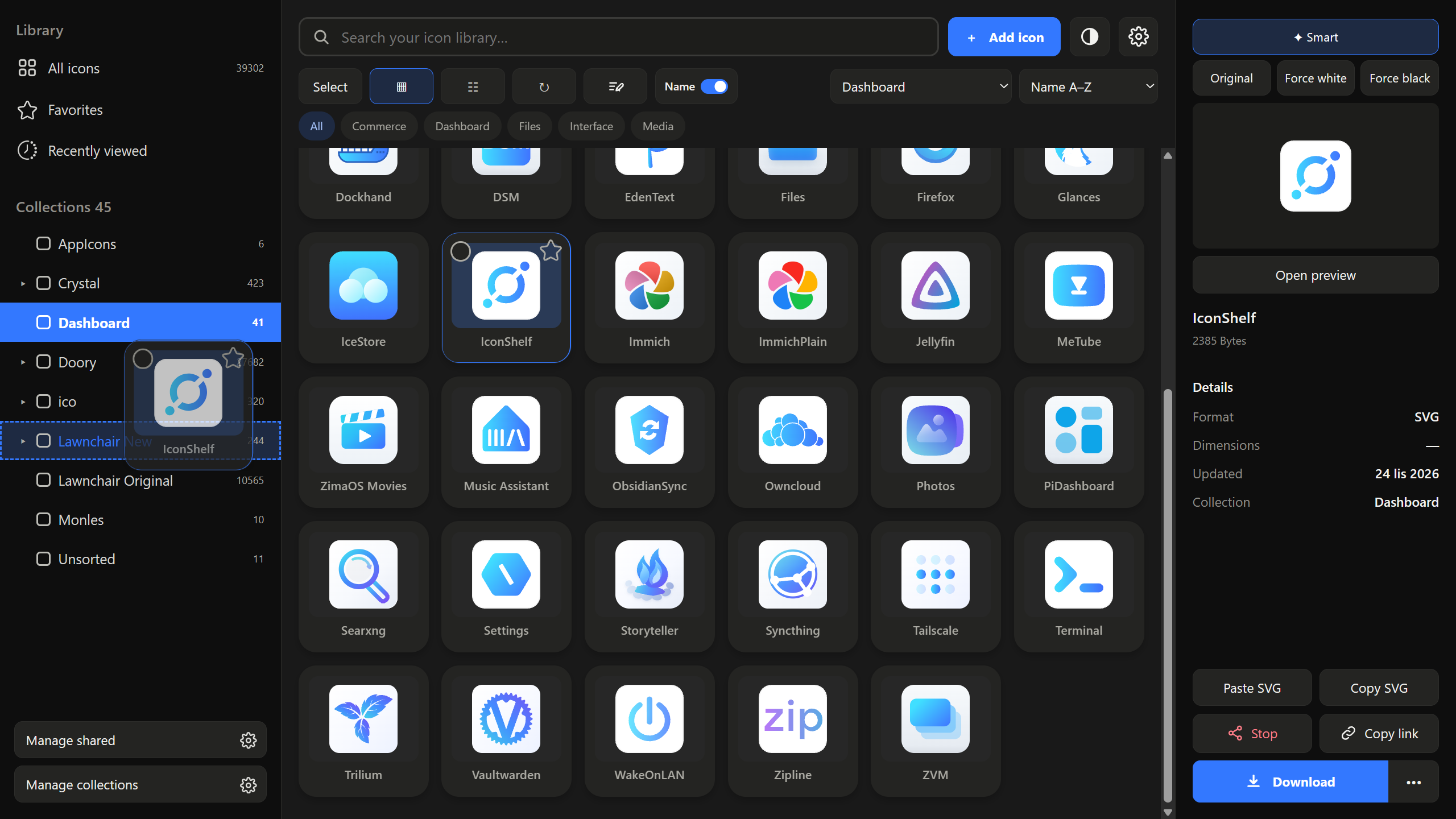
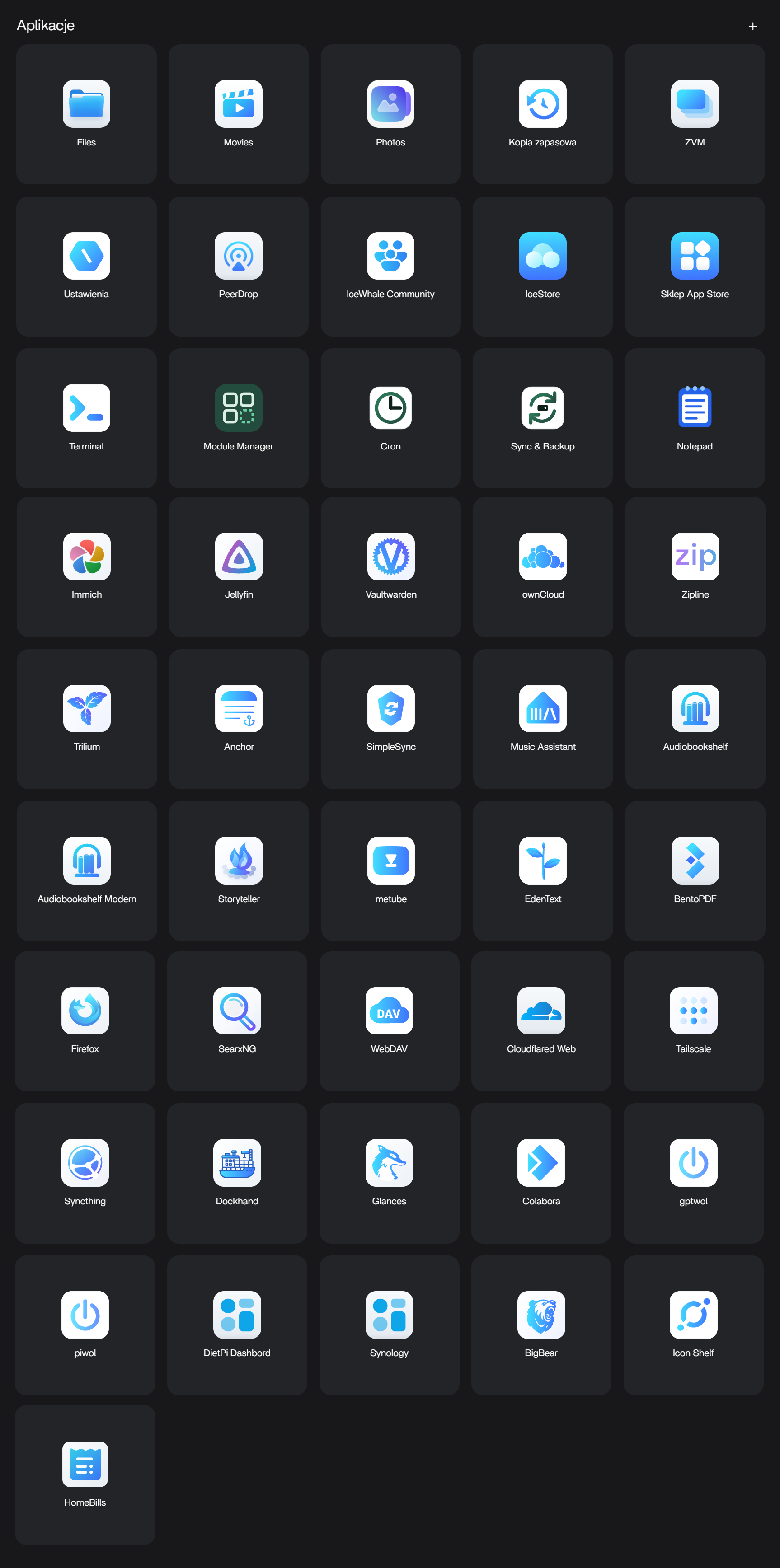
A curated collection of ZimaOS-inspired dashboard icons paired with a web-based SVG gallery. Designed to match the native ZimaOS aesthetic, the app lets you easily browse, preview, and copy direct SVG links for seamless integration into your ZimaOS dashboard.
Dashboard Icons
Download
Dashboard.zip
Icon Shelf
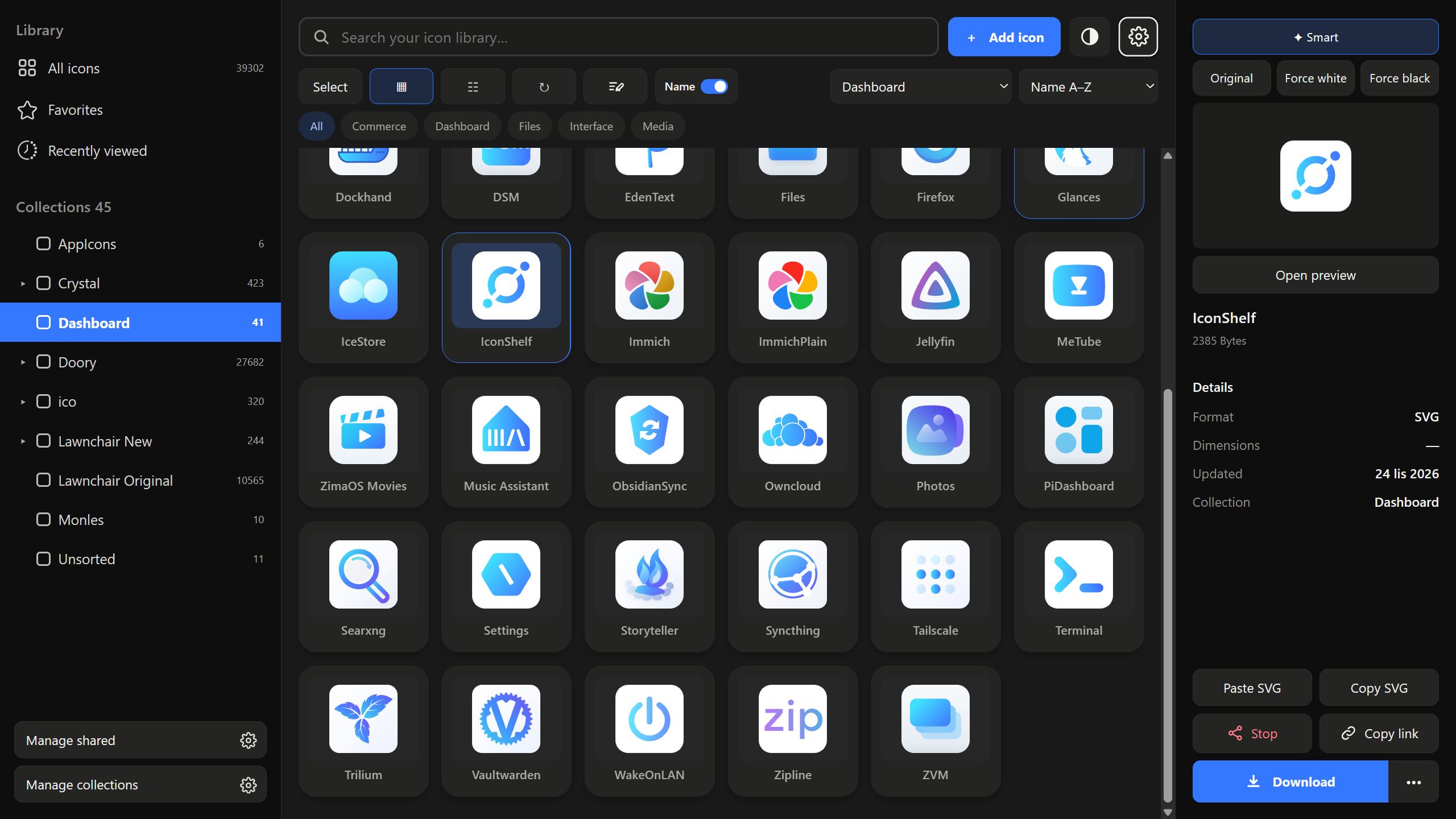
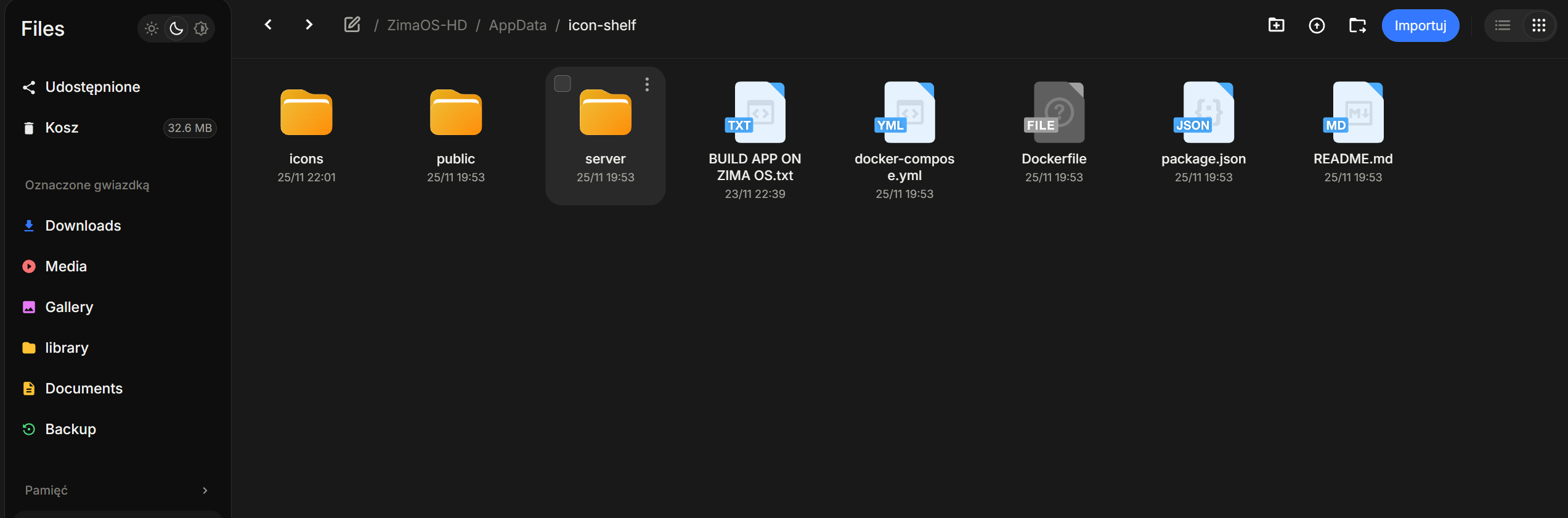
A Docker-first icon library manager for SVG, PNG, JPEG, WebP, JPEG XL, ICO and EPS files. Icons stay as plain files in the mounted ./icons folder; no database is needed.
What’s new in 0.6.0
- Multi-select and move: Select in the toolbar (or Shift/Ctrl/Cmd-click, or tick a card’s circle). Select all covers every icon matching the current search and filters. Shift-click picks a range; Ctrl/Cmd+A selects all, Esc leaves select mode.
- Move to… / drag and drop: move icons to the main library or any collection or subfolder (can create a new one; use
/for a subfolder). Filenames are kept, name clashes are skipped and reported, and share links, favorites and recents follow. Dropping icons on a sidebar collection moves them instantly and leaves select mode. - Exit / Execute / Cancel: the select bar button reads Exit when idle and becomes Execute once Move to… or Delete is staged; Cancel discards it. Delete still asks for confirmation.
- Filters: combinable Format chips (SVG, PNG, JPEG, WebP, JPEG XL, ICO, EPS, with counts) and a collection drop-down that follows the sidebar; they work with category chips and search.
- Sharing: a shared icon’s Share button turns red and reads Stop (above Download).
- JPEG, WebP and JPEG XL: upload, browse, preview, download, rename, favorite and share like PNGs, with pixel dimensions and signature checks. JPEG XL previews are rendered to PNG on the server (
libjxl-tools); downloads and share links serve the original. - Smart colour: ✦ Smart above Original / Force white / Force black shows single-colour icons white on the dark theme and black on the light theme; coloured, two-tone and full-square images stay original.
- Details panel: a Collection row shows where the selected icon lives (
Unsortedor the full path). - Right-hand panel: Paste SVG and Copy SVG (or Rename for non-SVG icons) moved here from Settings and Manage collections.
- Settings: Backup (download or restore display settings and share links; no passwords, 2FA secrets or icon files)
- Display options: Grid icon size (Compact / Default, sets how large cards appear in grid view), Icon size (Default / Large / Extra large, makes the icon larger inside its tile) and Two columns in list view (on wider screens). The sort order is remembered.
- Speed: much faster moves (incremental updates on server and browser), faster sorting, a pre-compressed app page, a cached library index with in-place updates for uploads and deletes, and a 5-minute background re-scan (
ICON_SHELF_RESCAN_SECONDS,0= off). An optional HTTPS/HTTP/2 front end is indocker-compose.https.yml. - App: favicon and web app manifest (installable as a standalone app).
- Fix: the Unsorted count in the sidebar now shows the real number.
Docker Compose
services:
  icon-shelf:
    container_name: icon-shelf-web
    environment:
      - PORT=3000
      - ICON_DIR=/icons
      - ICON_SHELF_USERNAME=admin
      - ICON_SHELF_PASSWORD=your_password_12_characters
    image: ghcr.io/billyj80/icon-shelf:latest
    network_mode: bridge
    ports:
      - 3322:3000
    restart: unless-stopped
    volumes:
      - /DATA/AppData/icon-shelf/icons:/icons
x-casaos:
  hostname: ""
  icon: https://raw.githubusercontent.com/billyj80/icon-shelf/deca02416cbe801e7c4b6883c92462cb09c55219/icons/IconShelf.svg
  index: /
  main: icon-shelf
  port_map: "3322"
  scheme: http
  title:
    custom: Icon Shelf
name: icon-shelf
Collections
Each folder inside icons/ is a collection. Nested folders and filename keywords feed the category filters. SVG, PNG, JPEG, WebP, JPEG XL, ICO and EPS files placed directly in icons/ appear under Unsorted.
icons/
  Marketing/
    arrows/
    social/
  Dashboard/
    navigation/
Shortcuts
/ search · Esc close preview · G grid · L list · R refresh · F favorite the open icon
Password protection
Set ICON_SHELF_PASSWORD (at least 12 characters) and optionally ICON_SHELF_USERNAME (default admin) in a .env file beside docker-compose.yml:
ICON_SHELF_USERNAME=admin
ICON_SHELF_PASSWORD=replace-this-with-a-long-unique-password
Public share links
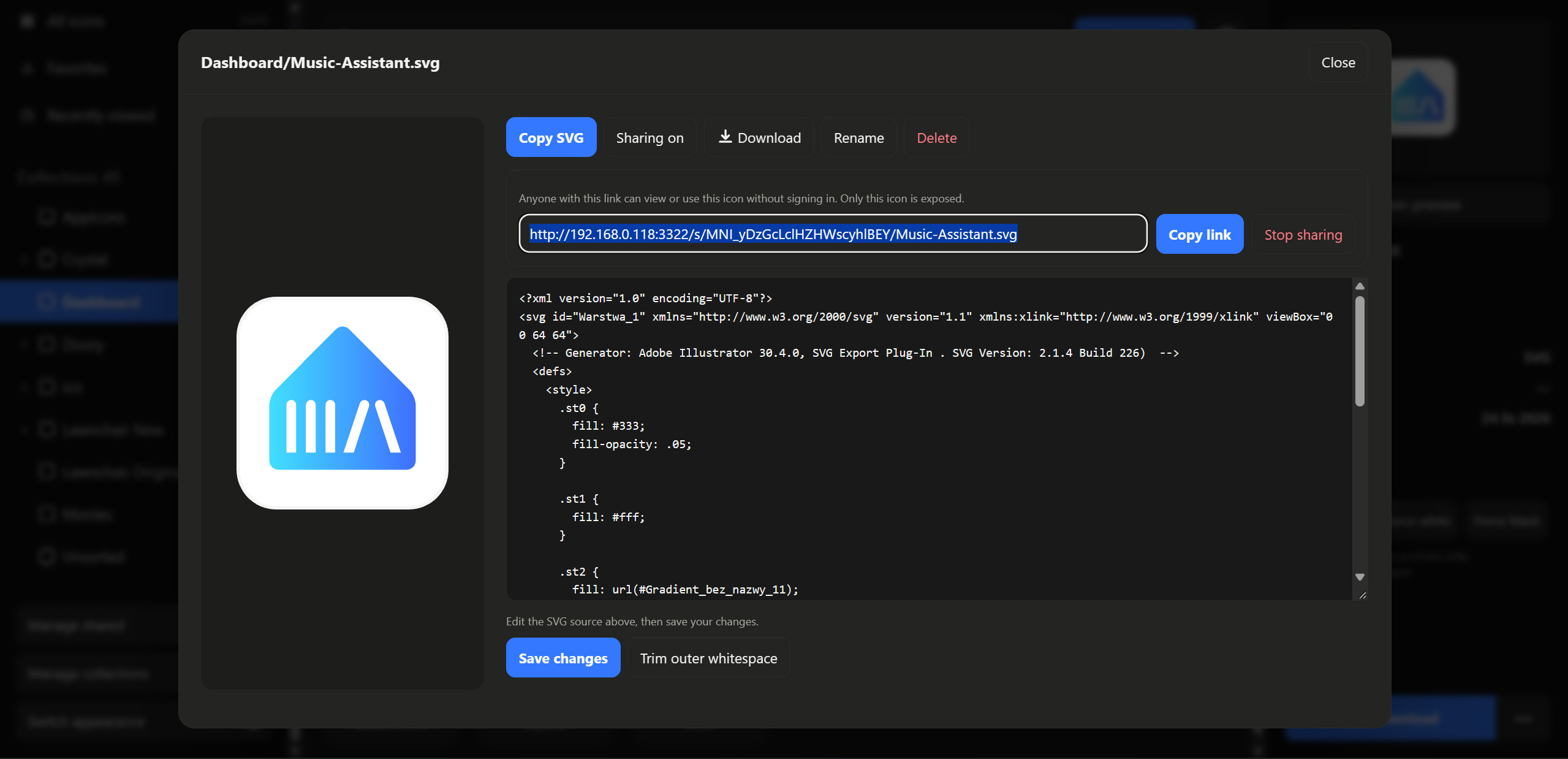
In the right-hand panel, Share creates a public link (and opens the device share sheet where supported) and Copy link copies it. In the ••• window, Share does the same and shows the link with a blue Copy link button and Stop sharing. Links look like https://your-host/s/<token>/icon.svg.
- Anyone with the link can view that one icon without signing in. Nothing else is exposed.
- Tokens are random and unguessable. Stop sharing, or Manage shared, revokes them.
- Links follow an icon when it is renamed or moved, and are removed when it is deleted.
- Stored in
icons/.icon-shelf-shares.json. - For links to work outside your network, Icon Shelf itself must be reachable (reverse proxy / HTTPS).
Two-factor authentication
Go to Settings → Two-factor authentication → Set up 2FA, scan the QR code with a TOTP app, and enter the 6-digit code. Save the 8 recovery codes you are shown.
- Sign-in then needs the password and a 6-digit (or recovery) code.
- Disable it in Settings with your password and a current or recovery code.
- Stored in
icons/.icon-shelf-2fa.json. - Locked out? Stop the container, delete that file, and start again. Password-only sign-in returns.
- Share links are unaffected by the password and 2FA.
- Trust this device for 48 hours (sign-in checkbox) skips the 2FA code on that browser; the password is still required. Cleared whenever 2FA is turned on or off.
No login on the local network (optional)
Settings → Access → No login on local network (off by default). Devices on private addresses (10.x, 172.16–31.x, 192.168.x, 127.x, IPv6 equivalents) skip sign-in. Everyone else still needs the password and 2FA.
- Requests with proxy headers (
X-Forwarded-For,X-Real-IP,Forwarded,CF-Connecting-IP, …) are never treated as local. - Do not enable it if you port-forward to the internet and Docker hides visitors’ real IPs.
- Stored in
icons/.icon-shelf-settings.json; delete it to turn the setting off. ICON_SHELF_PASSWORDis still required to start the container.
Backup and restore
Settings → Backup → Download backup saves a JSON file with your display settings, the no-login-on-local-network setting and all share links. Restore from backup… loads one back (it replaces the current settings and share links). Passwords, two-factor secrets and the icon files themselves are not included.
Display settings
Settings → Display has three options. Choices are stored in the browser and included in backups.
- Grid icon size: choose how large the cards appear in grid view. Options: Compact, Default.
- Icon size: make the icon itself larger inside its tile (the area that turns blue when selected). Options: Default, Large, Extra large.
- Two columns in list view: show list view in two columns on wider screens.
Performance settings
ICON_SHELF_RESCAN_SECONDS(default300, minimum30,0= off): how often the whole library is re-read as a safety net for changes made outside Icon Shelf. Icon Shelf’s own uploads, moves, renames and deletes update instantly regardless. Lower it if you edit the icons folder by hand on a mount that doesn’t report changes.
Faster loading with HTTP/2 (optional)
A page of icons loads many small images. Over plain HTTP the browser fetches about 6 at a time; over HTTPS with HTTP/2 it fetches them in parallel.
- Use your existing reverse proxy (Caddy, Nginx Proxy Manager, Traefik) with HTTP/2 enabled, or use the bundled Caddy front end:
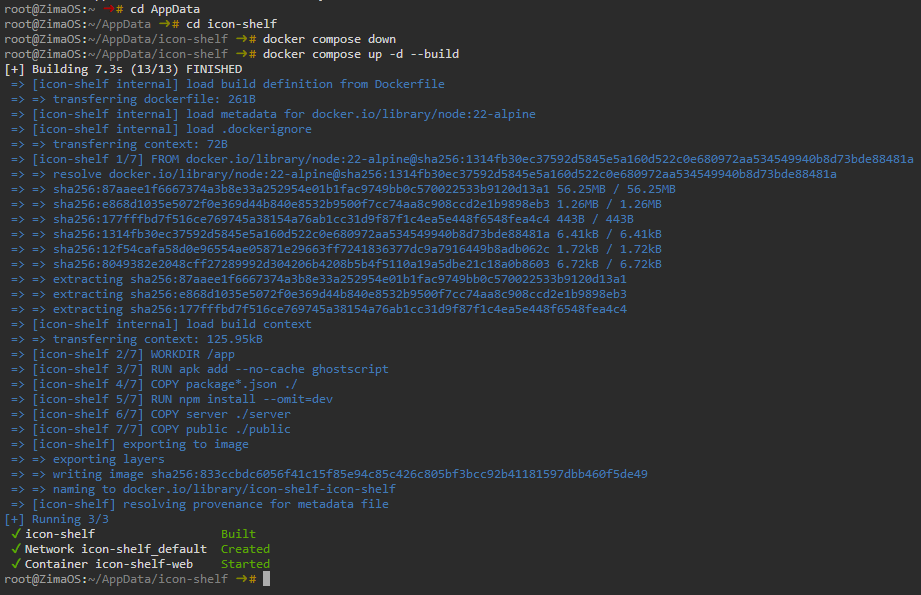
docker compose -f docker-compose.yml -f docker-compose.https.yml up -d --build, then openhttps://<your-host>:3322. - The bundled proxy uses its own certificate, so the browser shows a warning until you trust Caddy’s local CA (or you use a proxy with a real certificate).
- Any proxy adds
X-Forwarded-*headers, so No login on local network will not apply to requests that come through it (see that section). - The bundled files are untested on ZimaOS; the ZimaOS app definition (
IconShelf.yml) is unchanged.